
Add, move and resize blocks
Add blocks to a page by dragging or clicking, then move, resize, duplicate and delete them on the 12-column grid.
Blocks are the building pieces of a page: headings, text, buttons, images, product grids and more. You add them from the Blocks panel, drop them where you want them and drag their edges to change their size.
How blocks are laid out
Each section of a page is a grid of 12 columns. A block takes up one or more columns and one or more rows of that grid. When you drop or resize a block it snaps to the grid, so things line up and the page rearranges cleanly on a phone. You never place a block by exact pixels.
Blocks live inside sections. A page needs at least one section before you can add a block.
Add a block
You can add a block in two ways.
Drag it onto the page
- In the Blocks panel on the left, find the block you want. The groups are Basics, Media, Layout, Store, Marketing and Menus & Forms.
- Press and hold the block, then drag it onto your page.
- Move the pointer over a section. Pale columns appear, and a blue box shows exactly where the block will land and how big it will be.
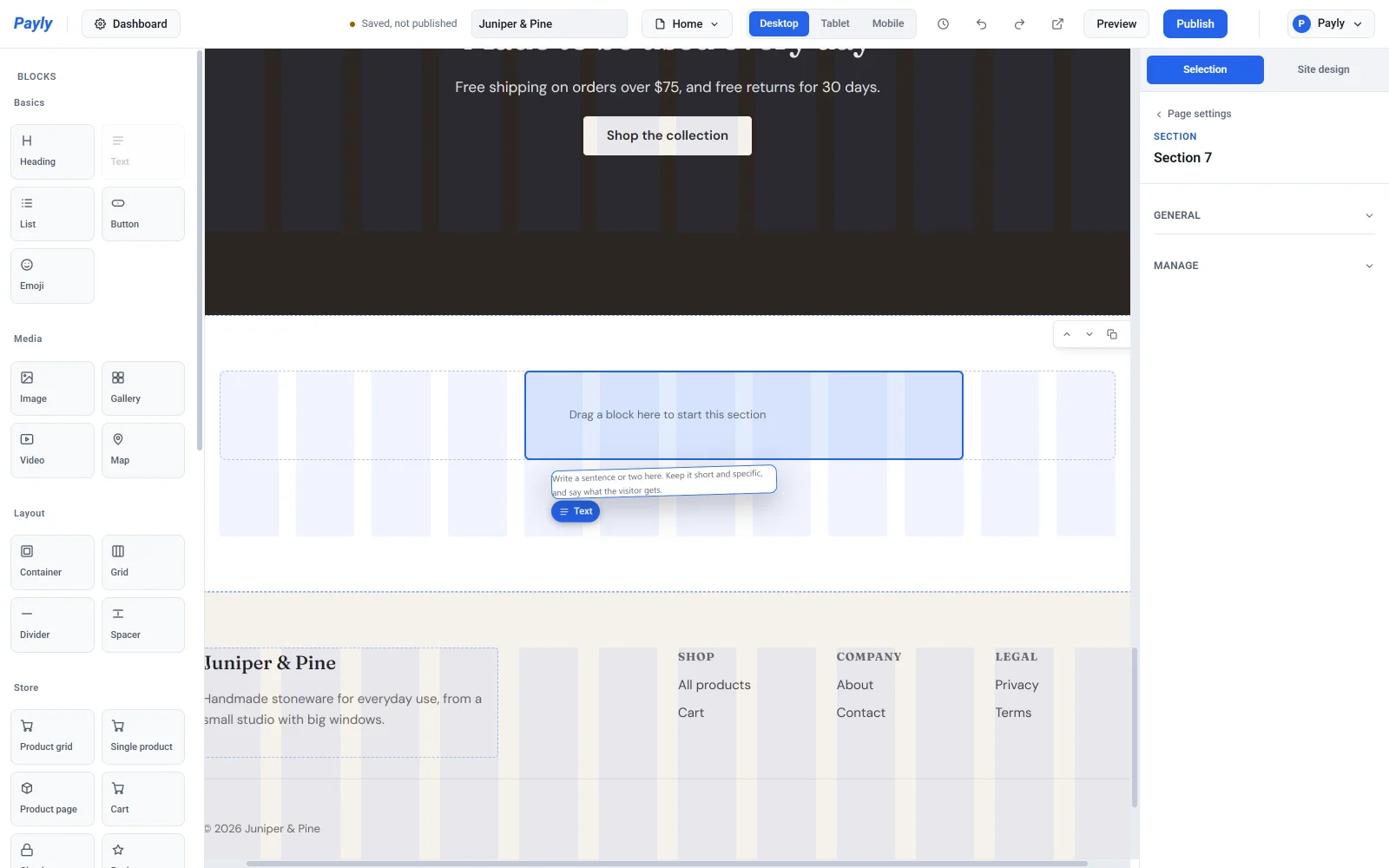
- Release the mouse button. The block appears in the box and is selected, so its settings open on the right.
Note: Drop a block onto empty space. If you drop it onto a spot that another block already uses, the two sit on top of each other. Press Ctrl + Z to undo, or drag the new block somewhere else.
Click it
Click a block in the Blocks panel to add it to the bottom of the section you have selected. If nothing is selected, it goes into the last section on the page. This is the quickest way to build a page from top to bottom.
Select a block
Click a block on the page. It gets a blue outline, two blue resize handles and a small toolbar beside it with three buttons: Duplicate, Rotate and Delete. The settings panel on the right changes to show that block's settings.

Move a block
- Press and hold the block, then drag it. A small copy of the block follows your pointer.
- Watch the blue box to see where it will land.
- Release the mouse button.
You can drag a block into another section, or into a container or grid. Moving a block to a different section is only possible on the Desktop view, because it changes the block on every screen size.
Resize a block
- Click the block to select it.
- Drag the handle on its right edge to change how many columns wide it is. Drag the handle on its bottom edge to change how many rows tall it is.

- Release the mouse button.
Set the size and position with numbers
For exact control, use the settings panel instead of dragging.
- Select the block.
- In the settings panel, click Size and position to open it.
- Use the minus and plus buttons to change Starts at column, Columns wide, Starts at row and Rows tall.
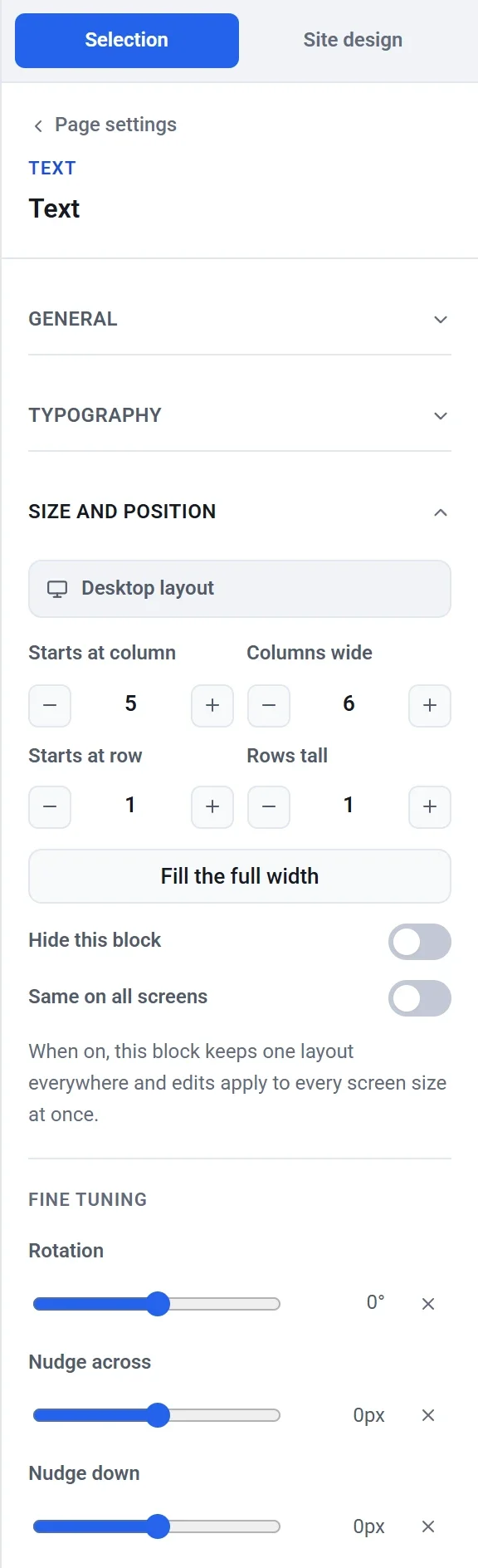
The same group has these extras:
- Fill the full width stretches the block across every column of whatever holds it.
- Hide this block hides the block. On the Tablet and Mobile views the switch hides it on that screen size only. See Make your site look right on phones and tablets.
- Same on all screens keeps one layout for the block on desktop, tablet and phone.
- Fine tuning has Rotation, Nudge across and Nudge down sliders. These tilt or shift the block visually without changing its place in the grid, so nothing around it moves. The small x beside a slider sets it back to zero. You can also rotate by dragging the Rotate button in the block's toolbar around the block. It snaps to straight, and holding Shift snaps it to steps of 15 degrees.
Tip: You can also move a selected block with the keyboard. Ctrl + an arrow key moves it one grid cell, and Ctrl + Shift + an arrow key makes it one cell wider or taller. See The editor at a glance for every shortcut.
Duplicate or delete a block
- To duplicate, select the block and click Duplicate in its toolbar, or press Ctrl + D. The copy appears just below the original.
- To delete, select the block and click Delete in its toolbar, or press Delete. You can also open Manage in the settings panel and click Duplicate or Delete there.
Deleting a block does not ask you to confirm. If you delete one by mistake, click Undo in the top bar.