
Track and manage stock
Count how many of each product you have, set a low stock alert, choose what happens at zero, and update counts from the Stock screen.
Stock tracking lets Payly count how many of a product you have. It lowers the count when someone buys, tells shoppers when only a few are left, and stops sales when you run out. You turn it on for each product, so you can track a limited batch of plates and leave a made-to-order item untracked.
Turn on stock tracking for a product
- In your site dashboard, click Products, then click the product. For a new product, click Add Product instead.
- Scroll down to Track stock and turn it on.
- Enter how many you have in Units in stock.
- Enter a number in Low stock alert at. When the count falls to this number or below, the product is marked as low. The starting value is 2. Enter 0 for no low stock alert.
- Under When out of stock, choose what happens at zero:
- Stop selling stops sales at zero. This is the default.
- Keep selling (backorder) keeps taking orders, and the count can go below zero to show how many you owe customers.
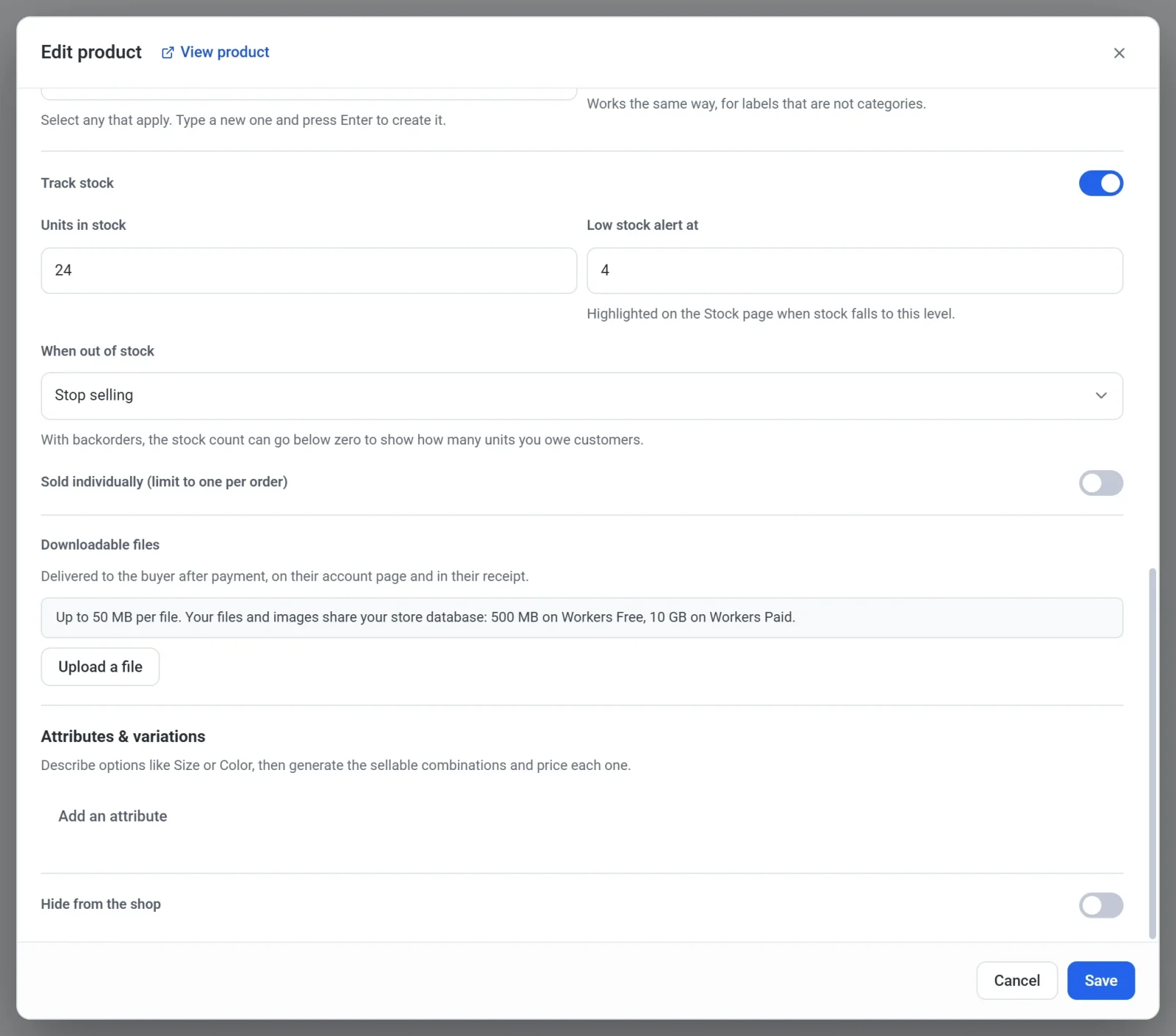
- Optionally turn on Sold individually (limit to one per order) if shoppers should never buy more than one of the product in a single order.
- Click Save.
Products with options can count stock for each option instead. See Offer sizes, colors and other options. Subscription products have no stock settings.
How the count changes
- The count goes down when an order is paid, whether the customer paid at checkout or you created a paid order by hand. An order that is still unpaid does not use up stock.
- When you refund an order in Payly, you can put its items back in stock by leaving Put the refunded items back in stock ticked. See Refund an order. Payly does not put items back when you cancel an order, or when you refund it in your Stripe or PayPal dashboard. If an item returns to your shelf then, add it back yourself.
- At checkout, a shopper cannot buy more than you have. If the cart asks for more, Payly lowers the quantity and says so. If nothing is left, checkout stops that item and says it is out of stock. This does not apply when you choose to keep selling at zero.
What shoppers see
On a product page with tracked stock, shoppers see a short note under the price:
- In stock while the count is above your low stock alert.
- Only 2 left (with the real number) once the count reaches the alert level.
- Out of stock at zero. The Add to cart button then turns gray and reads Out of stock.
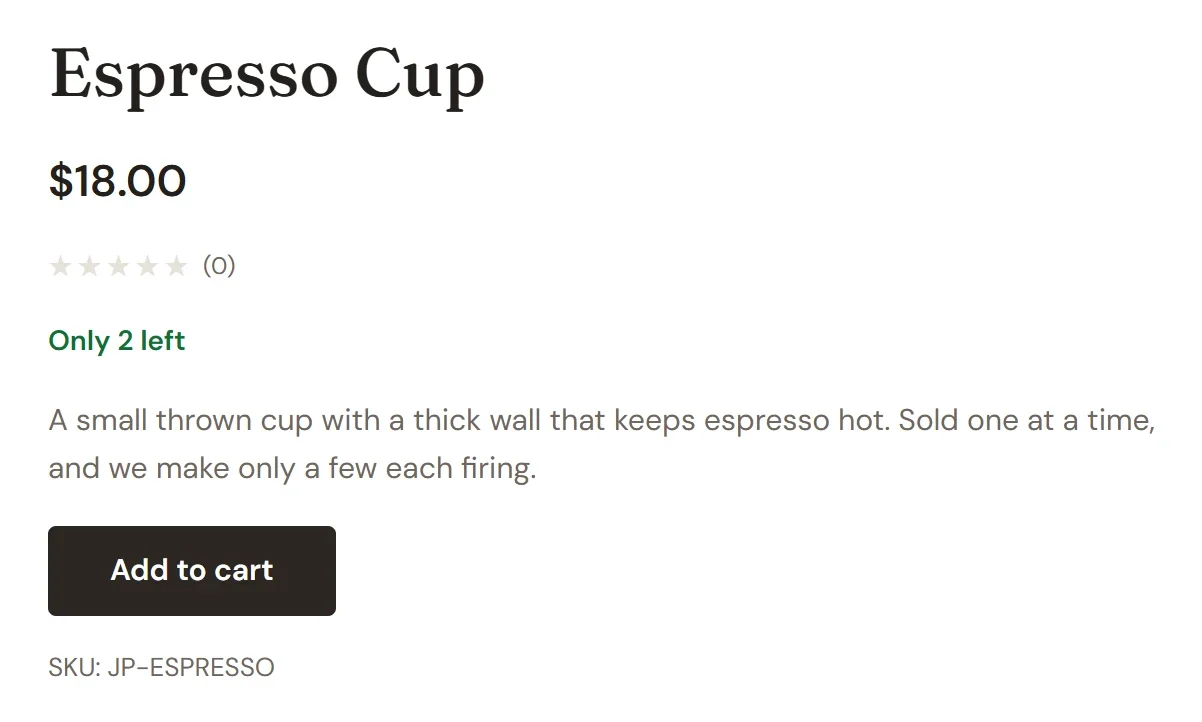
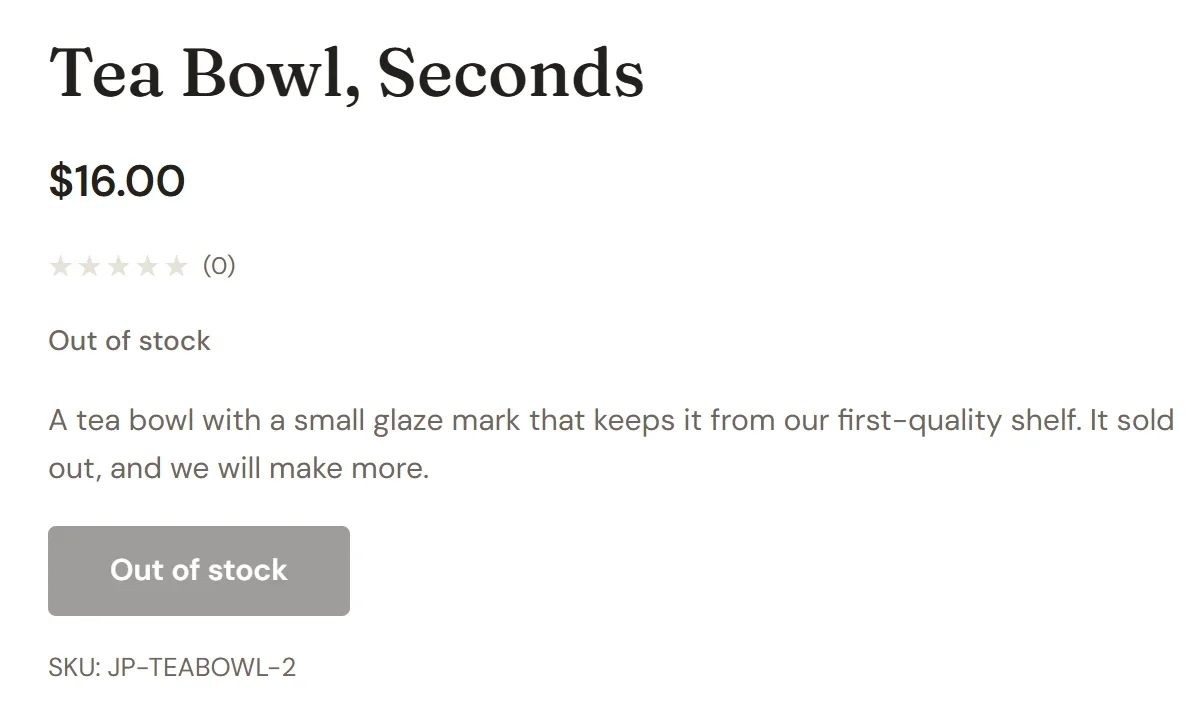
If you choose Keep selling (backorder), shoppers see no stock note and can keep ordering. Options that count their own stock show no stock note either. A shopper who asks for more than you have is told at checkout.
See and edit all your stock in one place
- In your site dashboard, click Stock under Products.
- Find the product. Each tracked product, and each tracked option of a product, has its own row with a status and a count. Use the search box to find one by product name or SKU.
- Click the number in a row, type the new count and press Enter. Payly saves it and updates the status.
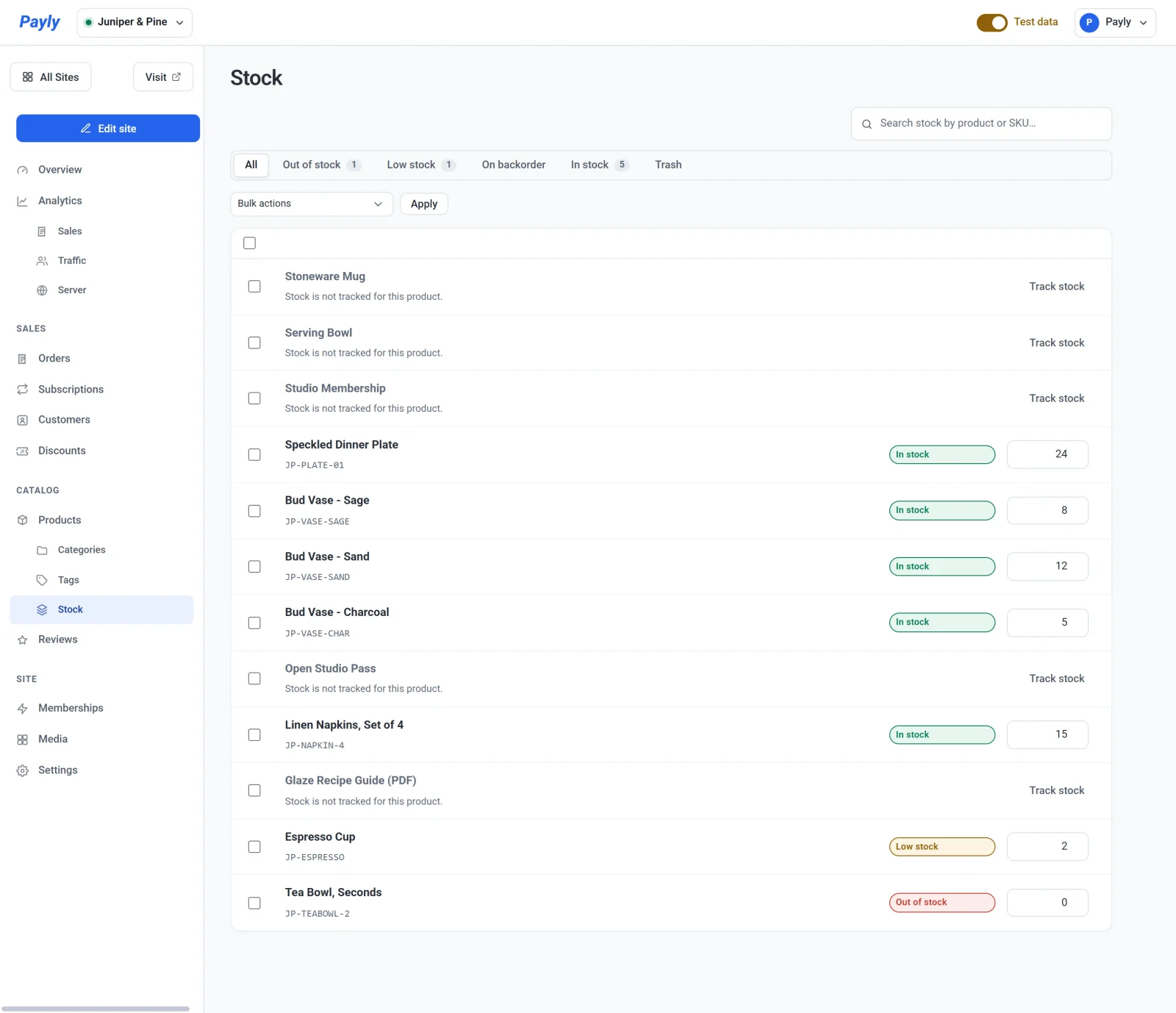
- To start counting a product that is not tracked yet, click Track stock on its row.
The tabs above the list filter it by status: Out of stock, Low stock, On backorder (the count is below zero) and In stock. A number beside a tab tells you how many rows it holds.
Tip: Open the Low stock tab once a week to see what to make or reorder.