
Choose your store's language
Set the language your shoppers see on buttons, the cart, checkout, account pages and order emails, separately from the language you use in Payly.
Your store has its own language, which you choose once. It decides the words Payly writes on your store for you, such as Add to cart, the checkout form and the emails customers receive. It is separate from the language you read Payly in, so you can run your dashboard in English and sell in German.
Choose the language
- In your site dashboard, click Settings. The General tab opens.
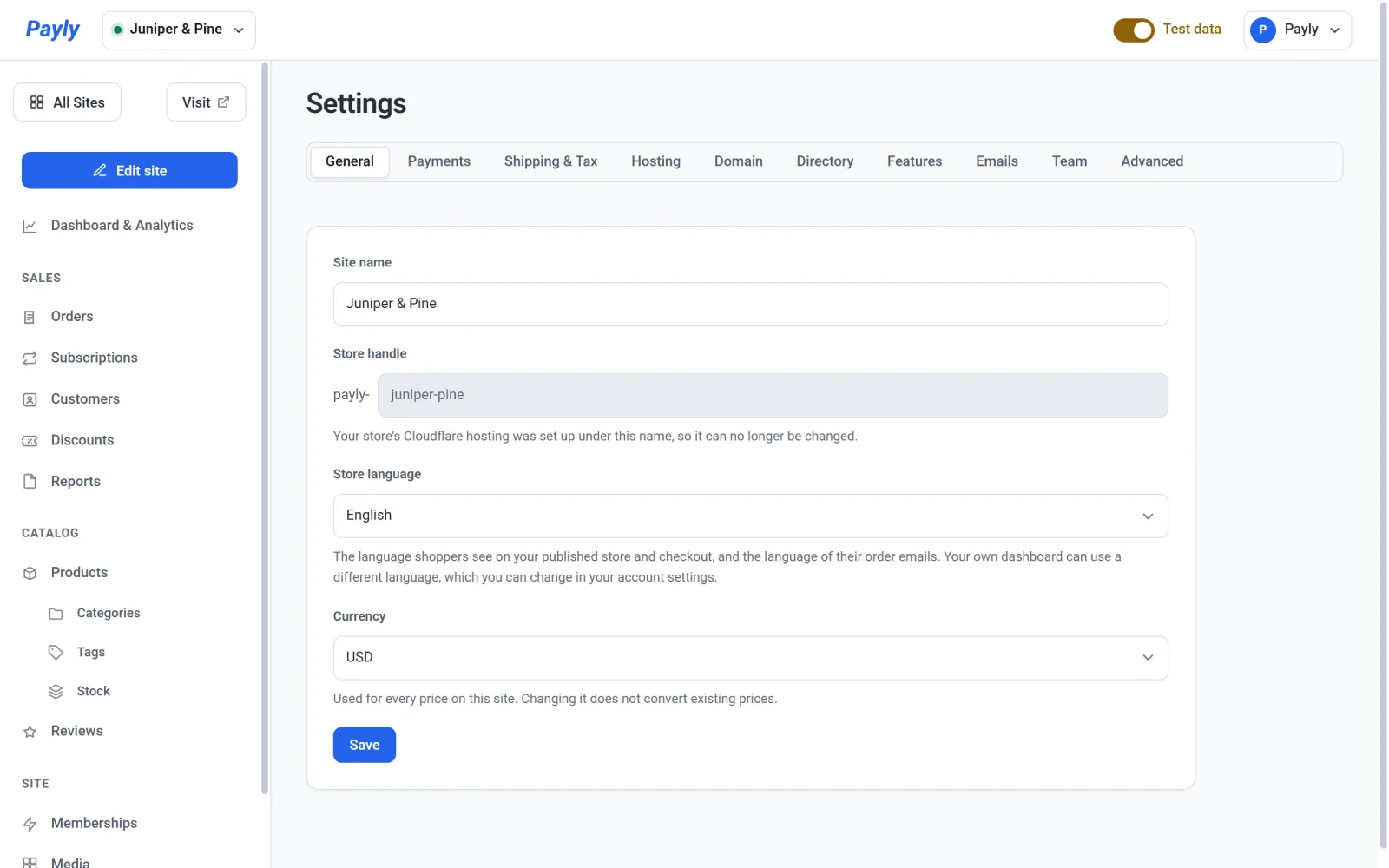
- Find Store language.
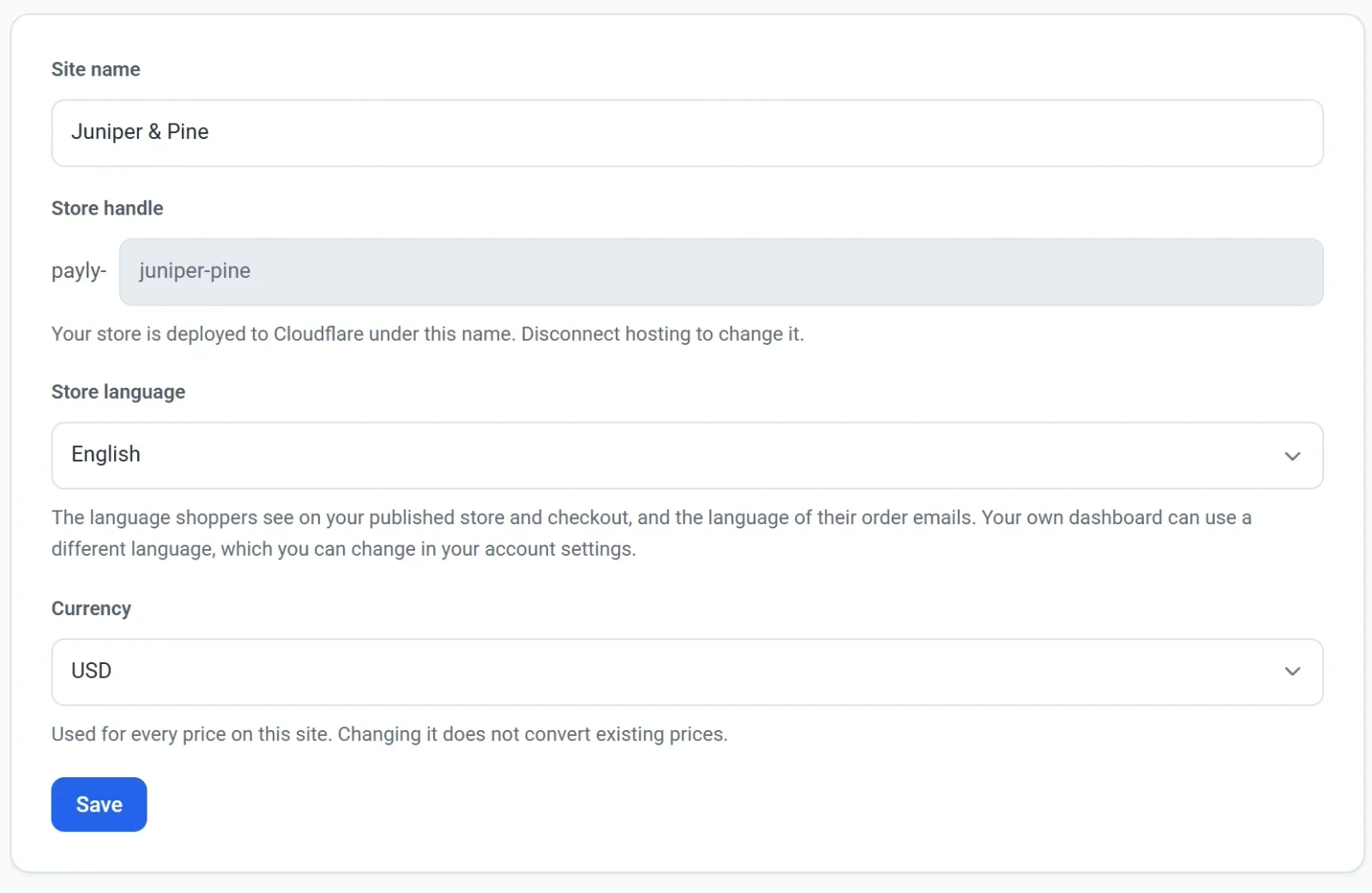
- Choose a language from the list.
- Publish your store so your pages use it. In the editor, click Publish.
The language is saved as soon as you choose it. The Save button on that screen is for the site name and store handle.
Available languages
You can choose from English and these languages:
- Deutsch (German)
- Español (Spanish)
- Français (French)
- Italiano (Italian)
- Nederlands (Dutch)
- Polski (Polish)
- Português (Brasil) (Portuguese)
- Svenska (Swedish)
- Türkçe (Turkish)
- 한국어 (Korean)
- 日本語 (Japanese)
- 简体中文 (Simplified Chinese)
The list is sorted by name. A store starts in English until you choose another language.
What changes
The store language changes the words and number formats that come from Payly:
- Buttons and labels on your pages, such as Add to cart, Back to shop, Continue shopping and the filter buttons and page controls on your shop.
- The cart and checkout, including form labels, error messages and the order confirmation page.
- Customer account pages, where shoppers sign in and see their orders and subscriptions.
- Messages from your forms, such as the thank-you shown when a shopper sends a contact form, unless you wrote your own message.
- Emails to your customers, such as order confirmations.
- Prices and numbers, which use the usual style for that language, for example which mark separates the decimals.
- The payment pages from Stripe and PayPal also open in the store language where they support it.
What stays the same
- Everything you write yourself. Headings, text, product names and descriptions, button labels you typed, menu links and category names stay exactly as you wrote them. Payly does not translate them. If you want a German store, write your own text in German too.
- Your own dashboard and the editor. They use the language set in your account settings. See Manage your account settings.
- Your currency. Changing the language does not change it. See Set your store currency.
Tip: After you change the language, open your published store and click through the shop, cart and checkout to see the new wording in place. If a phrase has no translation yet, the store shows it in English rather than leaving a gap.