
Set up sales tax
Add the tax rates you must collect, by country, state or postcode, and choose whether each rate also applies to shipping.
Sales tax in Payly is a percentage that checkout adds on top of your prices for customers in the places you choose. You enter the rates you are required to collect, and Payly works out the tax on every order and includes it in the total the customer pays.
Note: Payly does not look up tax rates for you, and it does not file or pay tax on your behalf. Check what you must collect with an accountant or your tax authority.
Add a tax rate
- In your site dashboard, click Settings, then click the Shipping & Tax tab.
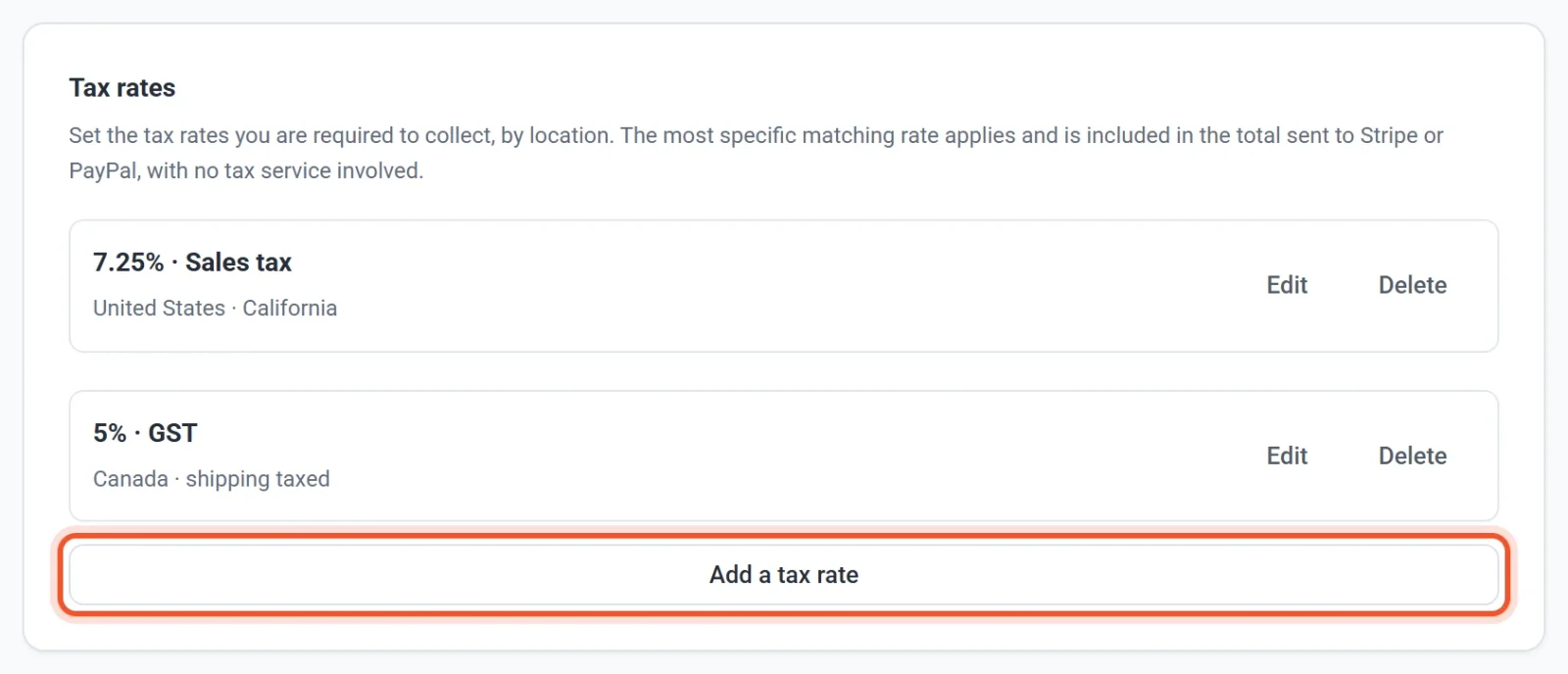
- Scroll to Tax rates and click Add a tax rate.
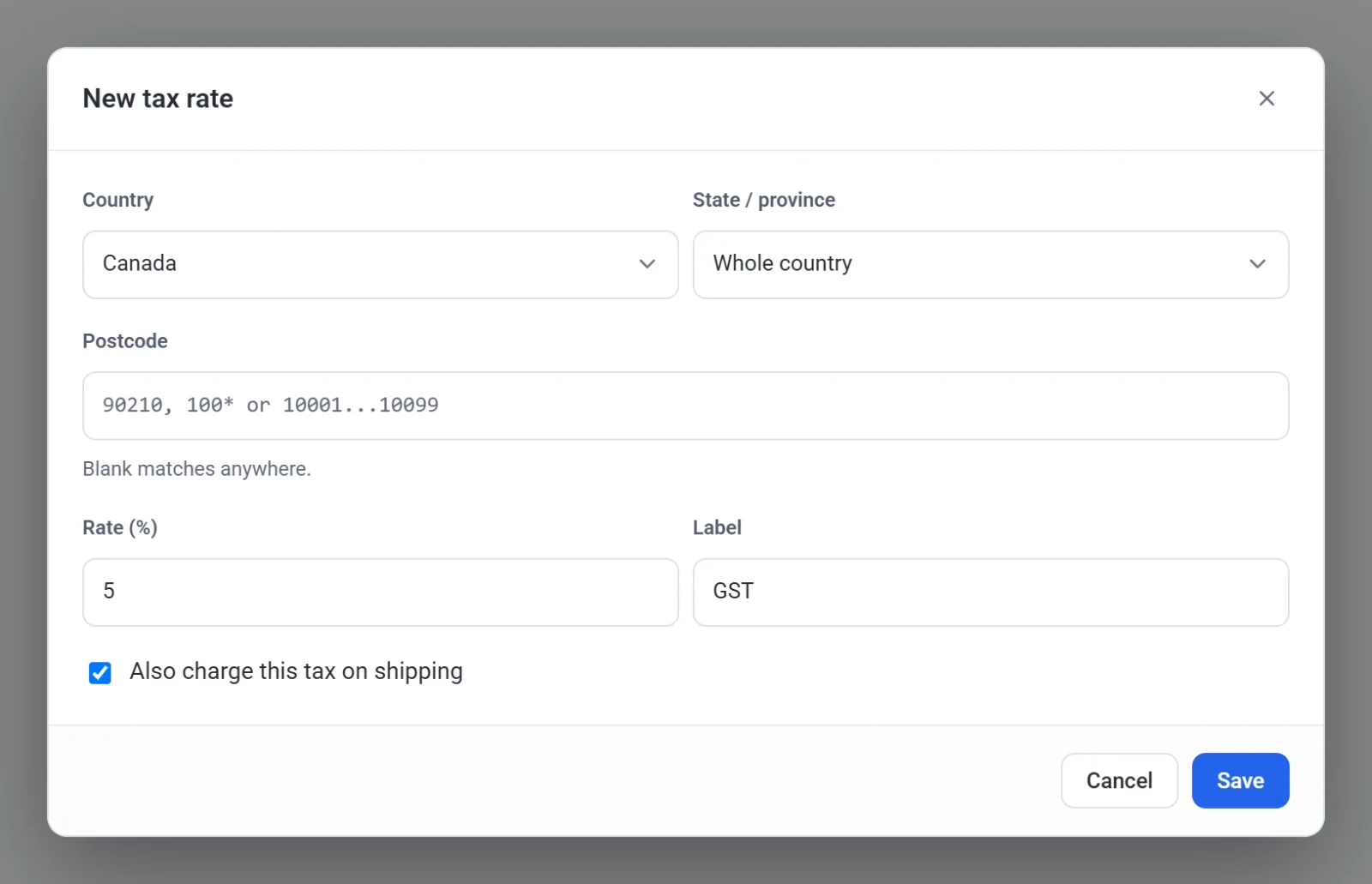
- Choose the Country the rate applies to. Any country matches every country.
- Optional: narrow the rate to one state or province. Choose it from State / province, or leave Whole country selected. For a country without a list, type the state or region code instead.
- Optional: narrow the rate to certain postcodes in Postcode. Use an exact postcode (
90210), a prefix with a star (100*) or a range (10001...10099). Leave it blank to match anywhere. - Enter the Rate (%) as a plain percentage. Type
7.25for 7.25%. The rate must be greater than zero. - Enter a Label, such as "Sales tax", "VAT" or "GST". Payly sends it to Stripe as the name of the tax line. Your own checkout, emails and order pages call the line Tax. If you leave the label empty, Payly uses "Tax".
- Tick Also charge this tax on shipping if the tax applies to shipping charges where you sell. Leave it unticked if it does not.
- Click Save.
The new rate takes effect at checkout straight away. You do not need to publish your site.
How Payly picks a rate
Only one rate applies to an order. Payly finds every rate that matches the customer's address and uses the most specific one: a rate with a postcode beats a rate with a state, and a rate with a state beats a rate for the whole country. Rates never add up. If two taxes apply in one place, such as a state and a county tax, enter their combined percentage as a single rate.
For example, suppose you add a rate of 6% for the United States and a rate of 7.25% for California. A customer in California pays 7.25%, not 13.25%. A customer in any other state pays 6%. A customer in a country with no matching rate pays no tax.
Customers choose their country from a list at checkout, and their state or province from a list too, for countries that have them. Payly matches the address to your rates.
What the tax is charged on
- The price of the items, after any discount code.
- Shipping, only when the rate has Also charge this tax on shipping ticked.
Your prices are never changed. Tax is always added on top of them, so Payly has no setting for prices that already include tax.
One rate for every order
If you sell in one place, you can skip the list and type a single percentage in the Tax rate (%) box at the top of the Shipping & Tax tab. It is charged on every order, for any address, but only while you have no tax rates by location. As soon as you add one, the box stops being used.
Edit or delete a rate
Click Edit beside a rate to change it, then click Save. Click Delete to remove a rate. It is removed at once, without a confirmation.