
Collect and moderate product reviews
Let signed-in customers rate your products, choose whether reviews go live at once or wait for approval, and approve, reject or reply to each one.
Product reviews let customers rate what they bought and say what they thought. Reviews appear on your product pages, and the average rating appears next to each product in your shop. Only customers who are signed in to your store can write one, so you do not get anonymous spam.
Turn reviews on or off
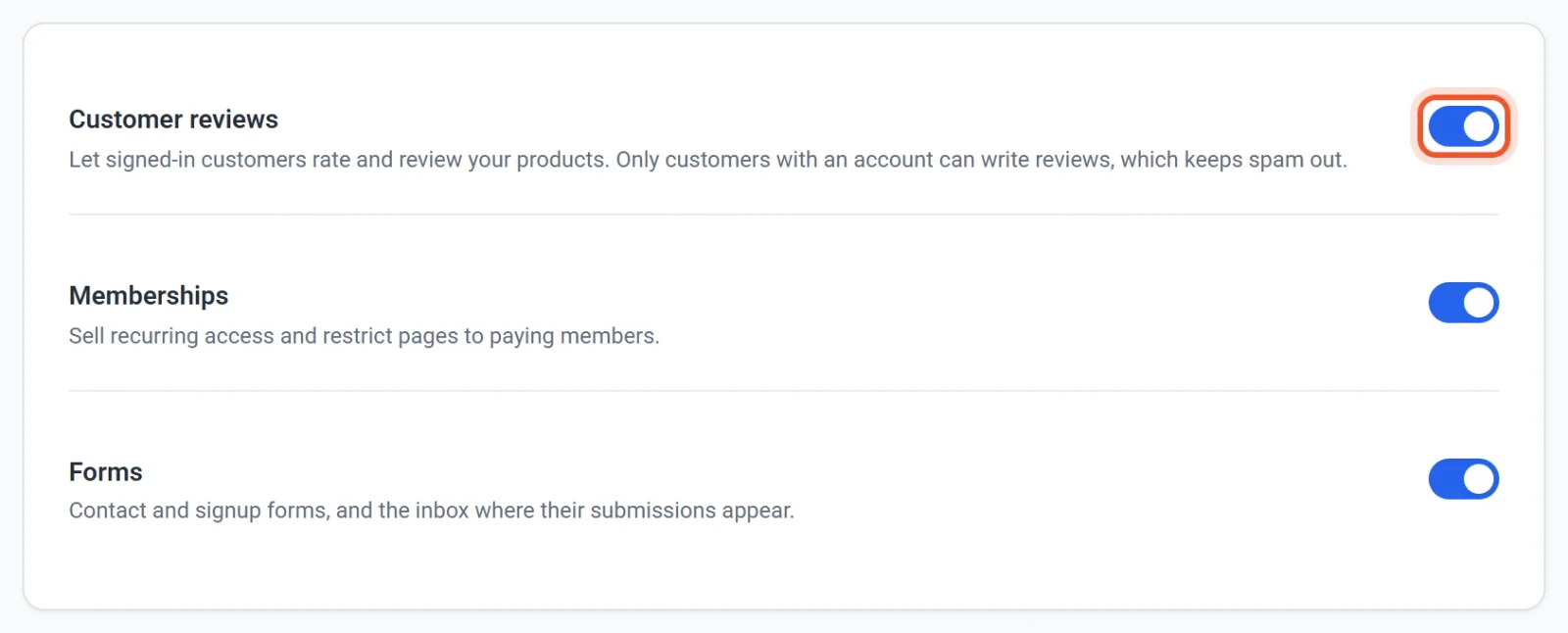
Reviews are on for every new store. To change that, go to Settings > Features and use the Customer reviews switch. Switching it off removes reviews from your menu and your published site, and nothing is deleted. Turning it back on restores everything.
Choose how new reviews are handled
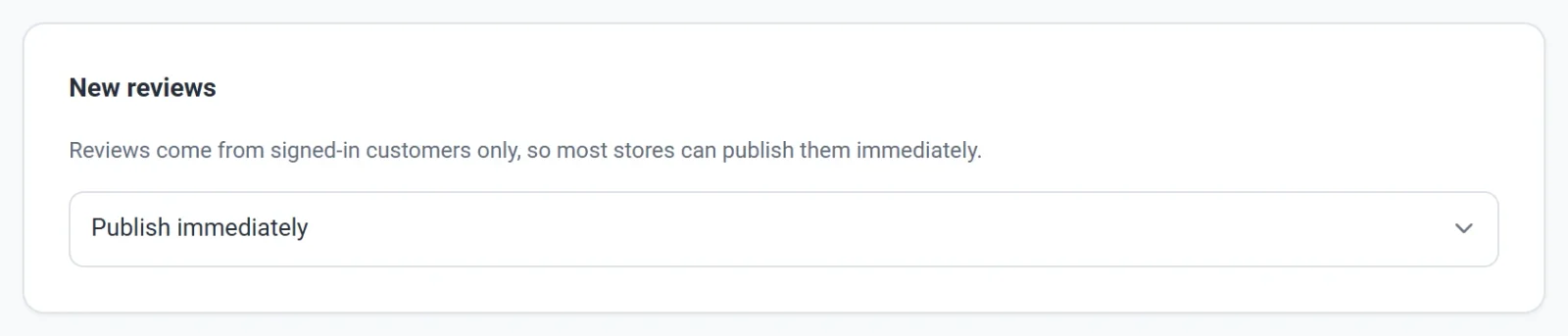
On the same Features tab, New reviews decides what happens when a customer posts a review:
- Publish immediately shows the review on your site straight away. This is the default, and it suits most stores because every reviewer is signed in.
- Hold for my approval keeps each new review out of sight until you approve it. The customer sees a message that the review will appear once the store has approved it.
Where reviews show on your site
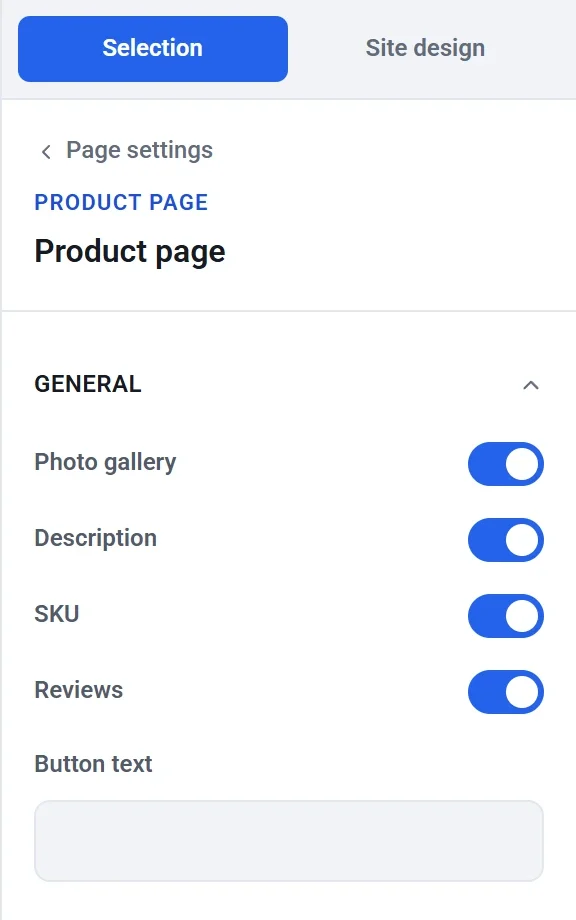
The Product page block shows a Customer reviews section under each product, and a star rating beside the price. To hide it, select the Product page block on your Product template page in the editor and turn off Reviews. The setting applies to every product, because every product uses the same layout.
You can also place a separate Reviews block on any page. It has a product picker, a heading, a switch to show the rating summary and a switch to let customers write reviews.
A new review appears as soon as it is published, without you publishing your site again, because reviews load when someone opens the page.
What customers do
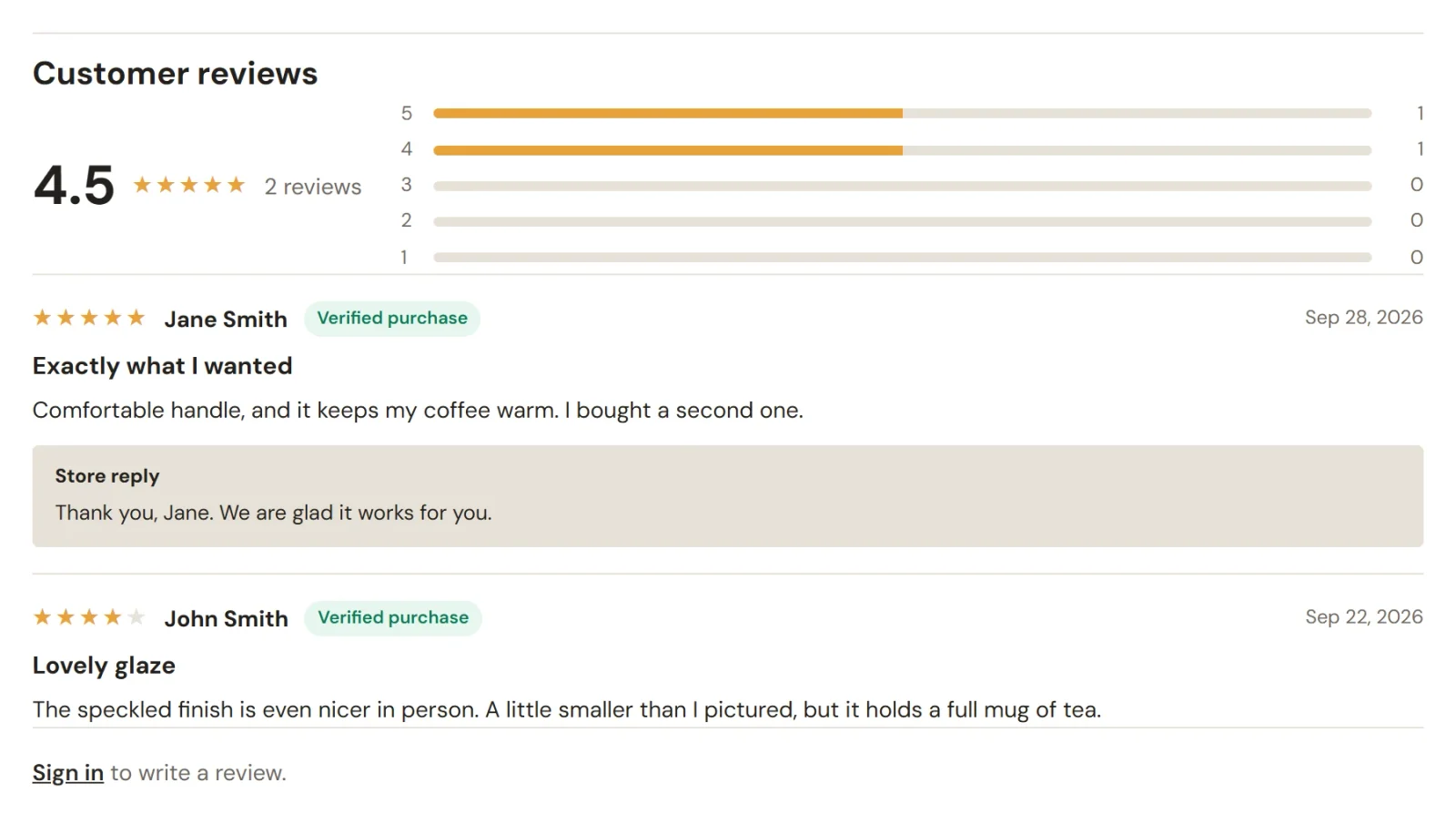
- The customer opens a product page. Under Customer reviews they see the average rating, a bar for each star count, and the published reviews, newest first. If they are not signed in, the section ends with a Sign in link instead of a form.
- After signing in to their store account (see How customer accounts and sign-in work), the section shows a Write a review form. They choose 1 to 5 stars, add an optional title and write what they thought.
- They click Post review.
Each customer has one review per product. Writing again changes their earlier review instead of adding a second. Reviews show the customer's name, or the first part of their email address if you have no name for them. A Verified purchase label appears when the customer has a paid order for that product. If you reply to a review, your answer appears under it in a box labeled Store reply. A title can have up to 120 characters and a review up to 4,000.
Approve, reject and reply
Click Reviews in your site dashboard. The tabs sort reviews into Awaiting approval, Published and Rejected, and you can filter by star rating and by product or search by text, author or product. The list works like every other list in your dashboard (see Search, filter and bulk-edit lists).
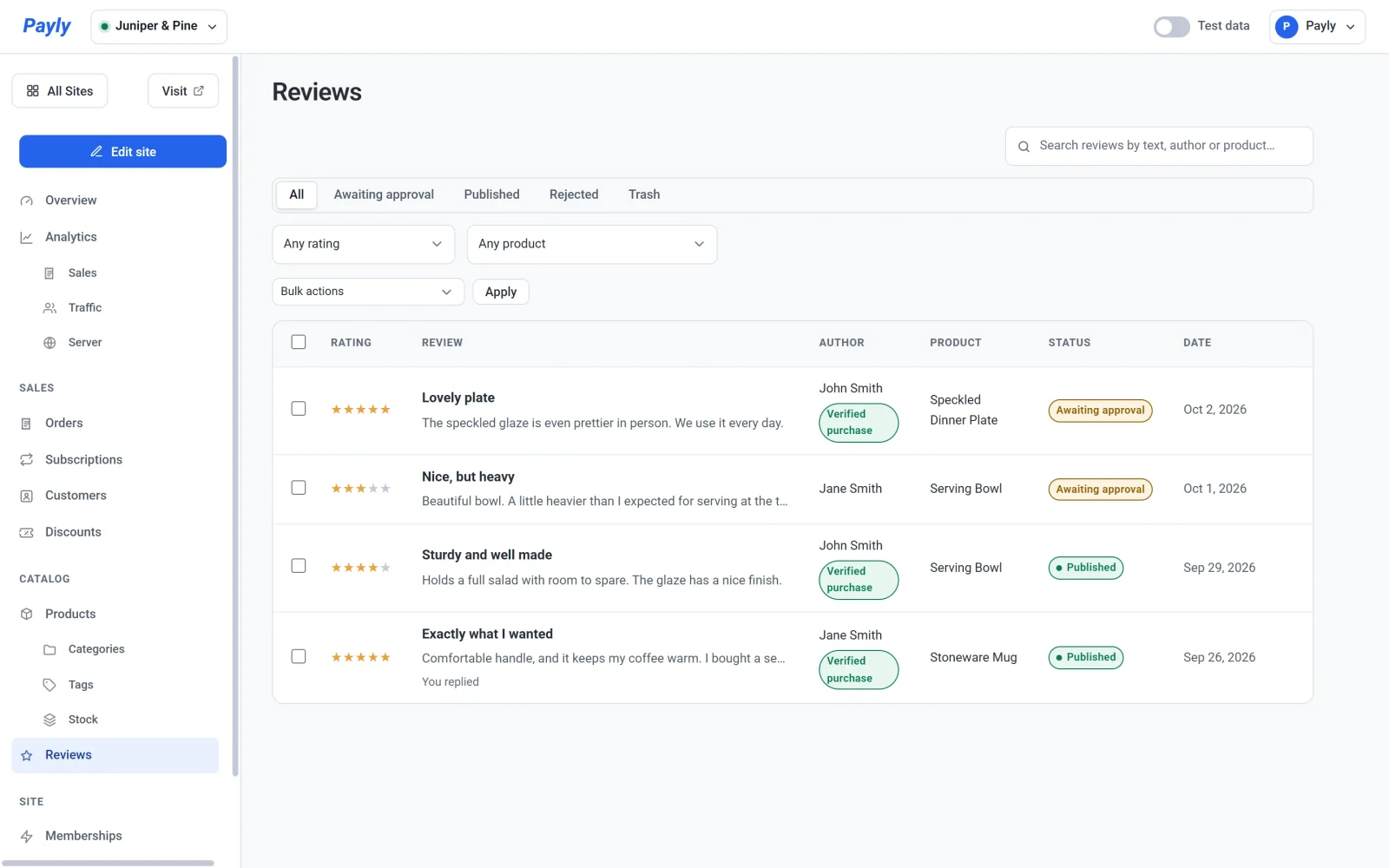
Each row shows the stars, the title and the start of the review, who wrote it and, if they have a paid order for the product, a Verified purchase label. It also shows the product, the status and the date. You replied appears under a review you have answered.
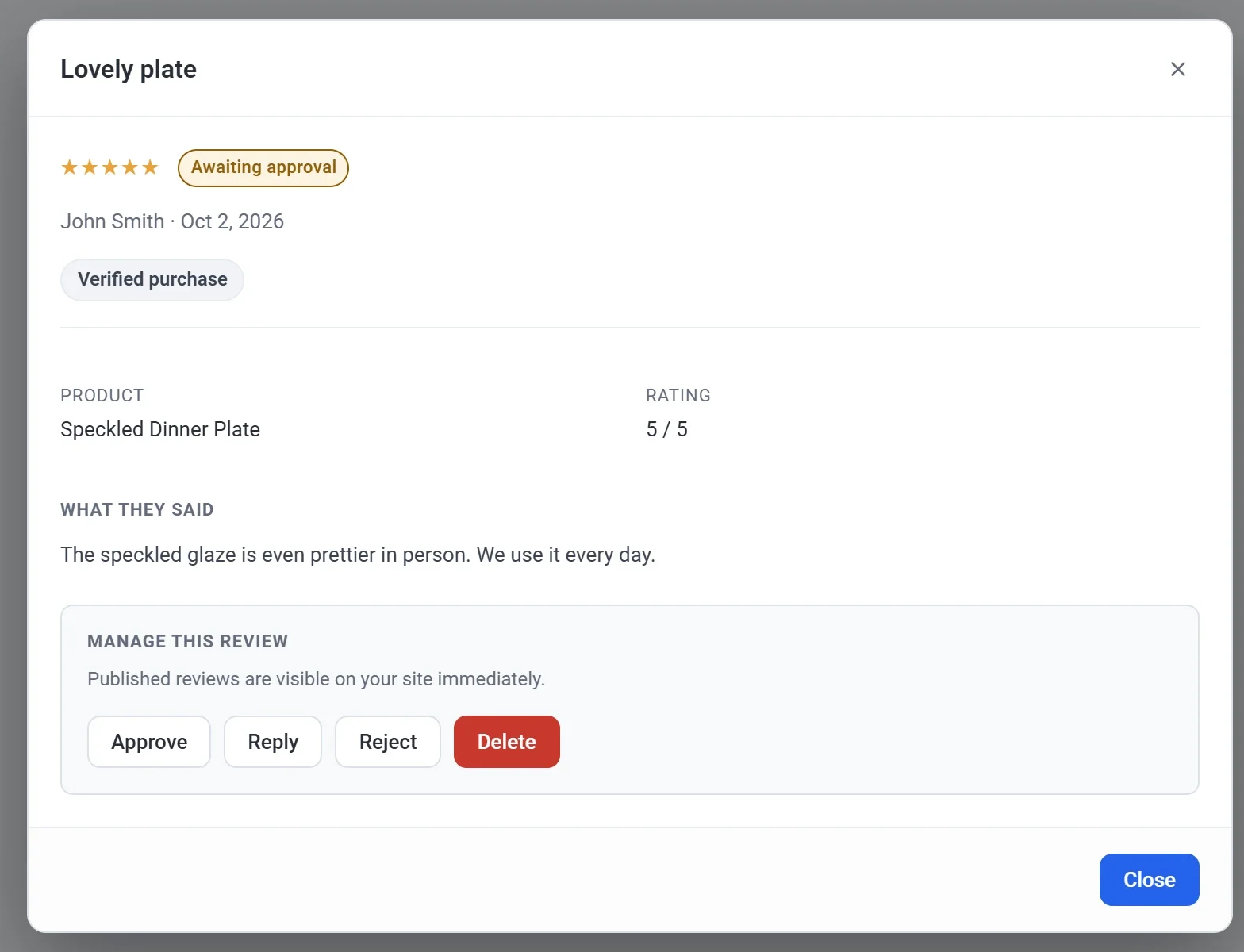
Click a review to open it. You can then:
- Click Approve to publish it, or Reject to hide it. A rejected review stays rejected even if its author edits it later. Approve is missing on a review that is already published, and Reject on one that is already rejected.
- Click Reply to answer publicly. Your reply appears under the review as a store reply. To remove it, click Edit reply and save it empty.
- Click Delete to remove the review for good. To hide a review without deleting it, reject it instead.
To handle several reviews at once, tick them, choose Approve, Reject or Move to pending under Bulk actions and click Apply.