
Shipping & Tax settings
Set flat shipping, free shipping and a tax rate on the Shipping & Tax tab, or charge by location with shipping zones and tax rates.
The Shipping & Tax tab is where you set what shoppers pay for shipping and tax. You can keep it simple, with one flat shipping amount and one tax rate, or you can charge by location with shipping zones and tax rates. Your currency is on the General tab, and every amount here is in that currency.
Open the Shipping & Tax tab
- In your site dashboard, click Settings.
- Click the Shipping & Tax tab.
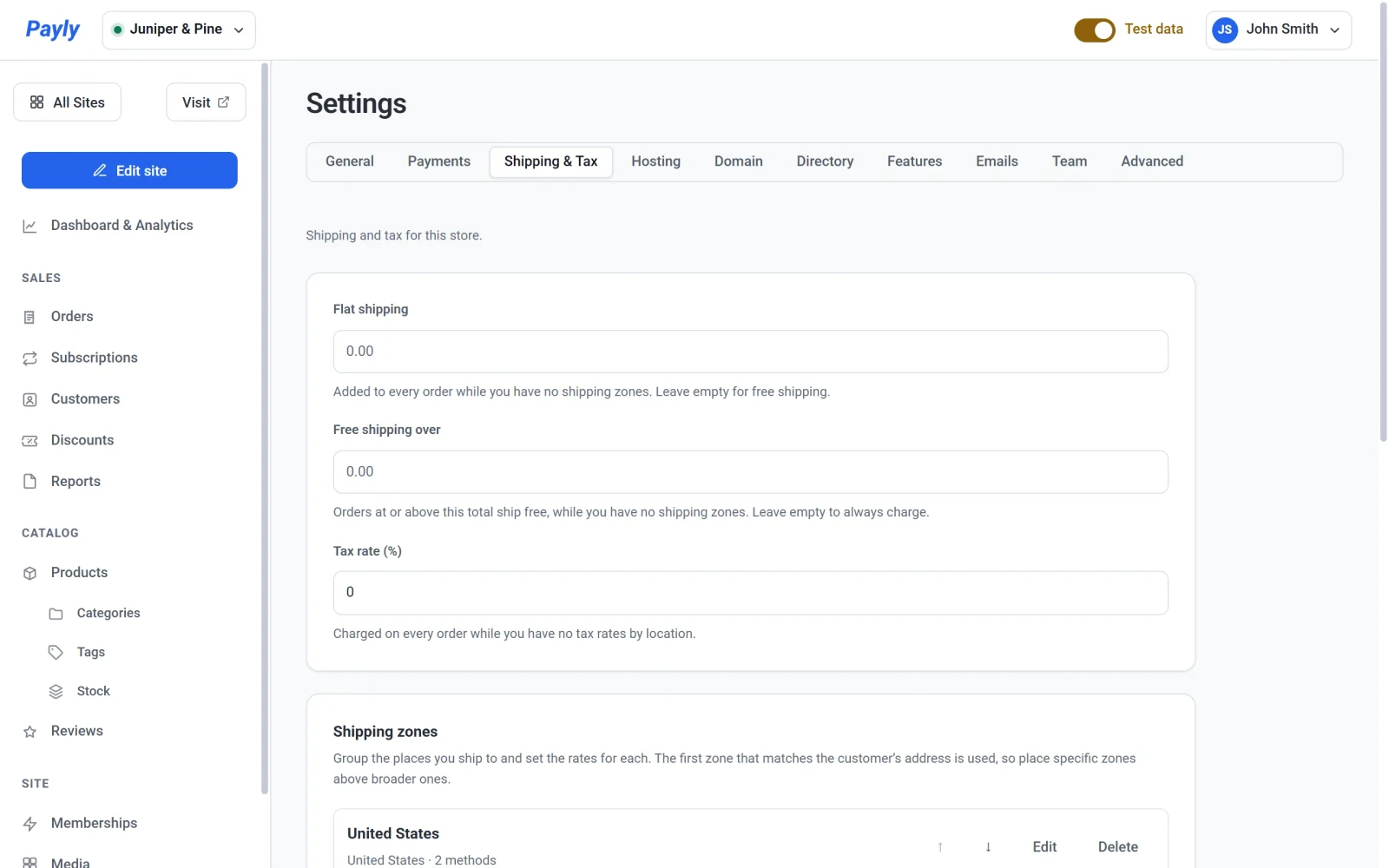
The simple settings
The three fields at the top apply to every order, but only until you set up the detailed version of the same thing.
- Flat shipping is added to every order while you have no shipping zones. Leave it empty for free shipping.
- Free shipping over makes orders at or above this total ship free, while you have no shipping zones. Leave it empty to always charge.
- Tax rate (%) is charged on every order while you have no tax rates by location. Enter a percentage, for example
8.25.
If you add even one shipping zone, the two shipping fields stop applying and the zones decide. If you add a tax rate by location, the Tax rate (%) field stops applying in the same way.
Shipping zones
A shipping zone groups the places you ship to, such as a country, some states or a range of postcodes, and sets the shipping methods and prices for them. Payly uses the first zone, from the top, that matches the customer's address. Use the arrows to move a zone up or down, Edit to change it, Delete to remove it, and Add a shipping zone to create another.
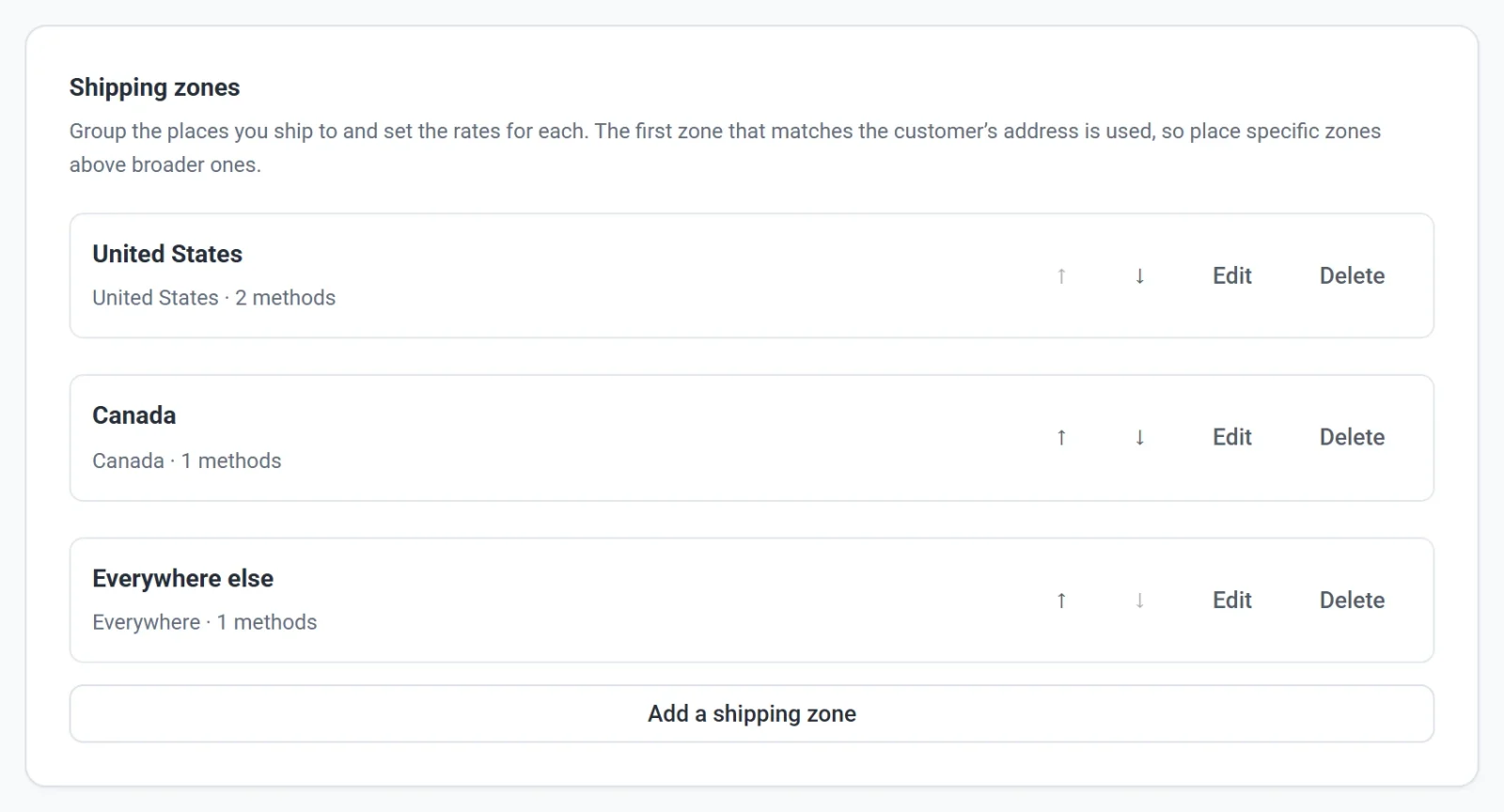
To set up zones and their methods step by step, see Set up shipping zones and Shipping methods and rates.
Tax rates
The Tax rates card lets you collect different tax in different places. Click Add a tax rate and choose where it applies. When more than one rate matches a customer, the most specific one is used. The tax is added to the total sent to Stripe or PayPal, so the customer pays it at checkout.
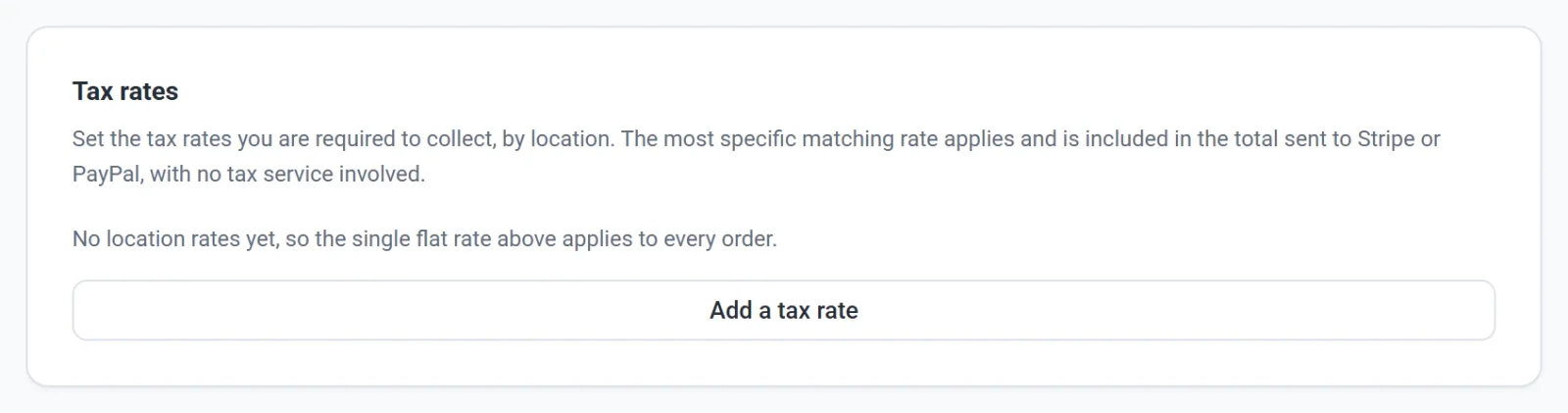
For the full steps, see Set up sales tax and How tax is shown and charged at checkout.
How saving works
The Shipping & Tax tab has no Save button. The three fields at the top save on their own a moment after you stop typing. The shipping zone and tax rate windows have their own Save buttons.
Note: Payly does not work out what tax you owe. You decide which rates apply to your business and enter them yourself. If you are unsure what to charge, ask an accountant or your local tax authority.