
Delete a site
Permanently delete a site and everything in it from the Advanced settings tab, or take your store offline instead if you may want it back.
Delete a site when you no longer need it, for example a test site or a store you have closed. Deleting is permanent, so read what it removes before you start.
Before you delete
- Only the owner can delete a site. That is the person whose Payly account created it. Team members cannot delete it, whatever their role.
- Deleting cannot be undone. Copy down anything you need first, because orders, customers, reviews and form responses are deleted with the site.
- Cancel active subscriptions first. Deleting a site does not cancel the subscriptions your customers hold in Stripe or PayPal, so they could keep renewing. See View and manage subscriptions.
- Keep Cloudflare connected. Payly removes your store from Cloudflare only while it can still reach your account. See the last section.
What deleting removes and what it keeps
Deleting a site removes:
- In Payly: the site's pages, products, design and settings, plus its orders, customers, subscription records, reviews, form responses and analytics.
- In your Cloudflare account: the store that Payly deployed there, including its images and its link to your custom domain. Payly's access to your account is withdrawn.
Deleting a site keeps:
- Your Payly account and your other sites.
- Your Cloudflare account and everything in it that Payly did not create. Your domain name stays yours, and only its link to the store is removed.
- Your Stripe and PayPal accounts, with the payments, payouts and customer records in them.
Delete a site
- On the Your sites screen, click Dashboard on the site you want to delete.
- Go to Settings > Advanced.
- Under Delete this site, click Delete site.
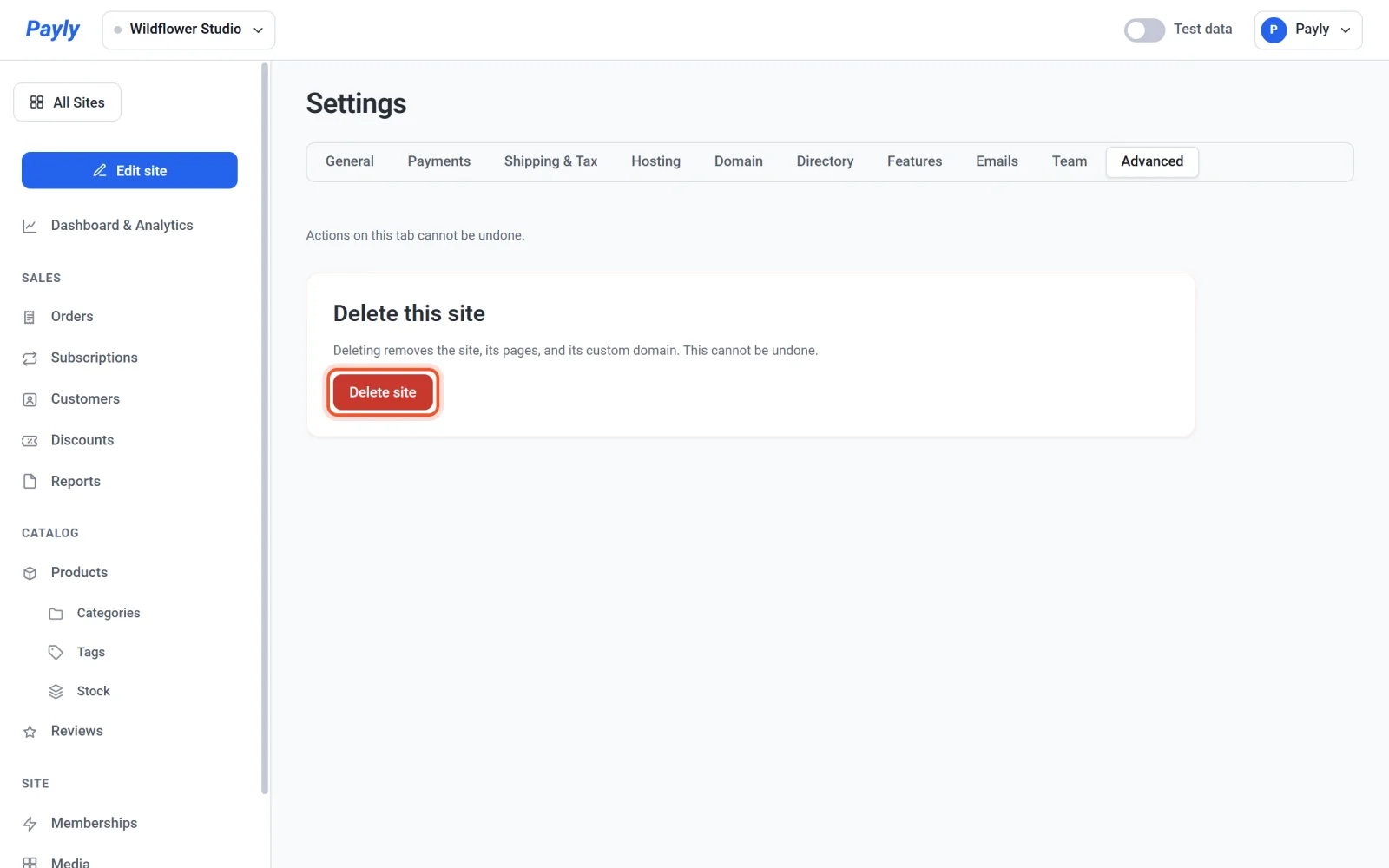
- Read the message in the Delete this site? dialog, then type
DELETEin capital letters. The Delete site button stays disabled until the word matches.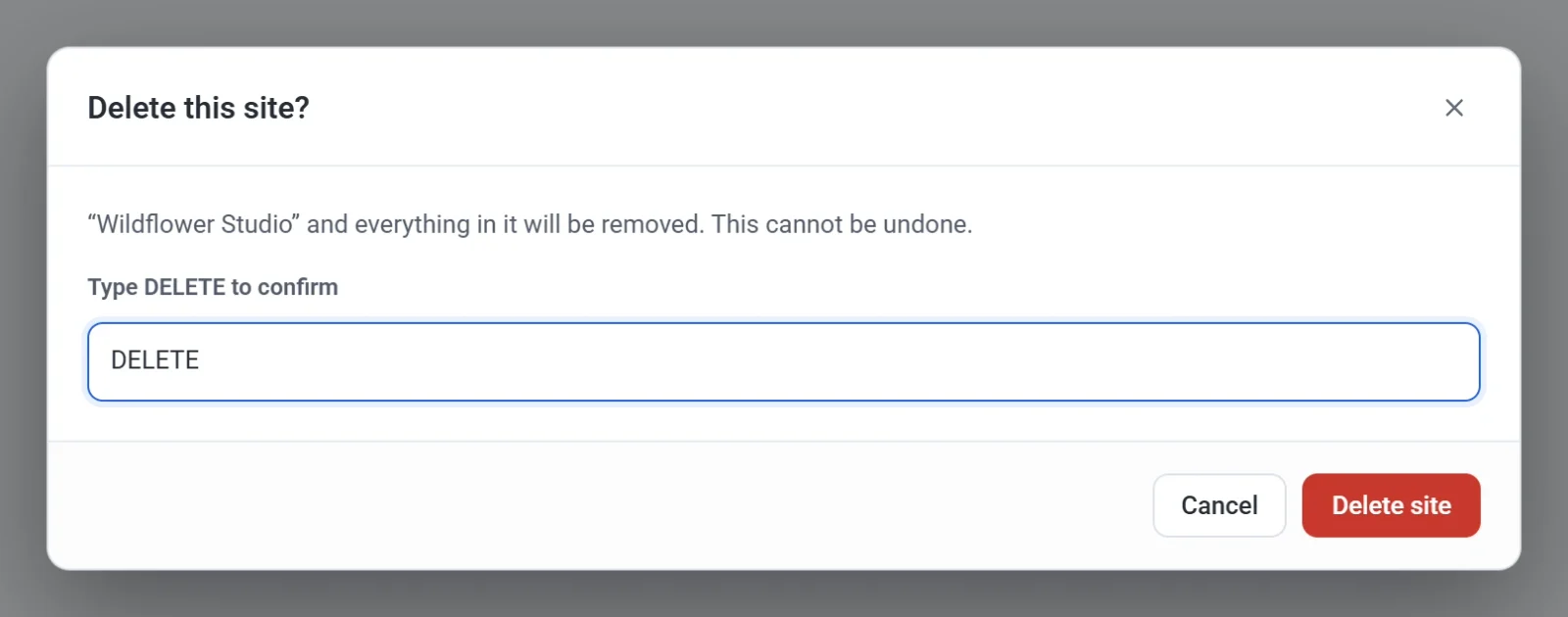
- Click Delete site. Payly deletes the site and returns you to the Your sites screen.
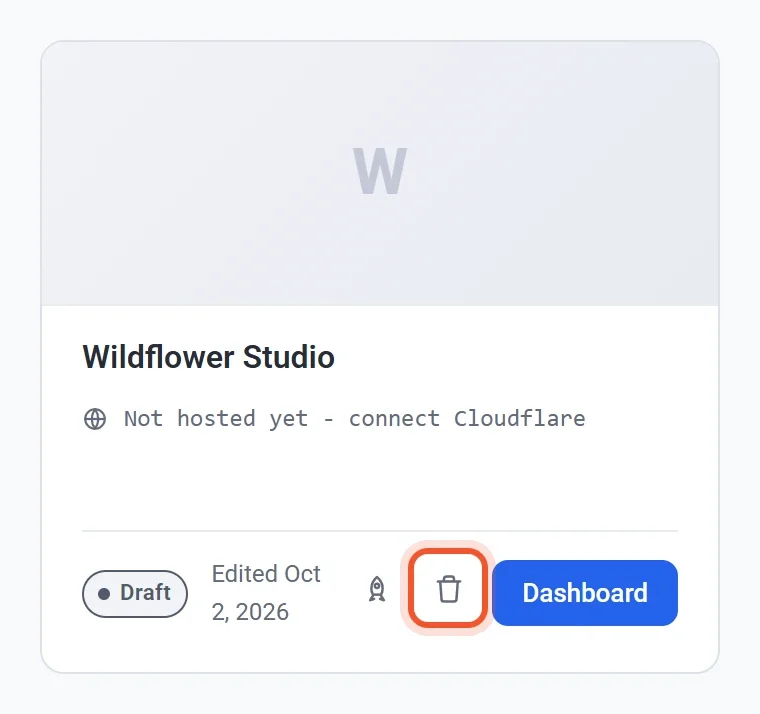
You can also delete a site from the Your sites screen. Click the trash button on the site's card, then confirm in the same dialog.
Take a site offline instead
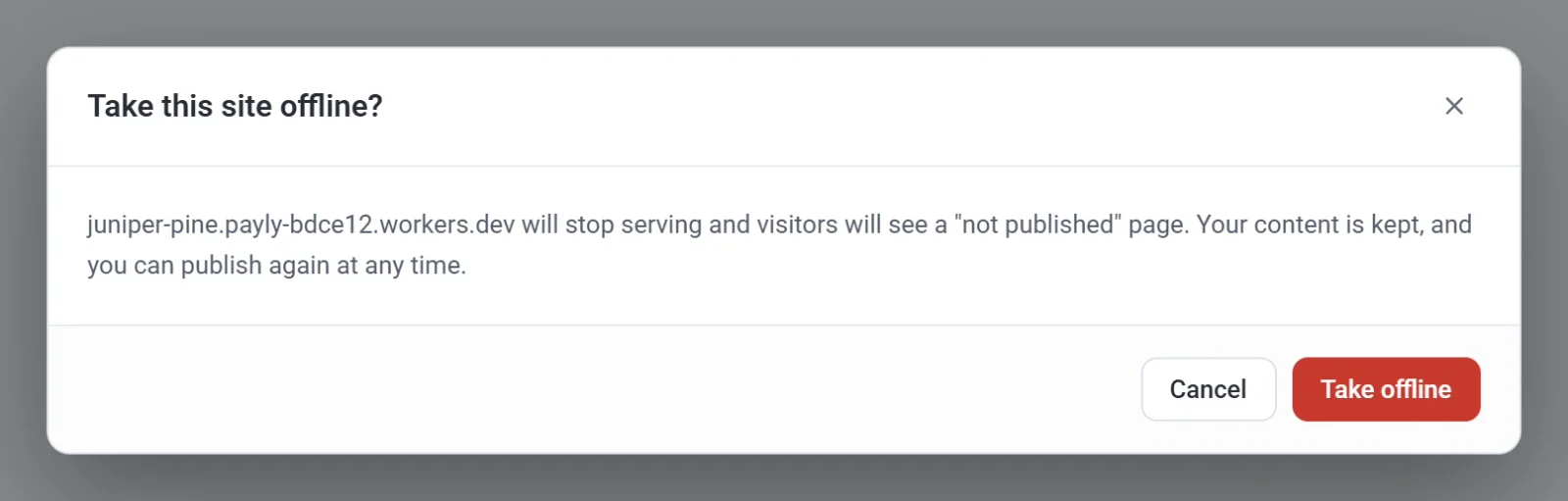
If you only want to pause your store, take it offline. Visitors then see a "not published" page, and everything you built is kept. You can publish again at any time.
- In your site dashboard, click Dashboard & Analytics. It opens on the Overview tab.
- Click Take offline.
- In the Take this site offline? dialog, click Take offline.
Taking a site offline is only possible after it has been published. For more, see Publish, update and take your site offline.
If Payly cannot reach your Cloudflare account
Payly removes the store from your Cloudflare account while the connection works. If you disconnected Cloudflare, or withdrew Payly's access in Cloudflare, before you delete the site, Payly cannot remove the store there. The site is still deleted in Payly, but the store stays in your Cloudflare account until you delete it yourself in your Cloudflare dashboard. To avoid this, delete the site while Cloudflare is still connected.