
Take test payments with test mode
Turn on test mode to place practice orders through Stripe and PayPal test accounts, so you can try your checkout without moving real money.
Test mode lets you try your store the way a customer would, without real money moving. While it is on, checkout uses separate test connections to Stripe and PayPal instead of your live ones, so you can place orders, see them in your dashboard and check your emails before you take real payments.
Important: While test mode is on, your store takes no real payments, and customers see a notice saying so. Turn test mode off before you open your store to customers.
How test mode works
- You have a switch for test mode in Settings > Payments. It affects checkout straight away. You do not need to publish your store.
- Stripe and PayPal can each hold two connections to your store: a live one and a test one. The cards on the Payments tab always show the connection for the mode your store is in, and test connections carry a Test label.
- Switching modes never deletes a connection. Your live connection comes back when you turn test mode off, and your test connection comes back the next time you turn it on.
Turn on test mode and connect test accounts
- In your site dashboard, click Settings, then click the Payments tab.
- Turn on the Test mode switch. A message confirms that checkout now uses your sandbox connections, and a Test mode is on label appears beside the heading.
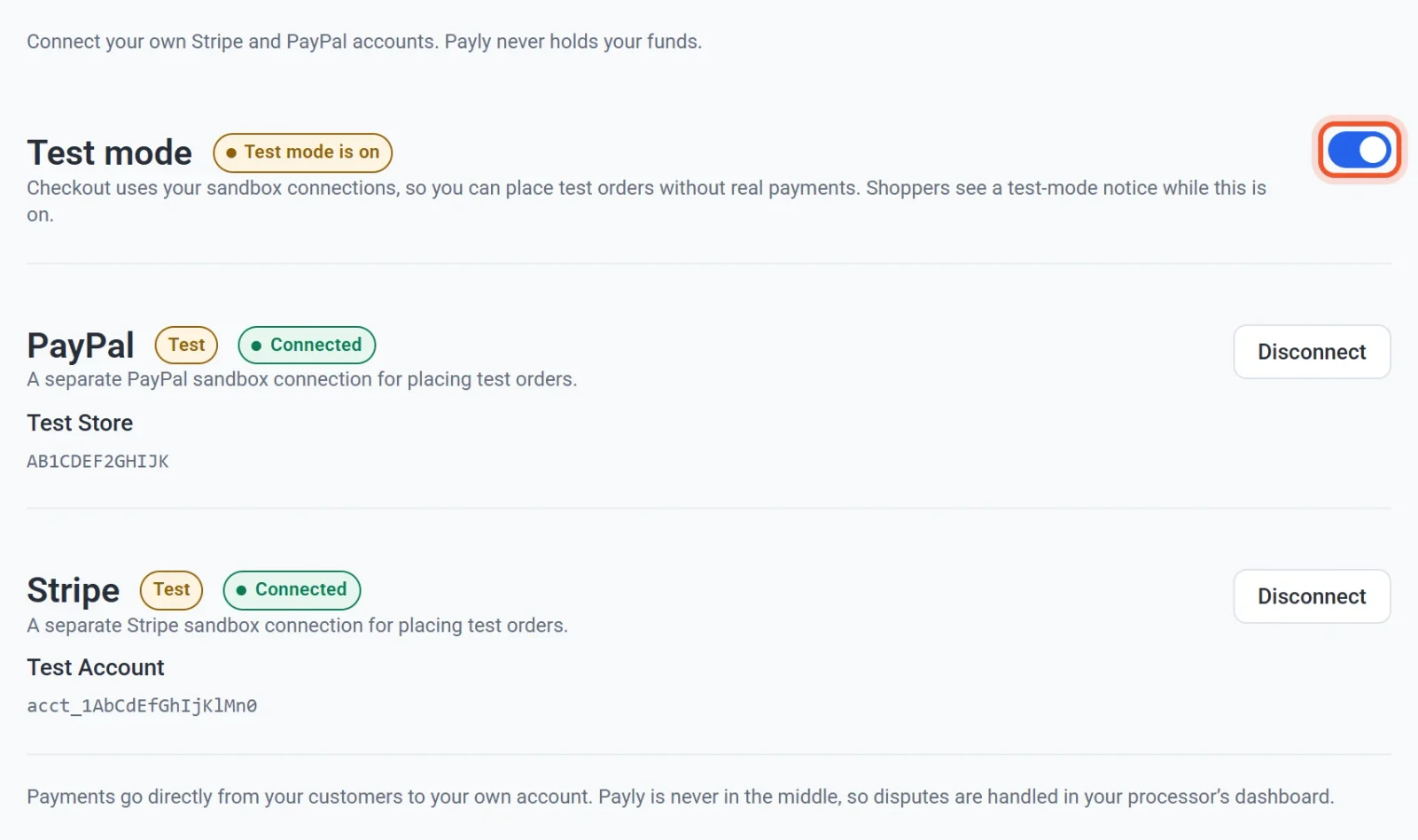
- If a card says Not connected, click Connect PayPal or Connect Stripe and sign in with a test account. Use a PayPal sandbox business account, which you create in the Sandbox accounts section of the PayPal developer dashboard. For Stripe, sign in to your Stripe account and Stripe makes the connection in its test mode. The steps are in Connect PayPal and Connect Stripe.
- Check that each card you plan to test now shows Connected.
Place a test order
- Click Visit in your site dashboard to open your store.
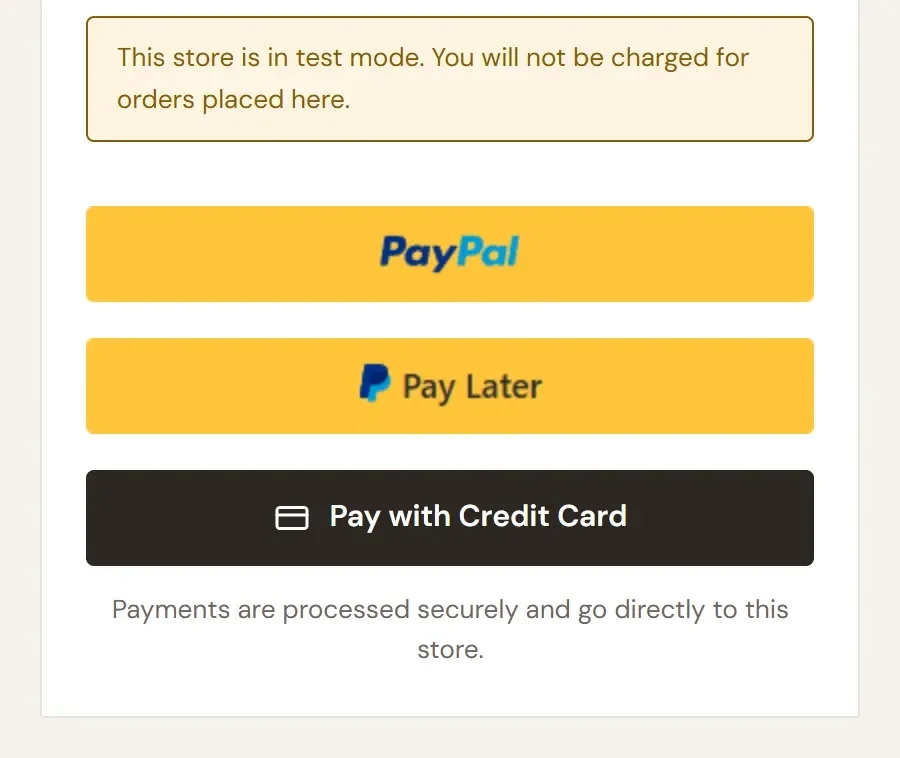
- Add a product to the cart, open the cart, and click Checkout. Above the pay buttons you see the notice This store is in test mode. You will not be charged for orders placed here.
- Fill in your details. Use your own email address, because the order emails are sent to it.
- To pay by card, click Pay with Credit Card and enter Stripe's test card number
4242 4242 4242 4242, any expiry date in the future, any three-digit security code and any postal code. Stripe lists more test cards in its testing guide. - To pay with PayPal instead, click the PayPal button and sign in with a PayPal sandbox personal account from your PayPal developer dashboard. A real PayPal login does not work in the sandbox.
- Check that you land on the Thank you for your order page. The steps customers follow are described in How checkout works.
See your test orders
Your dashboard keeps test data and live data apart. The Test data switch at the top of the dashboard decides which one the Orders, Subscriptions, Customers and sales screens show. It starts on the side your store is currently taking payments on, so while test mode is on you see your test orders. Turn the switch off to look at live data.

Emails about test orders have [Test] at the start of the subject line. See Test data and live data.
What a test order still does
Only the payment is pretend. A test order behaves like a real order in other ways:
- It sends the order emails to the address typed at checkout.
- It takes items out of your stock count, and it counts toward a discount code's usage limit.
- It creates a customer, who appears in the list while the Test data switch is on.
After testing, check your stock counts in Products and correct any that changed.
Go live
- Go back to Settings > Payments and turn off the Test mode switch. A message says that test mode is off and checkout is live.
- Look at the cards. They now show your live connections. If one says Not connected, click Connect and sign in with your real Stripe or PayPal account.
- Open your store and go to the checkout page. The test mode notice is gone.
The launch checklist lists everything else to check before you go live.