
Refund an order
Send money back to a customer from the order in Payly, in full, for chosen items or for an amount you choose, through Stripe or PayPal.
A refund sends money back to your customer through the Stripe or PayPal account they paid with. You can refund a whole order, refund only some of its items, or refund an amount you choose. Payly never holds the money, so the refund comes out of your own Stripe or PayPal balance.
Before you start
- The order must be Paid or Shipped, with some money left to refund. A pending, failed or fully refunded order has no Refund button.
- Your Stripe or PayPal account must still be connected to your store.
- Only the owner and admins of the site can issue refunds. See Invite your team and set roles.
- An order you created by hand has no Stripe or PayPal payment behind it, so Payly cannot refund it. See Create an order by hand.
Refund an order
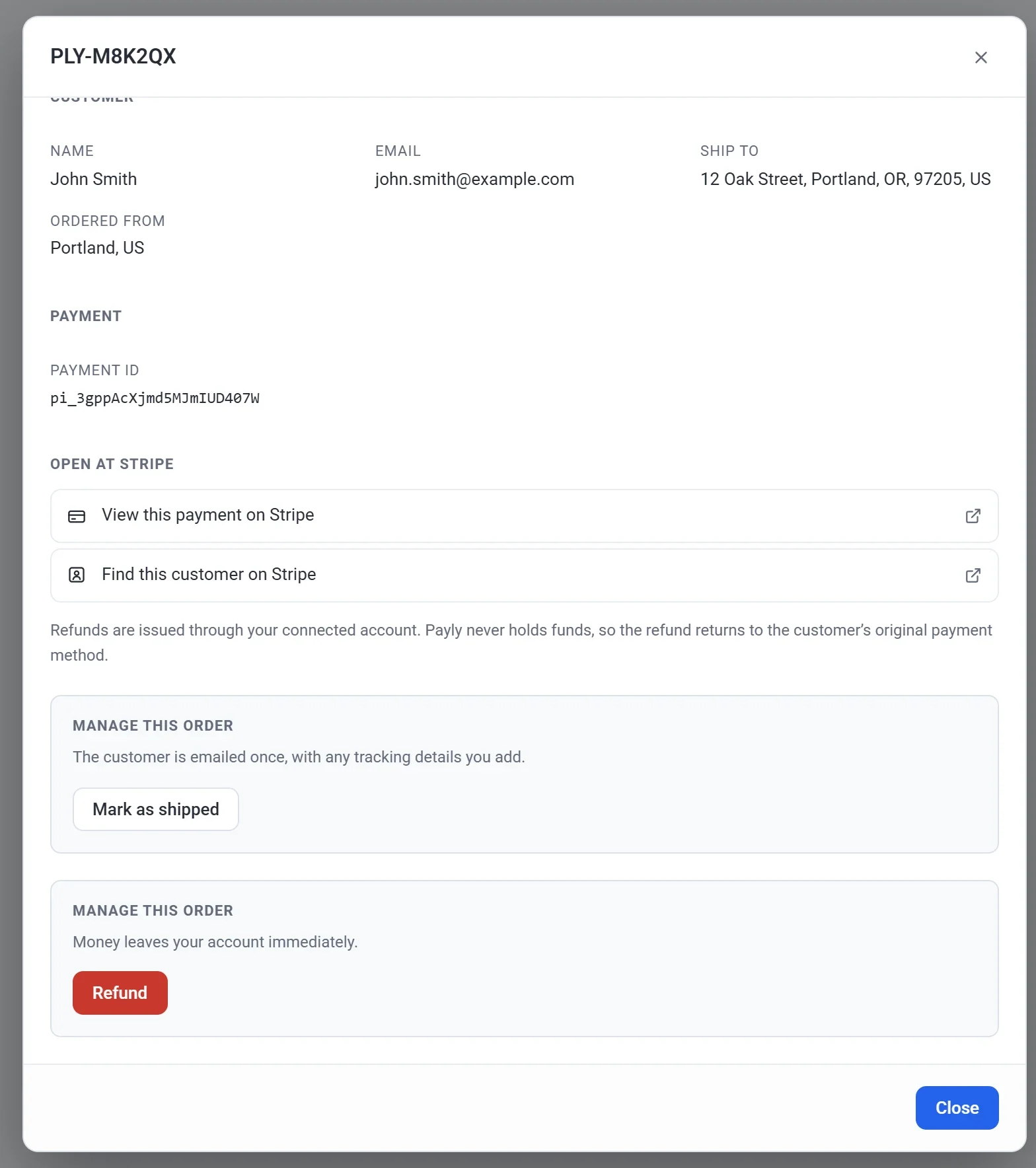
- In your site dashboard, click Orders.
- Click the order you want to refund. It opens in a pop-up.
- Scroll down to the Manage this order box with the red Refund button, and click it.
- Choose what to refund:
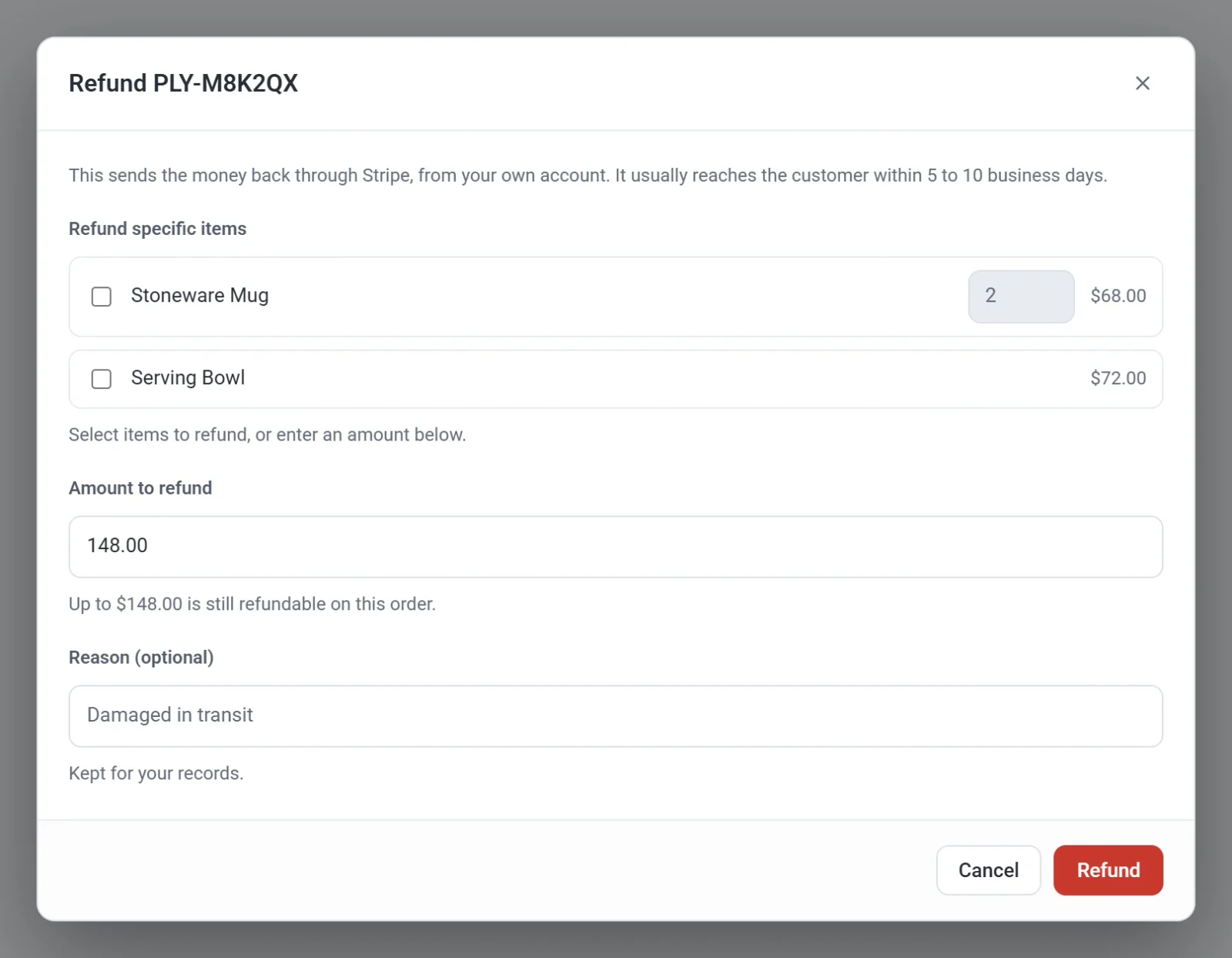
- To refund the whole order, leave everything as it is. Amount to refund already shows everything that is left.
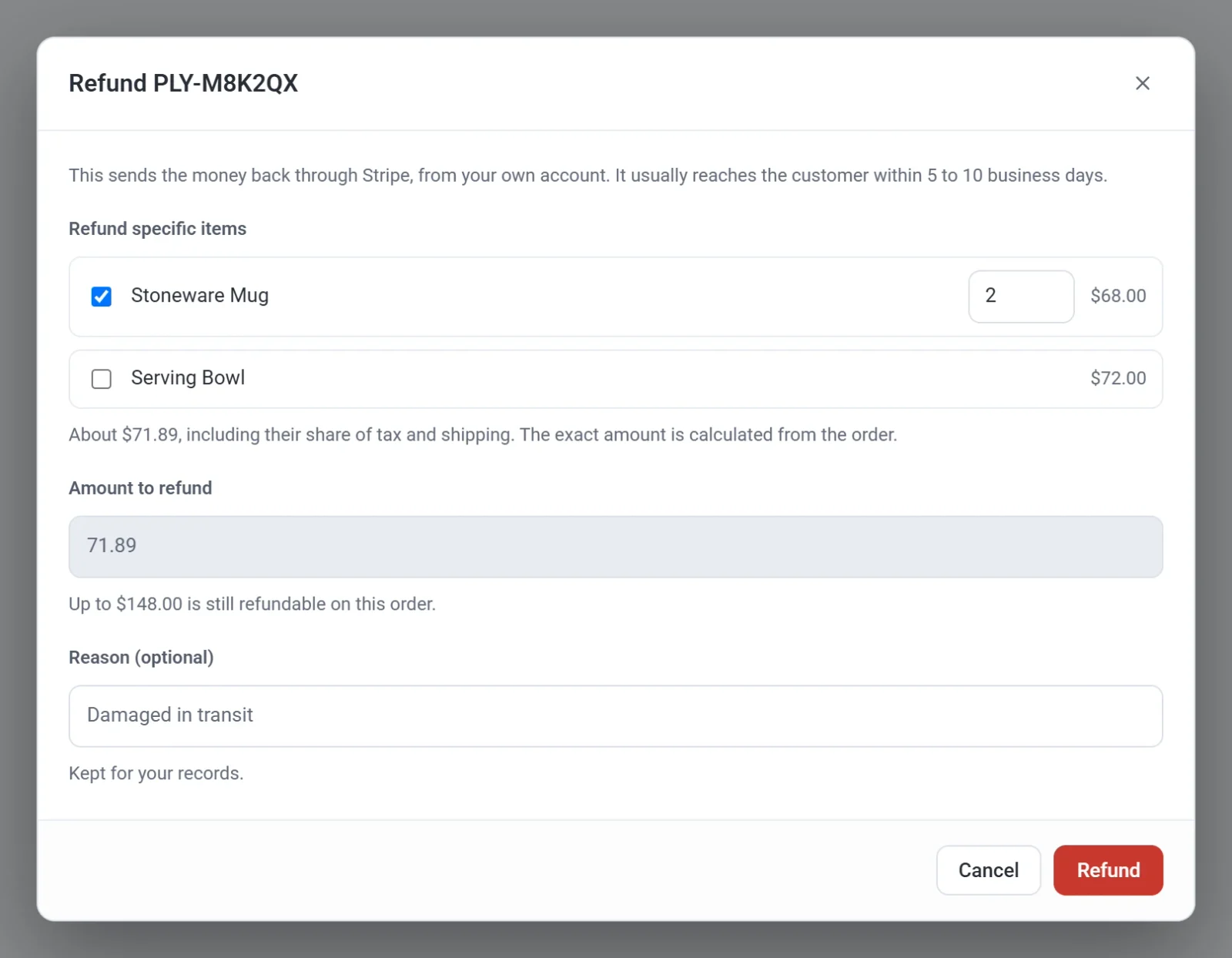
- To refund certain items, tick them under Refund specific items. If a customer bought more than one of an item, set how many to refund. Payly shows an estimate that includes the items' share of tax and shipping, and works out the exact amount from the order.
- To refund another amount, type it in Amount to refund. It cannot be more than the amount shown below the box.
- If the order includes products whose stock you track, Put the refunded items back in stock is ticked to start with. Payly then adds back the items you ticked above, or every item when you refund the whole order. An amount on its own puts nothing back. Untick the box when the items are not coming back, for example when a parcel was lost.
- If you like, enter a Reason, such as Damaged in transit. On a PayPal order, the reason is passed on to PayPal.
- Click Refund. Payly asks Issue this refund? and shows the amount.
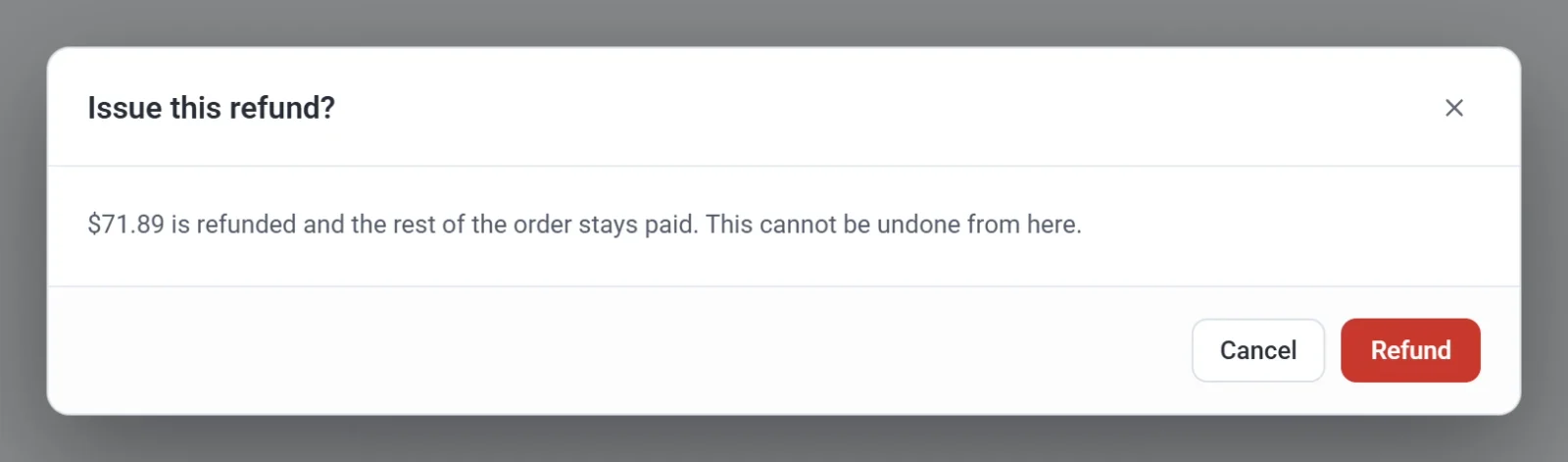
- Click Refund again to confirm. A message such as Refunded $71.89. tells you it went through.
Important: A refund cannot be undone from Payly. Check the amount carefully before you confirm.
What happens next
- Stripe or PayPal sends the money back to the customer's original payment method. It usually reaches them within 5 to 10 business days.
- Your customer gets an email that shows the amount refunded and, for a partial refund, how much of the order is left. See Emails your customers receive.
- The order shows the refund. A Refunded line takes the amount off the total, and Refunded on shows the date. When the whole order has been refunded, its status becomes Refunded.
- If Stripe or PayPal turns the refund down, Payly shows the reason and leaves the order as it was.
You can refund an order more than once, for example one item now and another later, until the whole amount has gone back. The dialog then shows Already refunded with the amount so far.
Good to know
- A refund you make in your Stripe or PayPal dashboard instead of in Payly does not put items back in your stock. Update your stock yourself. See Track and manage stock.
- Refunding does not cancel a subscription. To stop future payments, see View and manage subscriptions.
- Choosing Mark as Refunded in the Orders list only changes the status shown in Payly. It does not send any money. Use Refund in the order instead. See View and manage orders.
- If a customer disputes a payment with their bank, you answer the dispute in your Stripe or PayPal dashboard. A dispute is not a refund.