
Build your site with AI
Describe your store, form or page in a sentence or two, and Payly sets it up: the design or template, the words, your products or questions, and photos.
Build with AI makes a first version of a new site from a sentence or two about it. It works for stores, payment forms, donation forms, event tickets, tip jars, booking pages and creator pages. For a store, Payly picks a design, writes the words for your pages, adds your products and chooses photos from its free photo library. You can change anything afterward.
Build your store
- On the Your sites screen, click New site, then click Store.
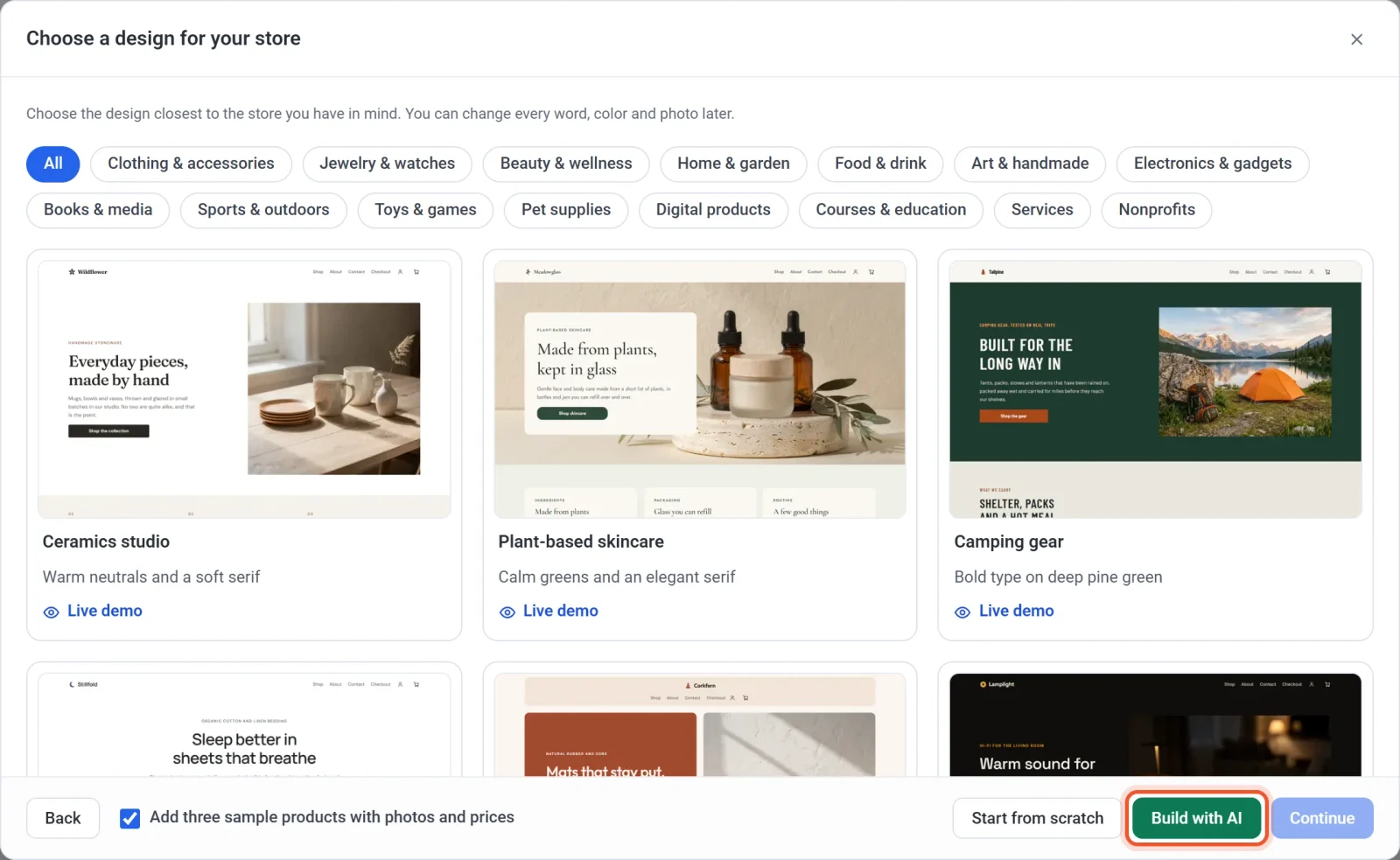
- In the Choose a design for your store window, click the green Build with AI button.
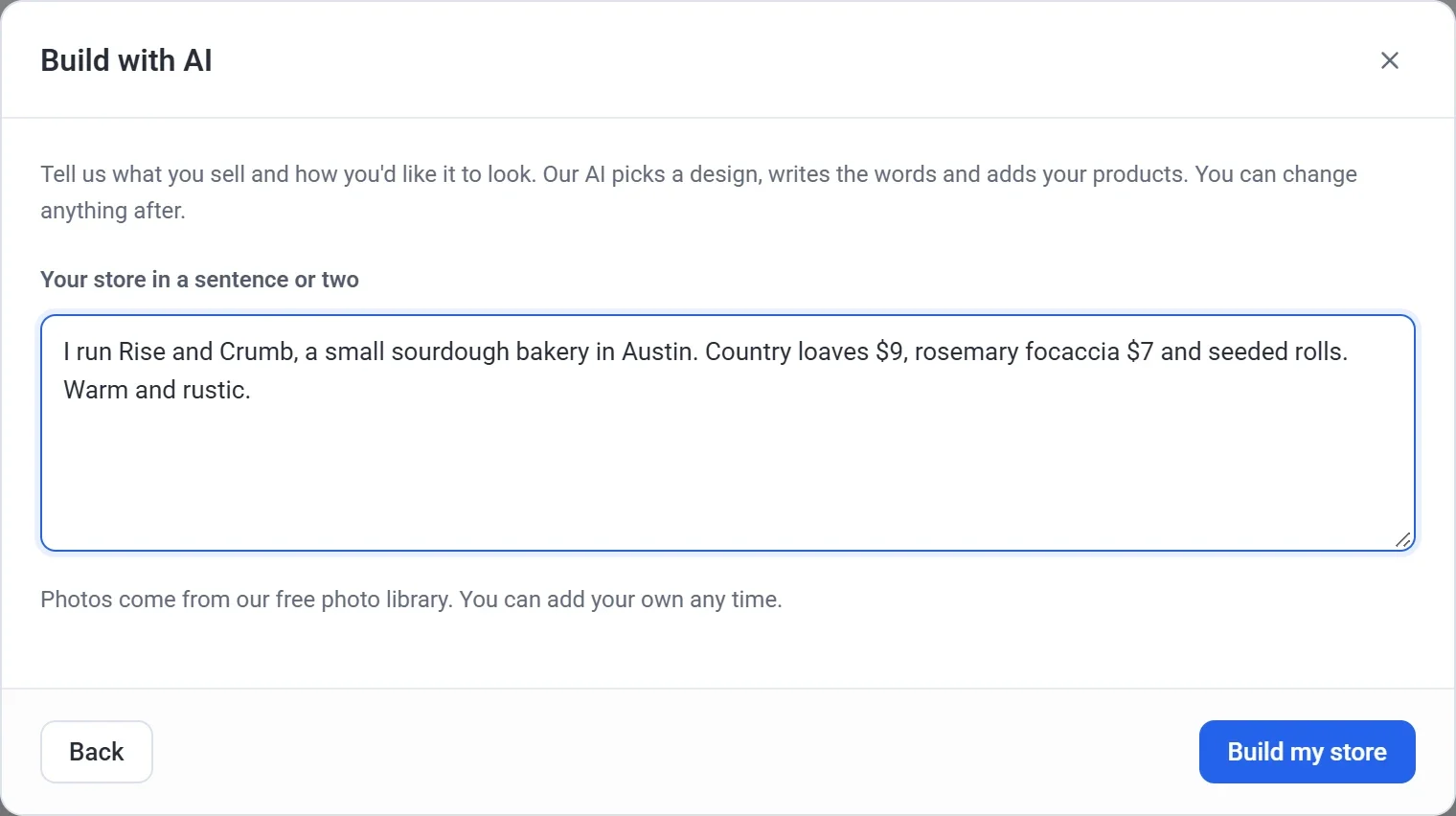
- In Your store in a sentence or two, write what you sell, your prices and the look you want. See the tips below.
- Click Build my store and wait while Payly builds it.
- In the Create a new store window, check the Site name and Store handle. Payly fills them in with your store's name if you wrote one. To learn about the handle, see Create your first site.
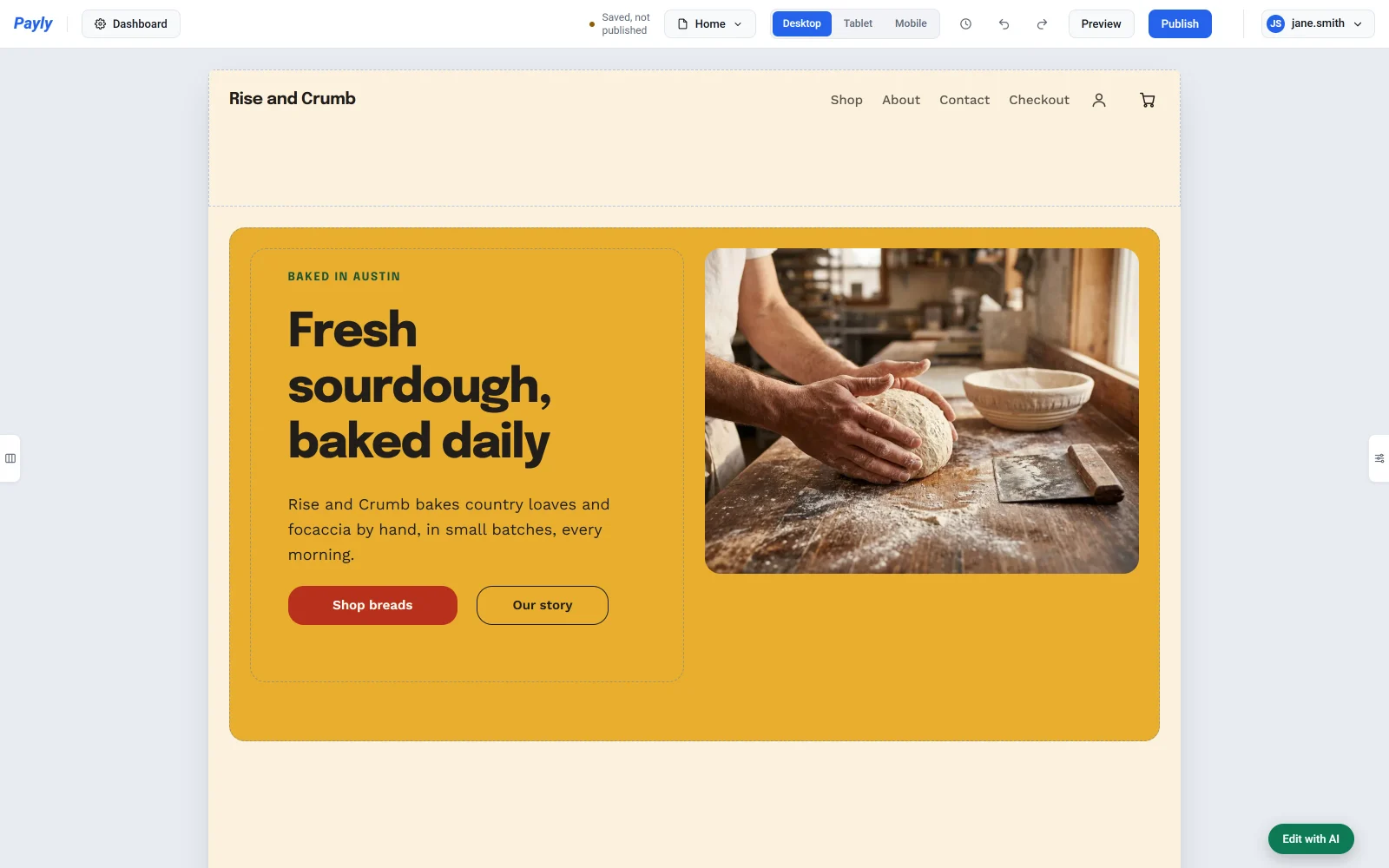
- Click Create. Your new store opens in the editor.
To change what you wrote before you click Create, click Back.
What to write
Write it the way you would tell a customer about your store. Include:
- What you sell, and your store's name and town if you like.
- Your products and prices, such as "country loaves $9". Add "a month" to a price to sell it as a monthly subscription.
- The look you want, such as "warm and rustic" or "clean and modern". You can also name colors or ask for "a big photo at the top".
Some examples:
- "I run Rise and Crumb, a small sourdough bakery in Austin. Country loaves $9, rosemary focaccia $7 and seeded rolls. Warm and rustic."
- "Handmade soy candles in lavender, cedar and sea salt, $24 each. Calm and simple, in soft greens."
- "Online yoga classes, $15 a month. Bright and friendly, with a big photo at the top."
You can write in your own language. If you write in Spanish, German or another language Payly offers for stores, your store's words are written in it too. See Choose your store's language.
What Payly makes
- A design that fits your business, from Payly's store designs.
- The words for your pages, such as headings, text, buttons, and questions and answers.
- Your products, up to 8, each with a short description. Payly adds only the products you wrote about, with no sample products. A product with no price is saved as a draft that shoppers can't see. To sell it, open it in Products, add a price and turn off Hide from the shop.
- Photos from Payly's free photo library that match your business, for your pages and, where the library has a match, your products.
- Colors: the design's own, or the ones you asked for.
Build a form, a booking page or a creator page
- On the Your sites screen, click New site, then click what you want to make: Payment form, Donation form, Event tickets, Tip jar, Calendar Bookings or Creator memberships.
- In the window of templates, click the green Build with AI button.
- Write what it is for, with your prices if there are any. See the examples below.
- Click the button that builds it, such as Build my event or Build my booking page, and wait while Payly sets it up.
- Check the name in the next window, then click Create. A form or booking page opens in the form builder. A creator page opens on its Levels screen.
A payment link has one price and nothing to build, so it has no Build with AI button.
| What you make | What to write | What Payly sets up |
|---|---|---|
| Payment form | "Order form for custom birthday cakes. 6 inch cake $40, 8 inch $55. Ask for the flavor and the pickup date." | The title and description, a name and an email question, your questions, and choices with their prices |
| Donation form | "Help us buy new books for the school library. Suggested gifts of $10, $25 and $50, with a $5,000 goal." | The title and description, the suggested amounts, a goal and how often people can give |
| Event tickets | "Jazz night on December 12. General admission $20, VIP $45 (only 20 of them), 150 tickets in all." | The title and description, the ticket types with their prices and how many there are, and a name and an email question |
| Tip jar | "A tip jar for my street music, with tips of $2, $5 and $20." | The title and description, and the suggested tips |
| Booking page | "Dog grooming at your home. Bath and brush, 60 minutes, $55. Open Tuesday to Saturday, 8 to 4." | The title and description, your services with their length and price, and your weekly hours. The days you don't name are closed. |
| Creator page | "A weekly gardening podcast. Members get bonus episodes for $5 a month, and a monthly Q&A for $15." | The template that fits, the headline and intro, and your membership levels with their prices |
Forms, donation forms, event tickets and tip jars also get a photo across the top from Payly's free photo library. A booking page has no photo at the top.
On a creator page, a level's yearly price is 10 months of its monthly price, unless you give a yearly price. If you don't give any prices, the page keeps its template's levels for you to change. See Set up membership levels.
Before you publish
Nothing is public until you publish. First:
- Read everything the AI wrote. It may fill in small details, such as delivery times or how long you've been in business. Change anything that isn't right.
- If your pages show customer reviews, they are examples. Replace them with real ones from your customers, or remove them.
- Check your products' prices and descriptions, and add your own photos. See Add a product.
To keep changing it, type what you want in the chat. See Edit your site with AI. Each build uses part of your monthly AI help. See Tips and limits for AI help.