
Connect ShipStation
Buy shipping labels in ShipStation for your Payly orders. Your paid orders appear in ShipStation, and each label you buy marks the order shipped in Payly and sends your customer the tracking number.
ShipStation is a shipping app: it compares carrier rates and prints labels and packing slips. Connect it, and ShipStation imports your paid orders that need shipping. When you buy a label there, Payly marks the order as shipped and emails your customer the tracking number, just as if you had marked it shipped yourself.
You need a ShipStation account.
Connect ShipStation
- In your site dashboard, click Integrations.
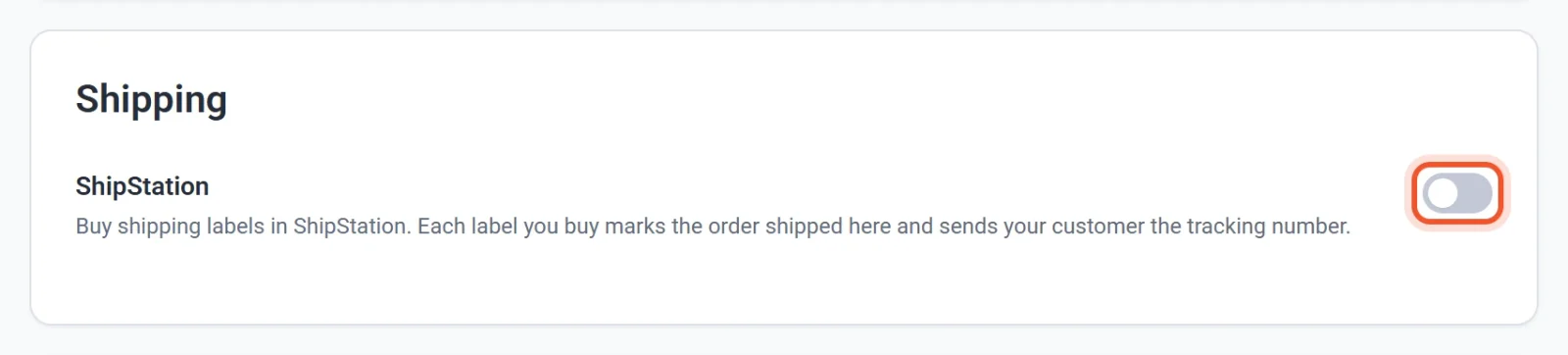
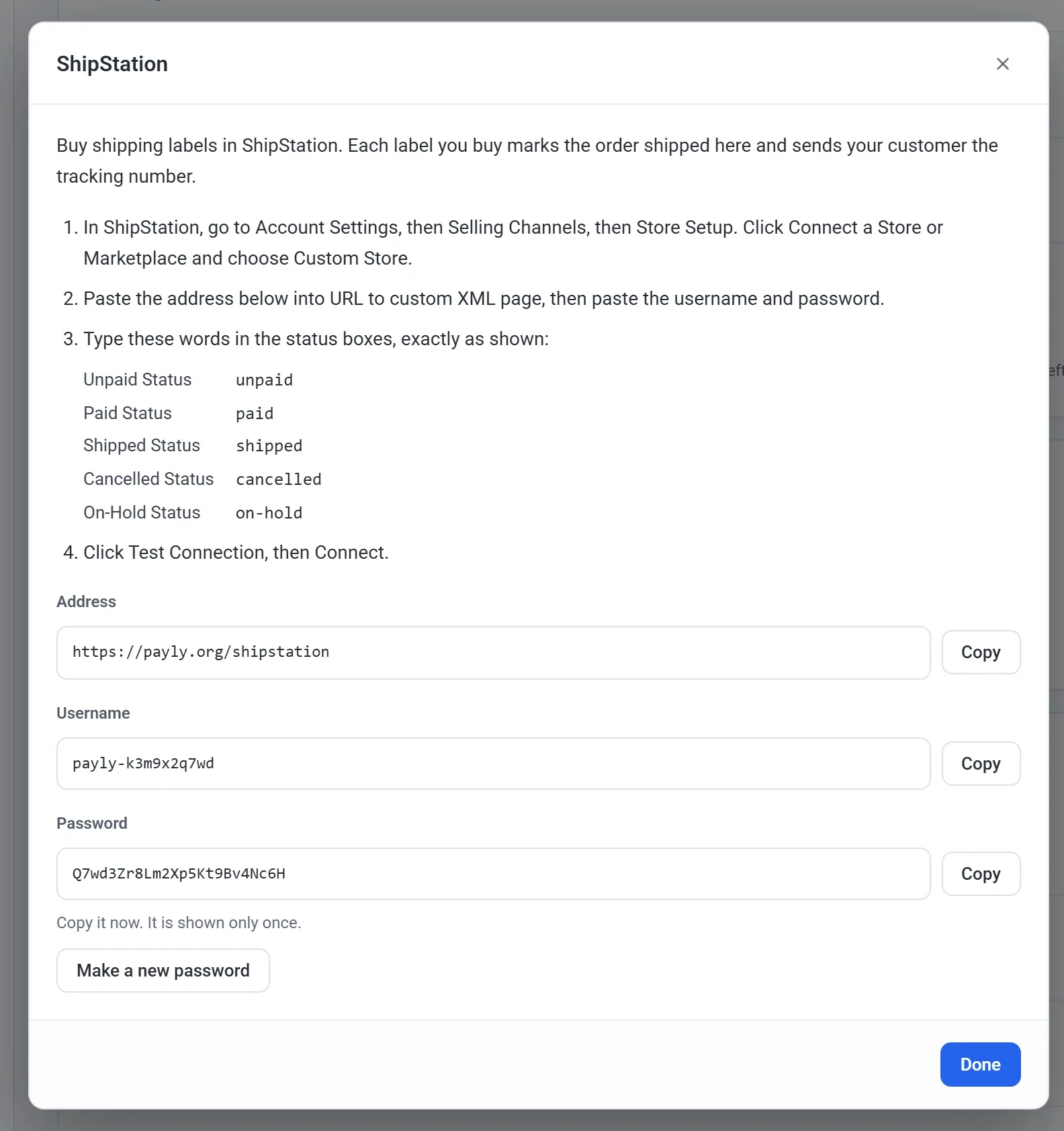
- Under Shipping, turn on ShipStation. A pop-up shows an address, a username and a password.
- Keep the pop-up open. Payly shows the password only this once.
- In ShipStation, go to Account Settings, then Selling Channels, then Store Setup.
- Click Connect a Store or Marketplace and choose Custom Store.
- Click Copy next to each one in Payly and paste it into ShipStation: the address into URL to custom XML page, then the Username and the Password.
- Type these words in ShipStation's status boxes, exactly as shown:
- Unpaid Status: unpaid
- Paid Status: paid
- Shipped Status: shipped
- Cancelled Status: cancelled
- On-Hold Status: on-hold
- Click Test Connection, then Connect.
ShipStation imports your orders when you click its update button, and on its own from time to time.
Which orders go to ShipStation
- Paid orders with something to ship. Digital downloads are left out, and an order of only downloads is not sent.
- Only the items still to ship. If you already marked part of an order as shipped in Payly, ShipStation gets the rest.
- When an order is shipped, refunded or cancelled in Payly, ShipStation is told the next time it imports. An order whose payment is disputed goes to On Hold.
- Test orders go too, so you can try a label before your store goes live. Cancel them in ShipStation when you are done.
Each order shows in ShipStation with its Payly number, for example #1000.
When you buy a label
- Payly marks the items in that package as shipped, with the carrier, the service and the tracking number.
- Your customer gets the Your order has shipped email with the tracking number. See Emails your customers receive.
- If you split an order into several packages in ShipStation, each package is recorded and emailed on its own. The order shows Shipped once the last one goes.
Tip: If ShipStation is also set to email your customers when an order ships, turn that off in ShipStation, or your customers get two emails.
Make a new password
Make a new one if you lose the password, or if someone should no longer have it.
- In Integrations, click Settings under ShipStation.
- Click Make a new password, then Make a new password again to confirm.
- In ShipStation, open your store's connection in Store Setup and paste the new password into Password.
The old password stops working at once, so ShipStation can't import orders until you paste the new one.
Turn it off
Turn off the ShipStation switch. ShipStation can no longer read your orders or mark them as shipped. Your username and password are kept, so turning it back on needs nothing pasted into ShipStation again.