
Add live chat or a WhatsApp button
Let customers reach you from any page, with Tawk.to, Crisp, Tidio or WhatsApp.
Live chat
- In your site dashboard, click Integrations.
- Under Live chat, choose your chat service.
- Paste the code it asks for:
- Tawk.to: in Tawk.to, open Administration, then Chat Widget, and copy the Direct Chat Link.
- Crisp: in Crisp settings, open the setup instructions for your website and copy the website ID.
- Tidio: in Tidio, open Settings, then Developer, and copy the public key.
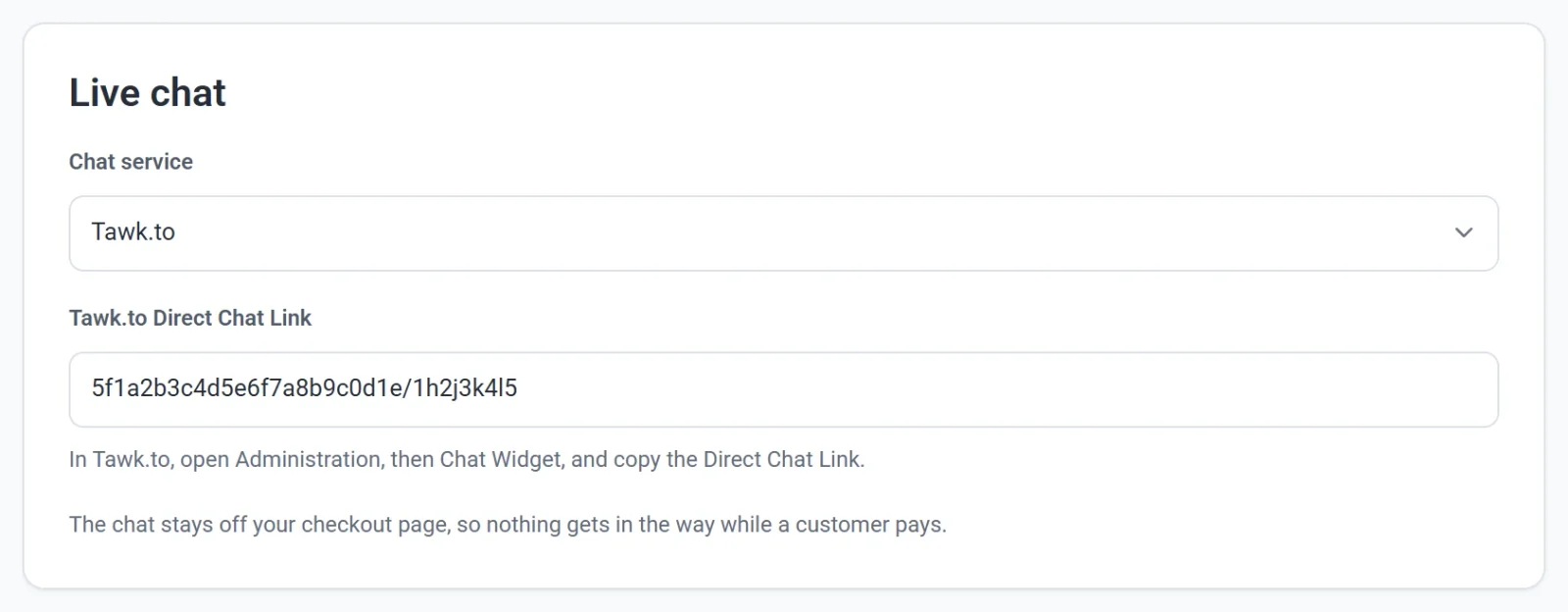
- Click Publish now.
The chat shows on every page except checkout, so nothing gets in the way while a customer pays.
WhatsApp button
- Under WhatsApp button, enter your WhatsApp number with its country code, like +1 555 123 4567.
- Optionally, add a first message. It's typed in for the customer when WhatsApp opens.
- Choose the button's side. Pick Left if you also use a live chat, so the two buttons don't overlap.
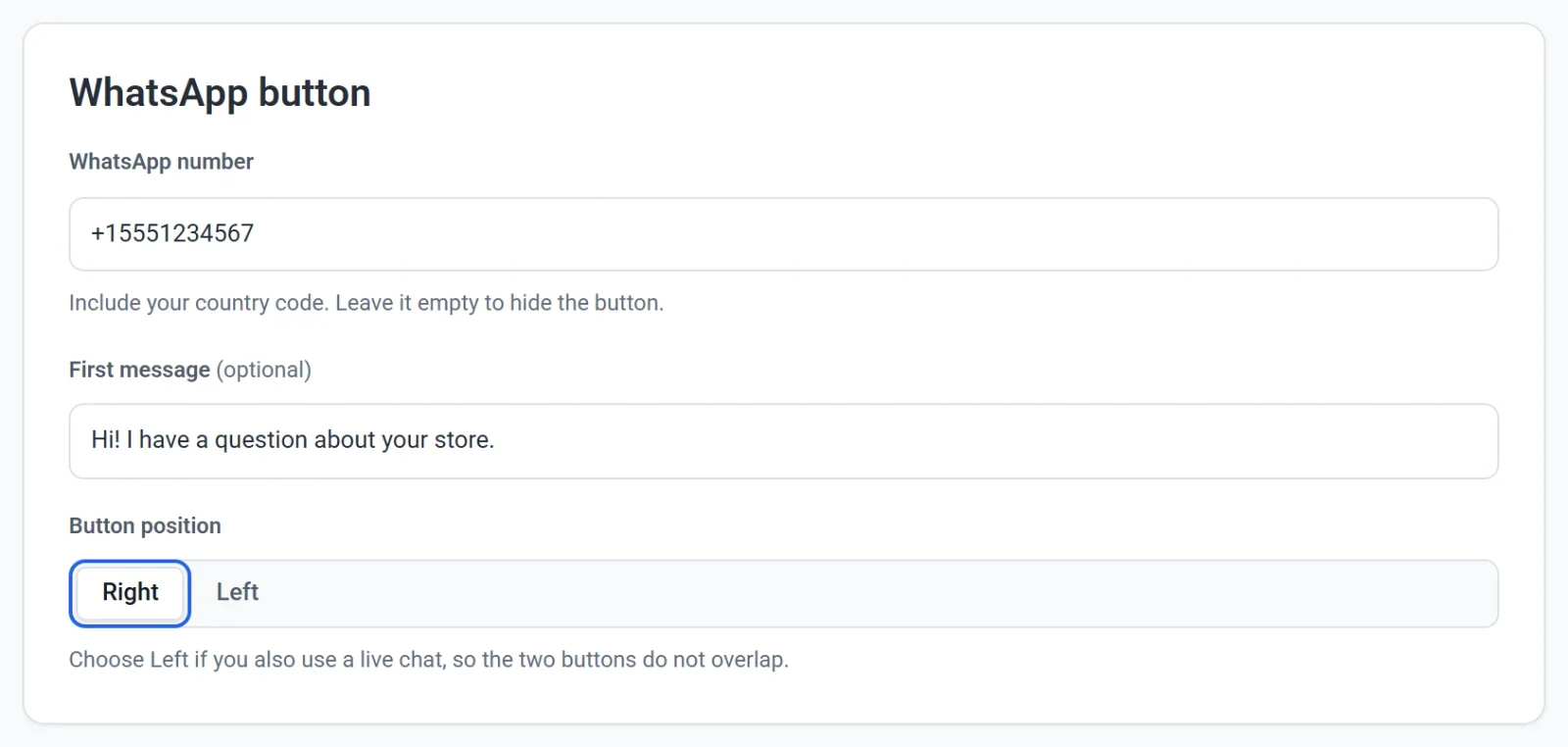
- Click Publish now.
To remove the button, empty the number and publish.