
Add brands to your products
Say who makes each product, show the brand on its page, and let shoppers filter your shop by brand.
A brand says who makes a product, such as "Acme". Brands help most when you sell other companies' products, so shoppers can find everything by a brand they like. Shopify calls this the vendor.
Create a brand
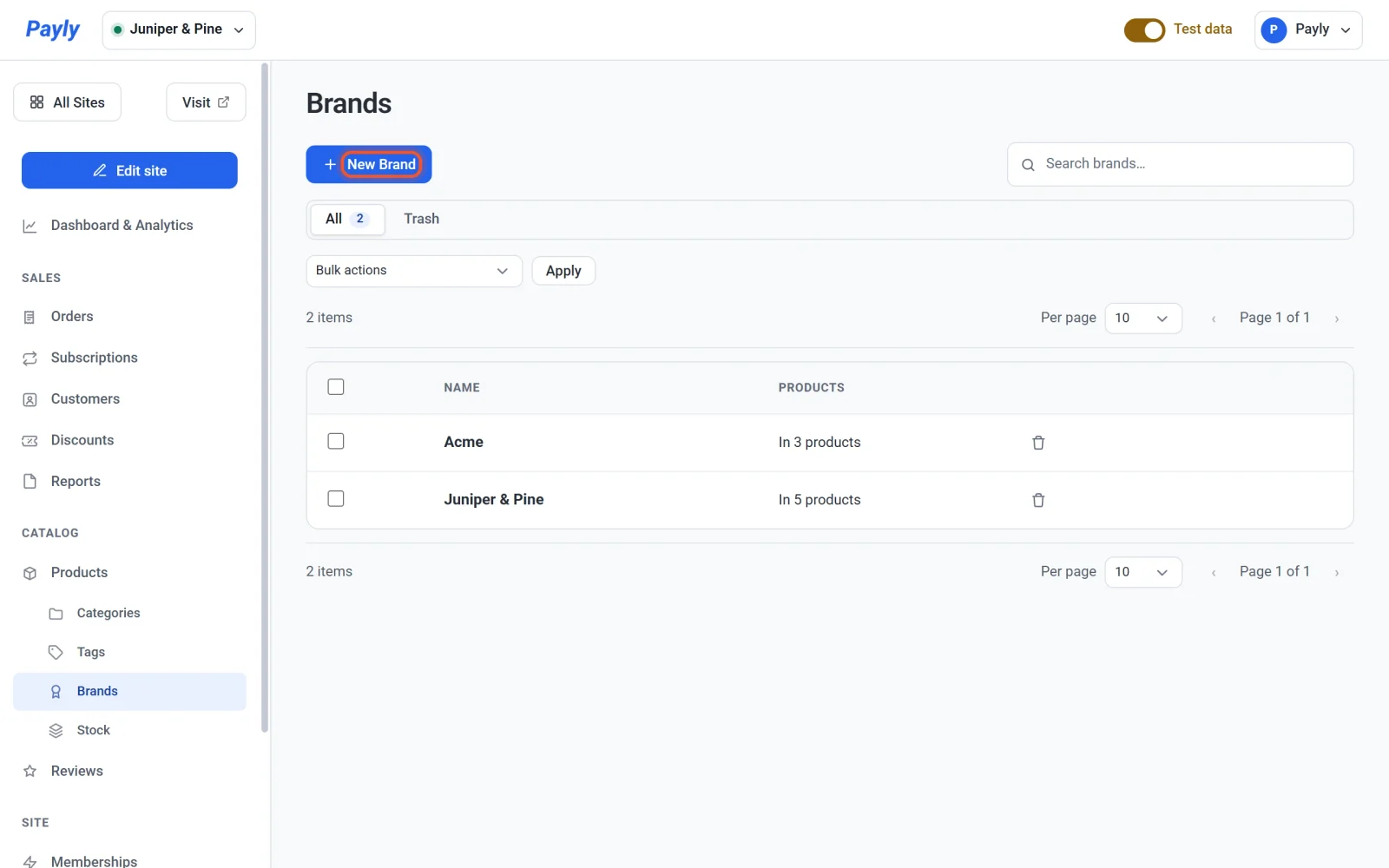
- In your site dashboard, click Brands under Products.
- Click New Brand.
- Enter the Name, for example
Acme. - Click Save.
Two brands cannot share a name, and capital letters do not count as a difference. The Brands screen shows how many products carry each brand.
Give a product its brand
- Click Products, then click the product.
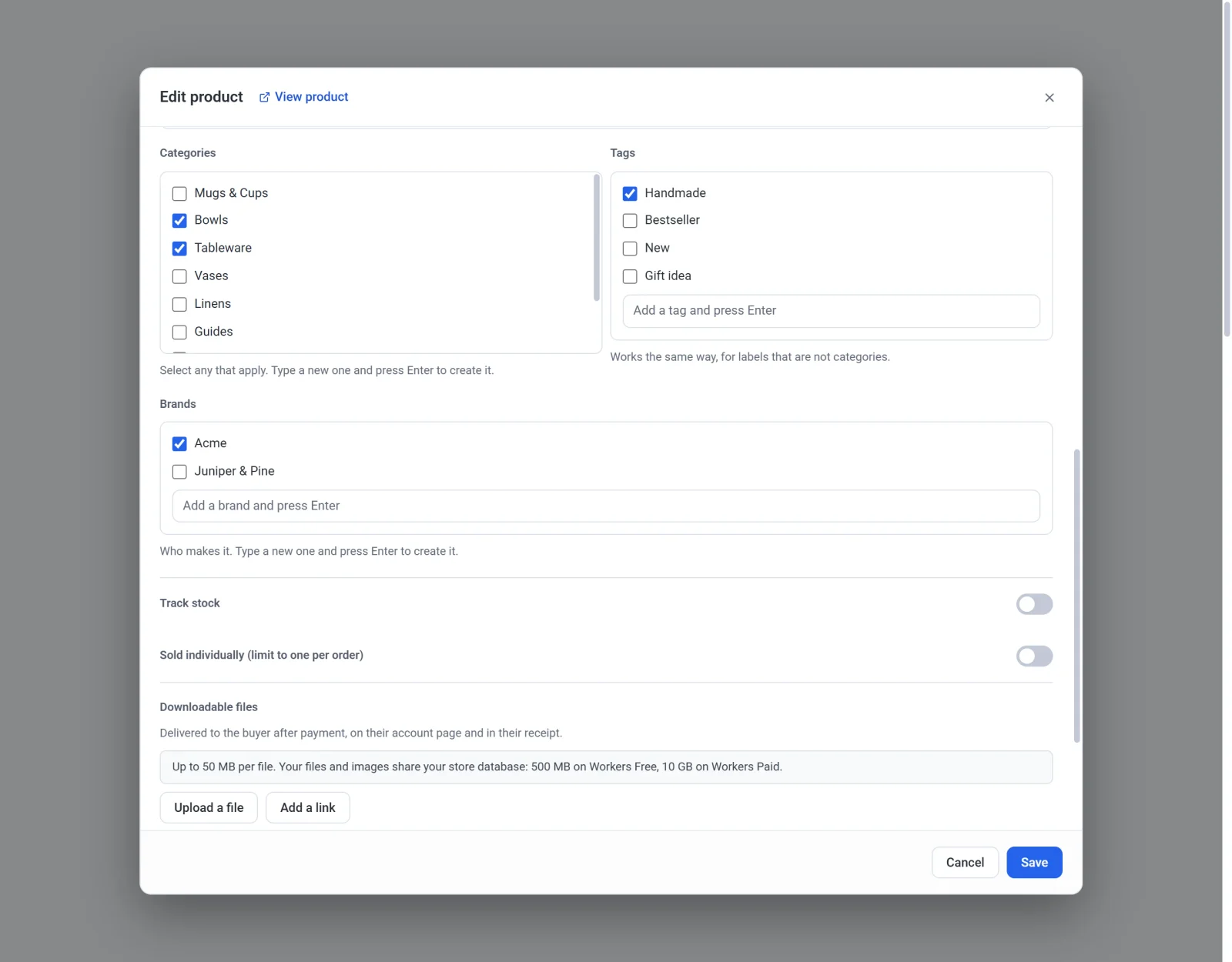
- Under Brands, tick the brand. To create a new one without leaving the product, type its name in the box under the list and press Enter. Payly creates it and ticks it for you.
- Click Save.
Most products have one brand, but you can tick more than one.
Show the brand on product pages
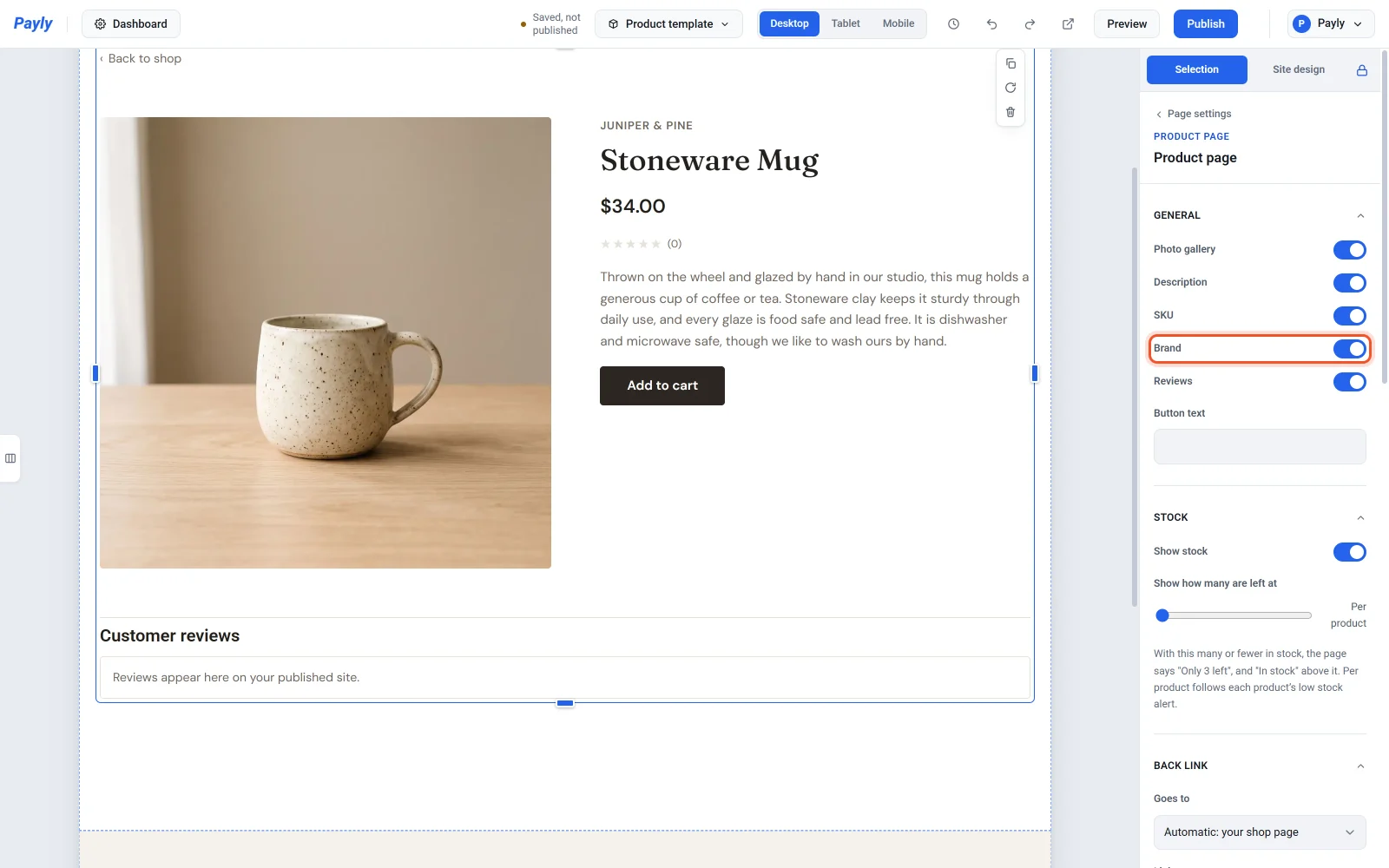
The brand can appear in small capital letters above the product's name. It is off until you turn it on:
- Click Edit site, click the page name in the top bar, then click Product template.
- Click the product block, and in General turn on Brand.
- Click Publish.
A product with no brand shows nothing there.
Show one brand, or let shoppers filter by brand
- To make a grid or carousel that shows only one brand, select it in the editor and choose the brand under Show products from.
- To give shoppers a row of brand buttons, set Shopper filters to By brand, or to By category and brand for a row of each. See Let shoppers sort and filter products.
Publish after you change a grid or carousel. A change to a product's brands reaches your store as soon as you save the product.
Brands from your old store
When you import a product file, Shopify's Vendor, WooCommerce's Brands and Wix's brand become brands in Payly. WooCommerce's brands come over from a file whose column names are in English. When you export, brands go out as Shopify's Vendor and WooCommerce's Brands. See Import products from another store.
Rename or remove a brand
- Click a brand's row to rename it. Grids and carousels that show that brand keep showing it.
- Click the trash button on a row to move the brand to the Trash tab. It disappears from your store, and restoring it puts it back on its products.
- In the Trash tab, Delete permanently removes the brand from every product that had it.