
Let shoppers search your store
Add a search button to your header, or a Search box anywhere, so shoppers can find your products and pages as they type.
Shoppers can search your store’s products and pages. Results appear as they type, and pressing Enter opens a page with all the results. There are two ways to add search: a search button in your header menu, or a Search box block anywhere on a page.
Add a search button to your header
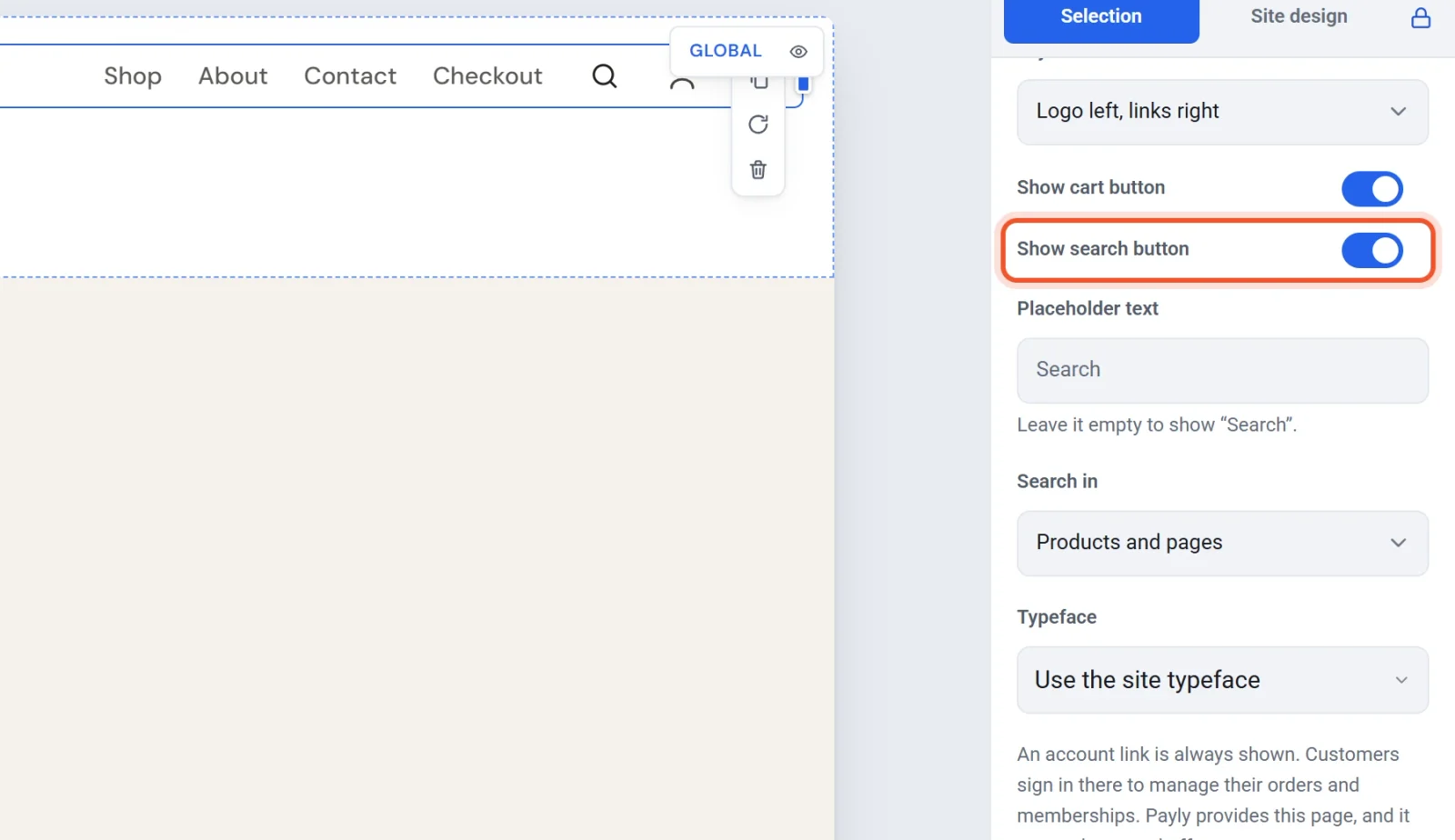
- In the editor, click the menu at the top of your page. The settings panel on the right shows Navigation.
- Under Menu, turn on Show search button. It’s right under Show cart button.
- Two more settings appear under the switch:
- Placeholder text: the words inside the box. Leave it empty to show “Search”.
- Search in: Products and pages, Products or Pages.
- Click Publish.
A magnifying glass appears beside your cart. On phones it stays beside the cart instead of folding into the menu button. The switch is only on your header’s menu.
Add a Search box to a page
- In the editor, open Blocks and find Search box in the Store group.
- Drag it onto a page, or into your header.
- Choose its settings:
- Placeholder text: the words inside the box. Leave it empty to show “Search”.
- Search in: Products, Pages, or both.
- Look: Full box, or Icon only for a magnifying glass that opens the box.
- Click Publish.
What shoppers see
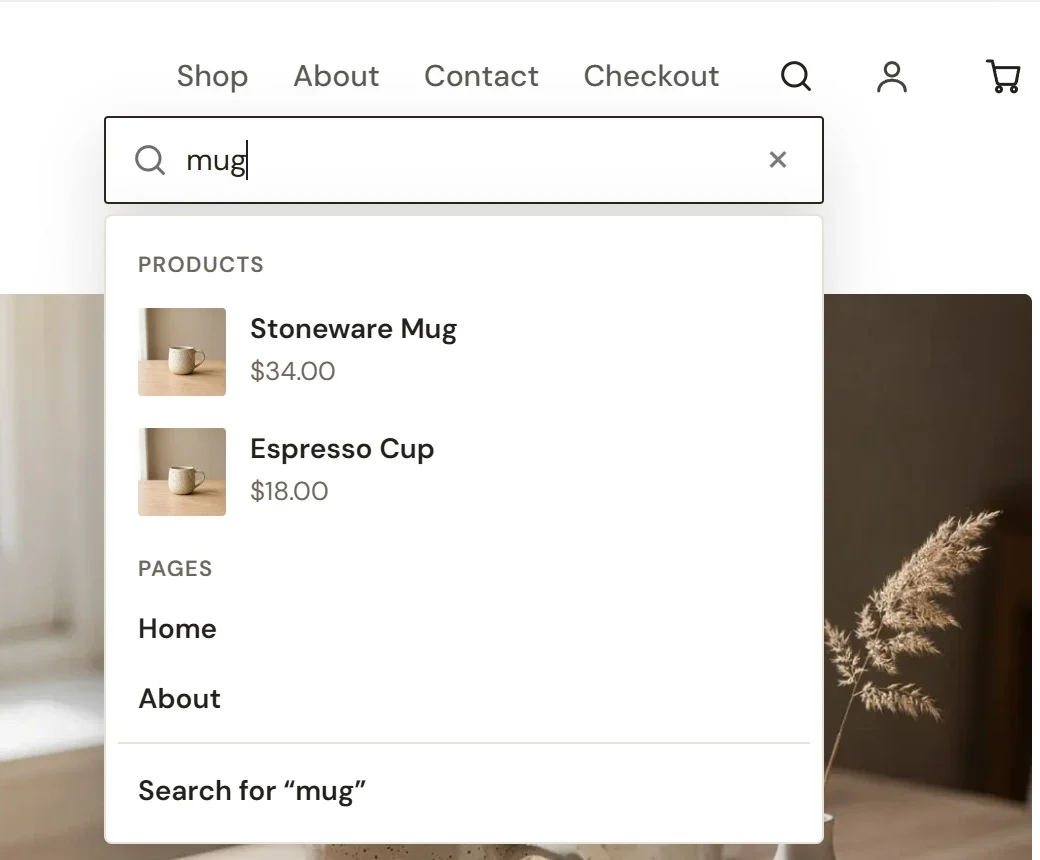
- As they type: a list drops down with matching products (photo, name and price), then matching pages.
- The full results page: pressing Enter, or Search for “mug” at the bottom of the list, opens it, with products first and then pages.
- What’s searched: product names, brands, categories, tags and options (such as a color or size), and your pages’ names and words. Product descriptions are not searched.
- What’s left out: hidden products and members-only pages never show up. Sold-out products are marked “Out of stock”.
New and changed products show up in search right away, without publishing. Changes to your pages show up the next time you publish.
Good to know
- Search barely touches your Cloudflare free plan: one request each time a shopper pauses typing, not one for every letter. Shoppers who never search cost nothing.
- To search only your products, set Search in to Products on the header’s search button, or turn off Pages on a Search box.