
Sell gift cards
Sell gift cards online and at your counter, create them by hand, and let customers pay with them.
A gift card is money a customer puts on a card ahead of time, for themselves or for someone else. Each card has a code. Customers type it at checkout or show it at your counter, and whatever they don't spend stays on the card for next time. Gift cards never expire, and Payly takes no fees on them.
Sell gift cards in your store
- In your site dashboard, click Products, then click Add Product.
- Under Product type, choose Gift card.
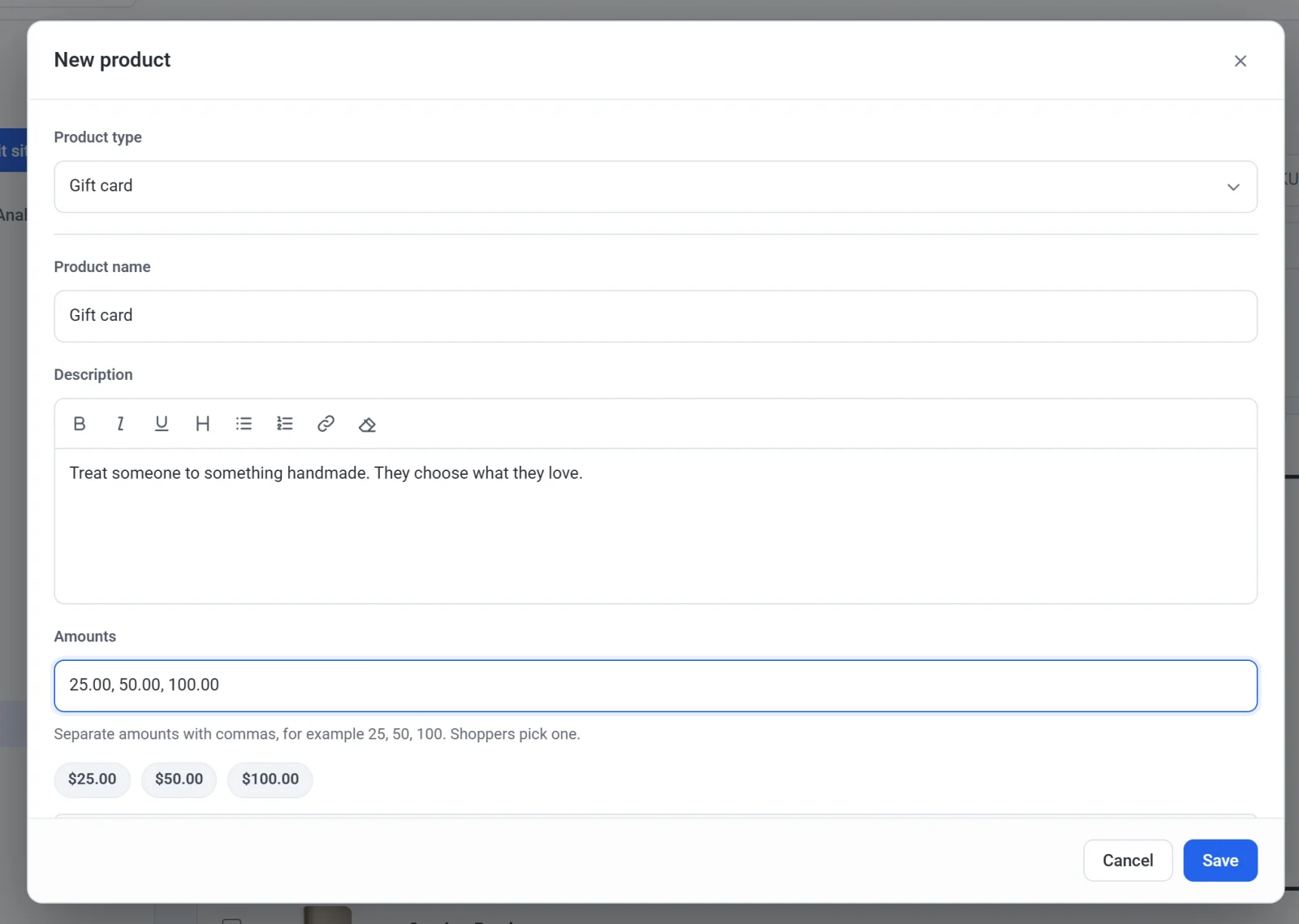
- Give it a name, a description and a photo, as you would for any product.
- In Amounts, type the amounts shoppers can choose from, separated by commas, for example 25, 50, 100.
- Click Save.
A gift card has no stock, no shipping and no tax, and discount codes don't apply to it. Tax is charged when the card is spent, on what it buys.
What shoppers see
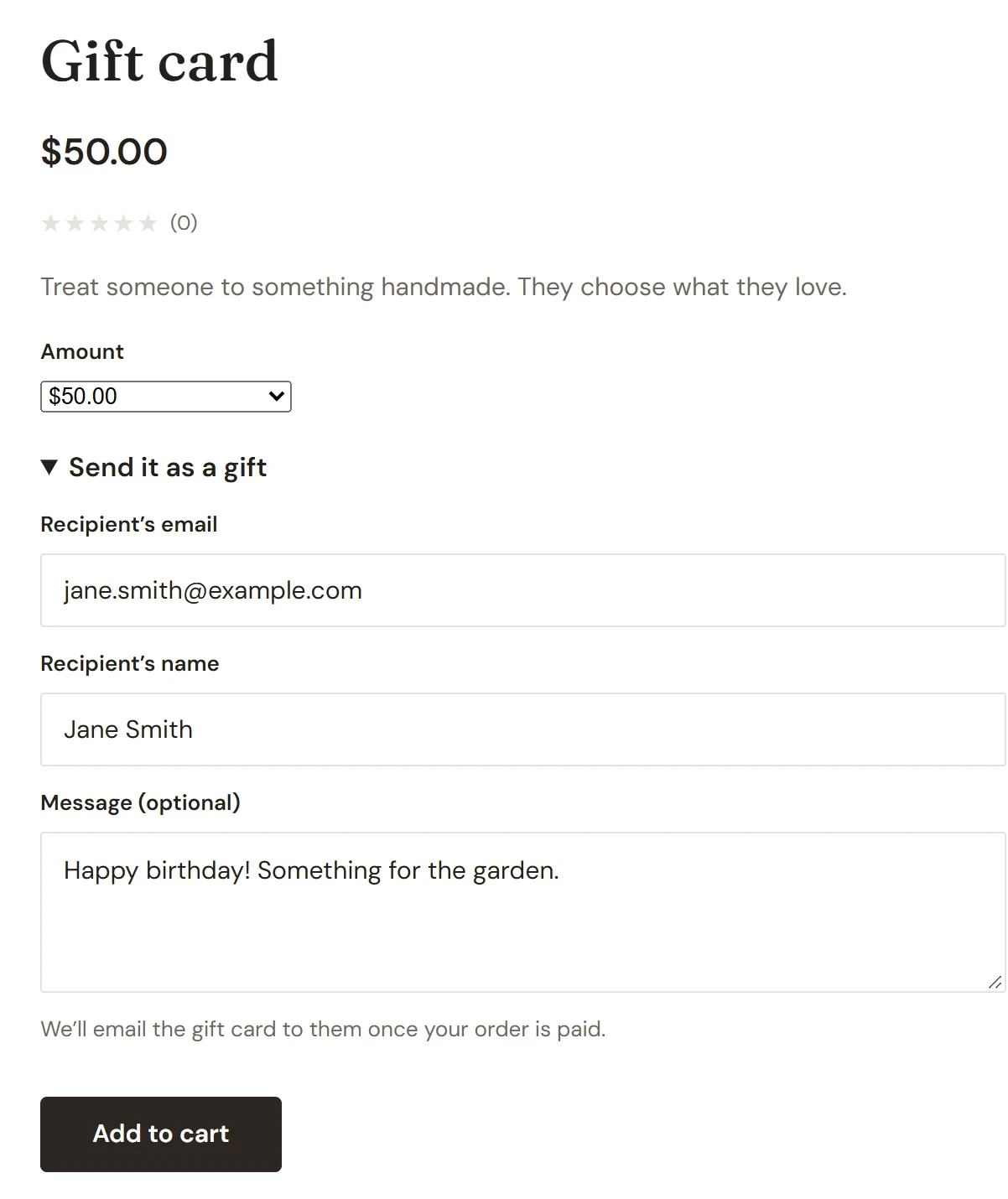
- On the gift card's page, shoppers pick an amount. To send the card to someone else, they open Send it as a gift and enter that person's email, their name and a message if they like.
- Once the order is paid, Payly emails the card's code to the person it was sent to, or to the buyer. The email comes from your store and shows the amount, the code and a link to your store.
- Customers with an account on your store also see their cards in My account, under Gift cards, with what's left on each.
Pay with a gift card at checkout
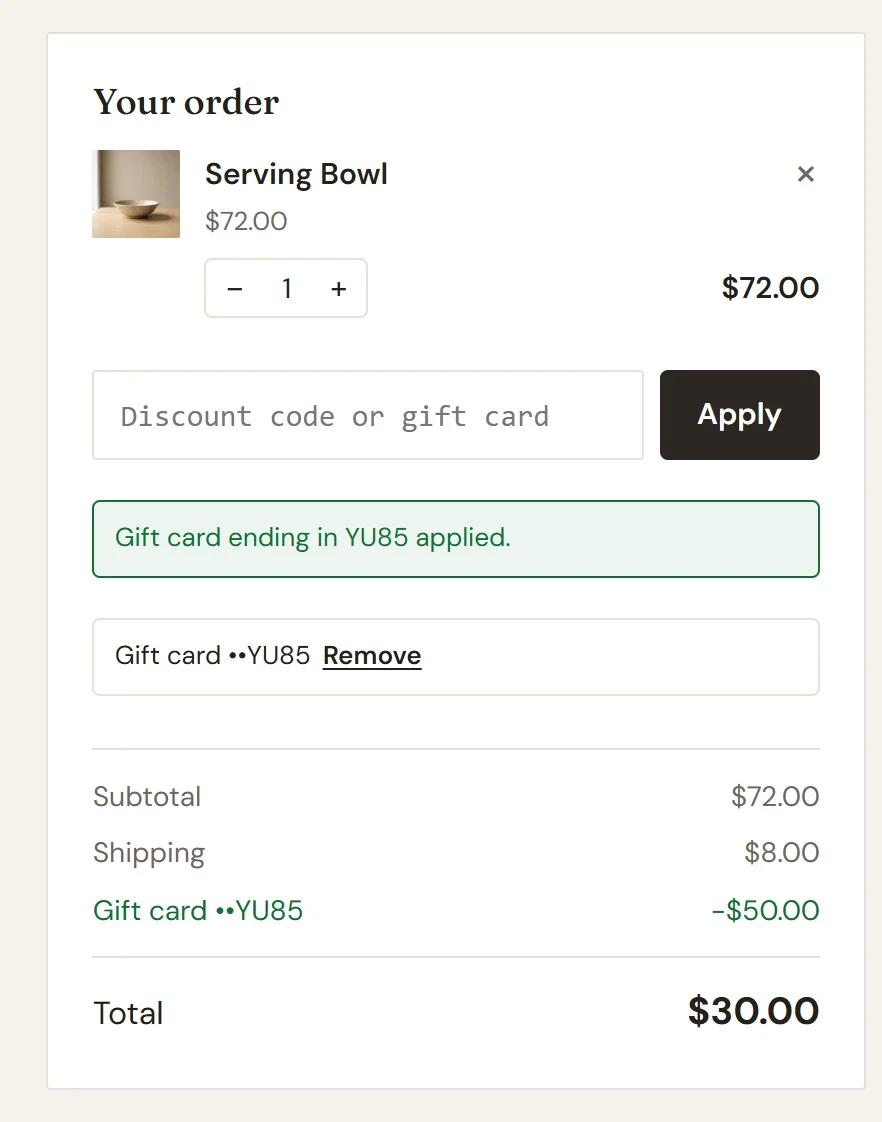
Customers type their code in Discount code or gift card and click Apply. The card pays as much of the order as it can, and the customer pays the rest by card or PayPal. If the card covers everything, the customer clicks Complete order and pays nothing more. A gift card can't pay for another gift card or for a subscription.
After five wrong codes, checkout asks the shopper to prove they're not a robot, or to wait 15 minutes, before trying again. This stops anyone guessing codes.
Sell gift cards at your counter
- In Point of sale, click your gift card product and choose an amount.
- To sell a plastic card, scan it or type its number, then click Add card. With no plastic card, click Let Payly make a code instead.
- Take payment as usual. The card works once the sale is paid. Its code shows once on the screen and is printed on the receipt.
A plastic card can be any card with a number or barcode of 10 to 32 letters and numbers. Each number can be used for only one gift card in your store.
Take a gift card at your counter
- With the sale ready, click Gift card.
- Scan the card or type its code, then click Check to see its balance.
- Check Amount to use: the whole balance, or what's due if that's less. Click Use gift card.
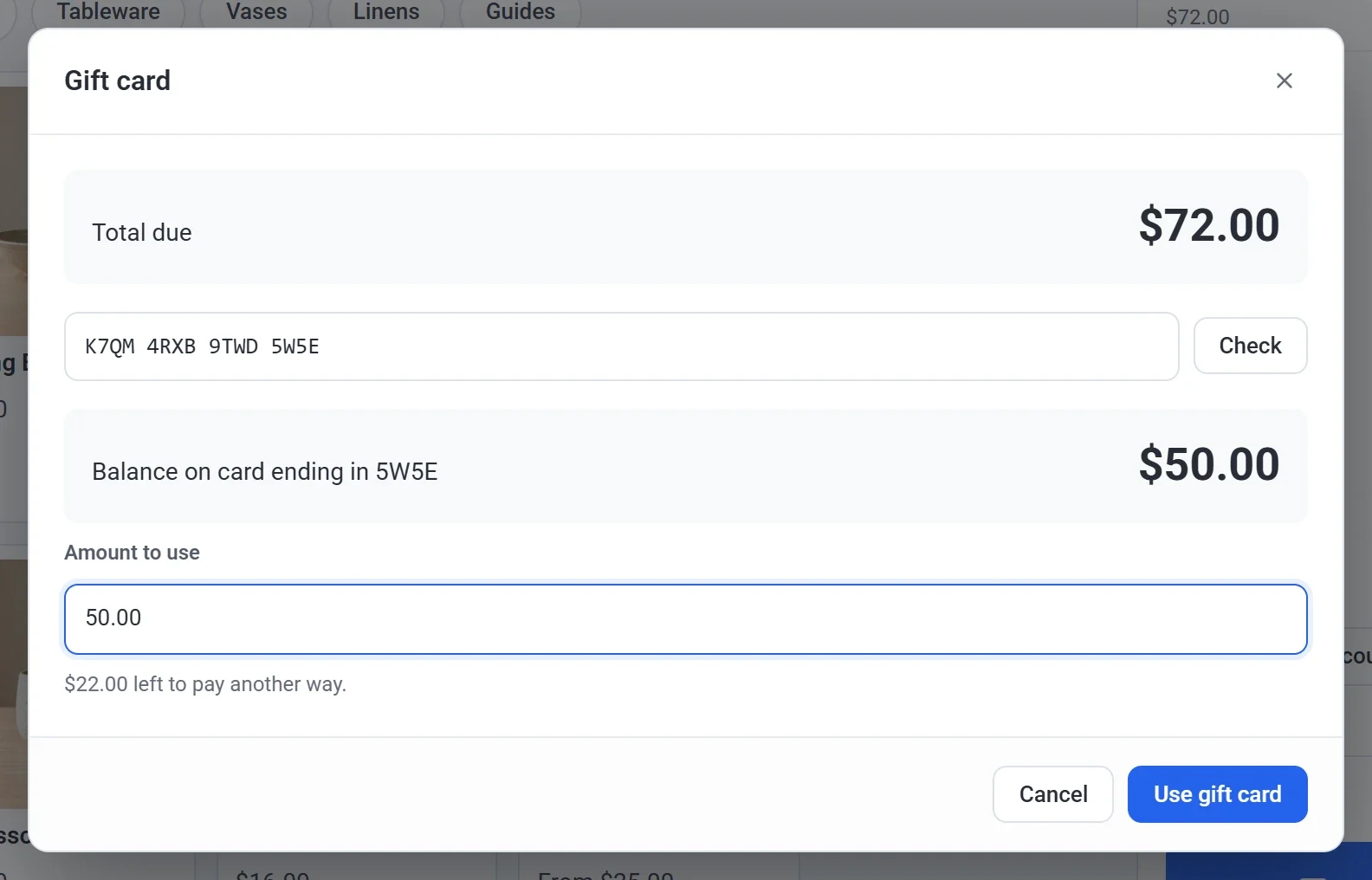
- If the card doesn't cover the total, pay what's left with Card, Cash or Other, or with another gift card.
The receipt shows each gift card used and what's left on it.
Create a gift card by hand
For a prize, store credit, or a card sold outside your store.
- In your site dashboard, click Gift cards, then click Add Gift Card.
- Enter the Amount, and the customer's email and name.
- Leave Email the gift card to the customer ticked to send it to them now. Add a Message for the email if you like. A Note is only for you.
- To use a plastic card, open Use a plastic card and scan it or type its number.
- Click Create gift card. The code shows once. Click Copy code if you need it.
Manage gift cards
Click Gift cards in your site dashboard to see every card your store has sold or created. Outstanding balance at the top is what's still on them: money your customers can still spend. Search by a full code, its last 4 characters, or the customer's email or name. Only the last 4 characters of a code are shown. Payly never shows a whole code again after it's created.
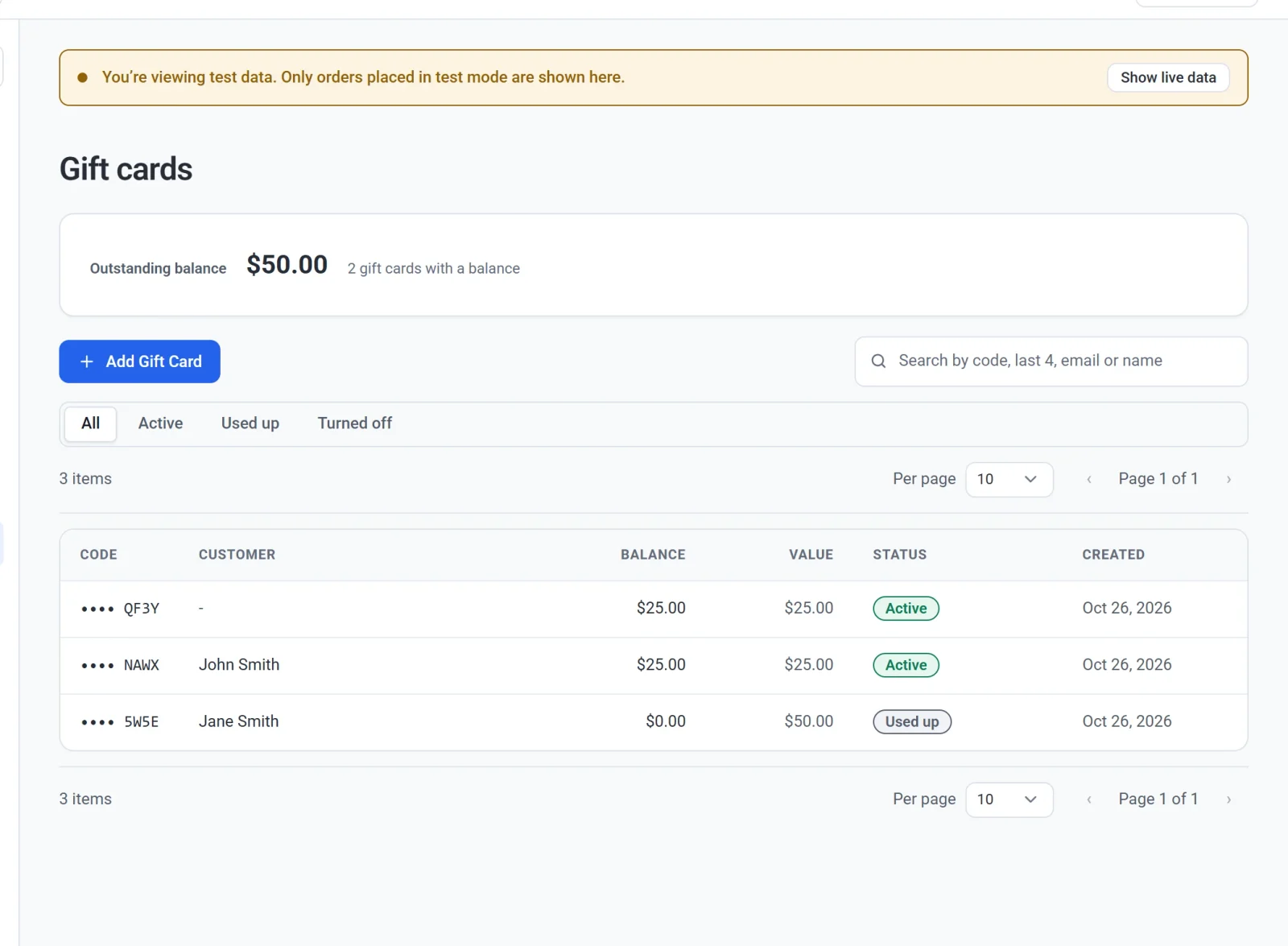
Click a card to see its history and manage it:
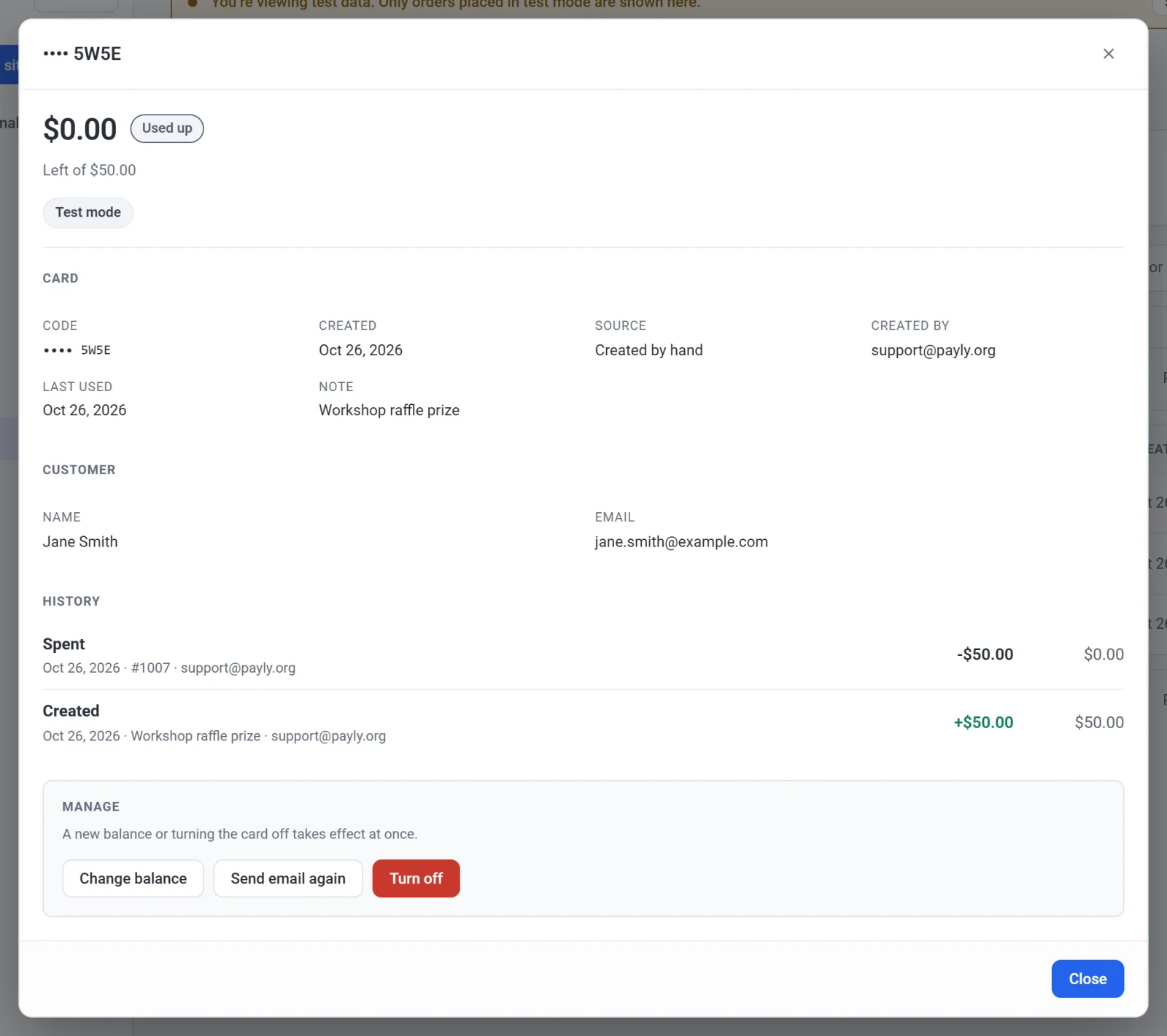
- Change balance sets a new balance, with a reason saved in the card's history.
- Send email again sends the card to the customer, or to a new address, with what's left on it.
- Turn off stops the card for good. It can no longer be used, and this can't be undone.
To see a customer's cards, open them in Customers and click See their gift cards.
Refunds
- An order paid with a gift card is refunded onto the gift card first. The rest goes back the way it was paid.
- If that gift card is turned off, its part can't be refunded. Refund the rest, and create a new gift card by hand if you want to give that part back.
- Refunding a gift card that was bought turns it off. You can refund only what's still on it.
Test mode
Gift cards created while your store is in test mode are test cards. They work only in test mode, and live cards work only when it's off.
Gift cards in your reports
A gift card counts as a sale when it's spent, not when it's sold, so nothing is counted twice. In Reports, the Sales report shows what gift cards were sold for in the dates you chose, and what's still on gift cards now.
Turn gift cards off
If your store doesn't use gift cards, turn them off in Settings, Features. Move any gift card product to draft first. While they're off, nobody can buy or pay with a gift card, and the cards keep their balances. Turning them back on brings everything back.