
Sell in person with the point of sale
Sell at a counter, a market or a pop-up. Take cash, record other payments, or take cards with a Stripe card reader.
The point of sale turns your site dashboard into a till for selling in person, at a shop counter, a market stall or a pop-up. It runs in your browser on a computer or tablet. Each sale becomes an order in Payly, comes out of your stock, and can email your customer a receipt. Payly takes no fees from your sales.
Before you start
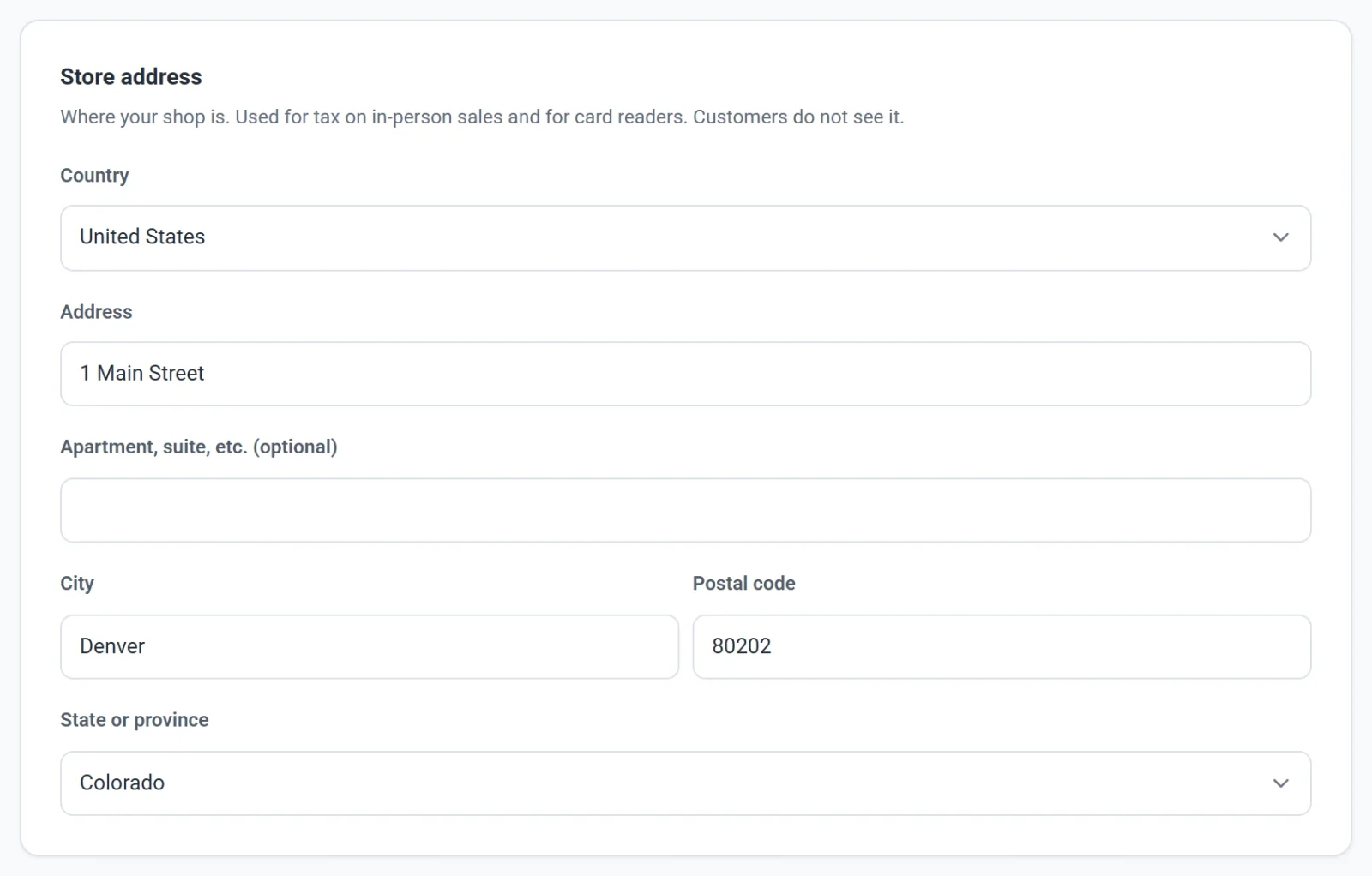
- Add your store address. The point of sale opens once it's saved. Click Settings, then General, and fill in Store address. If you charge tax, in-person sales are taxed at this address, using your rates in Settings, Shipping & Tax. Card readers need the address too. Your customers don't see it.
- To take cards, connect Stripe and add a card reader. See Add a card reader below. Cash and other payments work without Stripe.
Make a sale
- In your site dashboard, click Point of sale. It fills the screen. Click Exit to go back.
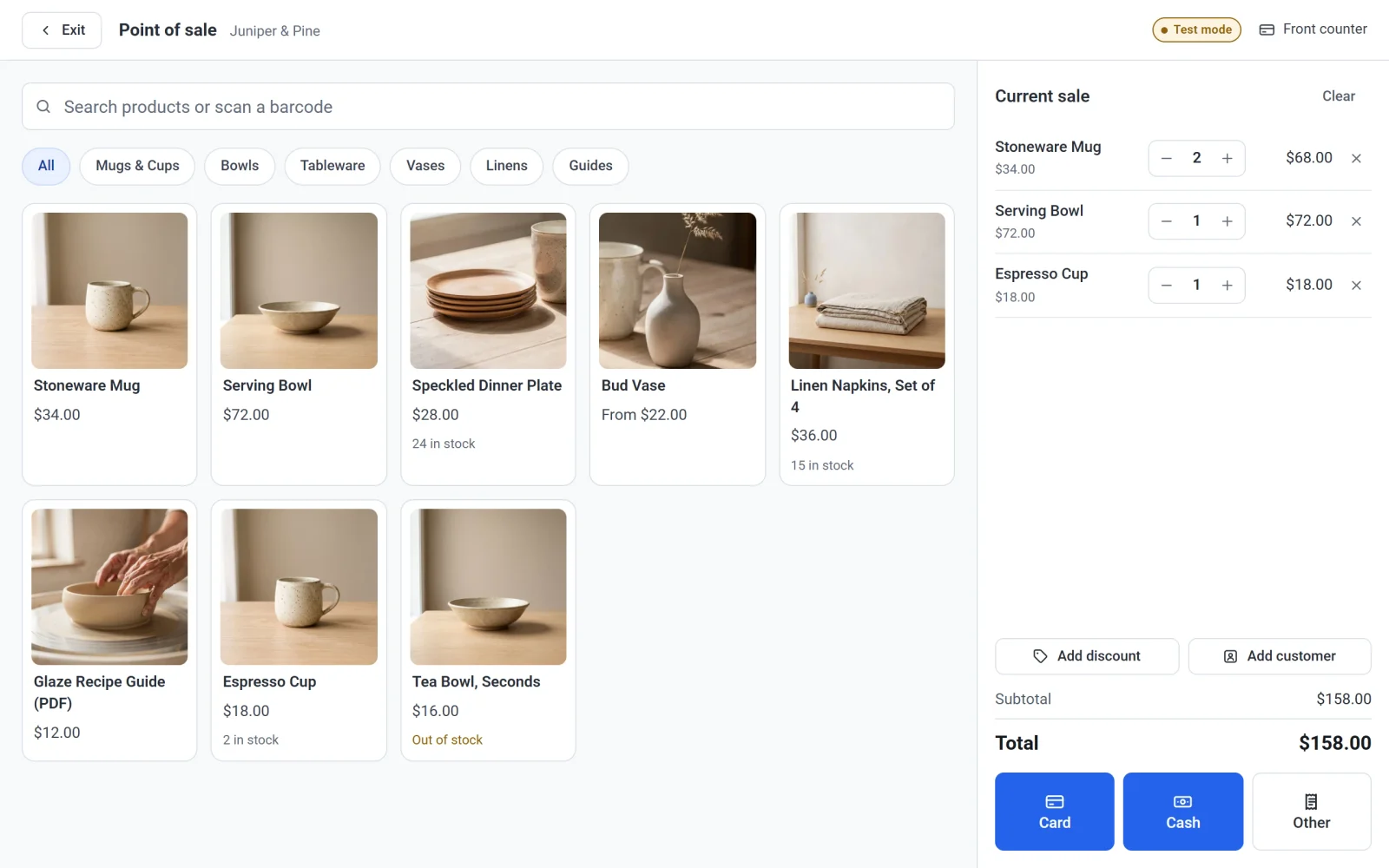
- Click a product to add it to the sale. A product with options asks which one. To find a product, type in the search box. A barcode scanner adds the product whose SKU matches the barcode.
- Change a quantity with the plus and minus buttons, or remove a line.
- To take money off, click Add discount and enter a discount code, an amount or a percent.
- To send a receipt, click Add customer and enter the customer's email address. The customer is added to Customers.
- Check the Total, then click how the customer is paying: Card, Cash or Other.
On a phone, click View sale at the bottom to see the sale.
Take cash
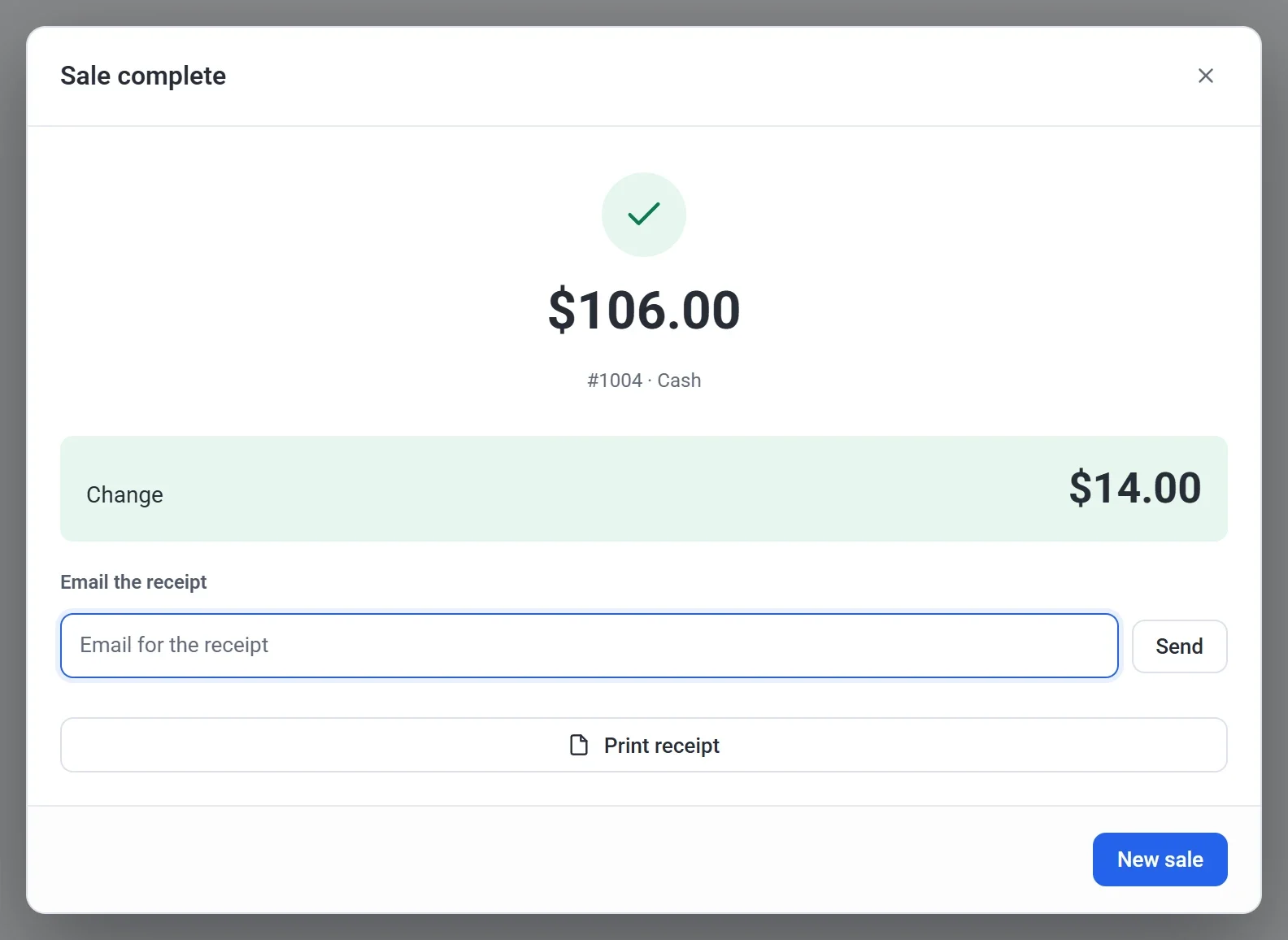
Enter the amount you were handed in Cash received, or click one of the amounts under it. Payly shows the change to give back. Click Complete sale.
Record another payment
For money Payly doesn't take itself: a bank transfer, a separate card machine or a check. Choose one, or type your own in Something else, then click Complete sale. The order is marked paid and shows how the customer paid.
Take a card
- If you have more than one card reader, choose one from the list at the top of the screen.
- Click Card. The amount appears on the reader.
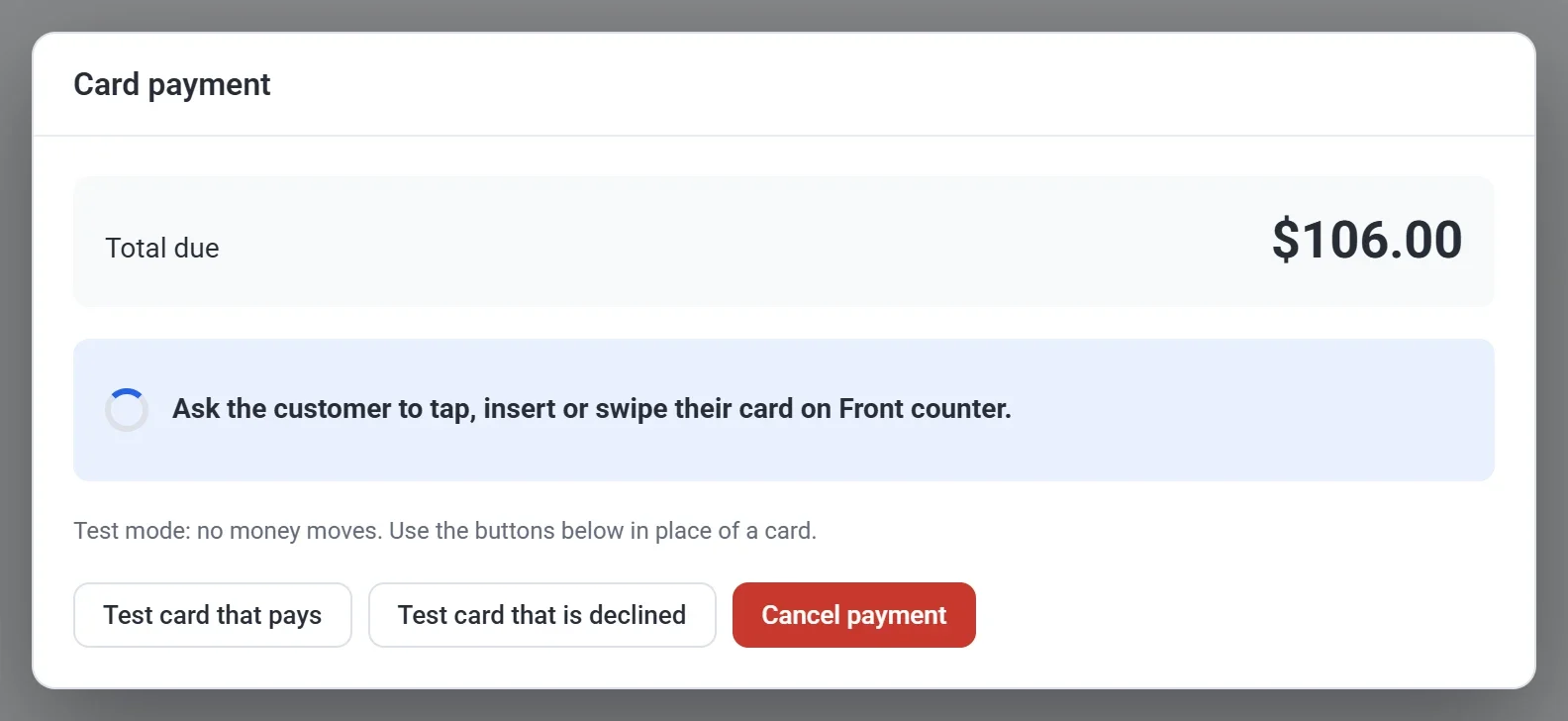
- The customer taps, inserts or swipes their card, or taps their phone.
- When the payment goes through, the sale is complete.
If the card is declined, ask for another card and click Try again. To stop, click Cancel payment.
Split a payment
To take part of a sale one way and the rest another, type the part in Cash received and click Take this, pay the rest another way, or type it in Amount in the Other window. Then pay what's left with any button.
Gift cards
Click Gift card to take a gift card, and sell gift cards like any product. See Sell gift cards.
After the sale
- For cash, Change shows what to give back.
- Email the receipt sends the receipt to any email address you type.
- Print receipt prints a receipt on any printer your computer or tablet can use.
- New sale clears the screen for the next customer.
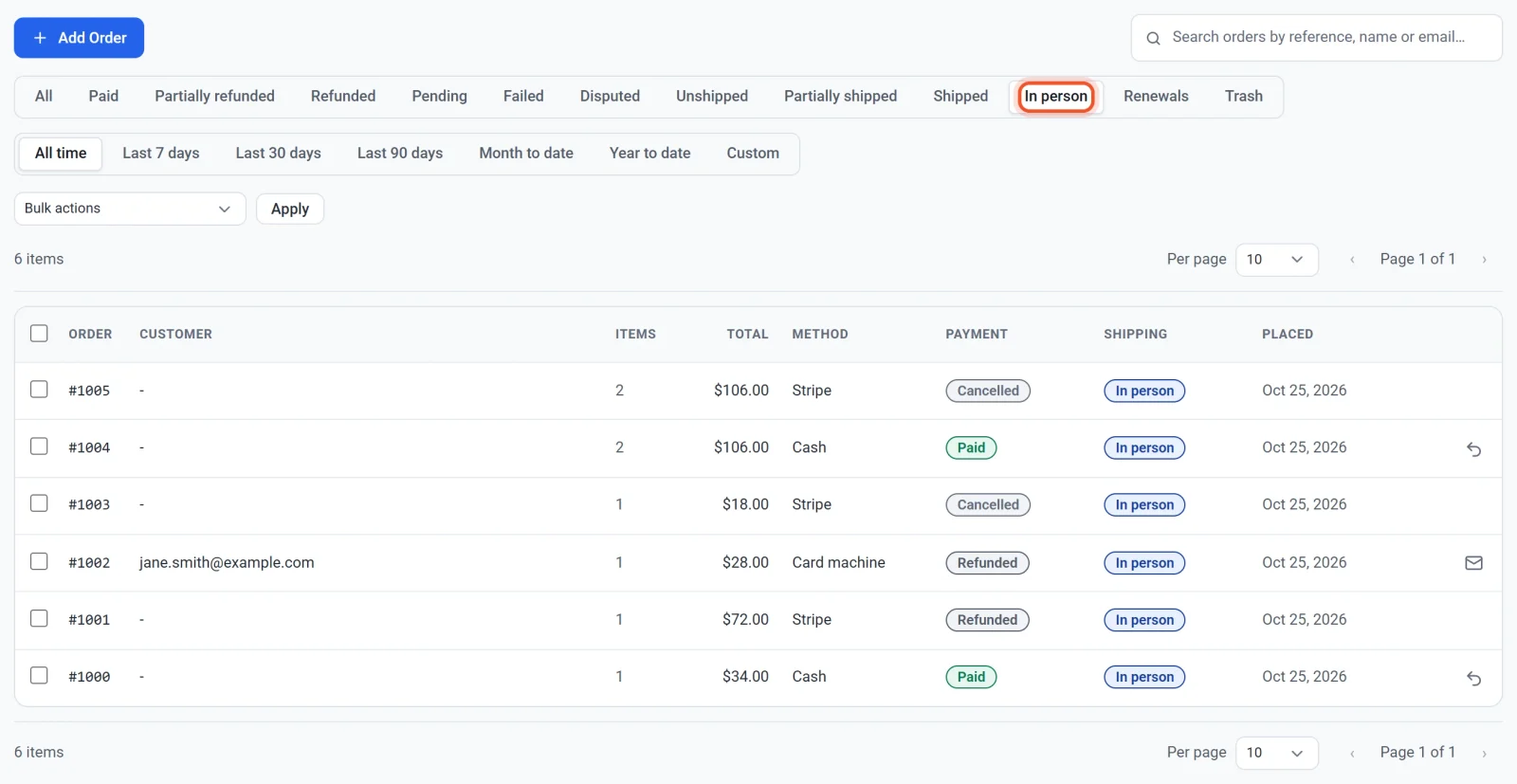
Every sale appears in Orders, marked In person. To see only those, choose In person in the filter. In-person sales have no shipping, so they can't be marked as shipped and are never sent to ShipStation. Subscriptions can't be sold on the point of sale.
Add a card reader
Payly works with Stripe's smart card readers, such as the Stripe Reader S700 and the BBPOS WisePOS E. They connect to the internet by Wi-Fi or a network cable, so there is nothing to install. Readers that pair with a phone by Bluetooth, and Tap to Pay on a phone, are not supported.
Stripe sells its readers in the US, Canada, the UK, most of Europe, Australia, New Zealand, Japan, Singapore, Malaysia and Hong Kong. Your Stripe account, your readers and your store's currency must all belong to the same country: a US Stripe account takes US dollars.
- Click Settings, then Payments, and connect Stripe if you haven't yet.
- Under Card readers, click Buy a reader from Stripe to order one.
- Turn the reader on and connect it to Wi-Fi in its settings.
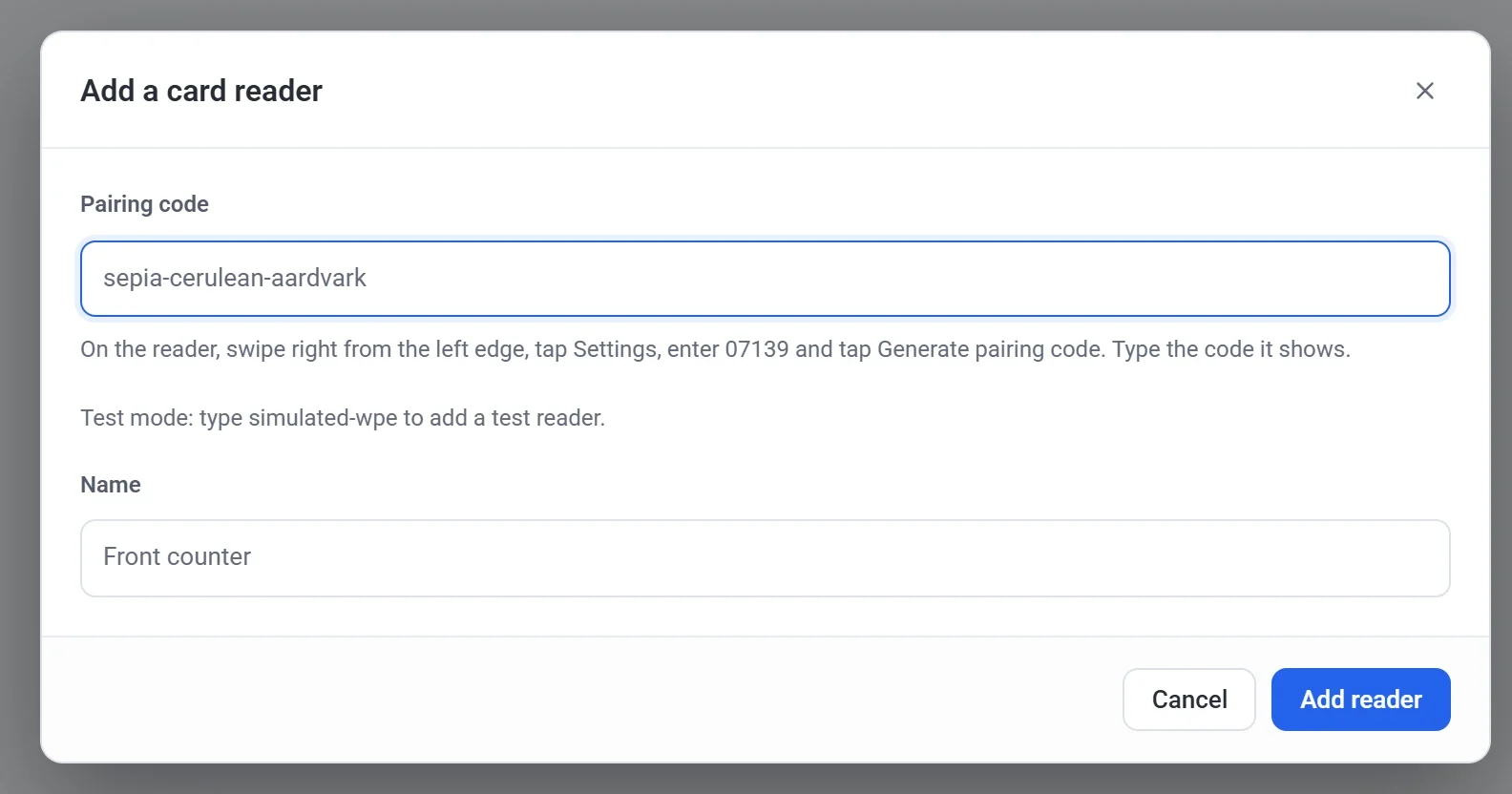
- On the reader, swipe right from the left edge, tap Settings, enter 07139 and tap Generate pairing code.
- In Payly, under Card readers, click Add reader.
- Type the code from the reader in Pairing code, give the reader a name such as "Front counter", and click Add reader.
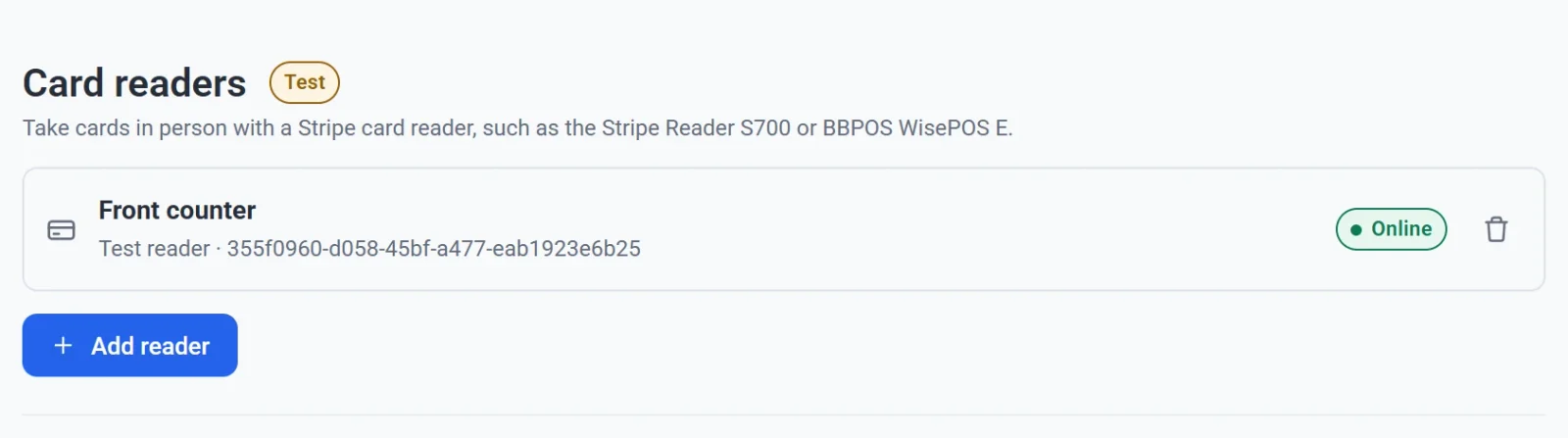
To remove a reader, click the trash icon next to it.
Tip: In test mode, type simulated-wpe as the pairing code to add a test reader. The card payment window then shows test buttons in place of a card, and no money moves. See Test mode.
Refunds
Open the order in Orders and click Refund, as with any order. See Refund an order.
- Cash and other payments: Payly records the refund, and puts the items back in stock if you choose. Give the money back to the customer yourself.
- Cards: the money goes back to the card, as with an online order.
- Interac cards in Canada: Interac refunds happen on the card reader. Choose the reader, click Refund, and the customer taps or inserts the card that paid.
Who can use it
The store's owner, admins and editors can sell on the point of sale. Only the owner and admins can add card readers and give refunds. Viewers don't see it. See Invite your team and set roles.
Turn it off
If you don't sell in person, turn off Point of sale in Settings, Features. It leaves your menu, along with Card readers and Store address. Your past in-person sales stay in Orders.