
Edit your site with AI
Type a change in the Edit with AI chat, such as new colors, words, menu links or form questions, and Payly makes it for you.
The Edit with AI chat changes your site from a short request, such as "make the background dark blue" or "add a button under this that says Shop". It works in the store editor and in the form builder, for payment forms, donation forms, event tickets, tip jars and booking pages, whether or not you built them with AI.
Make a change
- Open your store in the editor, or your form in the form builder.
- Click the green Edit with AI button at the bottom right of your page.
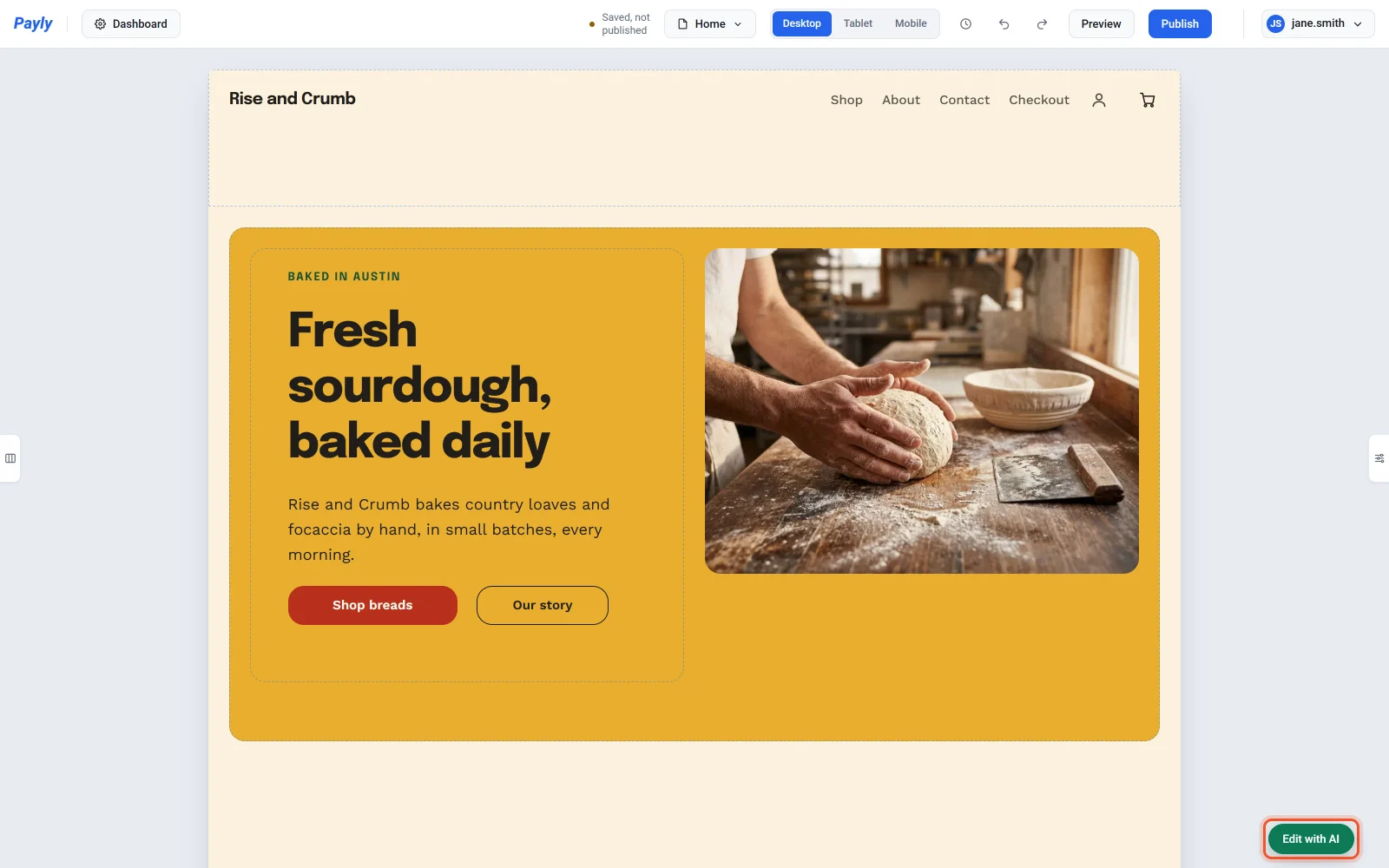
- Type the change you want, then press Enter or click Send. To start a new line instead, press Shift + Enter.
- Payly makes the change on your page, and the chat says what it did.
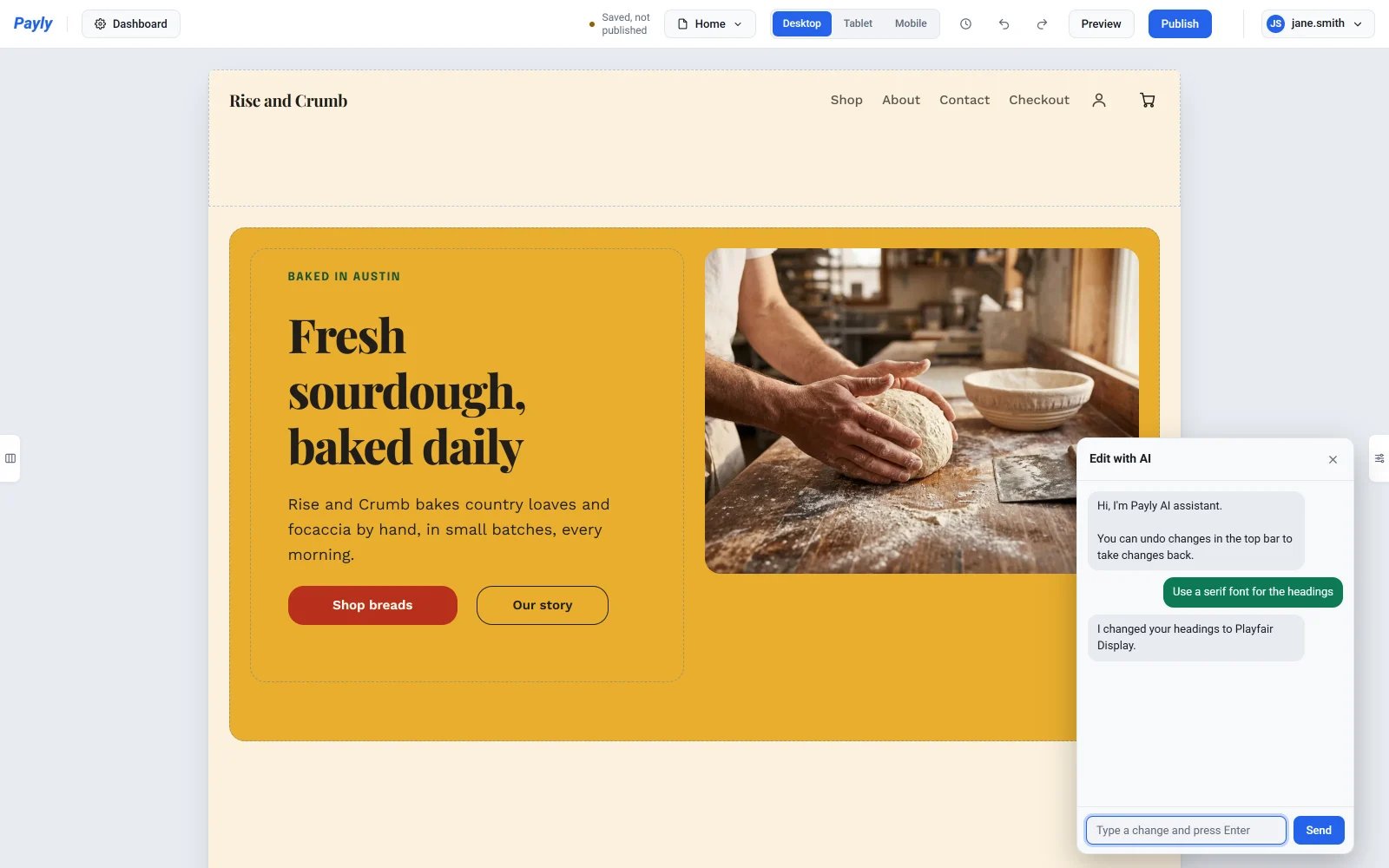
Your changes are saved to your draft like any other edit. Visitors see them after you publish. To put the chat away, click Minimize, the line at its top right.
Change one block
Click a block on your page, such as a heading, a button or a photo, then say "this" in the chat. For example, click a heading and type "Center this". The block stays selected, so you can go on with "make it bigger".
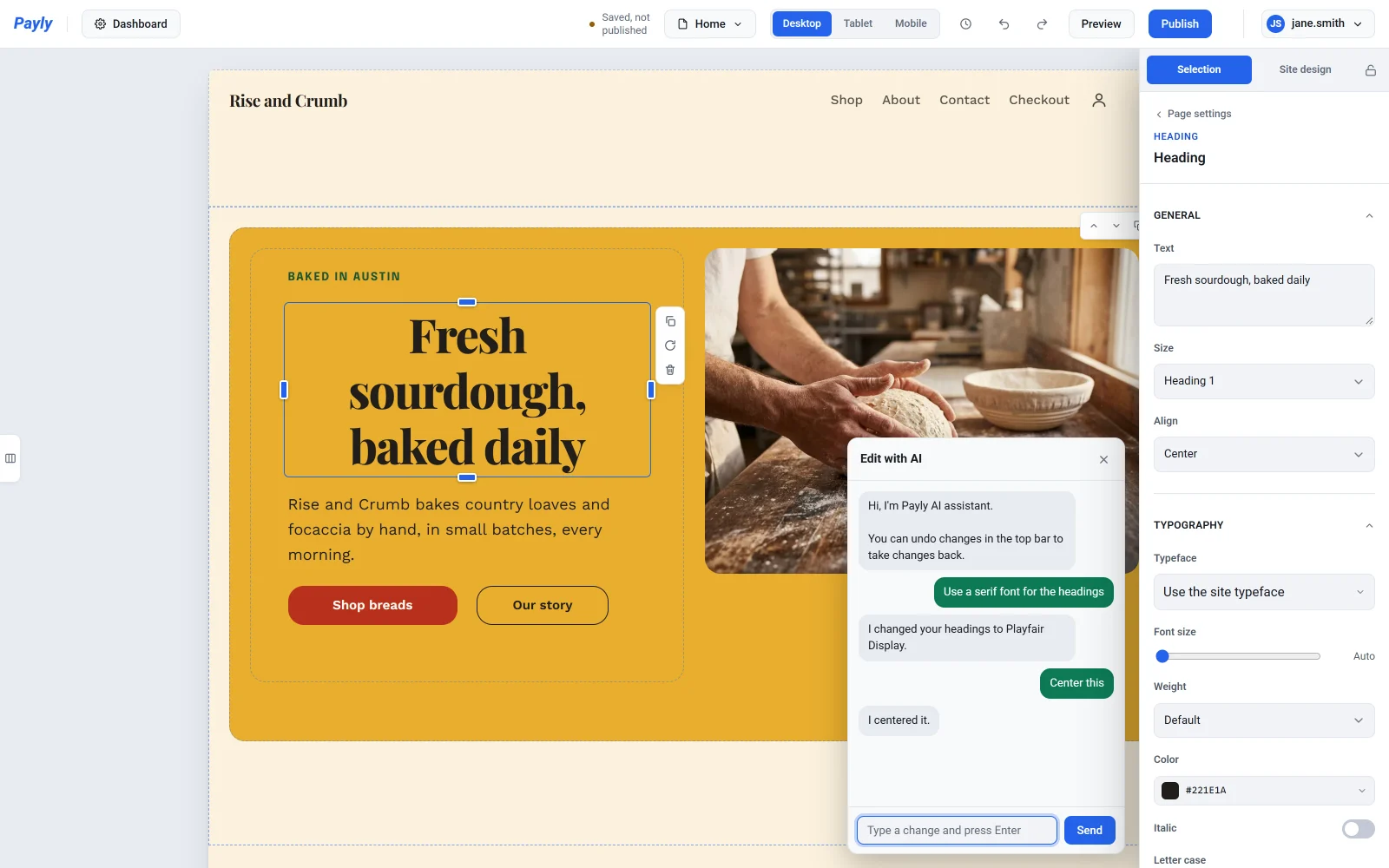
While you are editing Tablet or Mobile, a change to a block's size or place applies to that screen size only. See Make your site look right on phones and tablets.
Undo a change
Each request is one step. To take it back, click the undo arrow in the top bar, or press Ctrl + Z (Cmd + Z on a Mac). See Undo changes and restore an earlier version.
What you can ask for
| What to change | Try typing |
|---|---|
| Colors | "Make the background dark blue", then "a bit darker" |
| Fonts and style | "Use a serif font for the headings", "Make the corners rounder" |
| Words | "Change the main headline to Fresh bread every morning", "Make the text under the main headline shorter" |
| Photos | "Use photos of flowers", "Change the top photo to a beach" |
| Sections | "Add a questions and answers section at the end", "Remove the newsletter section", "Put the photo on the left", "Make the top one big photo with the words on it" |
| Blocks | "Make this wider", "Move this to the right", "Add a button under this that says Shop", "Remove this" |
| Menu and footer | "Add Blog to the top menu", "Rename About to Our story", "Add an Instagram link to the footer", "Change the copyright in the footer" |
| Pop-up and top bar | "Add a pop-up offering 10% off for email sign-ups", "Add a bar at the top that says Free shipping over $50", "Show the bar until Sunday night", "Add a countdown to the bar" |
New photos come from Payly's free photo library. To use your own, see Add images and use the media library. A new section comes with example words: ask the chat to change them, or edit them yourself. A new menu link goes to a page you already have, so add the page first. See Add and manage pages. The pop-up's and the bar's times are in your account's time zone. See Manage your account settings.
In the form builder
In the form builder, the chat changes your questions, prices, look and settings. Open the chat with the green Edit with AI button at the bottom right.
| What to change | Try typing |
|---|---|
| Questions | "Ask for their phone number", "Make question 2 required", "Remove the email question" |
| Choices and prices | "Add focaccia for $7 to the loaf choices", "Change the price of rye to $9" |
| Look | "Make the form green", "Use the material style", "Add a photo of bread at the top" |
| Messages and closing | "Change the thank-you message to say we'll email them", "Close the form at the end of Friday", "Stop after 50 orders" |
| Donations | "Set the suggested amounts to 10, 25 and 100", "Add a goal of $10,000", "Remove the donation progress bar" |
| Event tickets | "Add a child ticket for $10", "Only sell 150 tickets in total", "Stop selling Early bird tickets after Sunday" |
| Booking pages | "Add a 60-minute color service for $80", "Change my hours to 9 to 5, Monday to Friday", "I'm off on Friday", "Add 15 minutes between appointments" |
Dates and times are in your form's time zone, which you can change beside Close on in its Settings. A booking page uses the time zone on its Availability tab.
Good to know
- In the store editor, the chat works on the page you have open. To change another page, choose it in the page picker in the top bar first. Colors, fonts and style change your whole store, and so do your top menu and footer, which are on every page.
- The chat remembers your last few messages, so a follow-up like "a bit darker" knows what you mean.
- Your chat history is kept in this browser only. On another computer or browser, the chat starts empty.
- If the chat can't do something, it tells you. See Tips and limits for AI help.