
Sell AliExpress products with dropshipping
Connect your AliExpress account, bring in AliExpress products by link, and approve your paid orders. AliExpress ships each one to your customer, and Payly emails them the tracking.
Dropshipping means you keep no stock. You sell AliExpress products in your store. When a customer pays, Payly places the order on AliExpress, and AliExpress ships it to your customer and charges you its price.
You need an AliExpress account: the one you buy with.
Get your AliExpress account ready
- Sign in to aliexpress.com with the account you buy with. If you don't have one, make one.
- Open ds.aliexpress.com and accept the AliExpress Dropshipping agreement, if you haven't already. If DS Center keeps showing you as signed out, open a private window, sign in at aliexpress.com there, then open ds.aliexpress.com in the same window.
- To have each order paid for you, turn on Auto-pay. Open AliExpress Auto-pay and click Apply. Tick the box, click Agree, then click the yellow PayPal button and connect your PayPal account. AliExpress charges it in US dollars. Without Auto-pay, you pay for each order on AliExpress yourself.
Connect AliExpress
- In your site dashboard, click Integrations.
- Under Dropshipping, turn on AliExpress. A pop-up opens with the steps.
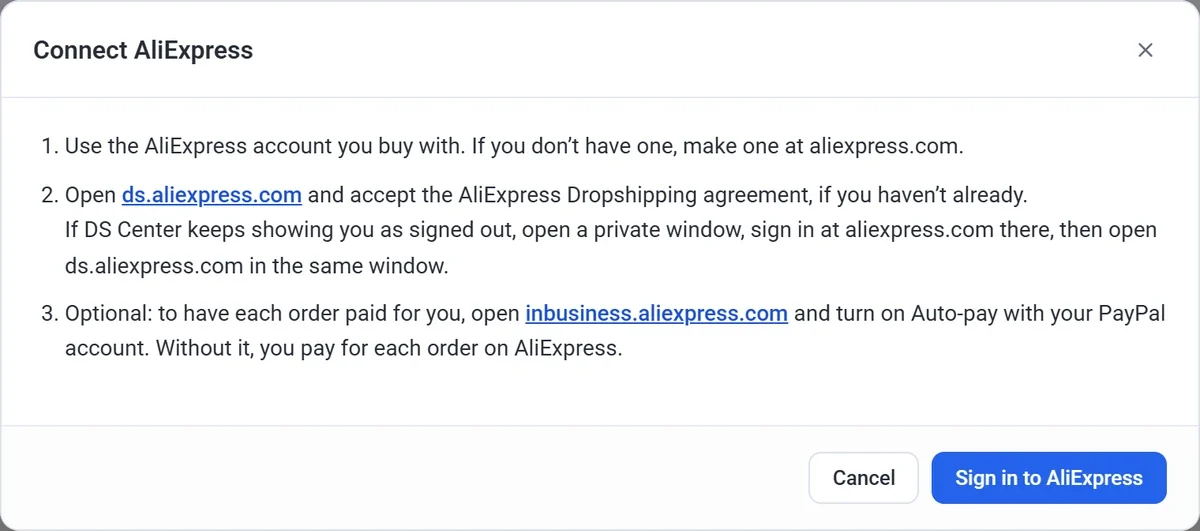
- Click Sign in to AliExpress. AliExpress's sign-in opens in a new window.
- Sign in with your AliExpress account and authorize Payly. The window closes, and AliExpress's settings open.
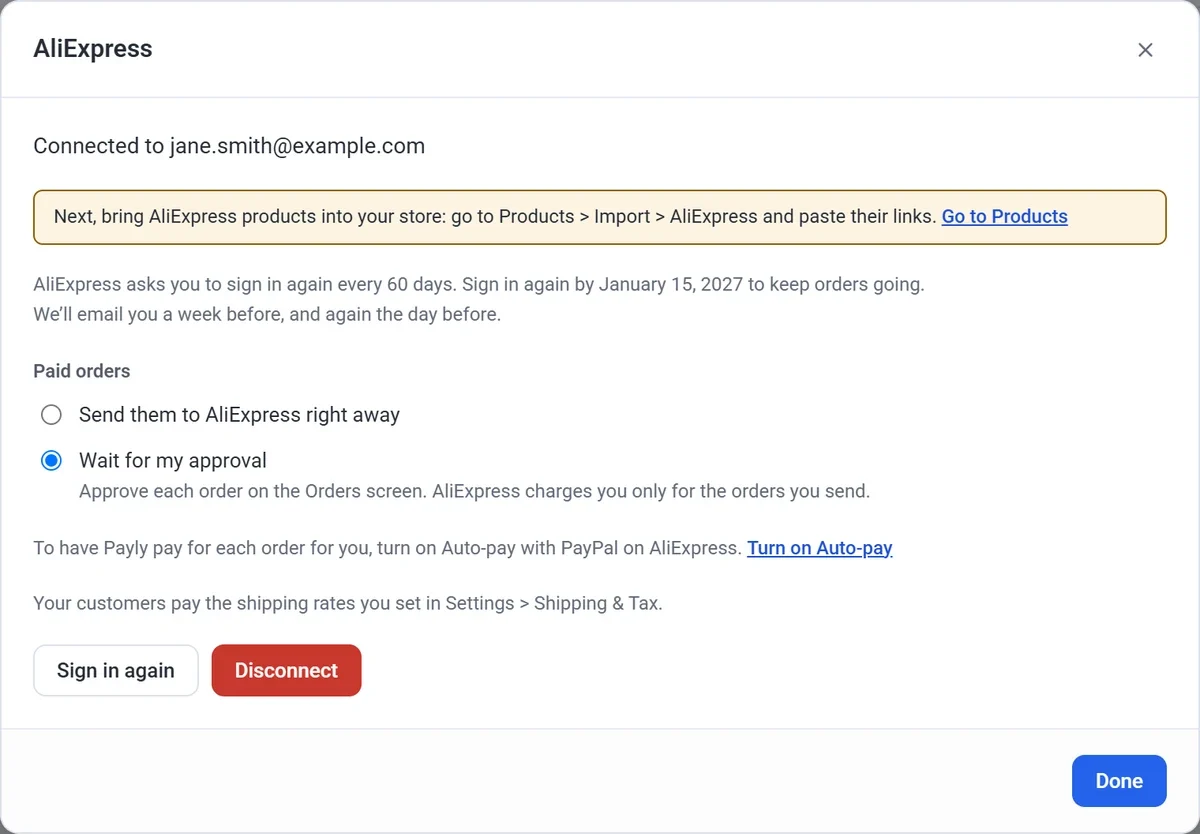
AliExpress asks you to sign in again every 60 days. Payly emails you a week before and again the day before. From a week before, the AliExpress row also says Sign in again by and the date. Click Settings, then Sign in again.
Choose how paid orders go
- In Integrations, click Settings under AliExpress. It also opens by itself right after you connect.
- Under Paid orders, click one:
- Wait for my approval (the default): approve each order on the Orders screen. AliExpress charges you only for the orders you send.
- Send them to AliExpress right away: each order goes to AliExpress as soon as it's paid.
Your choice is saved as soon as you click it.
Bring in your products
- On AliExpress, open a product you want to sell and copy its address from your browser's address bar.
- In Payly, click Products, then Import.
- Click the AliExpress tab and paste the links in AliExpress product links, one a line, up to 20 at a time.
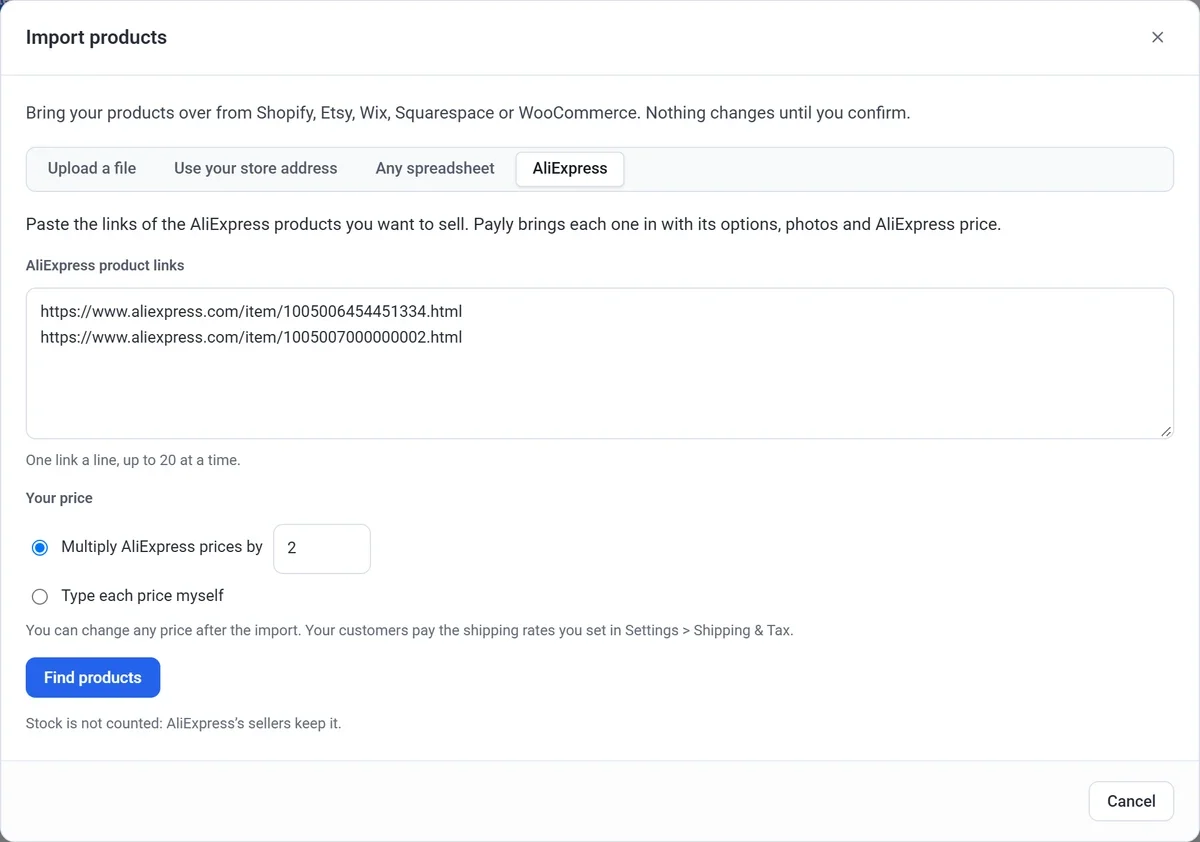
- Under Your price, type a number, for example 2 for twice the AliExpress price, or click Type each price myself. You can change any price after the import.
- Click Find products. Under Your prices, AliExpress's price shows beside each of yours. If you chose Type each price myself, type a price in each box. Click Next, then click the import button, for example Import 2 products.
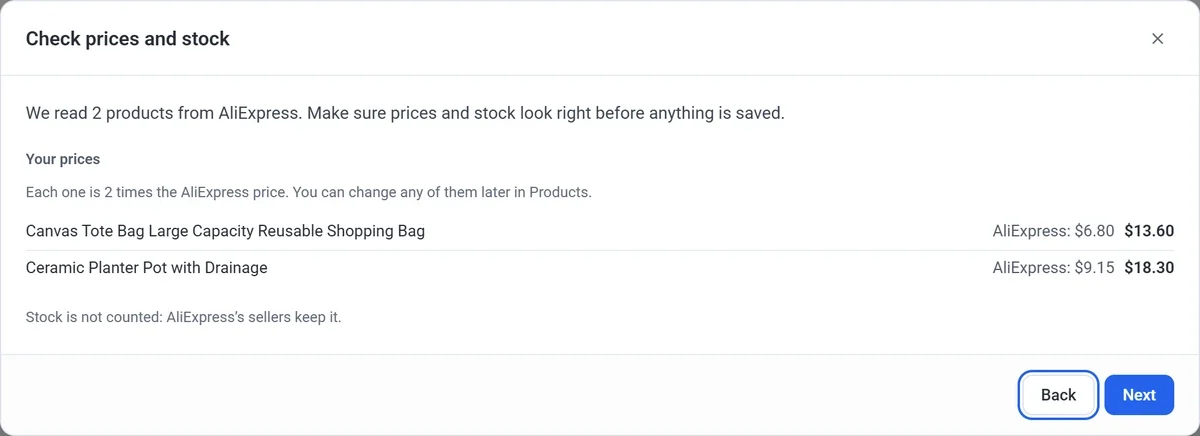
Each product comes in with its options and photos. When AliExpress ships a product from more than one country, Payly uses your store's own country if it can, or else China. Stock isn't counted: AliExpress's sellers keep it. Prices don't change by themselves after the import, so check them on AliExpress now and then. Then publish your site, so the new products show on your store.
Approve an order
- Click Orders. A paid order with AliExpress items says Needs approval in the Shipping column.
- Open the order. Under Dropshipping, click Approve and send to AliExpress.
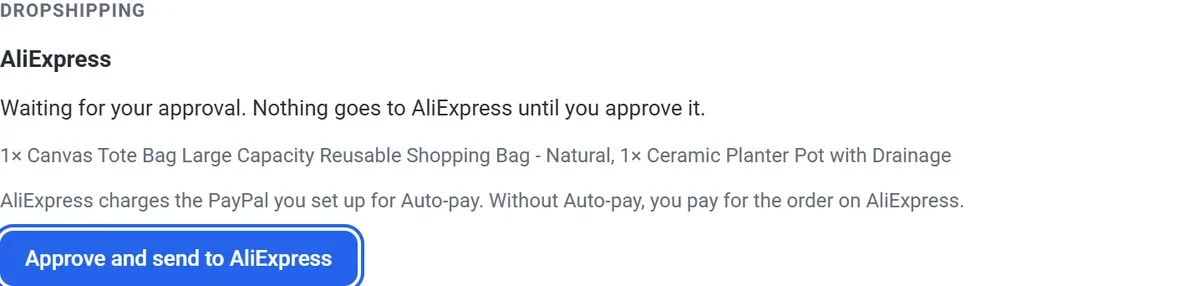
- Click Send. Payly places the order on AliExpress, with AliExpress's cheapest shipping that has tracking.
You can also click the check mark on the order's row. AliExpress gets only its own items, and anything from your own stock stays with you to ship.
Paying AliExpress
- With Auto-pay on, AliExpress charges your PayPal as the order is placed. Within about 15 minutes, the order says Placed and paid on AliExpress.
- Without Auto-pay, or if the payment doesn't go through, the Shipping column says Pay on AliExpress. Open the order and click Open your AliExpress orders to pay for it there.
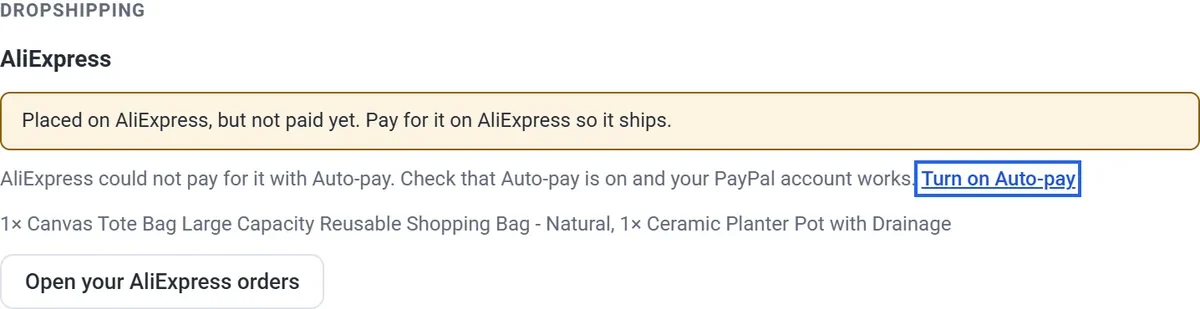
Pay soon: AliExpress closes an order that isn't paid in time.
After it's paid
- Payly checks your AliExpress orders every 15 minutes.
- When AliExpress ships, Payly marks those items shipped and emails your customer the tracking. See Emails your customers receive.
- Your customers pay the shipping rates you set in Settings > Shipping & Tax. AliExpress charges you its own price and shipping.
If AliExpress can't take an order
The Shipping column says Not sent to AliExpress, and the order shows AliExpress's reason. Payly emails you once. Fix what it says, for example the customer's address, then click Send again. If AliExpress closed an order because it wasn't paid in time, Send again places a new one.
Orders to Brazil can't be placed: AliExpress needs a tax number that Payly's checkout doesn't ask for.
Test orders
AliExpress doesn't have test orders, so Payly places your test order on AliExpress but never pays for it. Nothing ships and you aren't charged, and AliExpress closes it by itself. Don't pay for it there. When every item on it is from AliExpress, the Shipping column says Test, not paid.
Turn it off or disconnect
- To pause, turn off the switch. Paid orders wait until you turn it back on.
- To disconnect, click Settings, then Disconnect. Payly signs out of AliExpress and stops sending it orders. Your products stay in your store.