
Set up membership levels
Add free and paid levels to your creator page, set monthly and yearly prices, say what members get, and close a level to new members when you need to.
A level is a named way to join your creator page, such as Fan or Patron. A paid level has a monthly price and, if you like, a yearly price. Members on a higher level also see every post written for the levels below it.
Before you start
- Create your creator page. See Start a creator page.
- Check your currency in Settings > General. Every price on the page uses it. See Set your store currency.
Add a level
- In your dashboard, click Levels.
- Click Add a level.
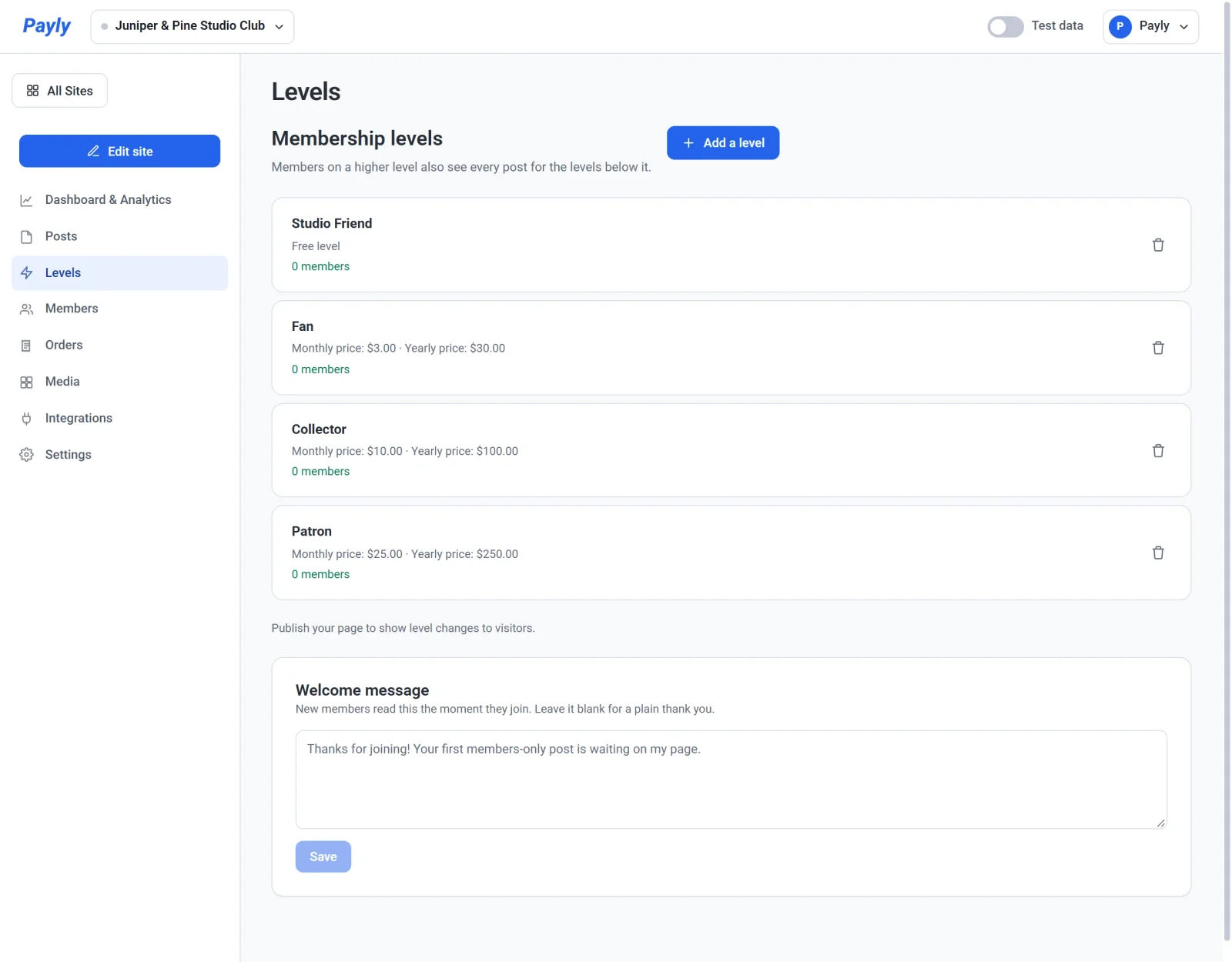
- Enter a Name, such as Gold. Members see it on your level cards, at checkout and in their account.
- In What members get, describe the level. The words appear on the level's card on your page.
- Enter a Monthly price.
- To offer a yearly option too, enter a Yearly price. Leave it empty to offer monthly only.
- Leave Open to new members ticked.
- Click Save.
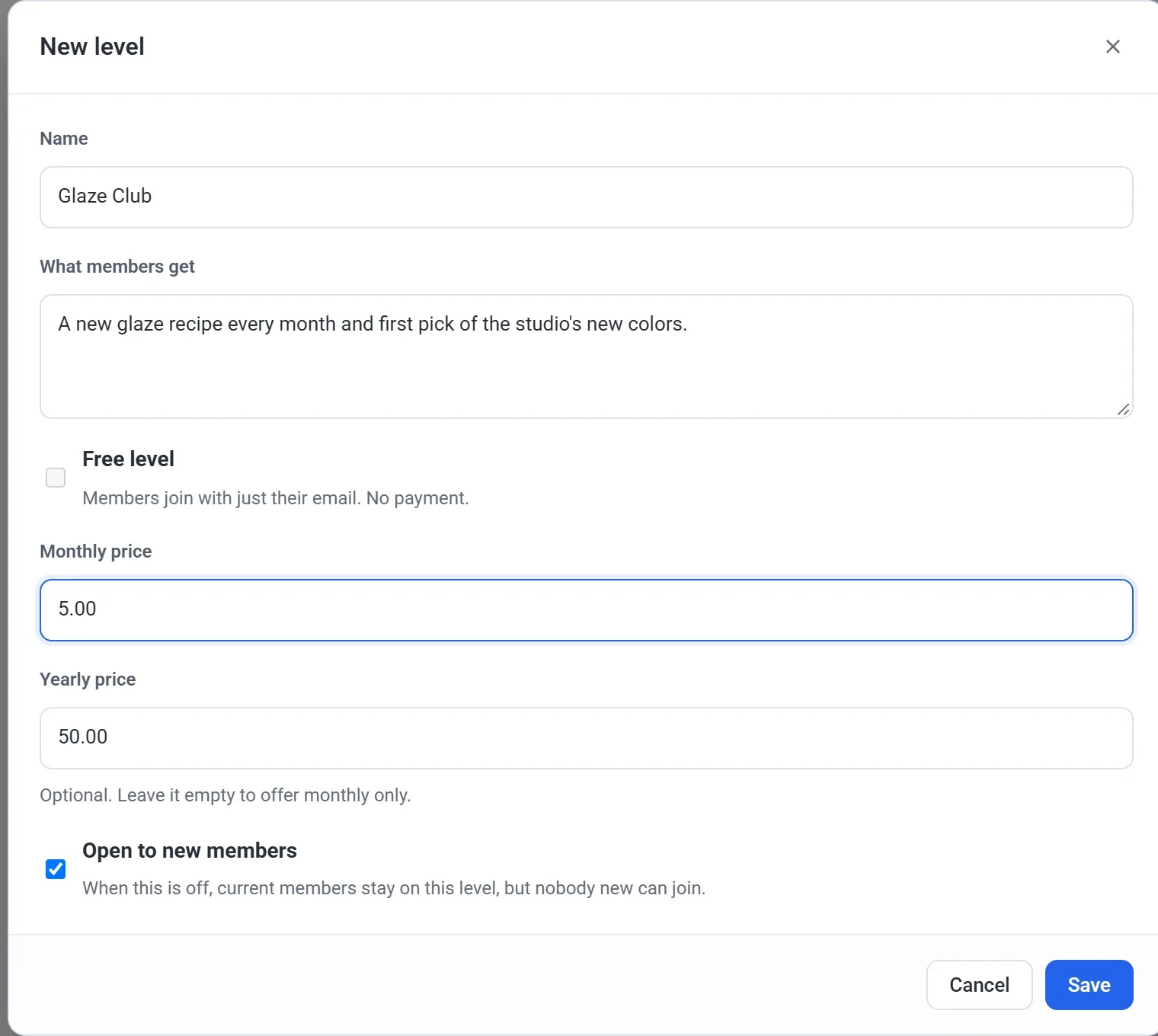
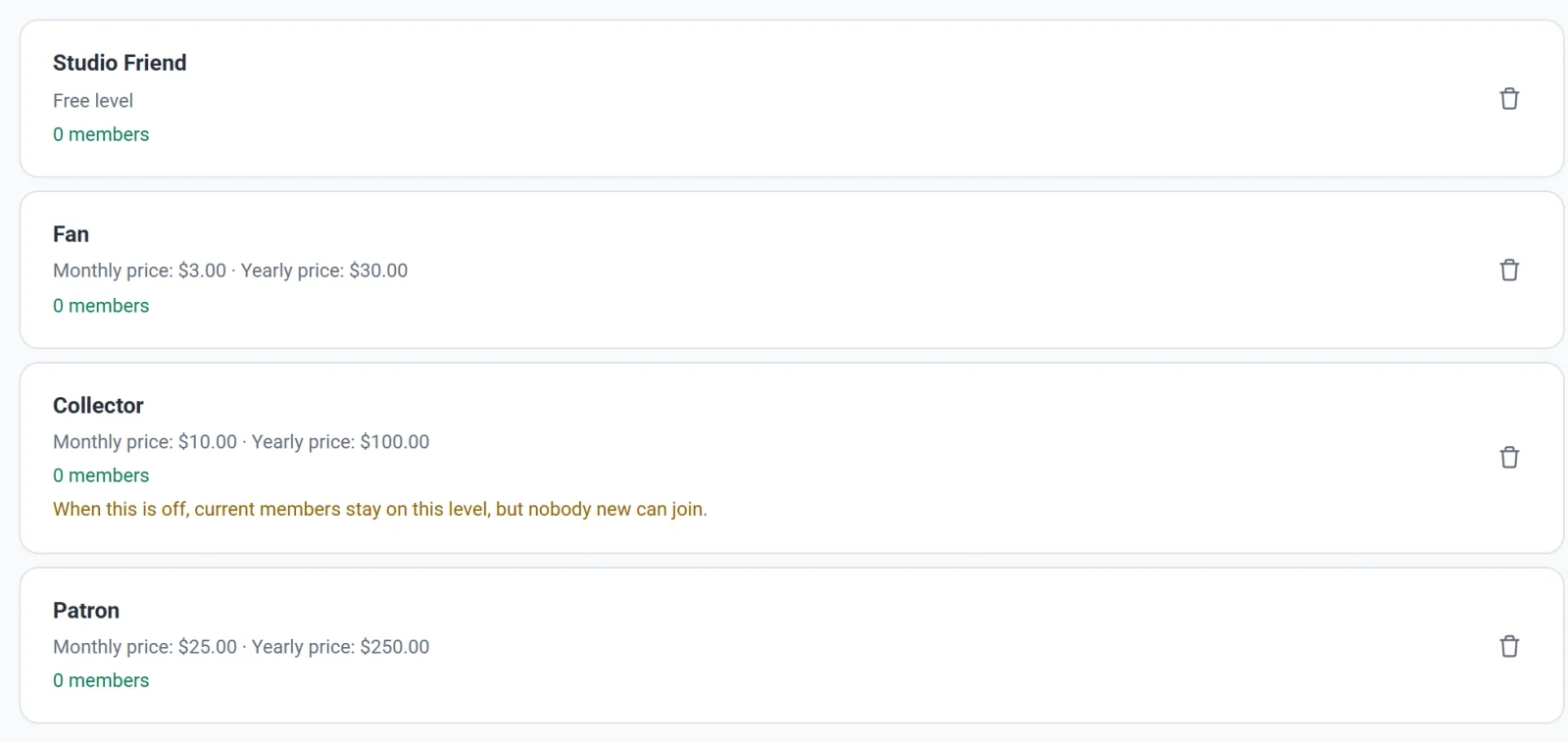
A level needs a name, and a paid level needs a monthly price. The list is always in price order: the free level first, then the paid levels from the lowest monthly price to the highest. You do not arrange it by hand. Because a higher price means a higher level, that level can read everything written for the levels below it. Under each level, the list shows how many members it has.
Offer a free level
A free level lets fans join with just their email and read the posts you share with all members. A page can have one free level.
- Click Add a level.
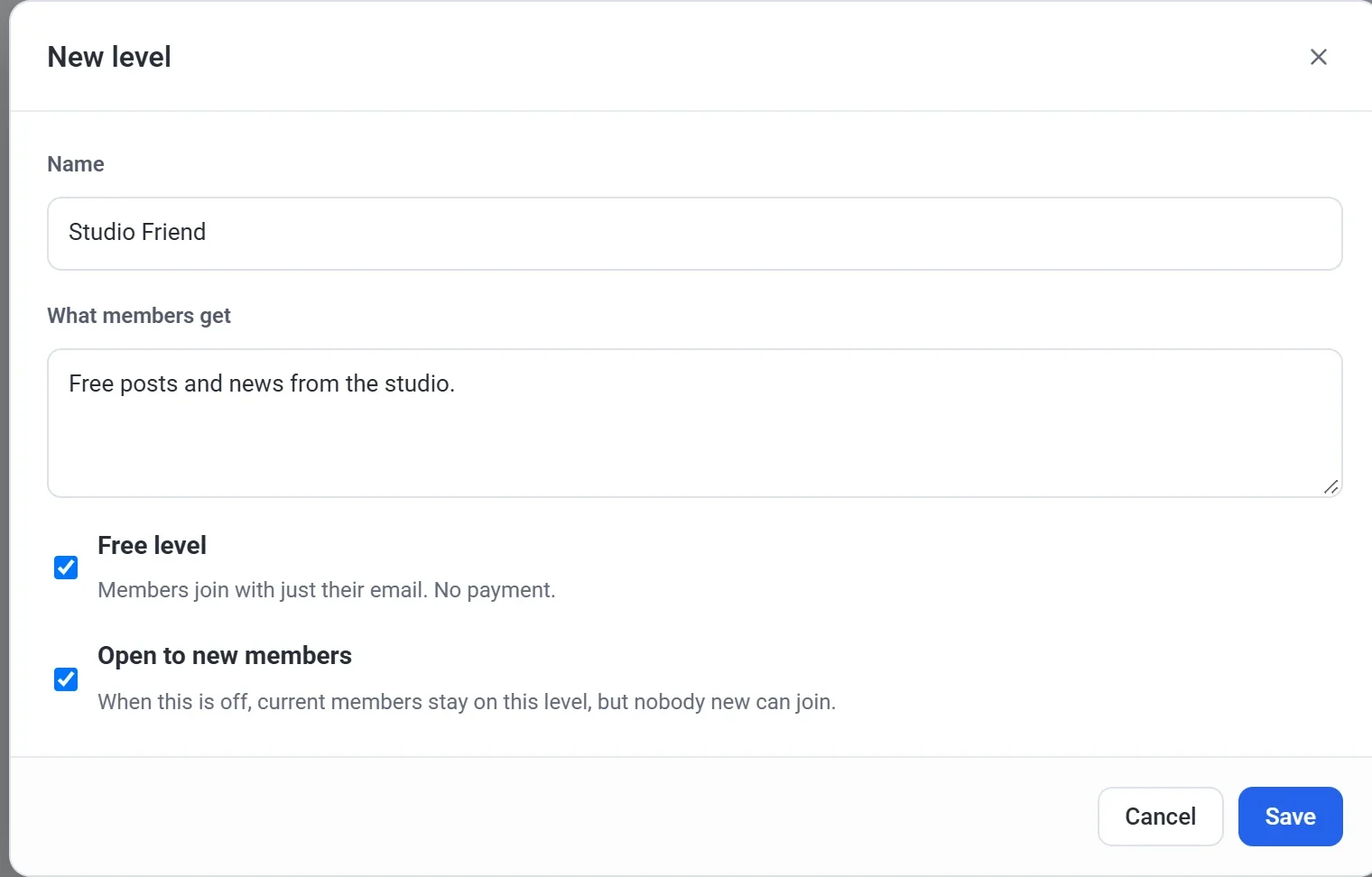
- Enter a Name and fill in What members get.
- Tick Free level. The price boxes disappear.
- Click Save.
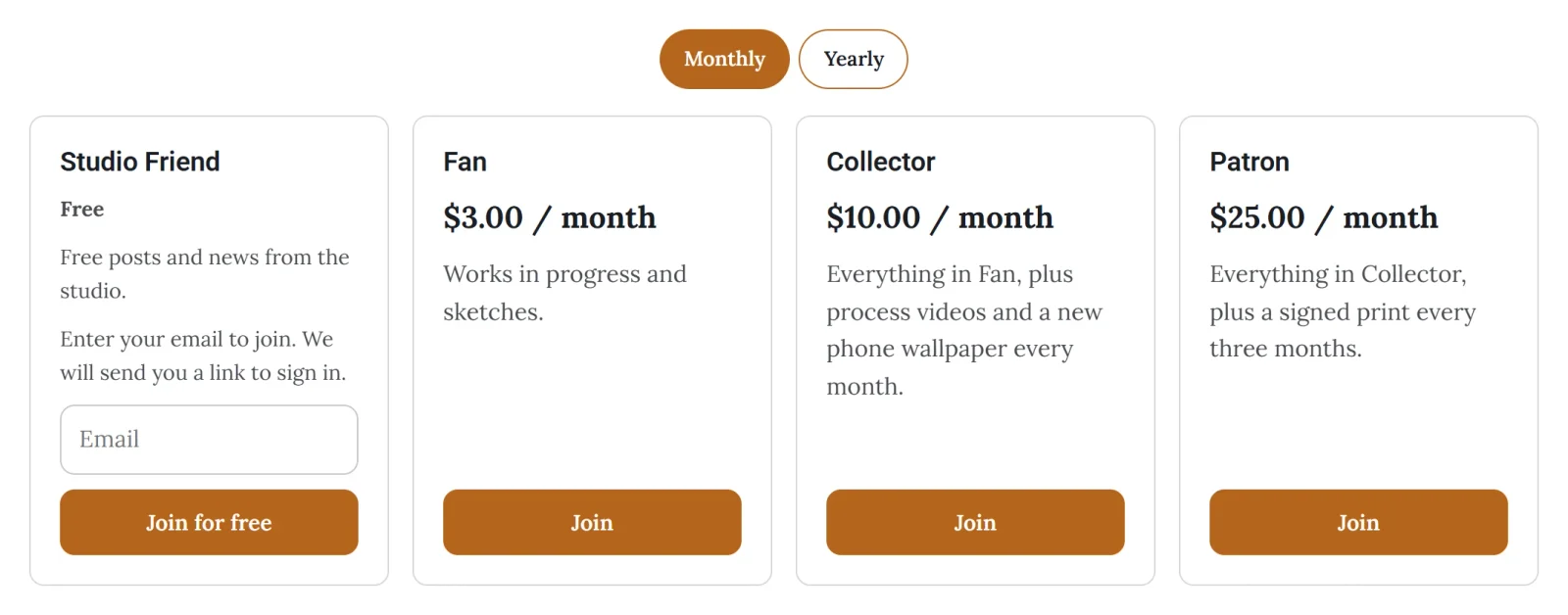
On your page, the free level's card has an email box and a Join for free button. Visitors type their email, pass a quick robot check and receive an email with a link to sign in. A free member can move up to a paid level from the account page on your site, where the button is Change level.
Show the levels on your page
Each level that is open to new members appears as a card on your home page, with its name, price, what members get and a Join button. When any level has a yearly price, a Monthly and Yearly switch appears above the cards. A paid member pays through the PayPal or Stripe account you connected.
Changes to your levels reach visitors when you publish your page again. See Publish, update and take your site offline.
Write a welcome message
Below the list of levels, the Welcome message box holds what new members read the moment they join. Leave it blank for a plain thank you. Click the Save button under the box to keep your words. The message shows at once, with no need to publish.
Change a level
Click a level in the list to change its name, description, prices or whether it is open, then click Save. If you change a price, members who already joined keep the price they joined at. The new price is for new members.
Close a level to new members
To stop new people joining a level without touching the people already on it, clear Open to new members and click Save. Current members stay on the level and keep their access. The level's card leaves your page when you publish again, and a note under the level in your list reminds you that nobody new can join it.
Delete a level
Click the trash can on a level's row and confirm. You can delete a level only while no one is on it. If it has members, Payly tells you how many and suggests you turn off Open to new members instead.
Important: Deleting a level does not delete its posts. Open each post that was for the level, check Who can see this post, and save the post again.