
Publish members-only posts
Write a post, choose who can read it, and publish it now or schedule it for later. Visitors see a locked post's title and cover, and members sign in to read it.
A post is a piece of writing for your members: formatted text, links and an optional cover image. You choose who can read each one, from everyone down to a single paid level. Posts appear on your page's Posts page, and you can publish one without publishing your whole page again.
Before you start
- Set up your levels, because each post can be limited to a level. See Set up membership levels.
- Publish your page at least once. Until you do, the Publish and Schedule buttons answer Publish your page once before you post. You can still write posts and keep them as drafts. See Publish your first site.
Write a post
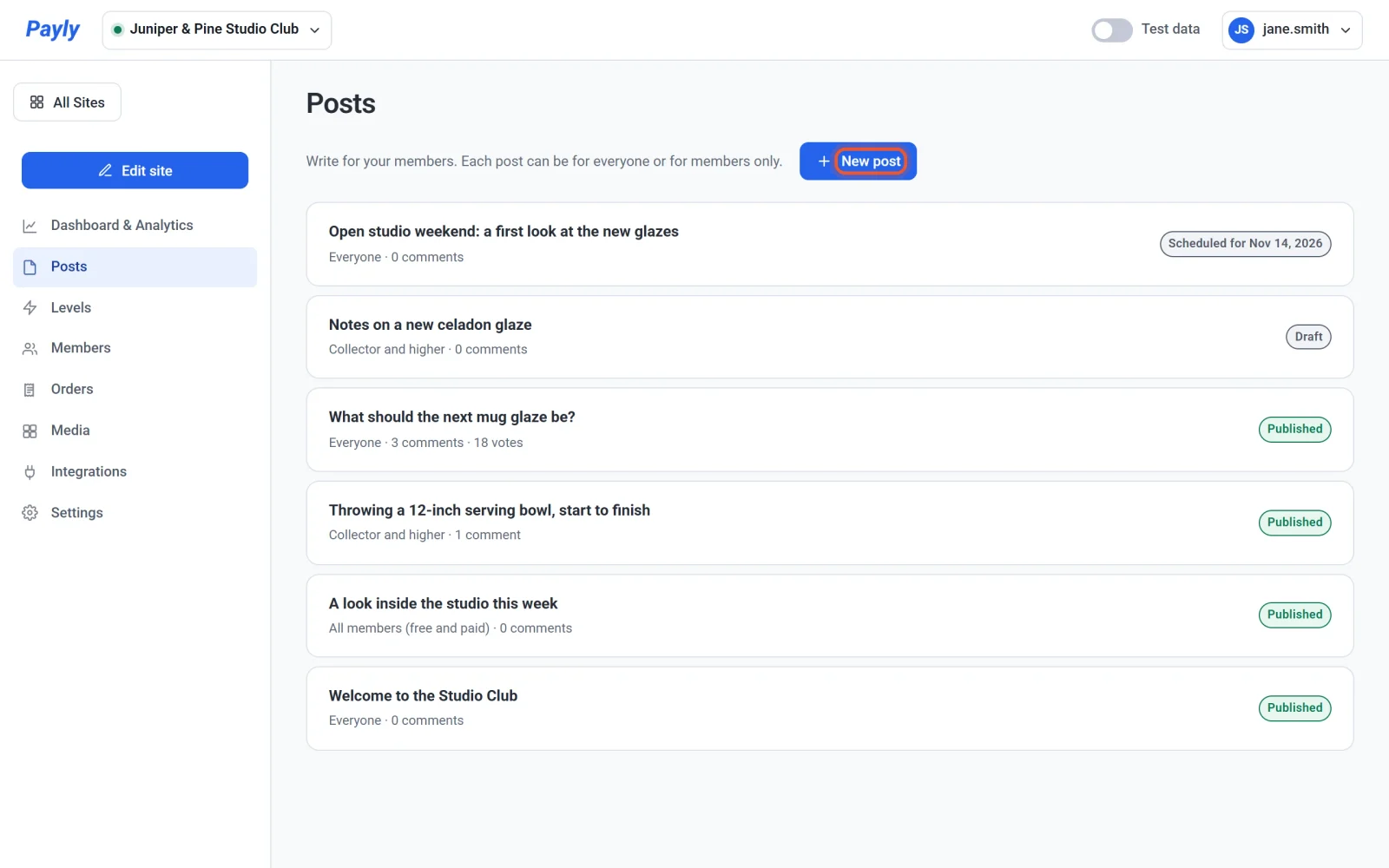
- In your dashboard, click Posts.
- Click New post.
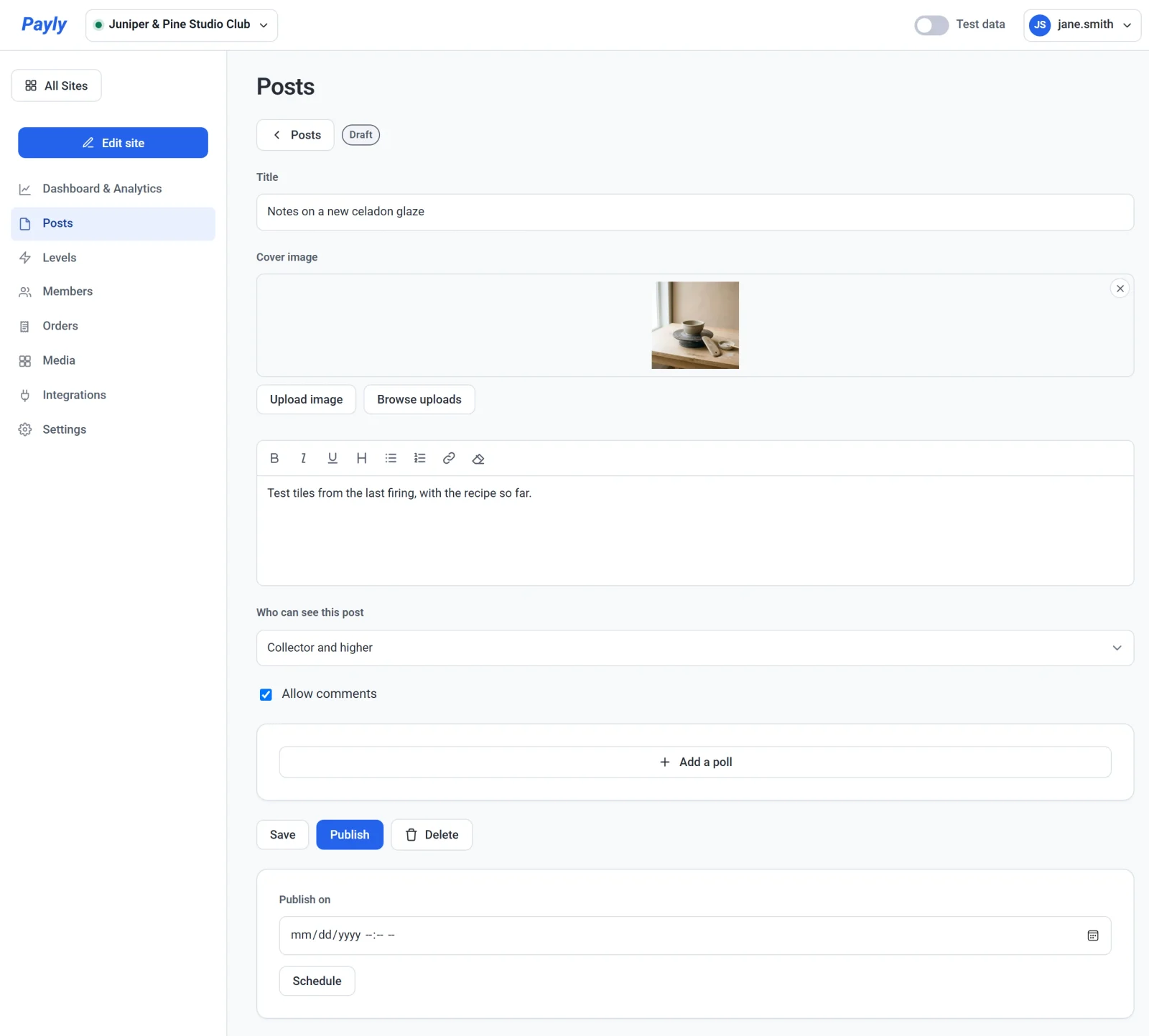
- Enter a Title. Payly makes the post's web address from it. Once you publish or schedule the post, its address stays the same, so a link you shared keeps working.
- To add a Cover image, paste the address of a picture that starts with
https://, click Upload image, or click Browse uploads to pick one you uploaded before. Uploading needs your Cloudflare account to be connected, because your pictures are stored there. - Write your post in the text box. The toolbar has buttons for bold, italic, underline, a heading, bulleted and numbered lists, a link, and clearing formatting. A post holds text, links and one cover image. To share a video or an episode, add a link to it.
- In Who can see this post, choose who may read it. See the table below.
- Leave Allow comments ticked, or clear it. To add a poll, see Polls and comments.
- Click Save to keep the post as a draft, or publish it as described below.
Choose who can see a post
| Choice | Who can read the post |
|---|---|
| Everyone | Anyone who visits your page, signed in or not. |
| All members (free and paid) | Signed-in members on any level, including your free level. |
| Paid members only | Signed-in members on any paid level. |
| A level and higher, such as Collector and higher | Members on that level and on every higher level. |
The level choices list your paid levels. Levels rank by price, so a member on a higher level reads everything written for the levels below it.
Publish, schedule or take down a post
- Publish now: click Publish. The post goes on your page right away. You do not need to publish your page again, although the Posts page can take up to a minute to show it.
- Publish later: pick a date and time under Publish on and click Schedule. Payly uses the time zone of the computer you are working on. The post appears on your page at that time.
- Change a live post: open it from the list, edit it and click Update.
- Take a post off your page: open it and click Unpublish. It becomes a draft again. To move a scheduled post to a new time, click Unpublish, pick the new time and click Schedule.
- Delete a post: open it, click Delete and confirm. The post is removed from your page right away.
In your list, each post is marked Draft, Published or Scheduled for a date. Under its title you see who can read it and how many comments and votes it has.
What visitors see
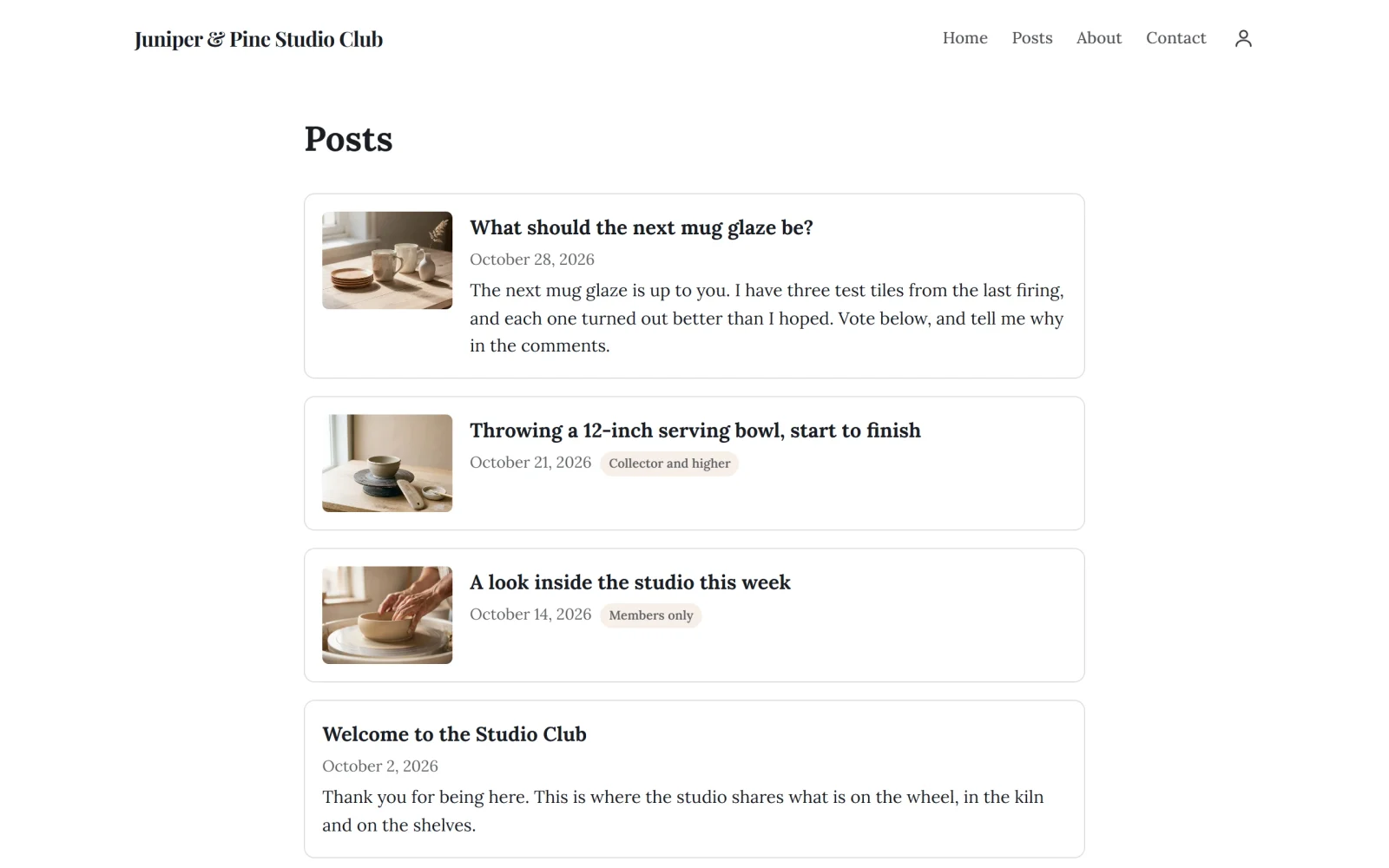
Your Posts page lists your published posts, newest first. Each card shows the post's cover, title and date. A post for everyone also shows the first lines of its text. A post for members shows a badge, such as Members only or Collector and higher, and none of its words.
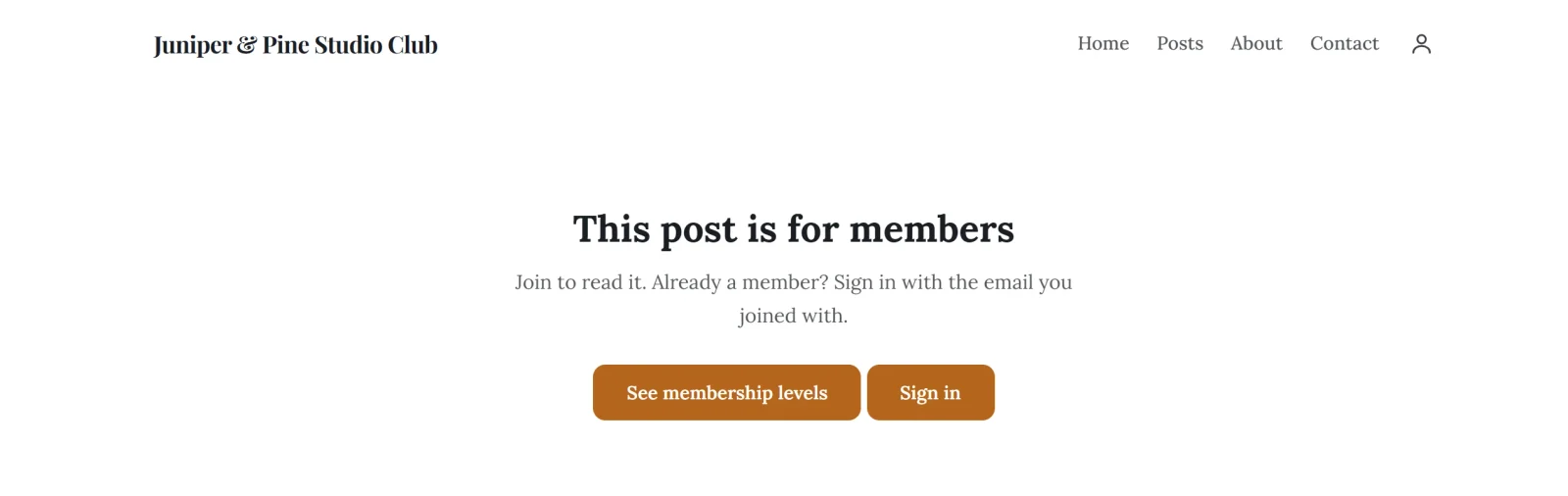
A visitor who is not signed in and opens a members-only post sees This post is for members, with the buttons See membership levels and Sign in. Members sign in with an emailed link or code, with no password. See How customer accounts and sign-in work.
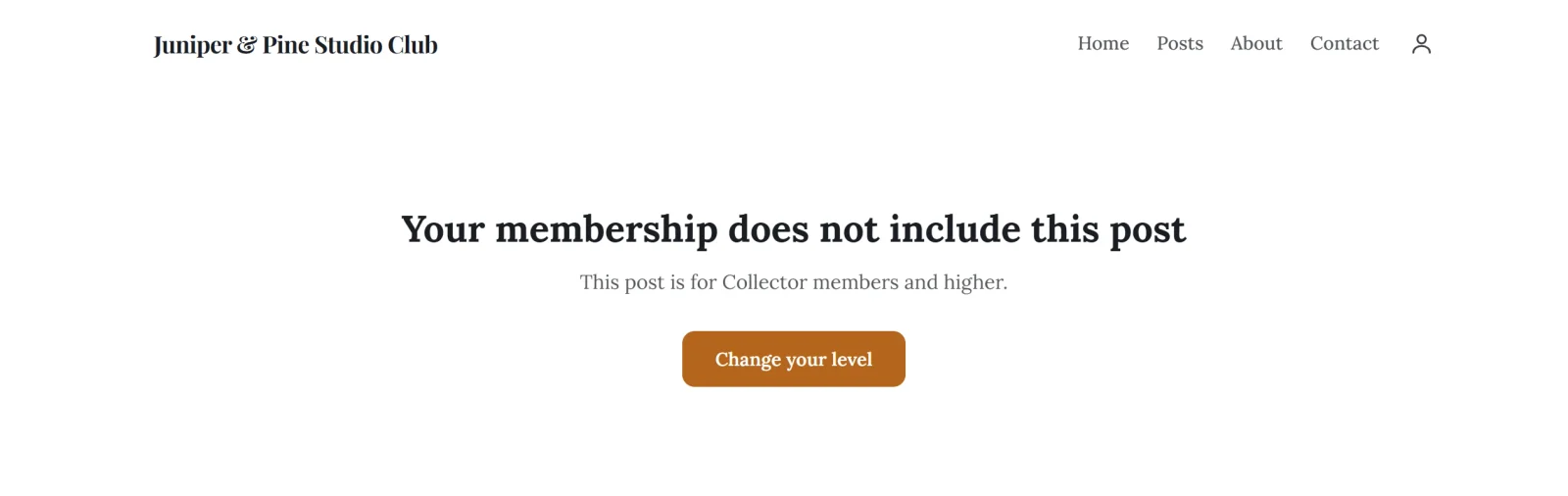
A signed-in member whose level is too low sees Your membership does not include this post, which names the level needed, and a Change your level button that opens their account.
Members are not emailed when you post. They find new posts on your page.