
Polls and comments
Add a poll to a post so members can vote, and let members comment on your posts and reply to each other. You can turn comments off on any post.
A poll asks your members a question and shows the results. Comments let members talk about a post, and with you. Both belong to a post, so you set them up while you write it.
Before you start
- Write the post you want the poll or comments on. See Publish members-only posts.
- Remember who can take part. Members vote and comment only on posts they are allowed to see, and only when they are signed in.
Add a poll to a post
- In your dashboard, click Posts, then open a post or click New post.
- Under Allow comments, click Add a poll.
- Enter your Question.
- Type a choice in each box. A new poll starts with two. Click Add a choice for more, up to ten. Click the trash can beside a choice to remove it. A poll always keeps at least two.
- Decide when the poll ends. A new poll has no end date. To close it on a date, clear No end date and pick the date and time under Poll ends.
- Save the post as usual: Save, Publish or Schedule, or Update on a post that is already live.
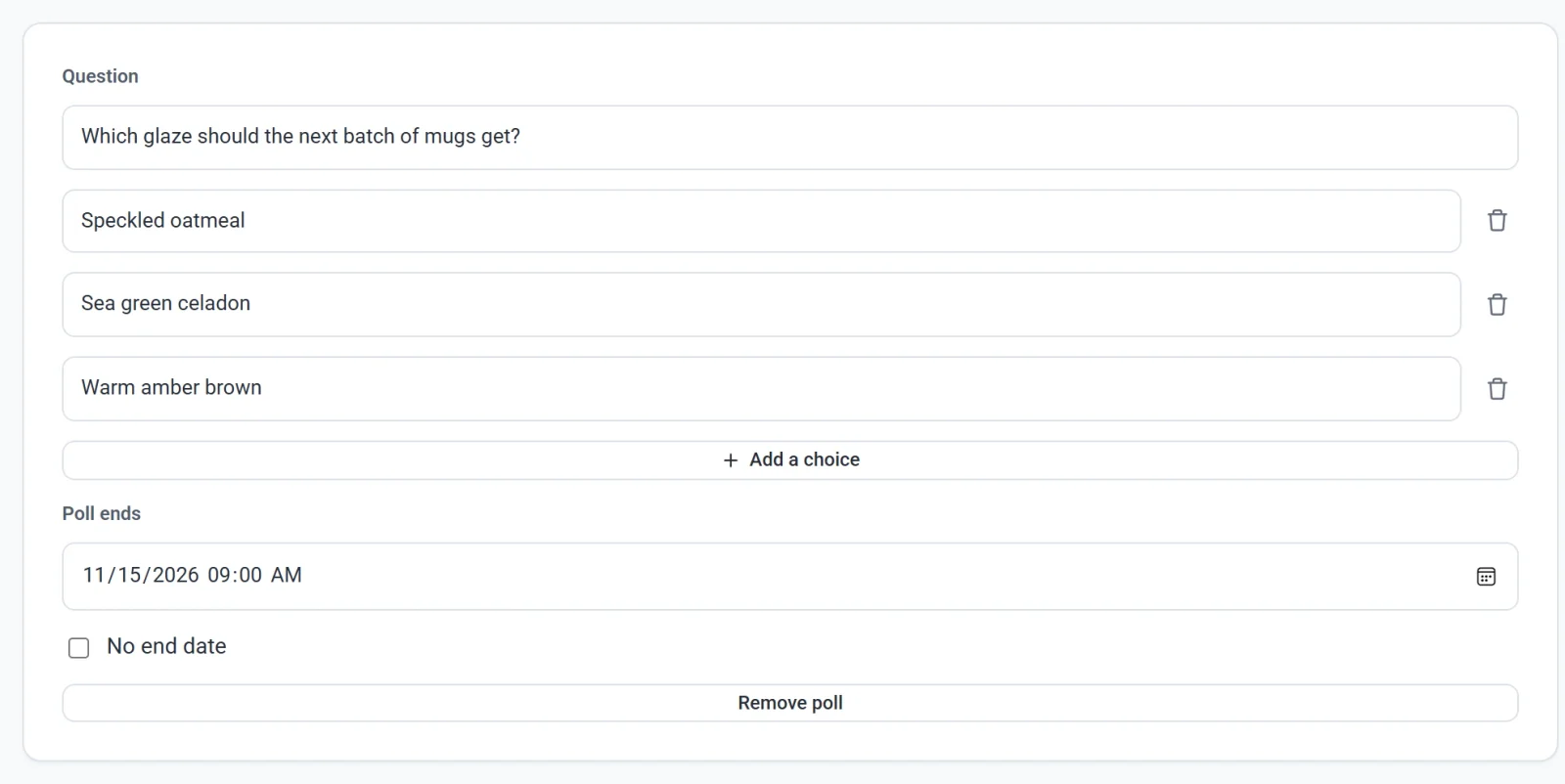
A poll is kept only when it has a question and at least two choices with words in them. To take a poll off a post, click Remove poll and save the post.
How members vote
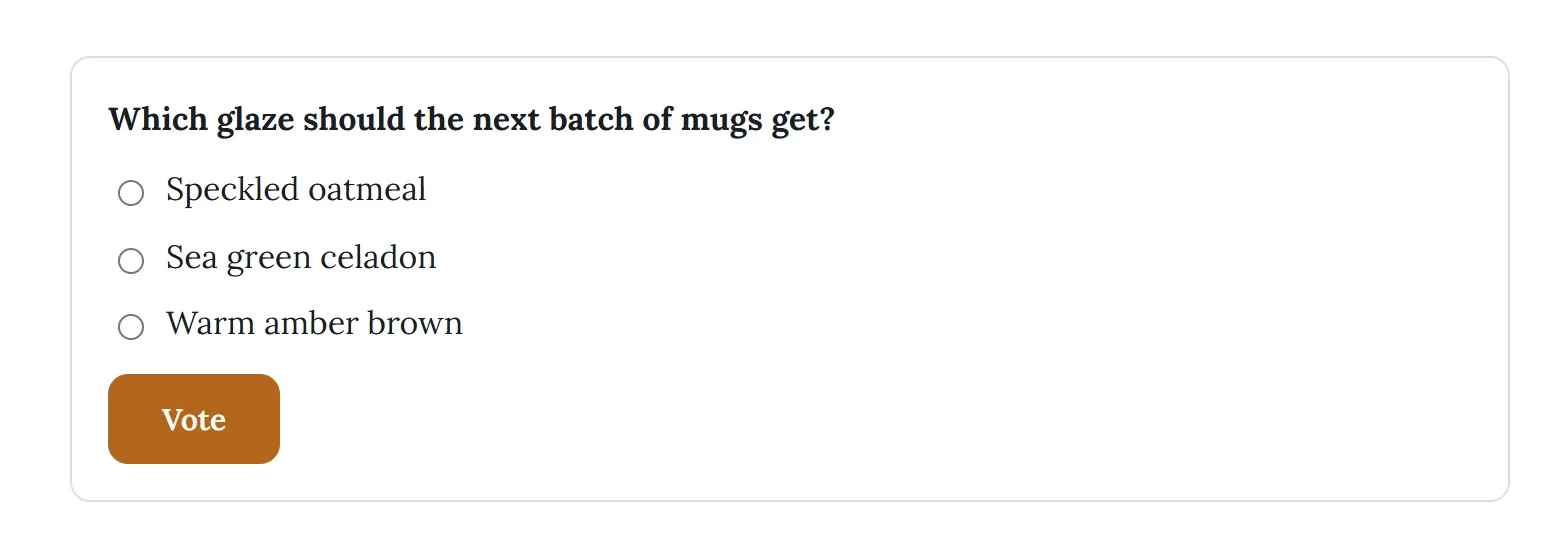
- A signed-in member who can see the post sees your question, the choices and a Vote button. Each member votes once.
- After voting, a member sees the results: each choice with its percentage and a bar, the number of votes, and You voted.
- When the end time passes, everyone who can see the post sees the results, with This poll has ended.
- A visitor who is not signed in sees the choices and Sign in to vote.
Your Posts list shows how many votes each poll has. The percentages show on the post itself.
Comments
Comments are on by default. Members who can see a post can write a comment and reply to other members' comments, with one level of replies. Names show the way reviews do, as a first name and the first letter of the last name, such as Jane S. A new comment appears on the post at once.
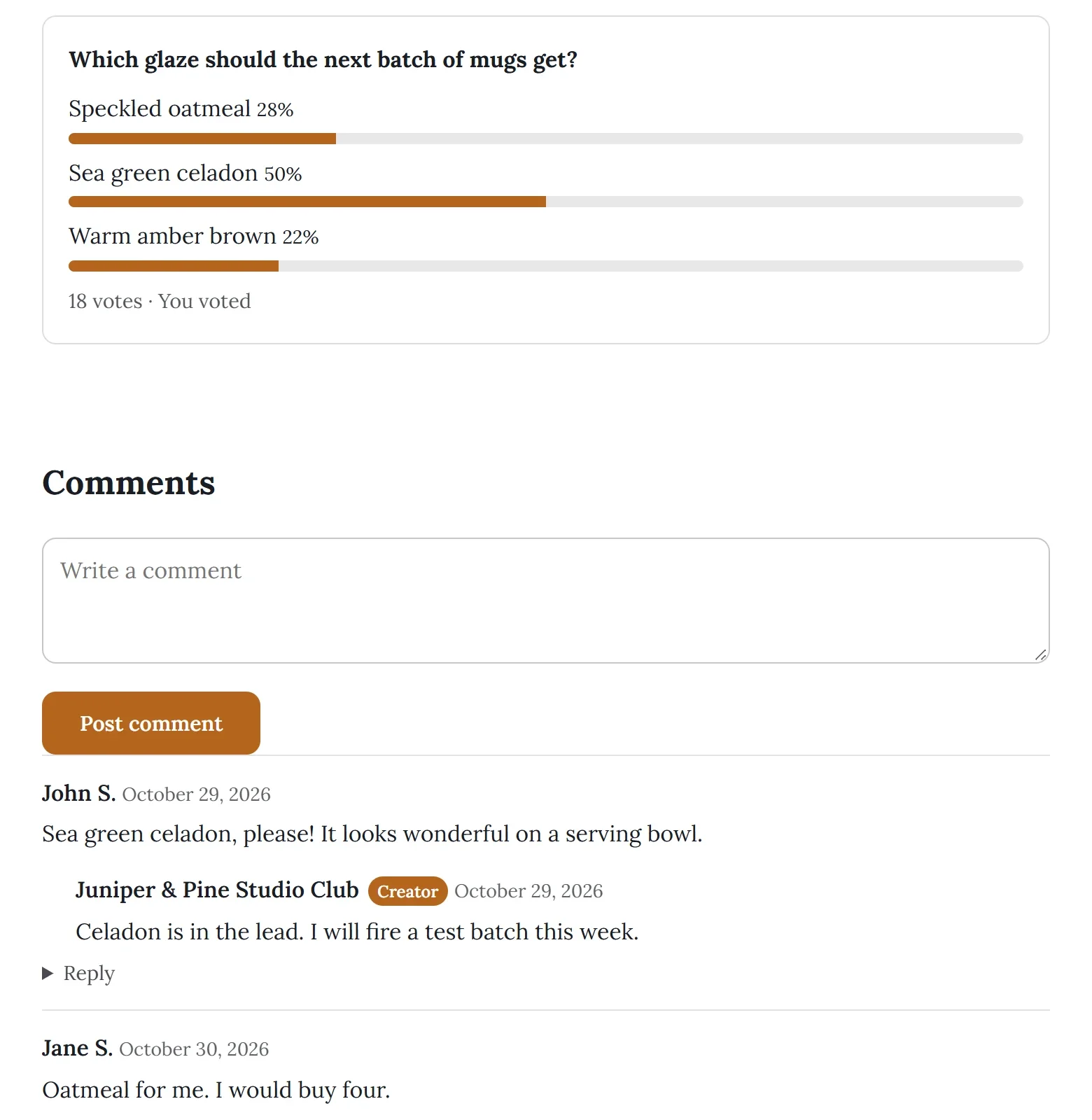
- A visitor who is not signed in can read the comments and sees Sign in to comment. in place of the comment box.
- To turn comments off for a post, clear Allow comments and click Update. Readers then see Comments are off for this post. Comments already written are hidden while comments are off.
Reply to a comment or delete one
- Click Posts and open the post.
- Scroll to Comments.
- Type your answer in the box under a comment and click Reply. Your reply appears under the comment, with your page's name and a Creator badge.
- To remove a comment, click the trash can on it and confirm.
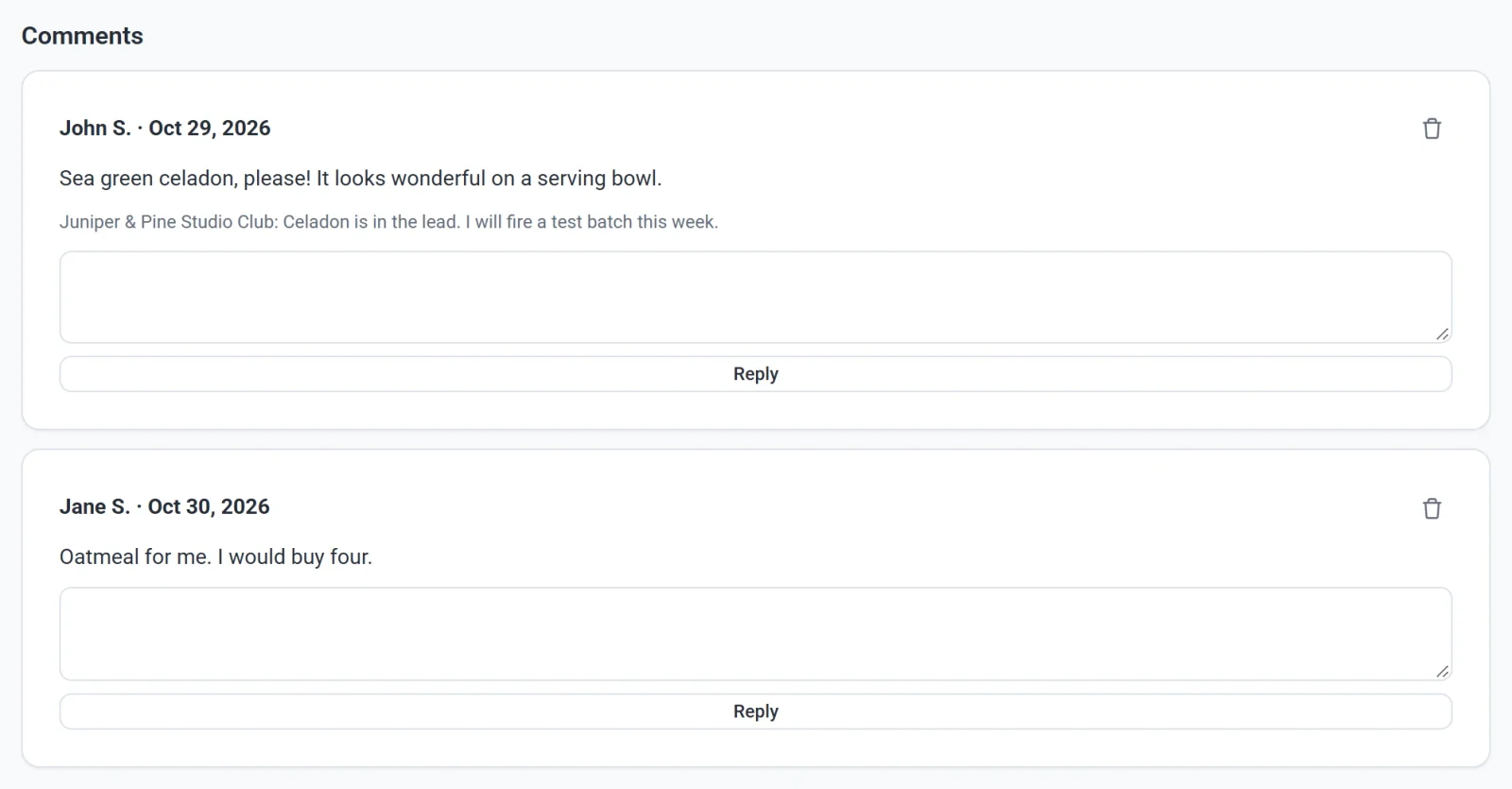
You can reply to a comment, not to a reply. Your Posts list shows how many comments each post has, and you are not emailed when someone comments.