
Start a creator page
Create a creator page where fans join free or paid levels, read your members-only posts and pay you monthly or yearly through your own PayPal or Stripe account.
A creator page is a membership page for your work. Visitors see a card for each of your levels, and members sign in to read the posts you keep for them. You can start one in a few minutes, and nothing is public until you publish it.
Before you start
- You need a Payly account. See Create your Payly account.
- You do not need Cloudflare, Stripe or PayPal yet. You connect them later, when you are ready to publish and take payments.
Create the page
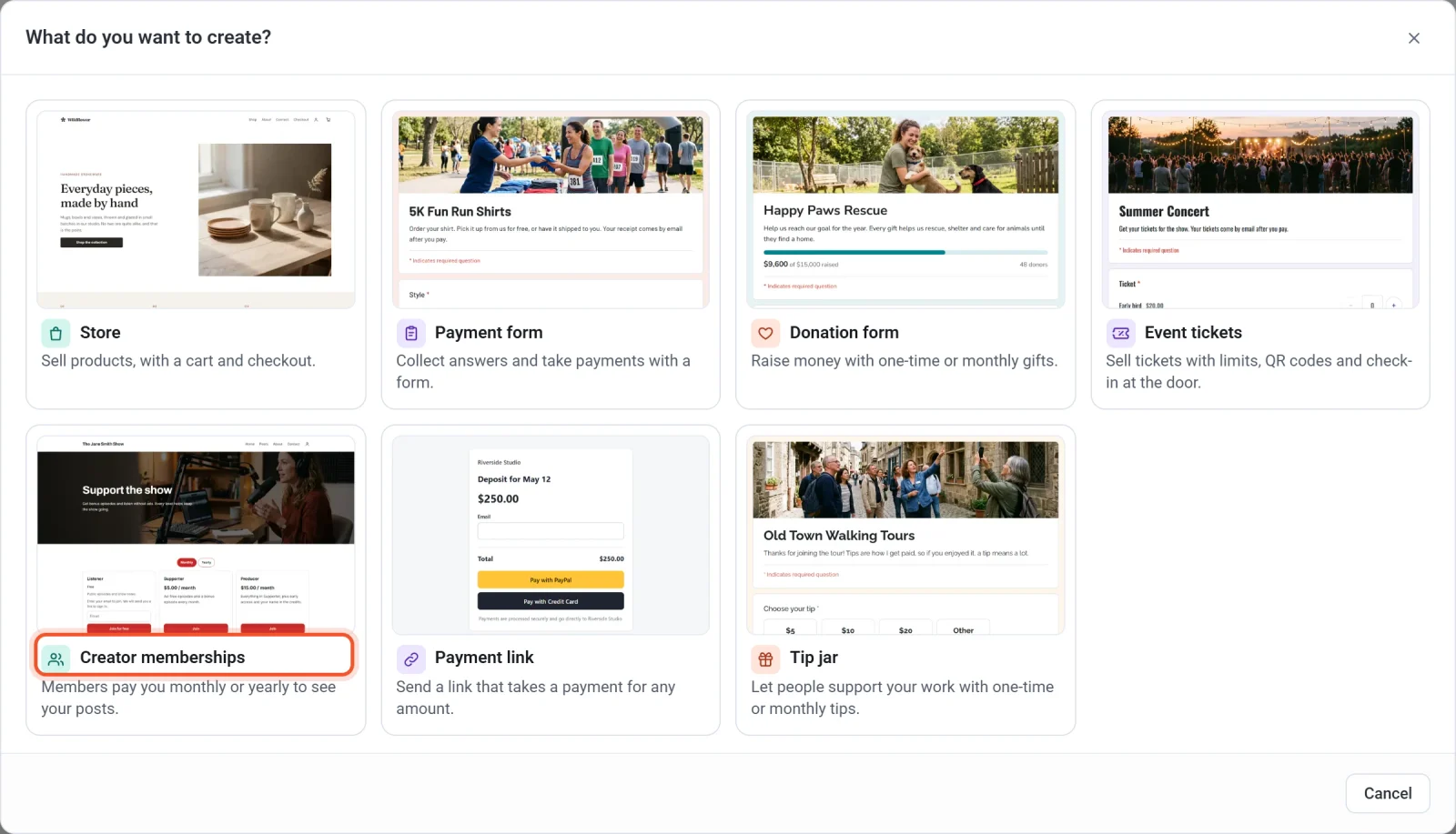
- Sign in to Payly. You land on the Your sites screen. Click New. If you have no sites yet, click the New site card instead.
- In the What do you want to create? window, click Creator memberships.
- Click the template closest to the page you have in mind. A check mark shows your choice. The buttons above the templates, such as Podcasts or Art, narrow the list. You can change every word, color and photo later.
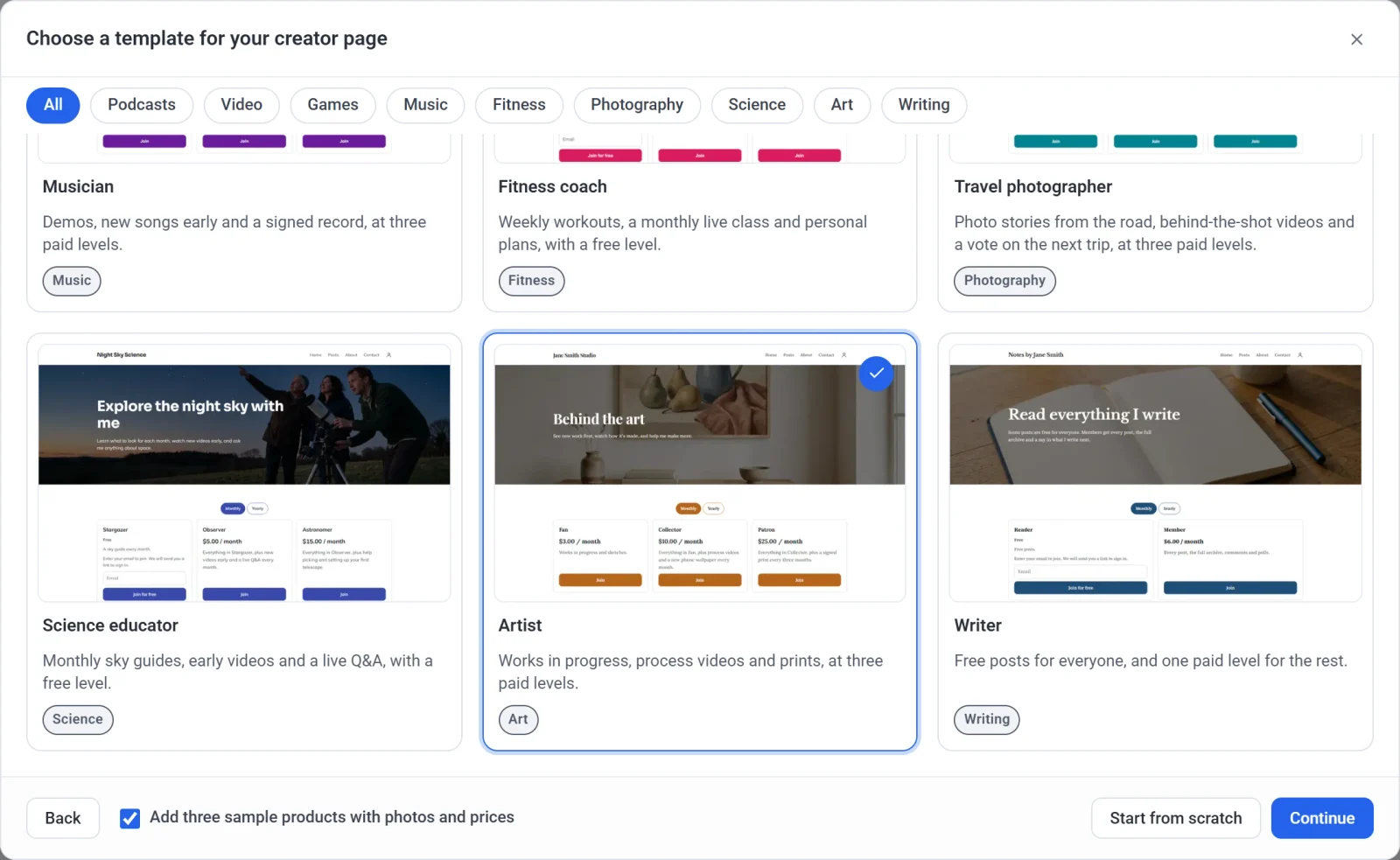
- Decide about the sample products. Leave Add three sample products with photos and prices ticked to put a Shop section with three example products under your levels. Clear the box if you only want memberships.
- Click Continue.
- Enter a Page name. It appears at the top of your page and names your membership at checkout.
- Look at Page handle. Payly suggests one from your page name, and a green message confirms that it is available. You can edit it, but read the note below first.
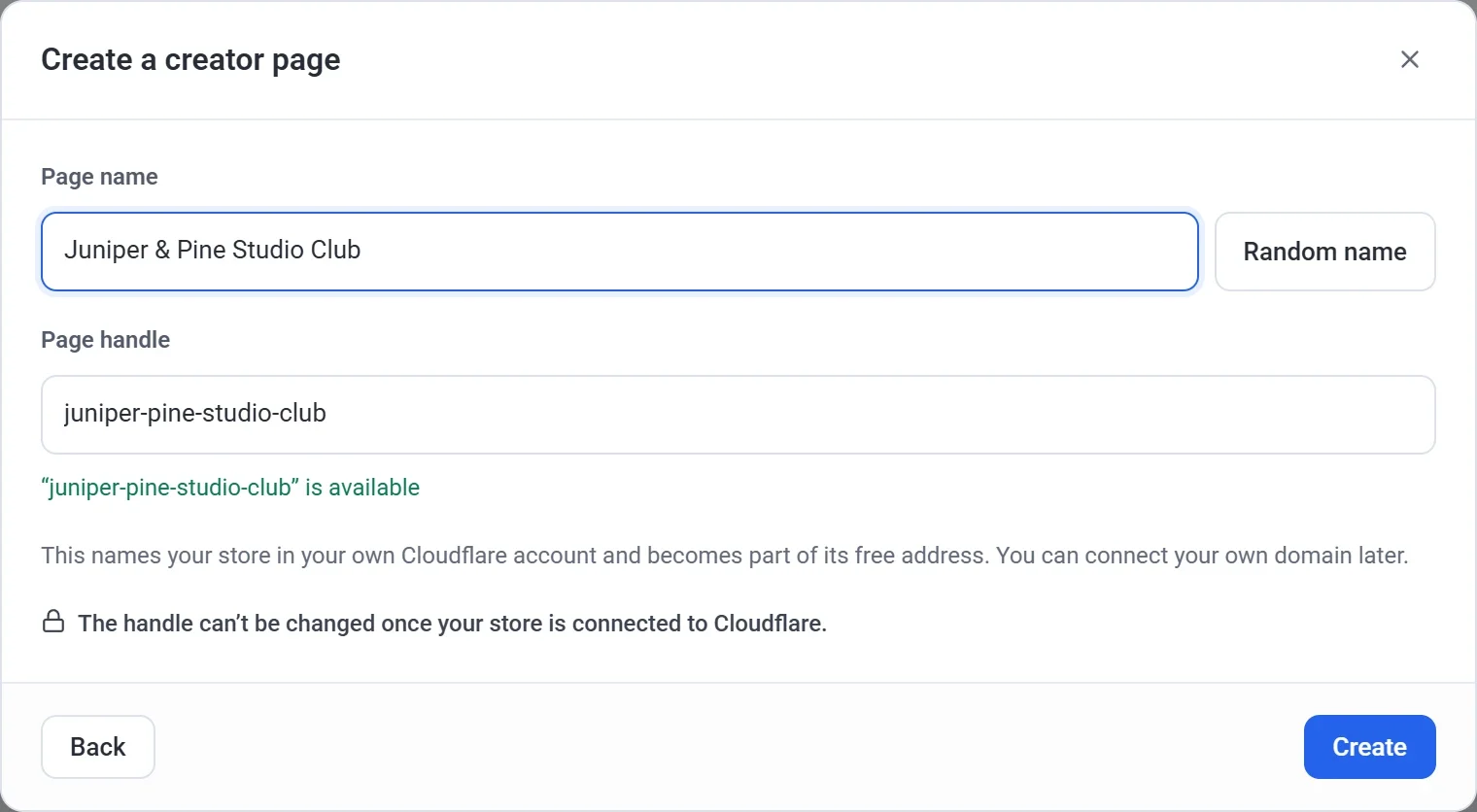
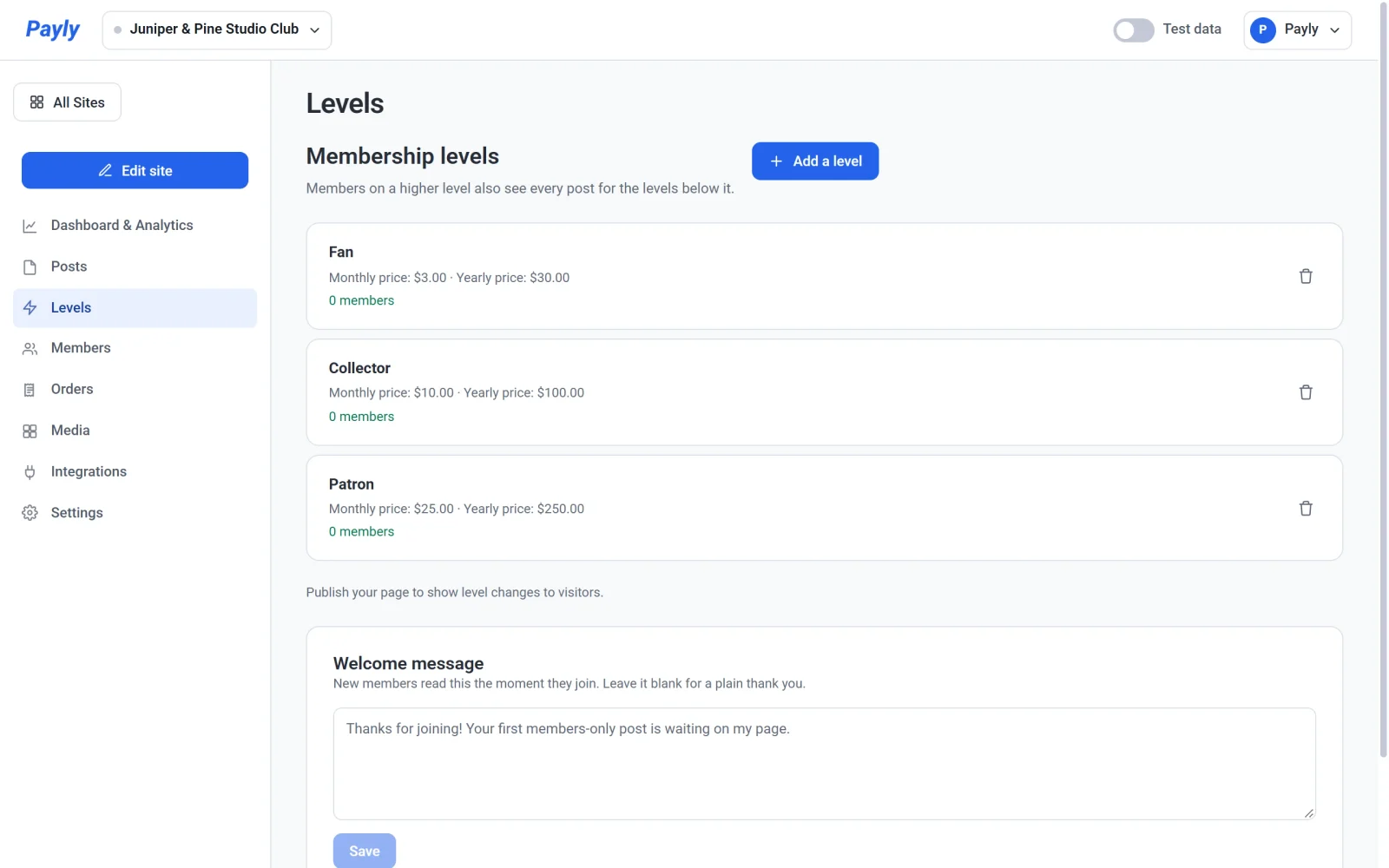
- Click Create. Payly makes your page and opens its dashboard on the Levels screen.
Payly offers nine templates: Podcast, Video creator, Game developer, Musician, Fitness coach, Travel photographer, Science educator, Artist and Writer. Each comes with a photo, colors, fonts, a heading and ready-made levels. To build the page yourself, click Start from scratch instead. You get a plain page, and you add your levels on the Levels screen.
Important: Choose your page handle with care. It names your page in your own Cloudflare account and becomes part of its free web address. After you connect Cloudflare, the handle is locked. Until then, you can change it in Settings > General.
What your new page contains
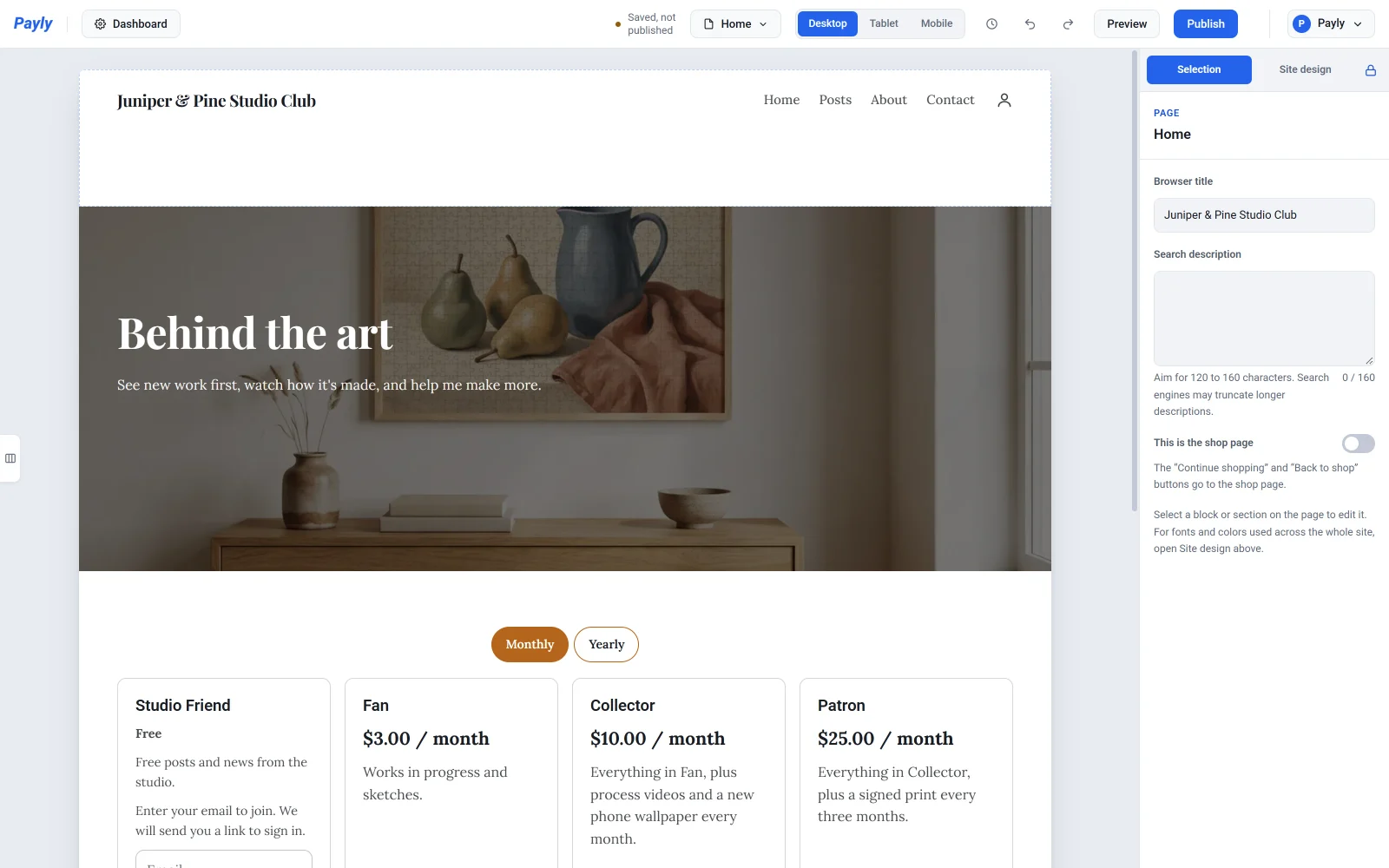
Your home page opens with a heading and a short introduction over the template's photo. Below them is a card for each level, with its price, what members get and a Join button. The menu at the top shows Home, Posts, About and Contact. Your page also has Privacy policy and Terms pages.
Click Edit site in the dashboard to change the page in the editor. If you kept the sample products, you can take their Shop section off the page by deleting it there. See Work with sections.
Your dashboard
| Menu item | What it is for |
|---|---|
| Dashboard & Analytics | Earnings, orders and visits, and the Getting set up list. |
| Posts | Write posts for your members. See Publish members-only posts. |
| Levels | Your free and paid levels and your welcome message. See Set up membership levels. |
| Members | Everyone on a level, and when paid members renew. See See and manage your members. |
| Orders | Every payment, including each renewal. See View and manage orders. |
| Media | The pictures you have uploaded. See Add images and use the media library. |
| Integrations | Analytics, ads, live chat and similar tools. |
| Settings | Payments, hosting, domain, features, emails and team. |
What to do next
- Set up your levels: change the template's names and prices, or add a free level. See Set up membership levels.
- Connect Stripe, PayPal or both, so paid members can pay you. See Connect Stripe and Connect PayPal. You can try the whole sign-up first with test mode.
- Connect Cloudflare and publish your page. See Connect your Cloudflare account and Publish your first site. You must publish your page once before you can publish a post.
- Write your first post. See Publish members-only posts.
If you want your own web address instead of the free one, see Connect a custom domain. Members pay through your own PayPal or Stripe account. Payly takes no fee on memberships, and Stripe and PayPal charge their own standard processing fees. See What does Payly cost?