
Add live chat or a WhatsApp button
Let customers reach you with Tawk.to, Crisp, Tidio or a WhatsApp button you can place anywhere.
Live chat
- In your site dashboard, click Integrations.
- Under Live chat, turn on your chat service: Tawk.to, Crisp or Tidio. A pop-up opens.
- Paste the code it asks for and click Save:
- Tawk.to: in Tawk.to, open Administration, then Chat Widget, and copy the Direct Chat Link.
- Crisp: in Crisp settings, open the setup instructions for your website and copy the website ID.
- Tidio: in Tidio, open Settings, then Developer, and copy the public key.
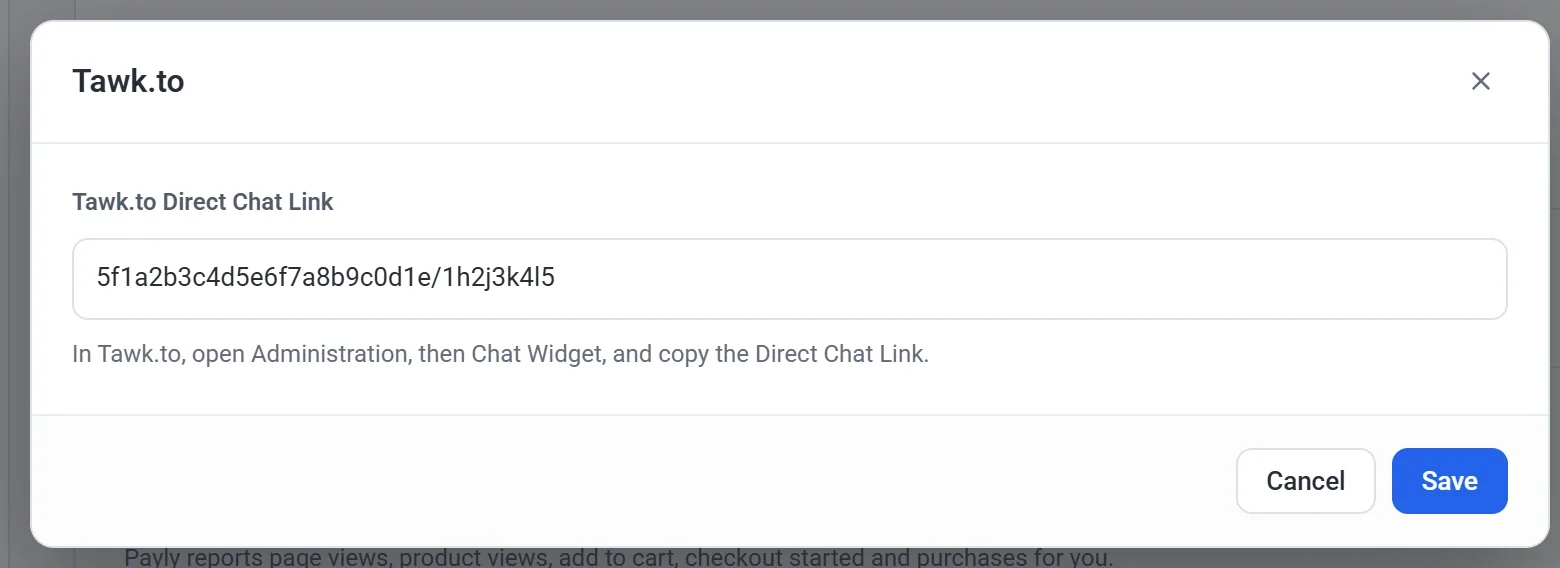
- Click Publish now.
Only one chat can be on at a time. Turning one on turns the other off.
The chat shows on every page except checkout, so nothing gets in the way while a customer pays.
WhatsApp button
- Turn on WhatsApp. A pop-up opens.
- Enter your WhatsApp number with its country code, like +1 555 123 4567.
- Optionally, add a first message. It's typed in for the customer when WhatsApp opens.
- Under Button position, choose where the button goes:
- Right or Left: a round button in the bottom corner of every page. Pick Left if you also use a live chat, so the two buttons don't overlap.
- Manual placement: no corner button. You place the button yourself, as shown below.
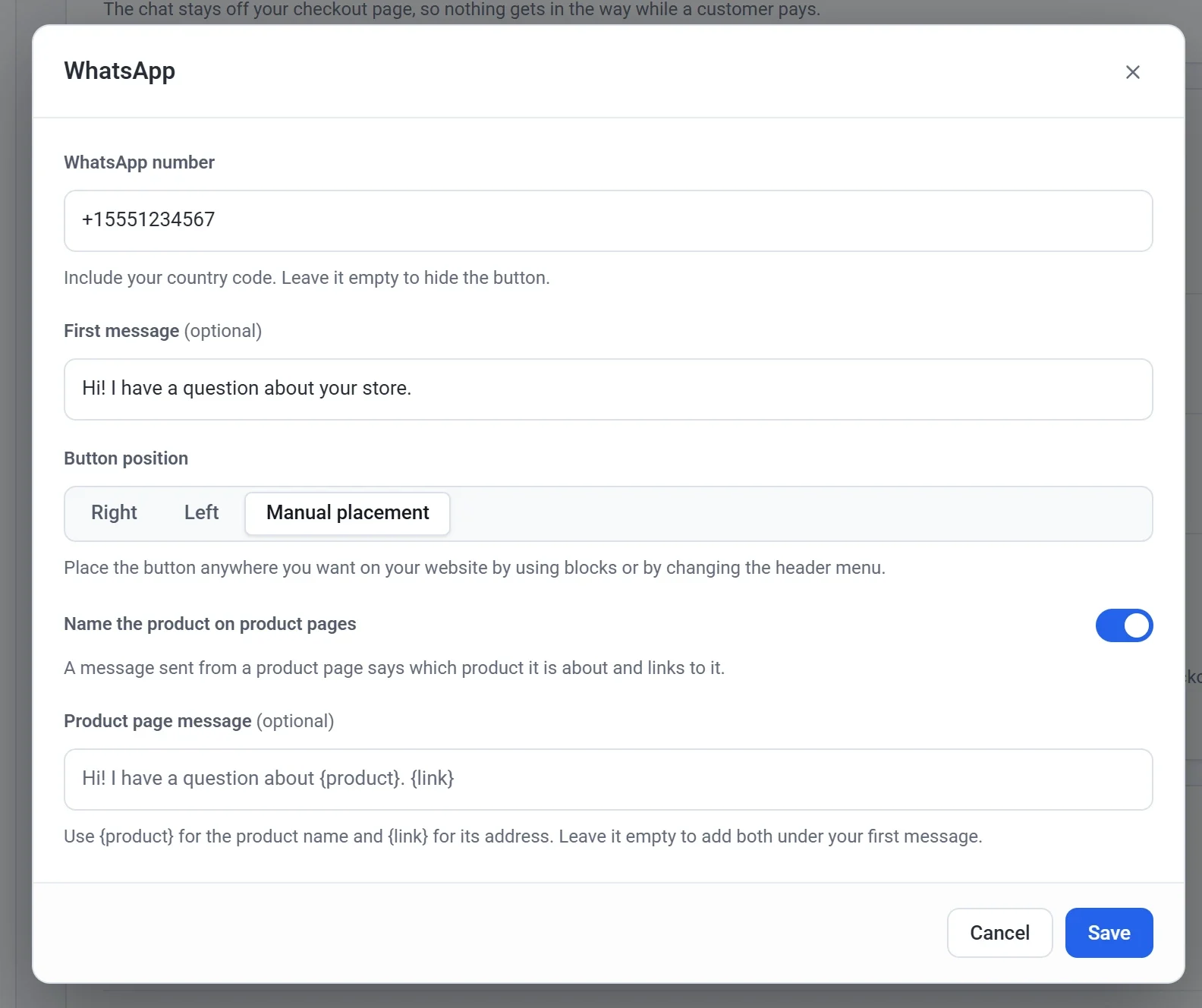
- Click Save, then Publish now.
To remove the button, turn it off and publish.
Place the button yourself
Add a WhatsApp button anywhere on your site. These buttons work with any button position, and they all use the number you set in Integrations.
On any page
- Click Edit site in your site dashboard.
- In the block panel, find WhatsApp button under Marketing. Click it, or drag it onto the page.
- Change its text, style and colors in the panel on the right. Leave the text empty to show "Chat with us".
In your header menu
- In the editor, click your header menu.
- Under Menu, turn on Show WhatsApp button.
- Choose its text, Look (Icon and text, or Icon only), style and colors. On phones it shows as an icon beside the cart.
- Under Button order, drag the buttons into the order you want.
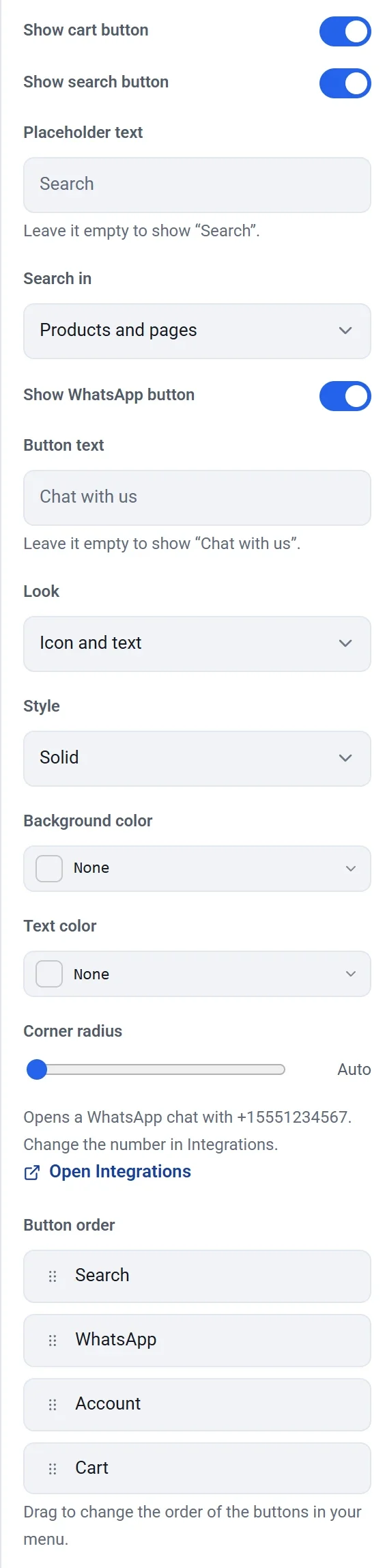

Next to Add to cart
- In the editor, click the page name in the top bar, then click Product template.
- Click the product block on the page.
- Turn on Show WhatsApp button. Leave its text empty to show "Ask on WhatsApp".
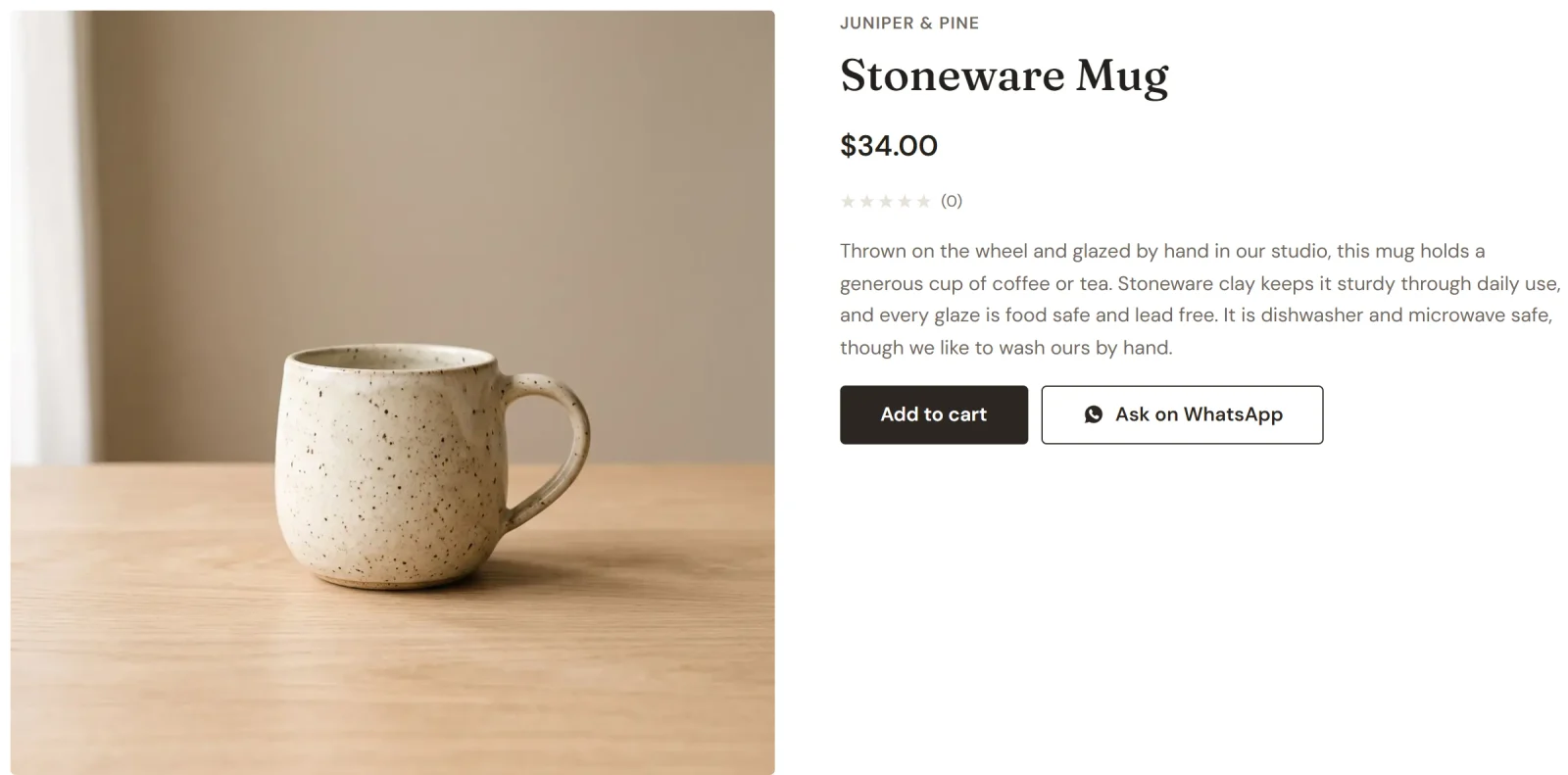
Click Publish when you're done.
Tip: If WhatsApp is off in Integrations, these buttons stay in the editor, dimmed, and don't show on your store.
Say which product they're asking about
When a customer taps a WhatsApp button on a product page, the message names the product and links to it, so you know what they're asking about. It's on unless you turn it off.
- In Integrations, click Settings next to WhatsApp.
- Turn Name the product on product pages on or off.
- Optionally, write your own Product page message. Use {product} for the product name and {link} for its address, like: Hi! I have a question about {product}. {link}
- Click Save, then Publish now.
Leave the message empty to add the product name and link under your first message.