
See and manage your members
See everyone on your levels, check what each member has paid, cancel or pause a membership, download your member list and choose what happens when a member cancels.
The Members screen lists everyone on one of your levels, with what they pay and when they renew. From it you can open a member's payments, cancel or pause a membership, and download your member list.
See your members
- In your dashboard, click Members. People appear here as soon as they join one of your levels.
- Read the list. Each row shows the member's name and email, their Plan (your page, the level and Monthly or Yearly, with Grants and the level name under it), the Amount, the Billing cycle, the Status and the Renews date.
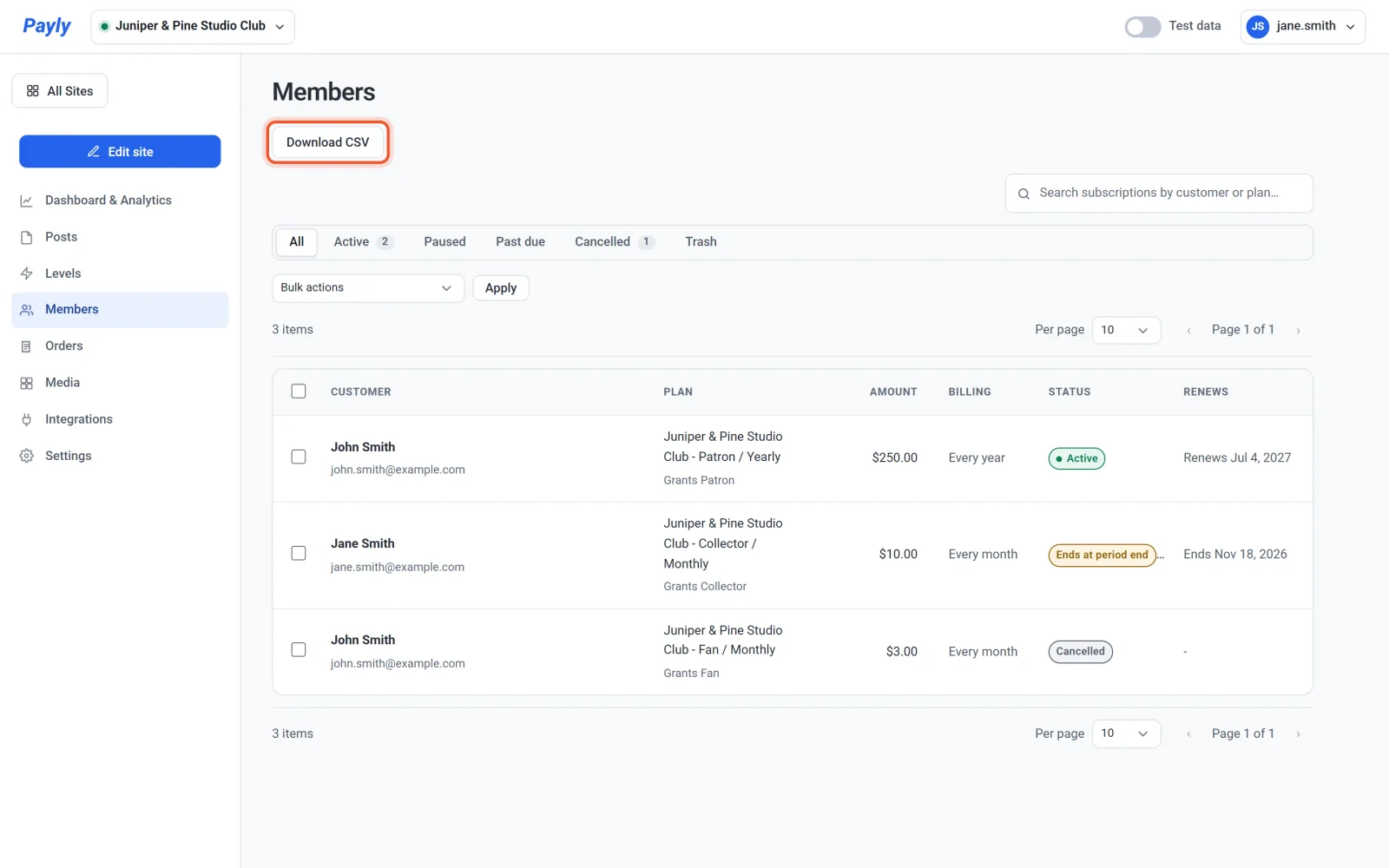
- Use the tabs above the list to narrow it: All, Active, Paused, Past due and Cancelled. Type in the search box to find a member by name, email or plan.
A free member shows $0.00 and no renewal date. The Levels screen also shows how many members each level has.
What each status means
| Status | What it means |
|---|---|
| Active | The member is paying and has their level. |
| Ends at period end | The membership was cancelled and ends when the period already paid for runs out. The Renews column shows the date. |
| Paused | Billing is paused. The member keeps their level. |
| Past due | A renewal payment did not go through. The member keeps their level while it is tried again. See Renewals and failed payments. |
| Cancelled | The membership has stopped and nothing more will be charged. A member who cancelled keeps their level until the period they paid for ends, unless you chose to end access right away (see below). |
Open a member
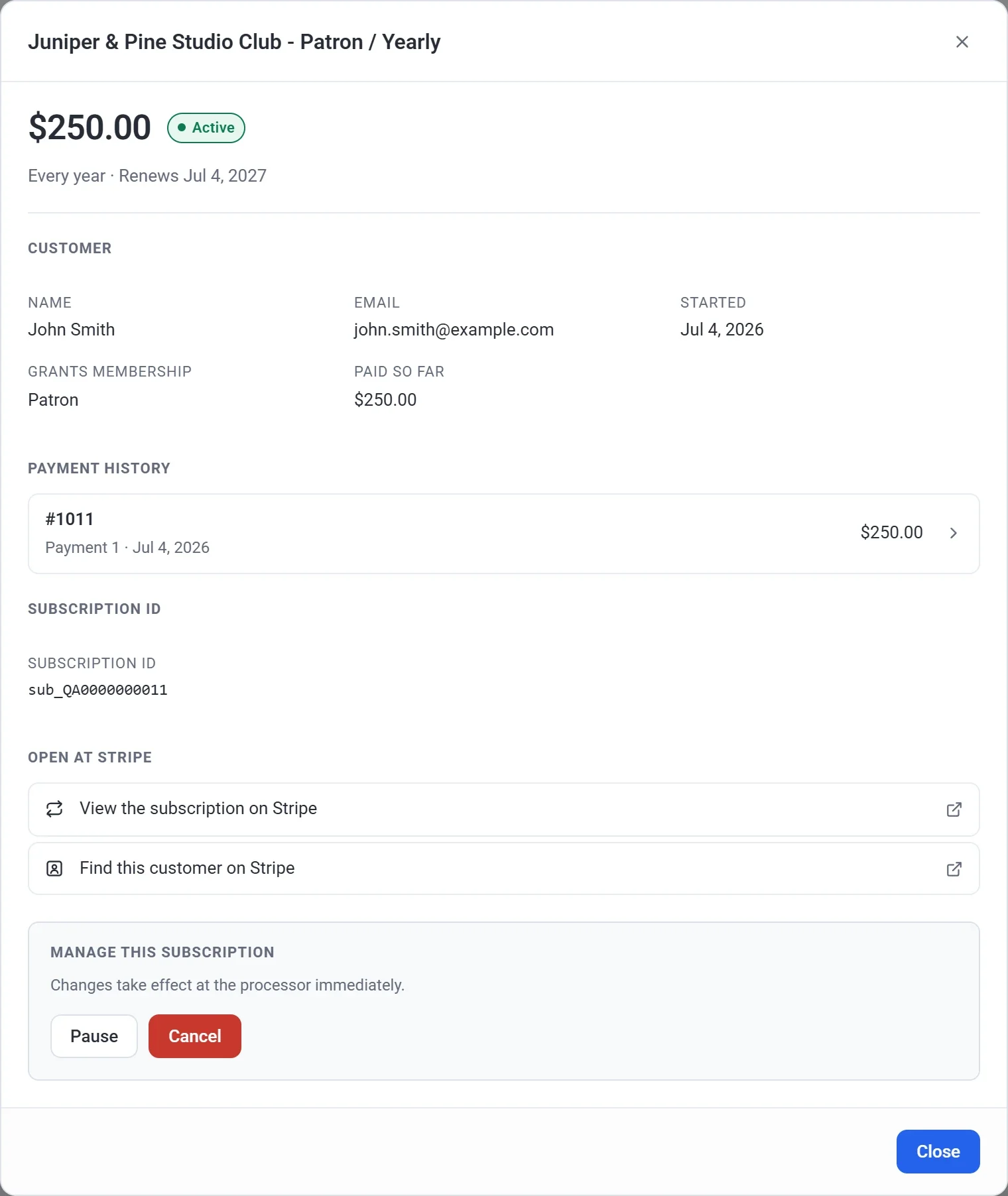
Click a row to see what the member pays, their status and renewal date, their name and email, the level the plan grants, how much they have paid so far, and their payment history. Click a payment to open its order. The links at the bottom open the subscription and the customer in your Stripe or PayPal dashboard.
Cancel or pause a membership
At the bottom of a member's window, under Manage this subscription, you can cancel or pause the plan.
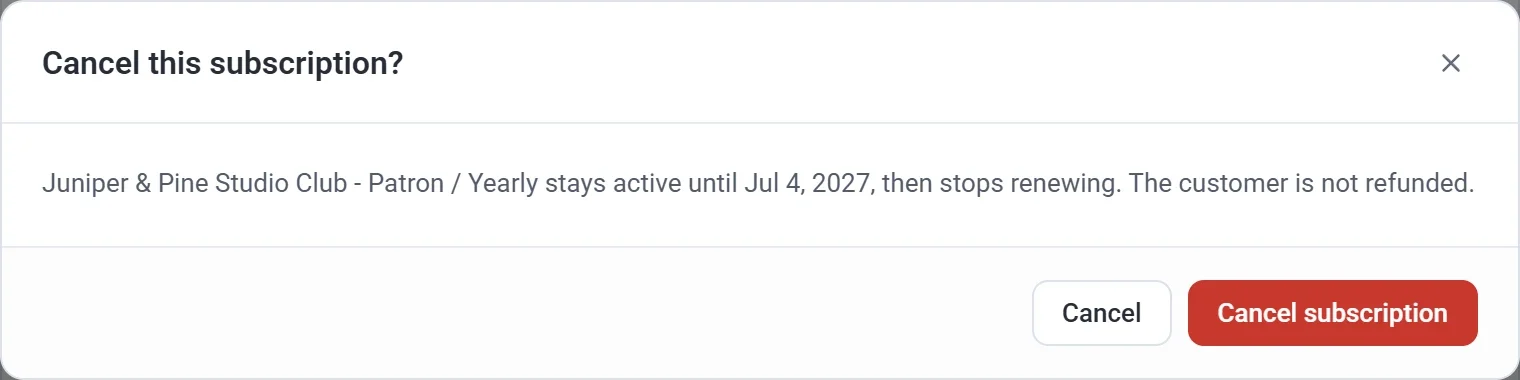
- Click Cancel, then Cancel subscription. The membership stays active until the end of the period already paid for, then stops renewing. The member is not refunded.
- Click Pause to stop billing until you click Resume. The member keeps their level while billing is paused.
To give money back, refund a payment from its order. See Refund an order.
Choose what happens when a member cancels
Payments stop whenever a membership is cancelled. You decide how long the member keeps their level and can read members-only posts.
- Go to Settings > Features.
- Find When a subscription is cancelled.
- Choose Access lasts until the end of the period they paid for or Access ends right away.
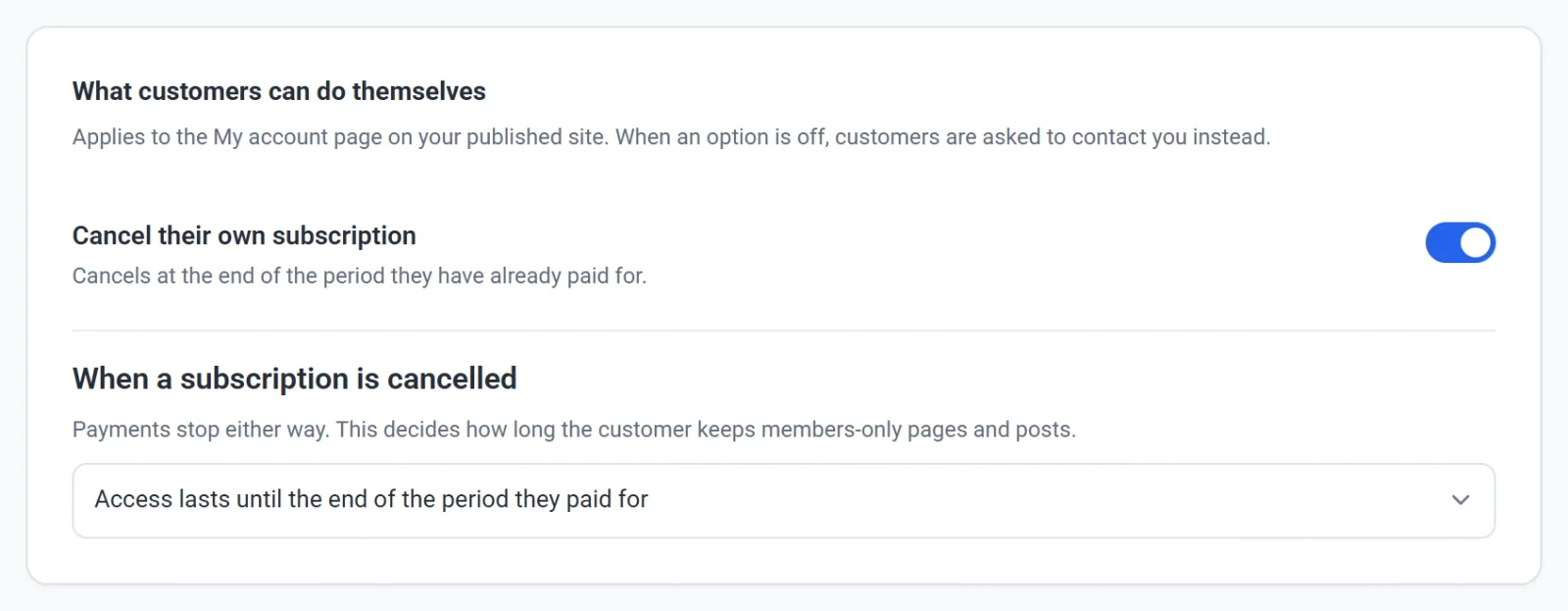
The first choice is the default: a member who cancels keeps reading until the time they paid for runs out. With the second choice, the member loses their level as soon as the membership is cancelled, and nothing is refunded. The choice applies however the membership was cancelled: by the member, by you, or in Stripe or PayPal.
What members can do themselves
- Members sign in to the account page on your site with an emailed link or code, with no password, and can cancel from there. If you turn off Cancel their own subscription in Settings > Features, they are asked to contact you instead. See How customer accounts and sign-in work.
- Members who pay with Stripe can move between your paid levels with Change level, as long as Let customers switch plans is on in the same tab. Members who pay with PayPal cannot change level themselves.
- Members cannot pause a membership.
Members also get emails from your page, such as a receipt, a sign-in link and a renewal notice. See Emails your customers receive.
Download your member list
Once you have members, a Download CSV button appears at the top of the Members screen. Click it to get a file named like members-2026-11-01.csv, with today's date, and one row for each member in the tab you have open. The columns are Customer, Email, Plan, Amount, Billing, Status and Renews. The Plan column holds the level's name.
Good to know
- Every payment a member makes is an order. Find them in Orders, where the Renewals tab lists the repeat payments. See View and manage orders.
- The Test data switch at the top of the dashboard shows test members instead of live ones. See Test data and live data.
- Moving a member to the Trash only hides the row. It does not cancel anything. See Search, filter and bulk-edit lists.