
Make a restaurant website
Create a website for your restaurant with your menu and online ordering: pick one of nine designs, name it, then add your address, hours and payments.
A Restaurant is a website for a place that serves food, such as a pizzeria, a cafe, a taqueria or a bistro. It shows your menu, and customers can order and pay online for pickup, delivery or at their table. Payments go straight to your own PayPal or Stripe account. Payly takes no commission on your orders. PayPal and Stripe charge their own standard fees.
Before you start
- You need a Payly account. See Create your Payly account.
- You do not need Cloudflare, PayPal or Stripe yet. You connect them later, before you take real orders.
Create your restaurant website
- On Your sites, click New. If you have no sites yet, click the New site card instead.
- In the What do you want to create? window, click Restaurant.
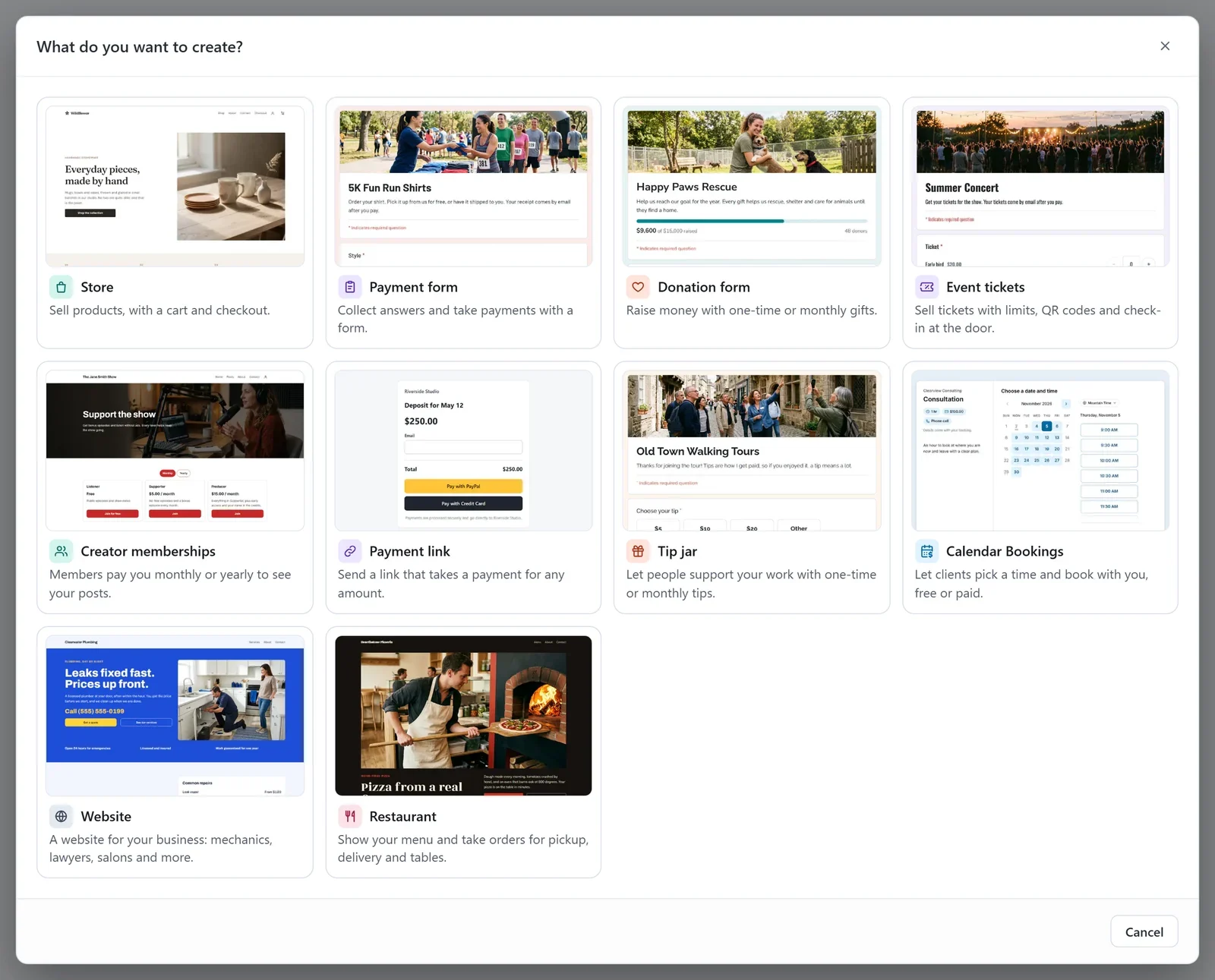
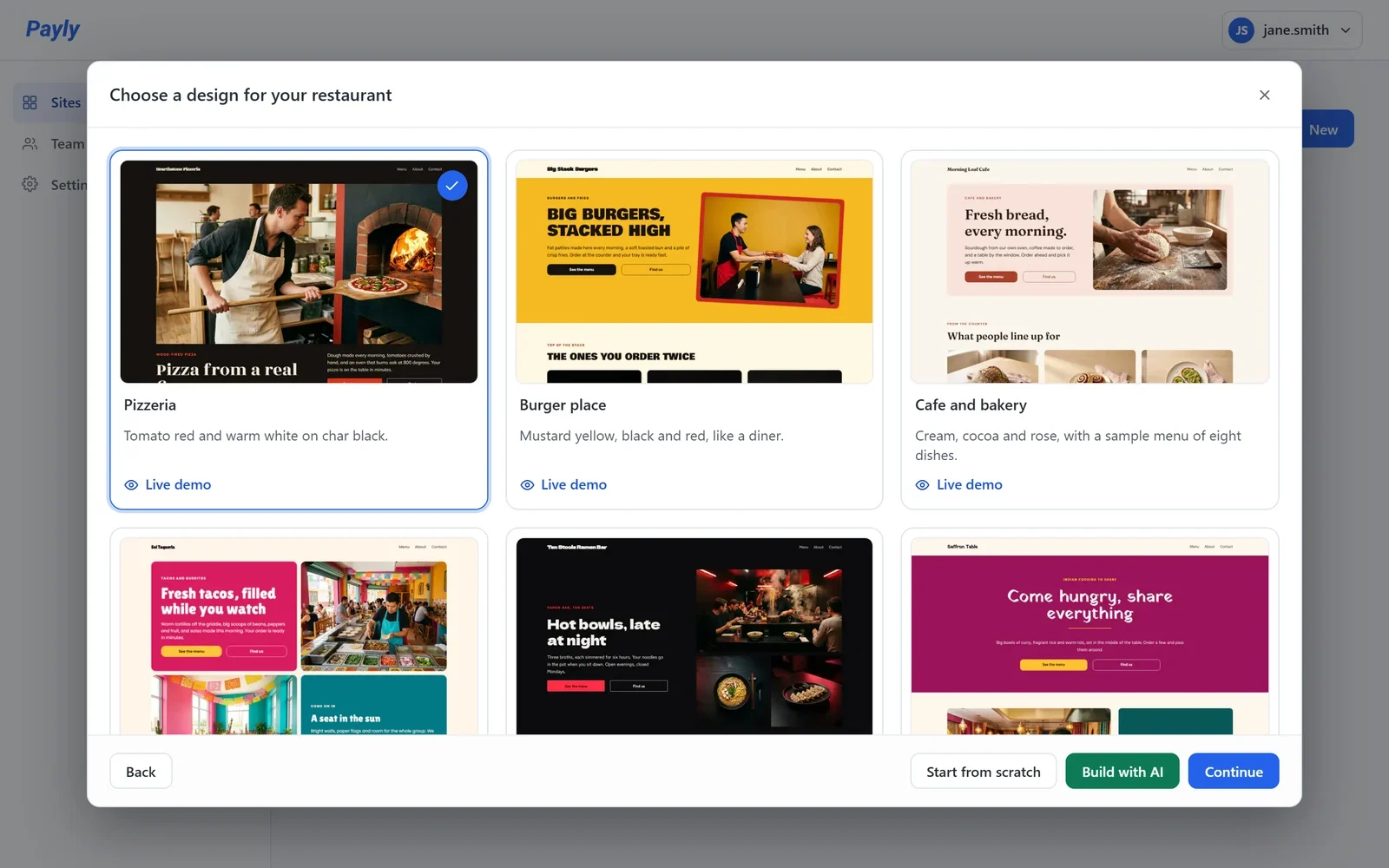
- Click the design closest to your place, then click Continue. A check mark shows your choice. To look around a design first, click Live demo on its card.
- Enter your Restaurant name. Payly suggests a Website handle from it and tells you whether it is available.
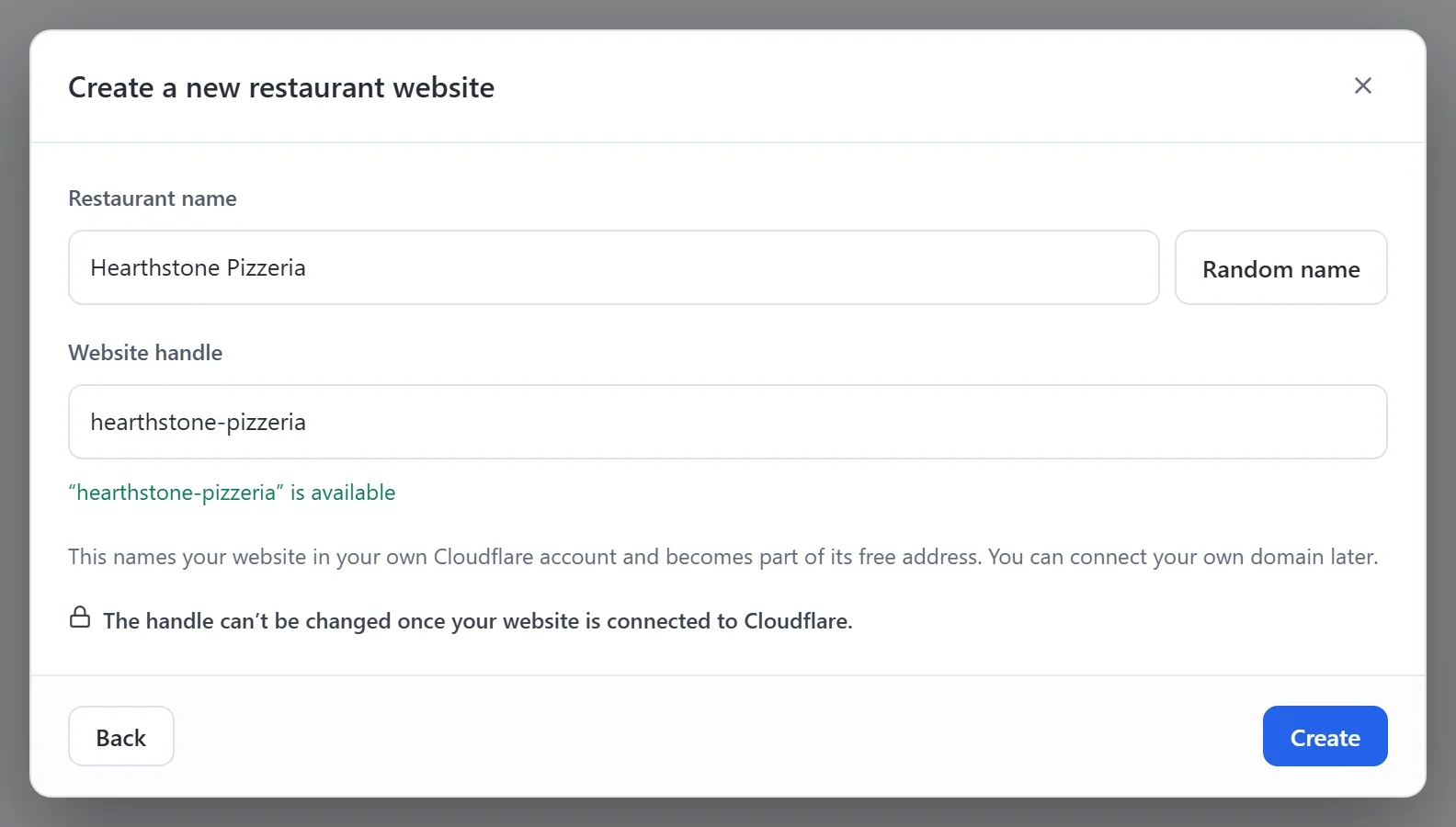
- Click Create. The editor opens with your new website.
There are nine designs: Pizzeria, Burger place, Cafe and bakery, Taqueria, Ramen bar, Indian restaurant, Mediterranean grill, Juice and bowl bar, and Bistro. Each has its own colors, fonts and photos, and you can change all of them later. To build your pages yourself, click Start from scratch instead of a design.
Important: Choose your website handle with care. It names your website in your own Cloudflare account and becomes part of its free web address. Once your website is connected to Cloudflare, the handle cannot be changed.
What your new website comes with
- Pages: Home, Menu, About and Contact, plus Privacy and Terms pages.
- A sample menu: eight dishes with photos and prices, in sections such as Pizzas, Sides and Drinks. Change them or replace them with your own on the Menu screen. See Add dishes and sections to your menu.
- Online ordering, turned on: customers can order for pickup from the start. You can add delivery and table ordering on the Ordering screen. See Set up online ordering.
- Opening hours: sample hours from the design. Change them in Settings > Business details.
Finish setting up
In your site dashboard, open Dashboard & Analytics. The Getting set up list shows what is left, and each line takes you to the screen for it. The list goes away once every step is done.
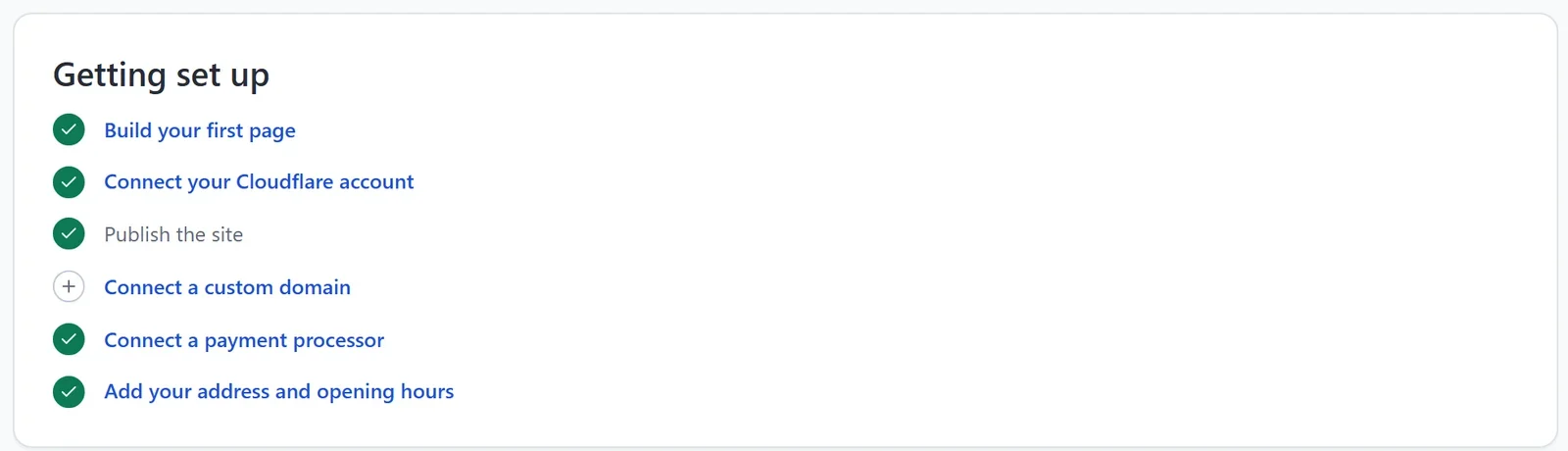
- Connect a payment processor: connect PayPal or Stripe so customers can pay. Until you do, the checkout says the restaurant is not set up to take payments yet. See Connect Stripe or Connect PayPal.
- Add your address and opening hours: customers see where to pick up their food, and orders for right now are taken only while you are open. See Add your business details and opening hours.
- Connect your Cloudflare account and Publish the site: your website goes live in your own free Cloudflare account. See Publish your first site.
- Connect a custom domain: your own address, such as example.com. This step is optional. See Connect a custom domain.