
Use the Kitchen screen
See paid orders as they come in, on a tablet in your kitchen. Accept each one, mark it ready and hand it over, with a chime for every new order.
The Kitchen screen shows your paid orders as they come in, so your kitchen knows what to make next. It is made to stay open on a tablet in the kitchen, but it works on any computer or phone.
Open the Kitchen screen
- In your site dashboard, click Kitchen, under Sales.
- Click Turn sound on, so you hear new orders. Your browser plays no sound until you press a button on the page.
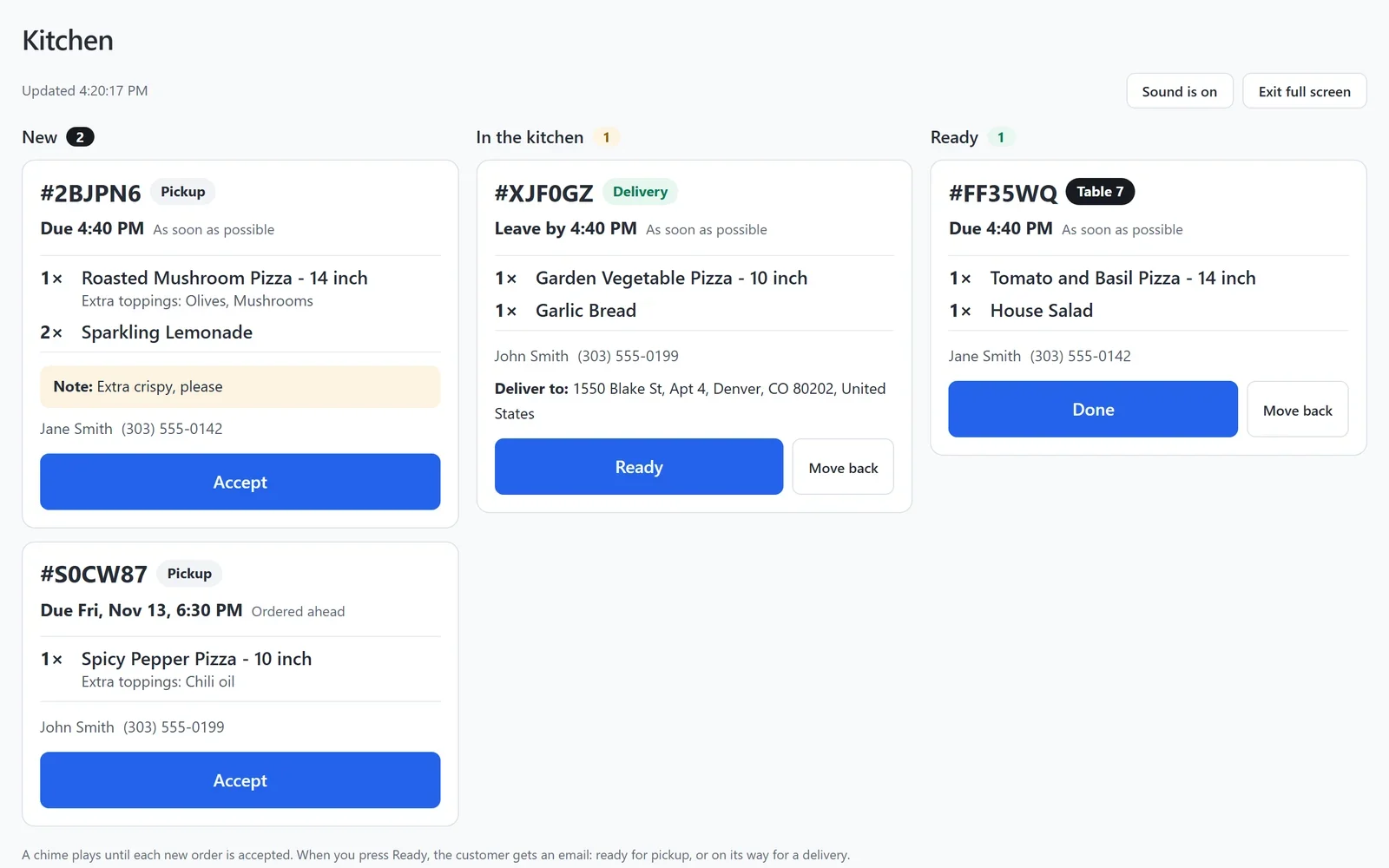
- Click Full screen to fill the screen with your orders. Click Exit full screen to go back.
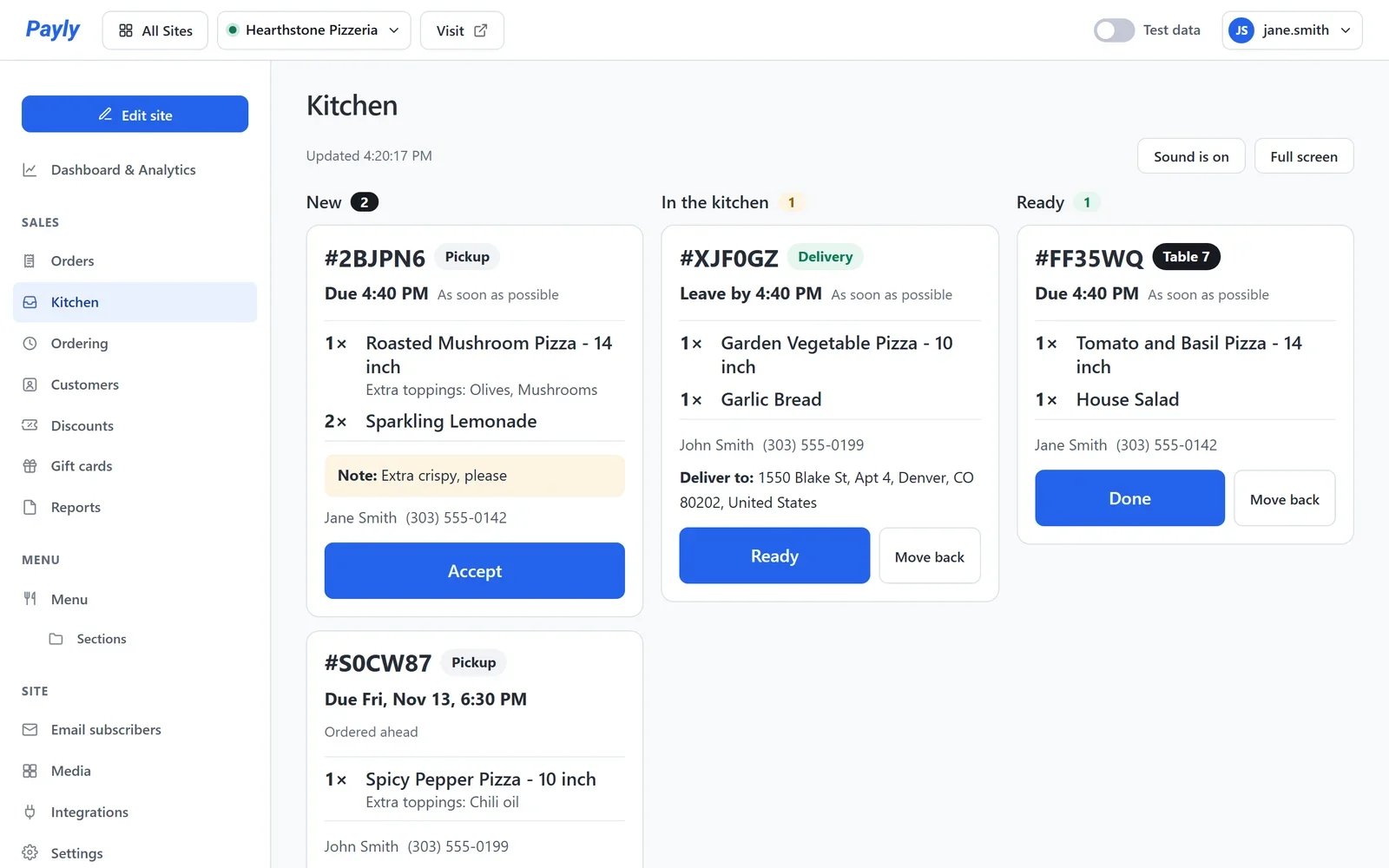
The screen checks for new orders every 15 seconds while it is open, and the line at the top says when it last did. While it shows, the tablet is asked to stay awake.
Move each order along
Orders are in three columns. The one due soonest is at the top of each column.
- New: just paid. With sound on, a chime plays every few seconds until every new order is accepted. Press Accept when you start on it.
- In the kitchen: being made. Press Ready when the food is ready to hand over.
- Ready: waiting to be picked up, driven out or brought to the table. Press Done once it is handed over.
Pressed a button by mistake? Press Move back on the card. Orders handed over in the last 2 hours are listed under the columns, each with Put back.
What a card shows
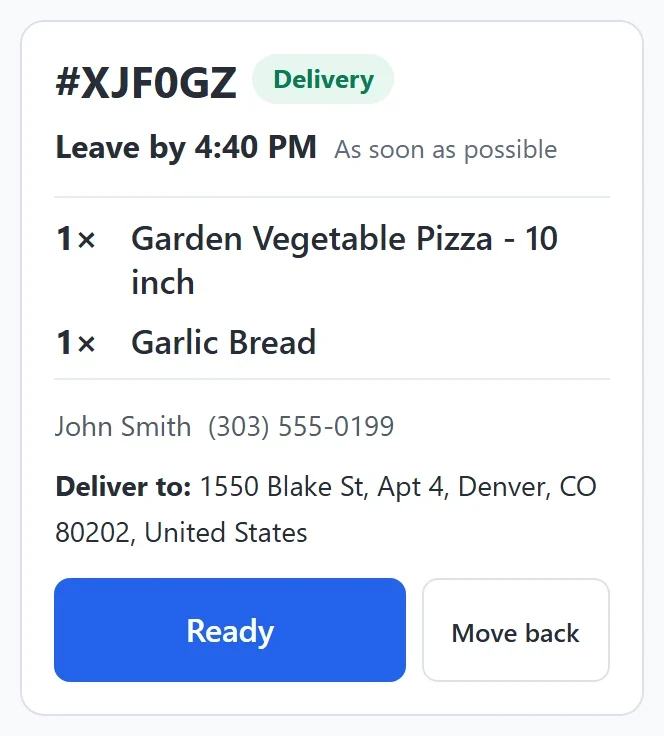
- The order number, and how it is handed over: Pickup, Delivery or the table number.
- When it is due, by your restaurant's clock. For a delivery, Leave by is when the driver has to go. An order past its time is marked Late.
- As soon as possible, or Ordered ahead for an order placed for later.
- Each dish with its size, its add-ons and how many, and the customer's note.
- The customer's name and phone number, and for a delivery, the address.
- Test on an order made with test payments.
What the customer is told
When you press Ready, the customer gets one email: that their order is ready for pickup, with your address, or that it is on its way, for a delivery. A guest at a table gets no email. The customer's order page follows along too: Order received, Being made, then Ready for pickup, On its way or Coming to your table.
Tip: Team members with the Viewer role can watch the Kitchen screen but cannot move orders. An Editor, an Admin and the Owner can. See Invite your team and set roles.