
Delivery orders
Deliver orders with your own driver: set a delivery fee, a minimum order, the extra time for the drive and the postal codes you deliver to.
With delivery, customers order and pay on your website, and you bring the food to them with your own driver. Payly does not send a driver, and there is no delivery company in between, so every delivery fee is yours.
Turn on delivery
- In your site dashboard, click Ordering.
- Turn on Delivery. Its settings open under it.
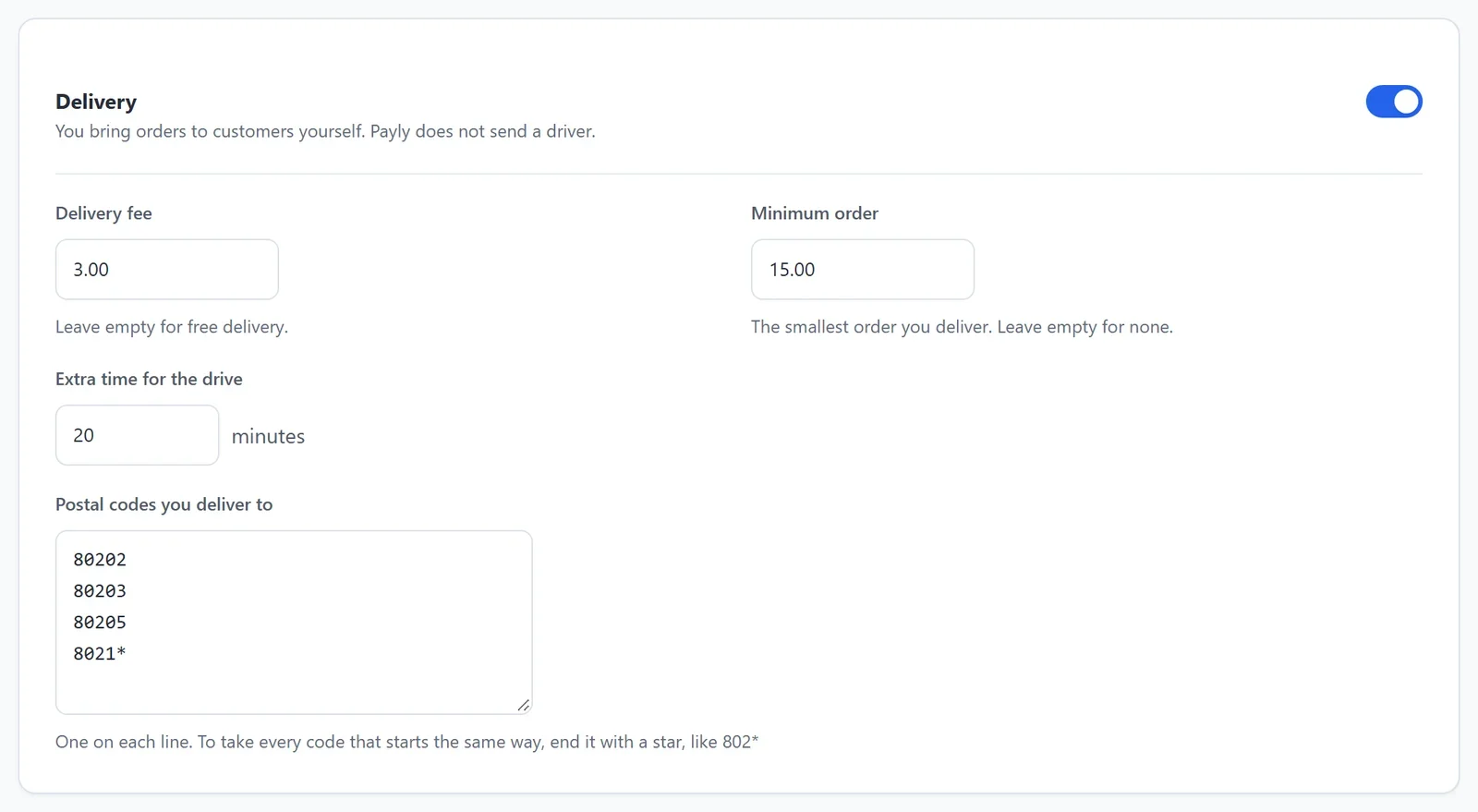
- Enter the Delivery fee. Leave it empty for free delivery.
- Enter the Minimum order, the smallest order you deliver. Leave it empty for none.
- In Extra time for the drive, enter the minutes a delivery adds to the time your food takes.
- In Postal codes you deliver to, enter one postal code on each line. To take every code that starts the same way, end it with a star:
802*takes every code that starts with 802. - Click Save at the bottom of the screen.
Delivery needs at least one postal code. If the box is empty, Save asks you for one.
What customers see at checkout
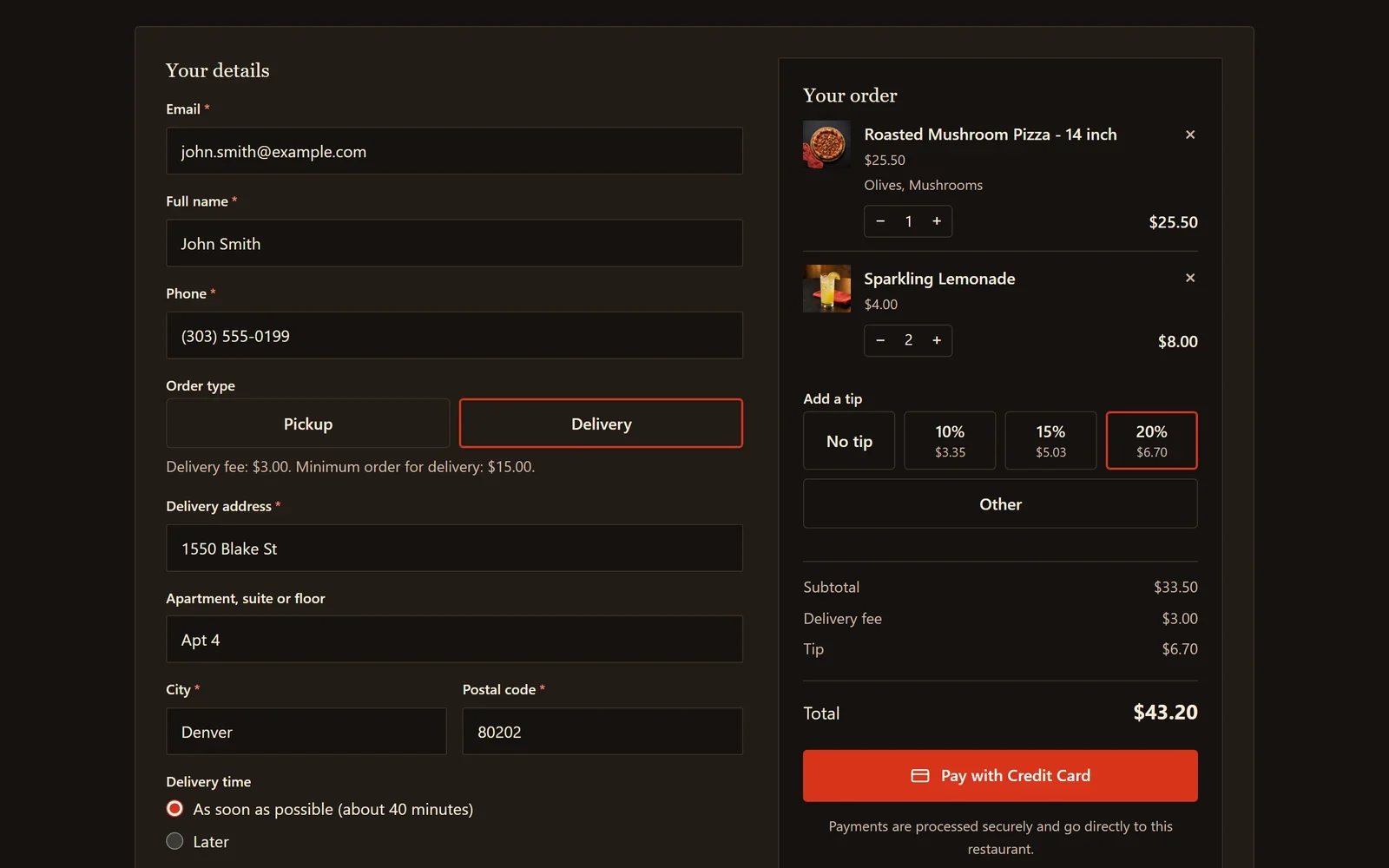
- Under Order type, they choose Delivery. Your delivery fee and minimum order show under it.
- They enter their Delivery address: the street, an apartment, suite or floor if they have one, the city and the postal code.
- Under Delivery time, they choose As soon as possible or Later. The minutes shown include the drive.
- The delivery fee shows on its own line, above the tip and the total.
An order cannot be paid if the postal code is not one you deliver to, or if the food comes to less than your minimum order. Customers see why, such as Sorry, we do not deliver to that address. The minimum counts the food after any discount code, not the delivery fee or the tip.
After the order is paid
- On your Kitchen screen, a delivery shows the address and Leave by, the time the driver has to go.
- When you press Ready, the customer gets an email saying their order is on its way.
- If you charge sales tax, a delivery order is taxed at the rate for the delivery address.