
Sizes, add-ons and labels for your dishes
Give a dish sizes with their own prices, paid add-ons such as extra toppings, labels such as Spicy or Gluten-free, and mark it sold out for the day.
Each dish can have more than a name and a price. Sizes let customers pick, for example, a small or a large pizza. Add-ons are paid extras, such as toppings or sides. Labels show beside the price on your menu. Sold out today takes a dish off your orders until tomorrow.
All of these are in the dish window. In your site dashboard, click Menu, then click a dish's name.
Labels
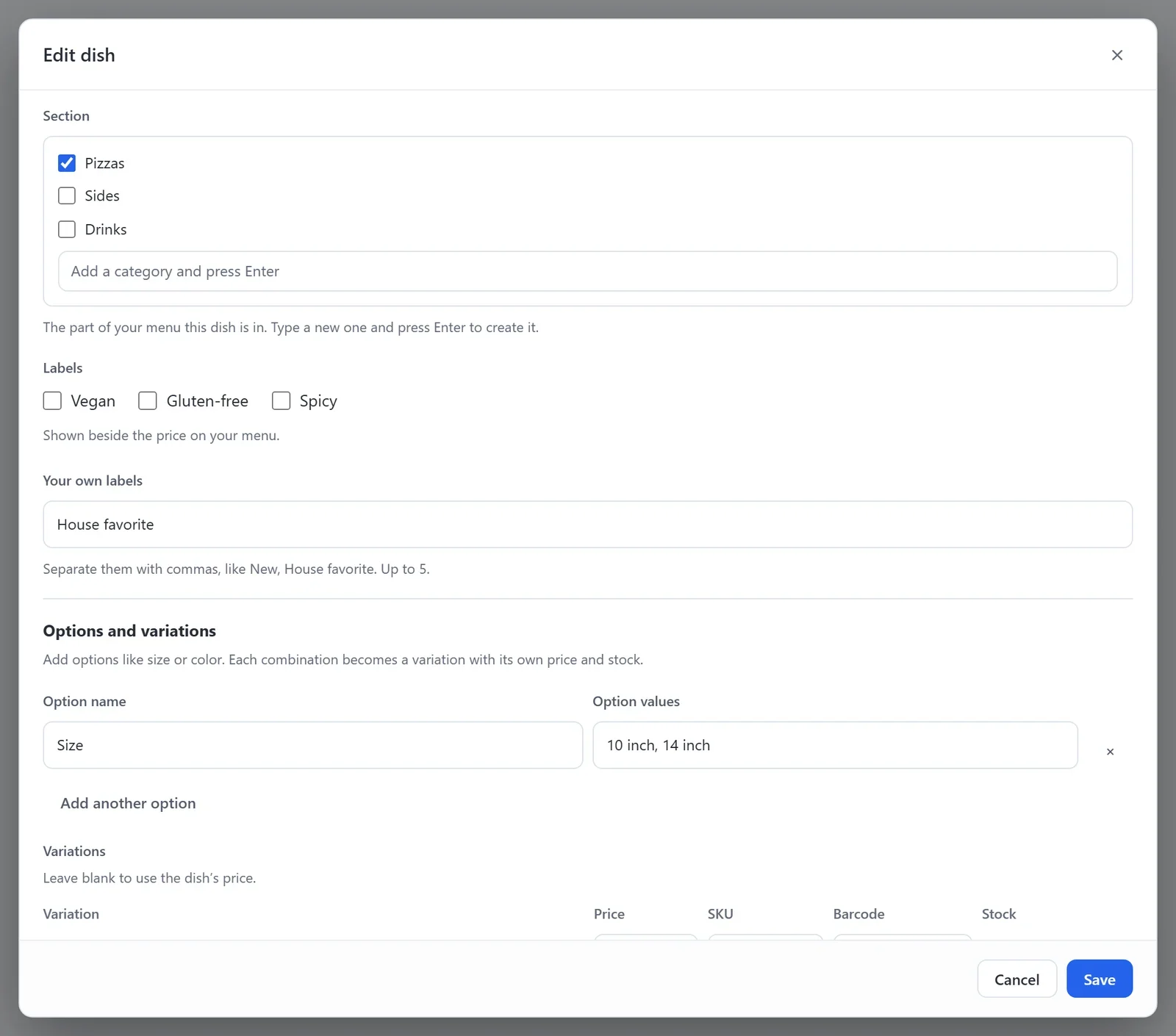
- Under Labels, tick any that fit: Vegan, Gluten-free or Spicy.
- To add labels of your own, type them in Your own labels, with a comma between each one, such as New, House favorite. A dish can have up to 5 of its own labels.
- Click Save.
Labels show beside the dish's price on your menu, your own after the three built in.
Sizes
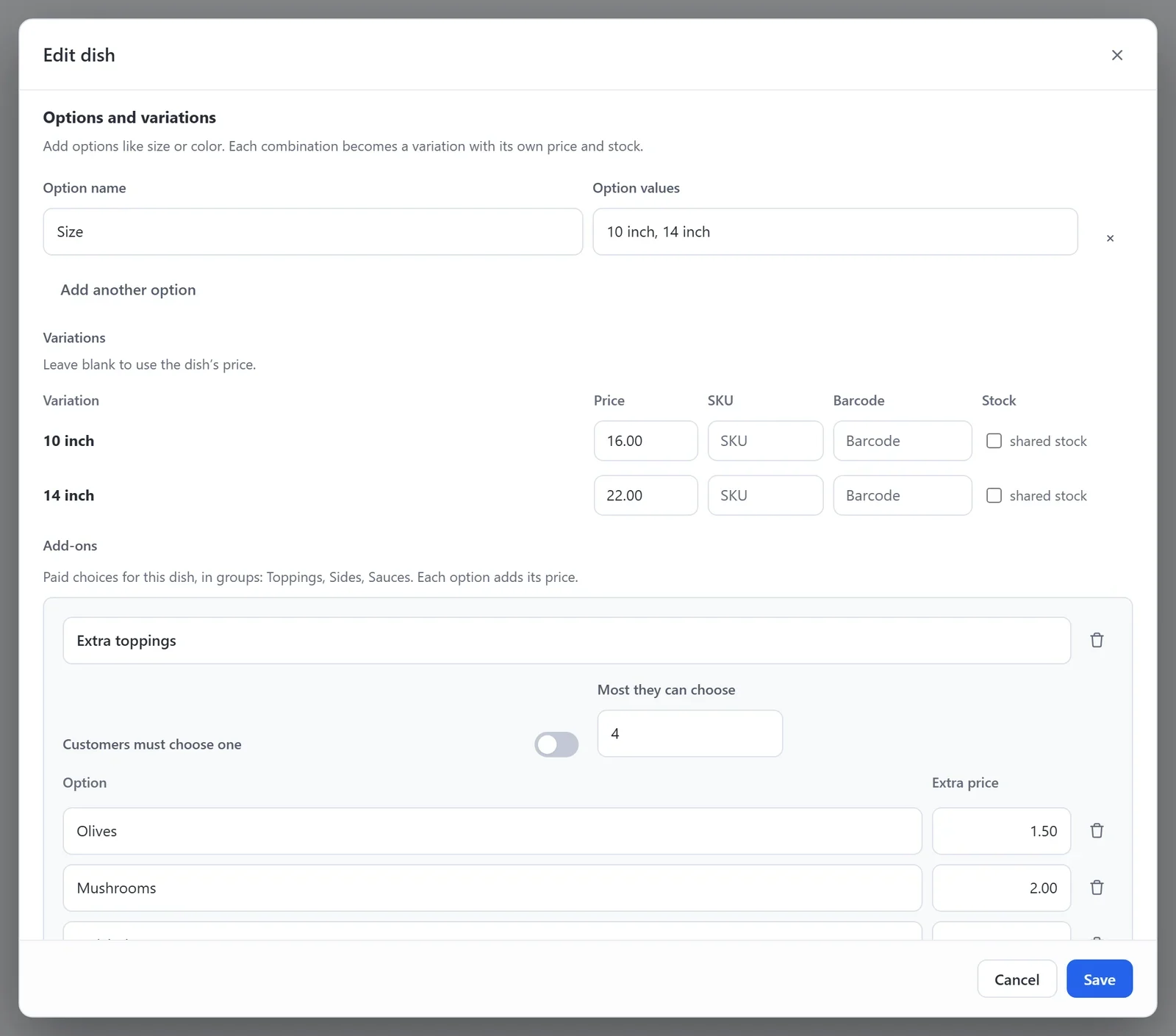
- Under Options and variations, enter an Option name, such as Size.
- Under Option values, enter the sizes, with a comma between each one, such as 10 inch, 14 inch.
- Under Variations, enter a Price for each size. Leave a price empty to use the dish's own price.
- Click Save.
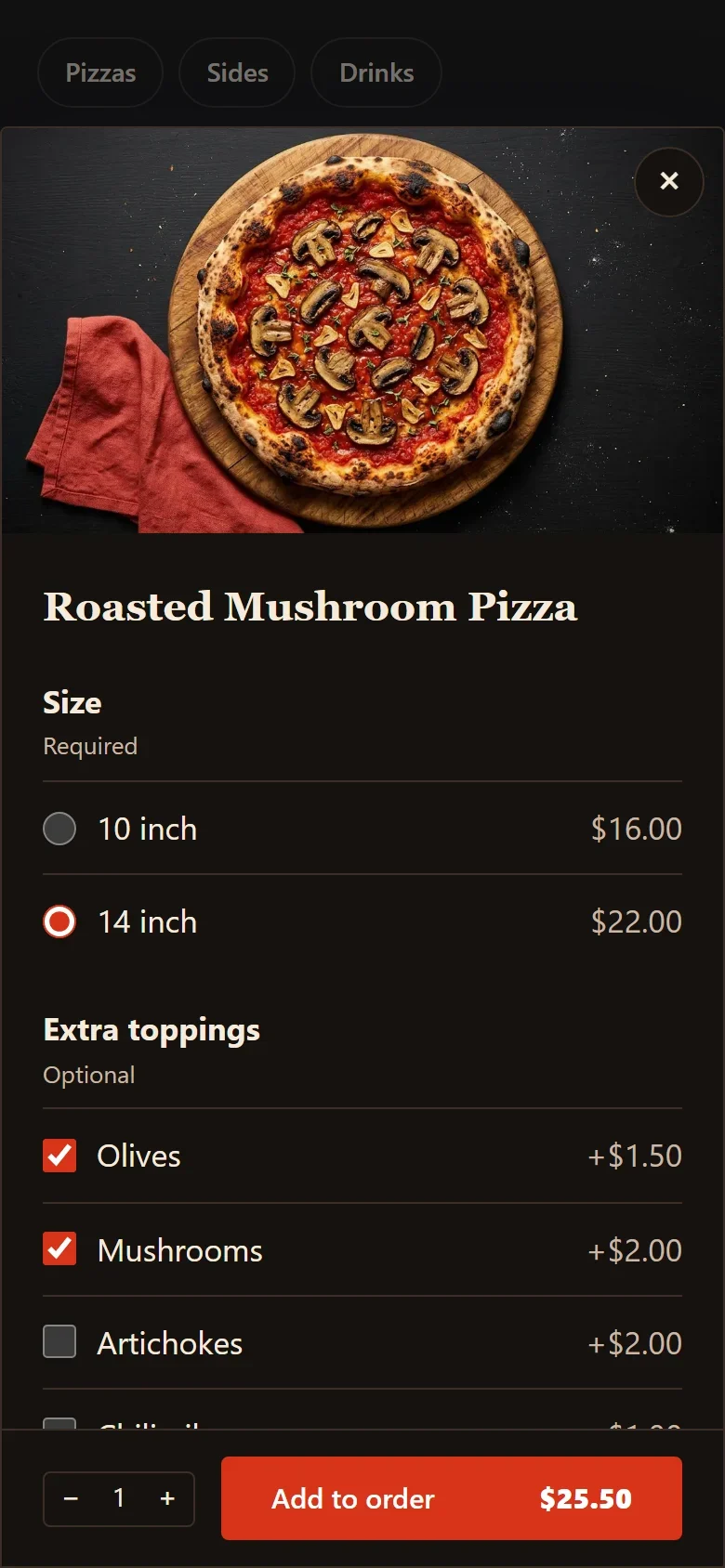
On your menu, a dish with sizes of different prices shows its lowest one, such as From $16.00. Customers pick a size when they add the dish to their order.
Add-ons
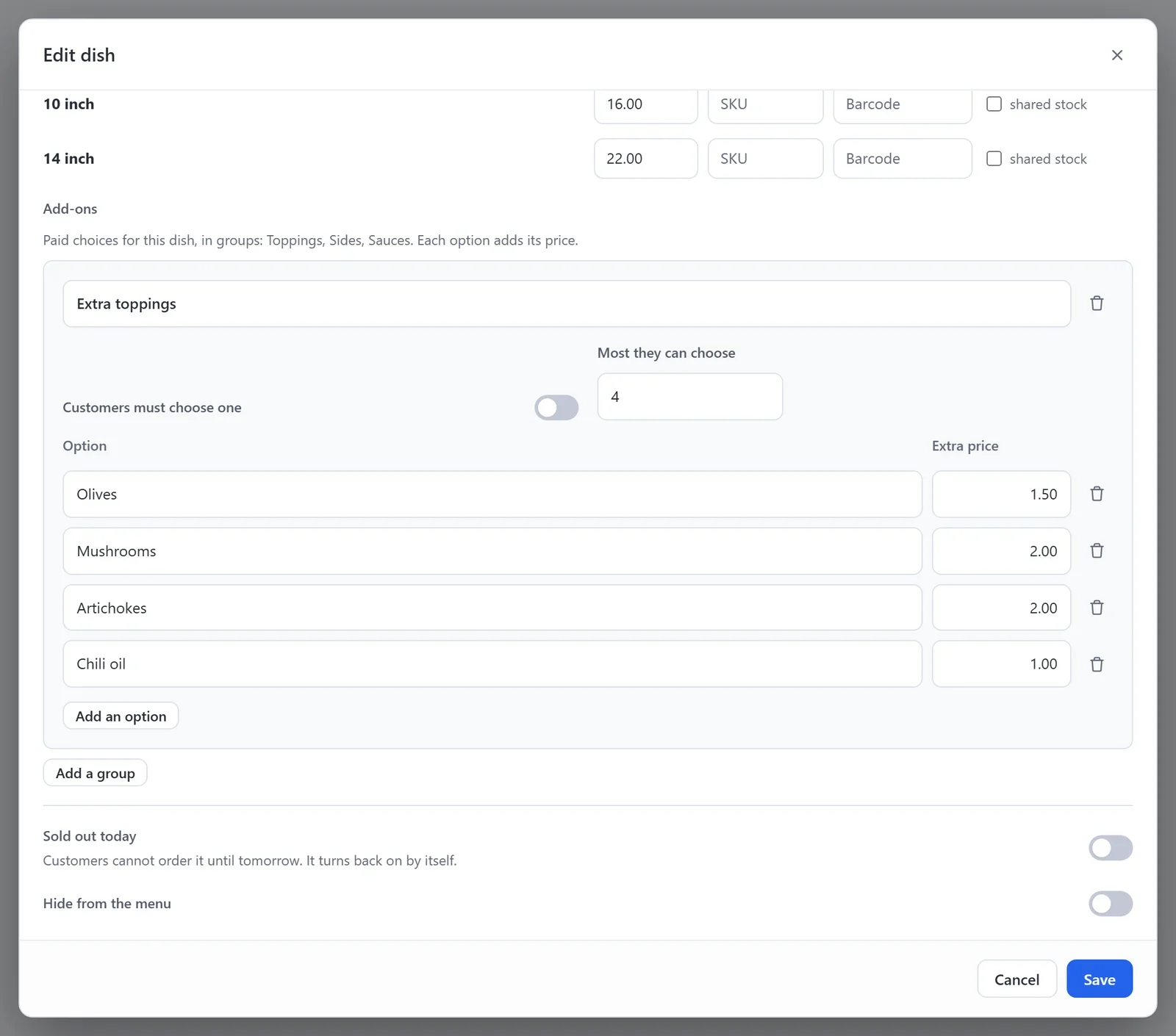
Add-ons come in groups, such as Toppings, Sides or Sauces. Each option in a group has its own price, which is added to the dish's price.
- Under Add-ons, click Add a group.
- Enter the group's name, such as Extra toppings.
- For each choice, enter its Option name and its Extra price. Click Add an option for more. Leave the price empty for a free choice.
- Turn on Customers must choose one if the group is not optional, such as a choice of side.
- In Most they can choose, enter how many options a customer may pick from the group. Leave it empty for any number.
- Click Save.
When a customer clicks Add on a dish with sizes or add-ons, a window opens where they choose them. The total on the Add to order button changes as they choose. Their choices show on their order, on your Orders screen and on the Kitchen screen.
Sold out today
- Open the dish and turn on Sold out today.
- Click Save.
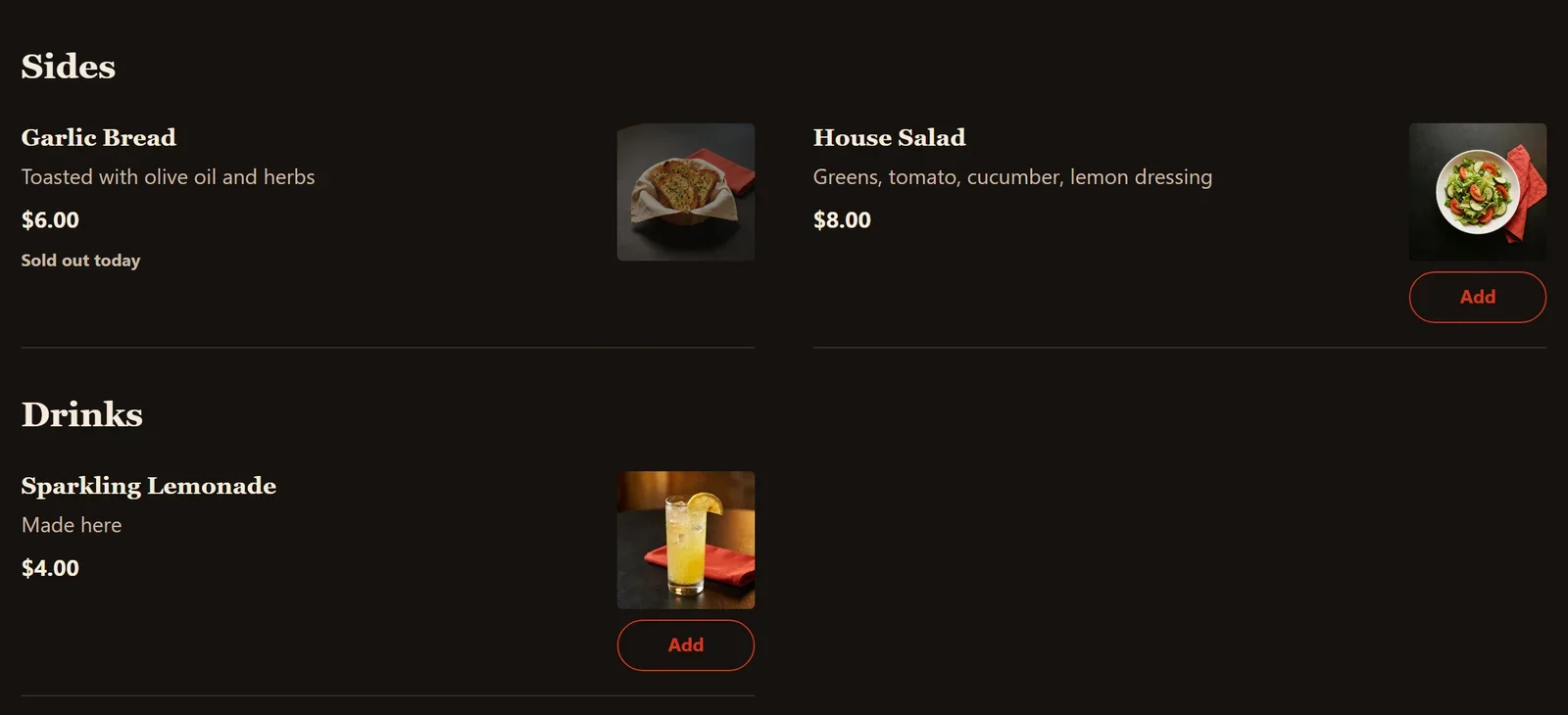
The dish stays on your menu with the words Sold out today, and customers cannot order it. It turns back on by itself the next day, by your restaurant's own clock. You can also turn it off again yourself.
To take a dish off your menu for longer, turn on Hide from the menu instead.