
Set up online ordering
Use the Ordering screen to turn online ordering on or off, pause orders when the kitchen is busy, set how long food takes and when customers can order.
Online ordering lets customers order from your menu and pay on your website. A new restaurant website has it turned on from the start, with pickup ready. Everything about it is on the Ordering screen, in your site dashboard.
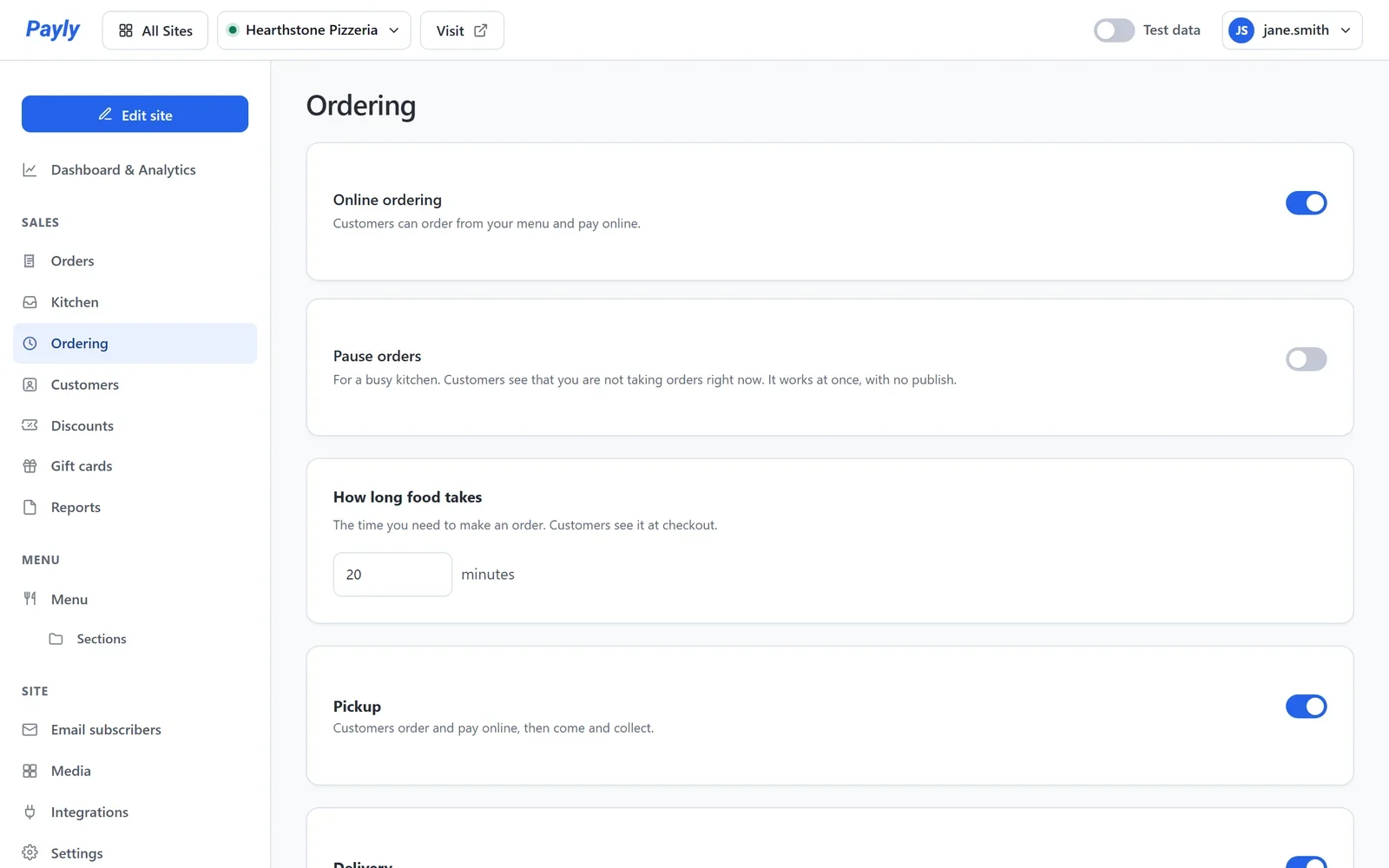
Turn online ordering on or off
The Online ordering switch is at the top of the screen. It saves as soon as you press it.
- On: each dish on your menu has an Add button, and your website has a checkout.
- Off: your website still shows your menu, without the Add buttons, the cart and the checkout. Your dishes and orders are kept. Payly asks before it turns ordering off.
If your website is published, Payly then asks whether to publish it again, so that your live website gets the change too. Click Publish now.
To take real orders, ordering needs three things. Until it has them, the card lists what is missing under Ordering needs these, with a link to each:
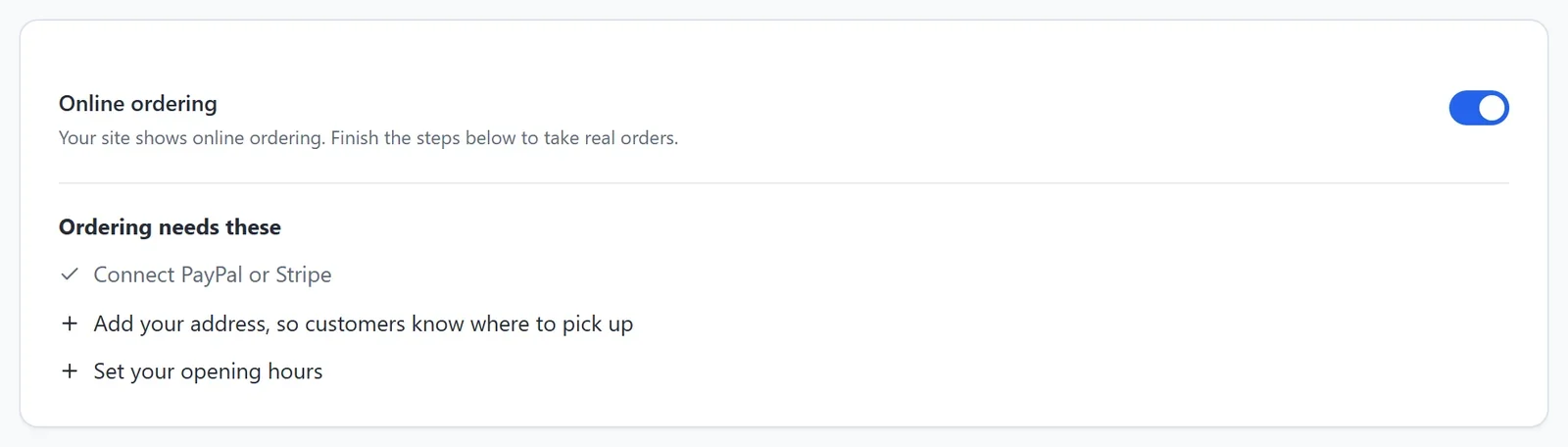
- Connect PayPal or Stripe, so customers can pay you.
- Add your address, so customers know where to pick up.
- Set your opening hours.
The address and the hours are in Settings > Business details. See Add your business details and opening hours.
Pause orders
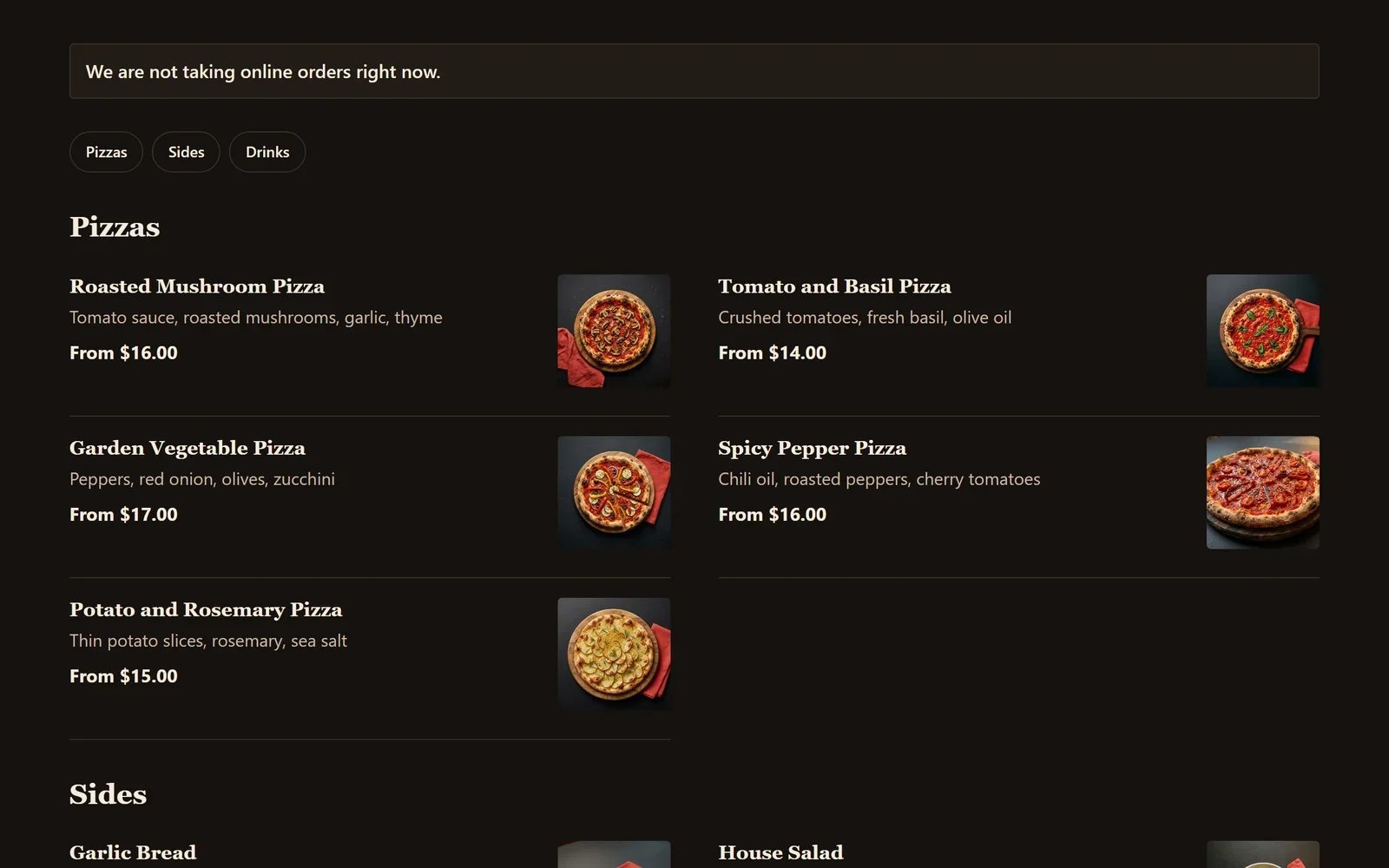
When the kitchen is too busy, turn on Pause orders. It works at once, with no publish. Your menu says We are not taking online orders right now, the Add buttons are hidden, and no new order can be paid. Turn it off to take orders again.
How long food takes
Under How long food takes, enter the minutes your kitchen needs to make an order. Customers see it at checkout, as in As soon as possible (about 20 minutes). For a delivery, the extra time for the drive is added. See Delivery orders.
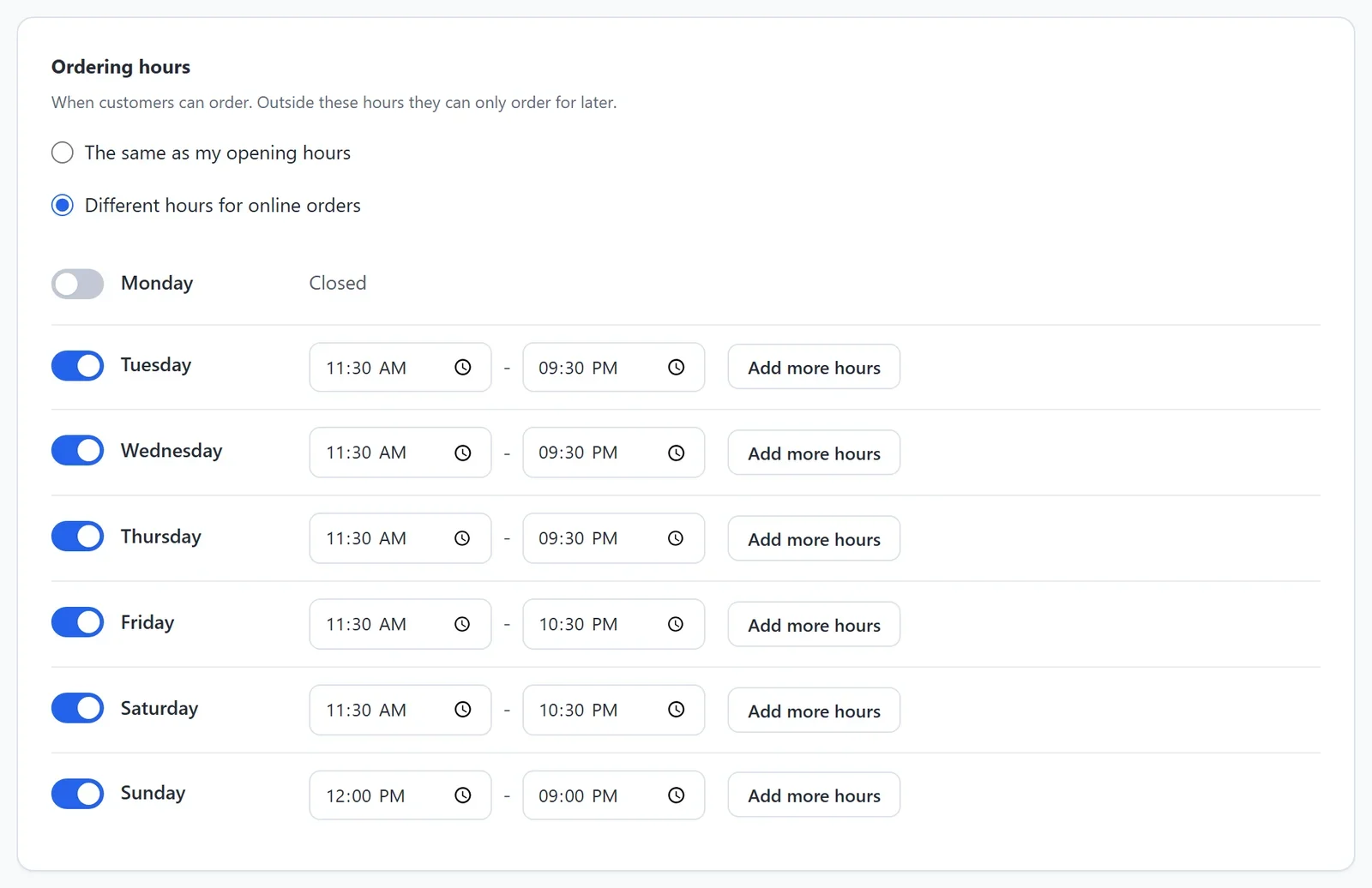
Ordering hours
Customers can order for right now only during your ordering hours. Outside them, they can only order for later.
- Under Ordering hours, choose The same as my opening hours, or Different hours for online orders, for example if the kitchen stops taking orders before you close.
- For different hours, turn each day on or off and set its times. Click Add more hours to give a day a second set of hours.
Order for later
With Order for later on, customers can pick a day and a time for their order, inside your ordering hours. In How far ahead, choose The same day only, or up to 14 days ahead.
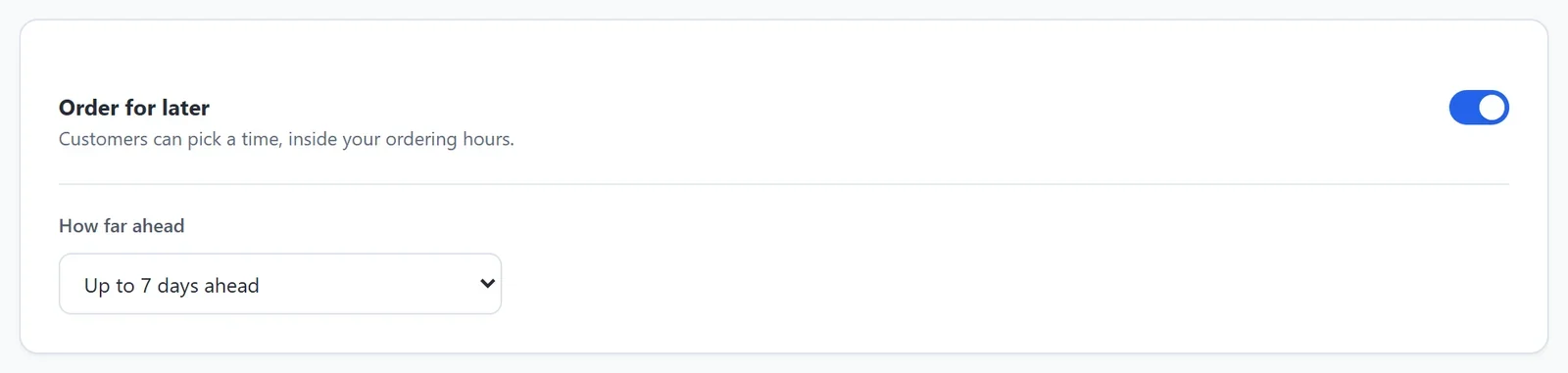
Times are offered every 15 minutes. The earliest time each day leaves your kitchen the time it needs after you open. When you are closed, your menu says We are closed right now. You can still order for later. With Order for later off, customers can order only while you are open.
Save your settings
The two switches at the top save as you press them. Everything else on the screen is saved when you click Save at the bottom. None of it needs a publish: your checkout always uses your settings as they are.
At least one way to get the food must be on: Pickup, Delivery or Table ordering.