
List your site in the Payly Directory
Get free visits from the Payly Directory, Payly's public page of sites built with Payly: finish your setup, check your listing and send it for review.
The Payly Directory is a public page at payly.org/stores where shoppers find sites built with Payly: online stores, websites, restaurants, creator memberships, events, booking pages, donation forms, tip jars and payment forms. A site appears there only if its owner asks, and each card links straight to the site. Listing is free and optional. Shoppers see only what is on your listing, never your orders, customers or sales.
Payment links cannot be listed, because they have no single page to send visitors to.
Before you start
You can request a listing once your site is set up. Your first sale is not needed. Until then, the Directory tab lists the steps left, and each one links to where you finish it.
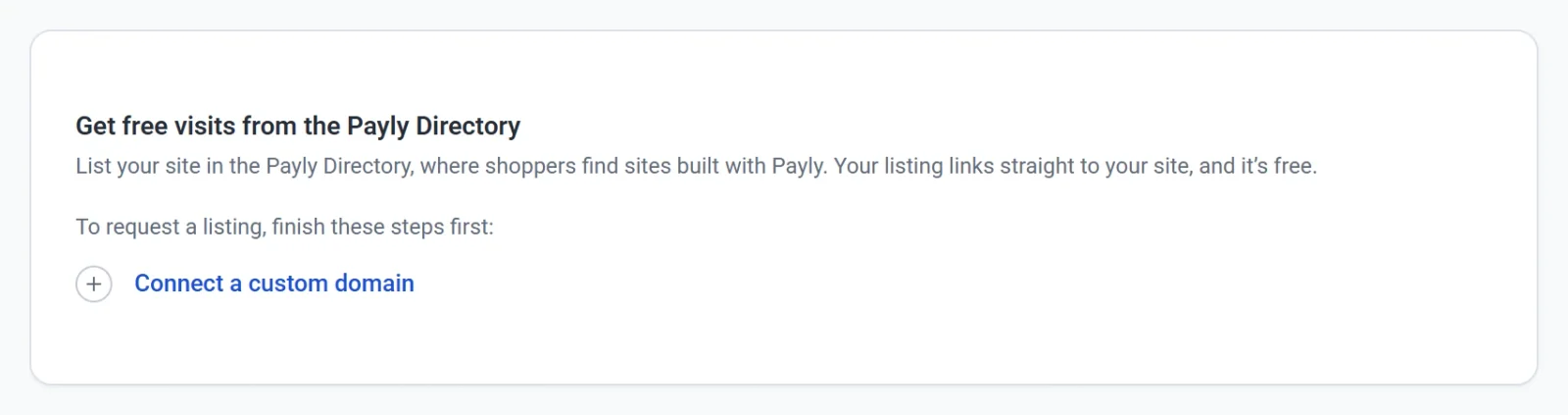
Which steps you need depends on what you built:
- Online store: build your first page, edit your site in the editor, add your own products, connect your Cloudflare account, publish the site, connect a custom domain and connect a payment processor.
- Creator memberships: the same steps, except adding products.
- Website: build your first page, edit your site in the editor, connect your Cloudflare account, publish the site and connect a custom domain. With Sell online on, also add your own products and connect a payment processor.
- Restaurant: the same steps as an online store, with your own dishes instead of products, plus add your address and opening hours.
- Event, booking page, donation form, tip jar or payment form: connect your Cloudflare account, publish the site, connect a custom domain and connect a payment processor. A free event, booking page or payment form does not need a payment processor.
The free payly.page address does not count as a custom domain. See Connect a custom domain.
List your site
- In your site dashboard, click Settings, then click the Directory tab.
- Check Your listing. Payly fills in what it can from your site, such as its name, a short description and your logo. Change anything you like.
- Choose a Category that fits what you offer, such as Art & handmade or Nonprofits.
- Optional: change the Name on your card. Leave it empty to use your site's name. It can be up to 80 characters.
- Check the Description: one or two sentences about what you offer and who it is for. A counter below the box shows how much of the 300 characters you have used.
- Optional: change the Picture. Click Upload image or Browse uploads. Your logo or a photo of what you offer works well. It is shown as a small square, so choose one with a clear center.
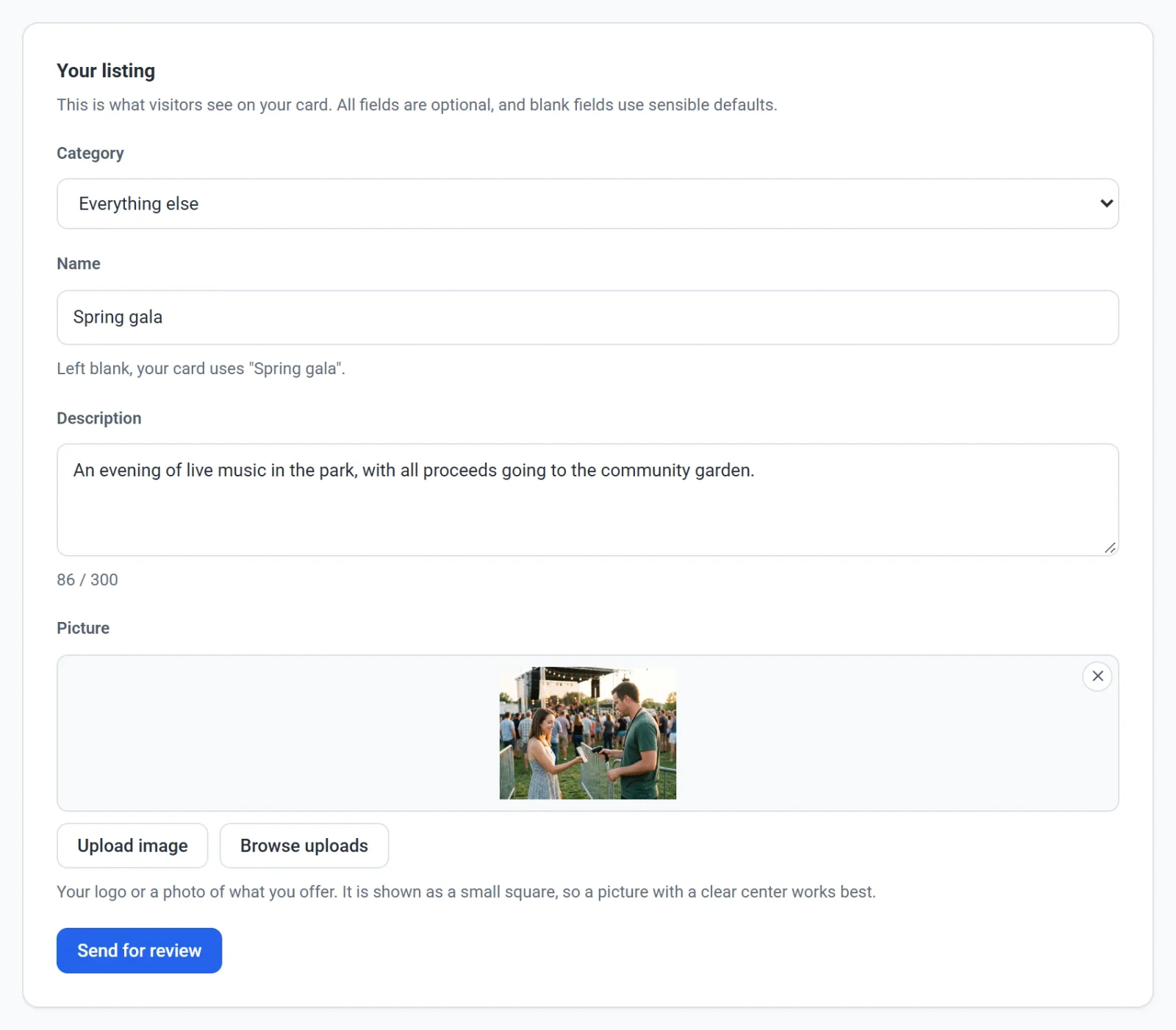
- Click Send for review. This saves your listing and asks Payly to list it.
The review
Payly checks each listing before it goes on the public page, so your site does not appear the moment you send it. A line on the Directory tab shows where your listing stands:
- Waiting for review: your listing is in the queue.
- On the directory: anyone browsing payly.org/stores can find your site. Payly also sends you an email.
- Not listed: the listing was not approved. Payly shows a note when it has one. Your site is not affected and stays online. Edit your listing and click Save to send it for review again.
An event or form leaves the directory by itself once it stops selling, for example after its Close on date or once every ticket type's sales have ended. You do not need to remove it.
Change or remove your listing
- When you change the category, name, description or picture of a listing and click Save, it goes back for review and leaves the public page until it is approved again.
- To remove your site, turn off List in the Payly Directory. A message confirms that your listing has been removed.
- Once your site is listed, a View the Payly Directory link under the card opens the public page.