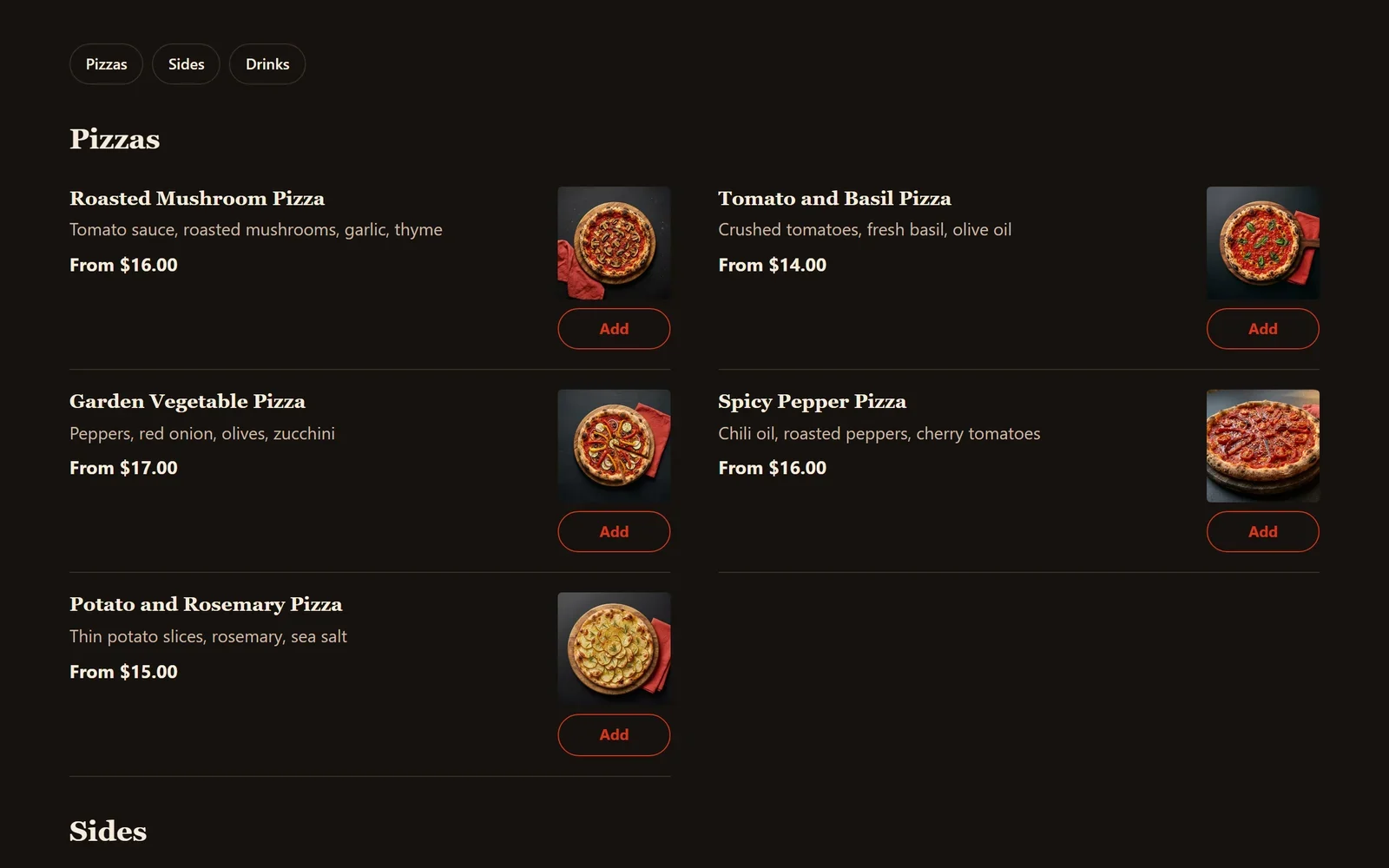
Add dishes and sections to your menu
Add your dishes with photos and prices on the Menu screen, sort them into sections such as Starters and Drinks, and choose how the menu looks on your site.
Your menu is made of dishes and sections. A dish is one thing customers can order, with its name, price and photo. A section is a part of your menu, such as Starters, Mains or Drinks. You manage both in your site dashboard, and the Menu block shows them on your website.
Add a dish
- In your site dashboard, click Menu. Your dishes are listed in the order your menu shows them, section by section.
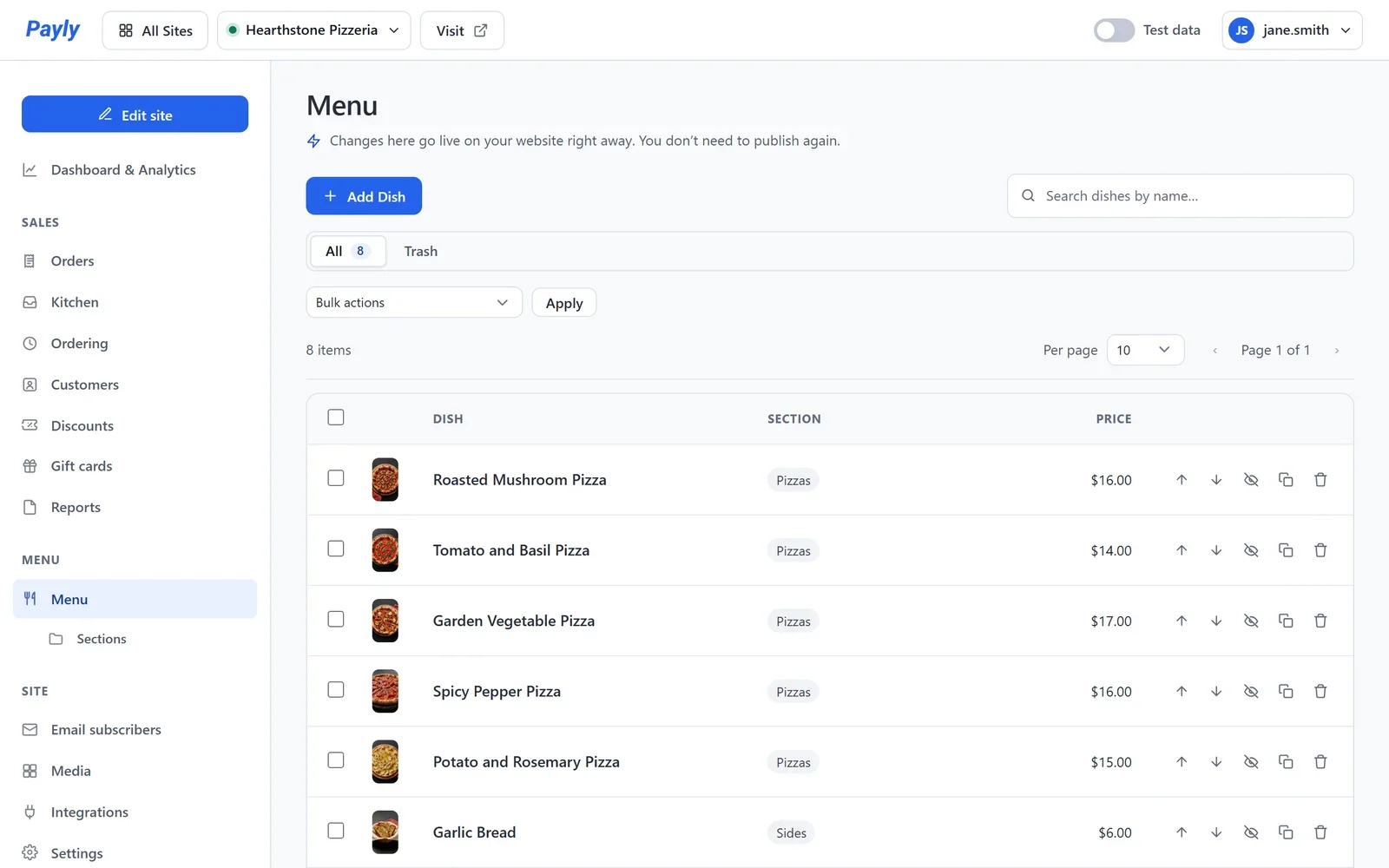
- Click Add Dish. To change a dish you already have, click its name.
- Enter the Dish name, a Description and the Price. The description is the short line customers read under the name, such as what is in the dish.
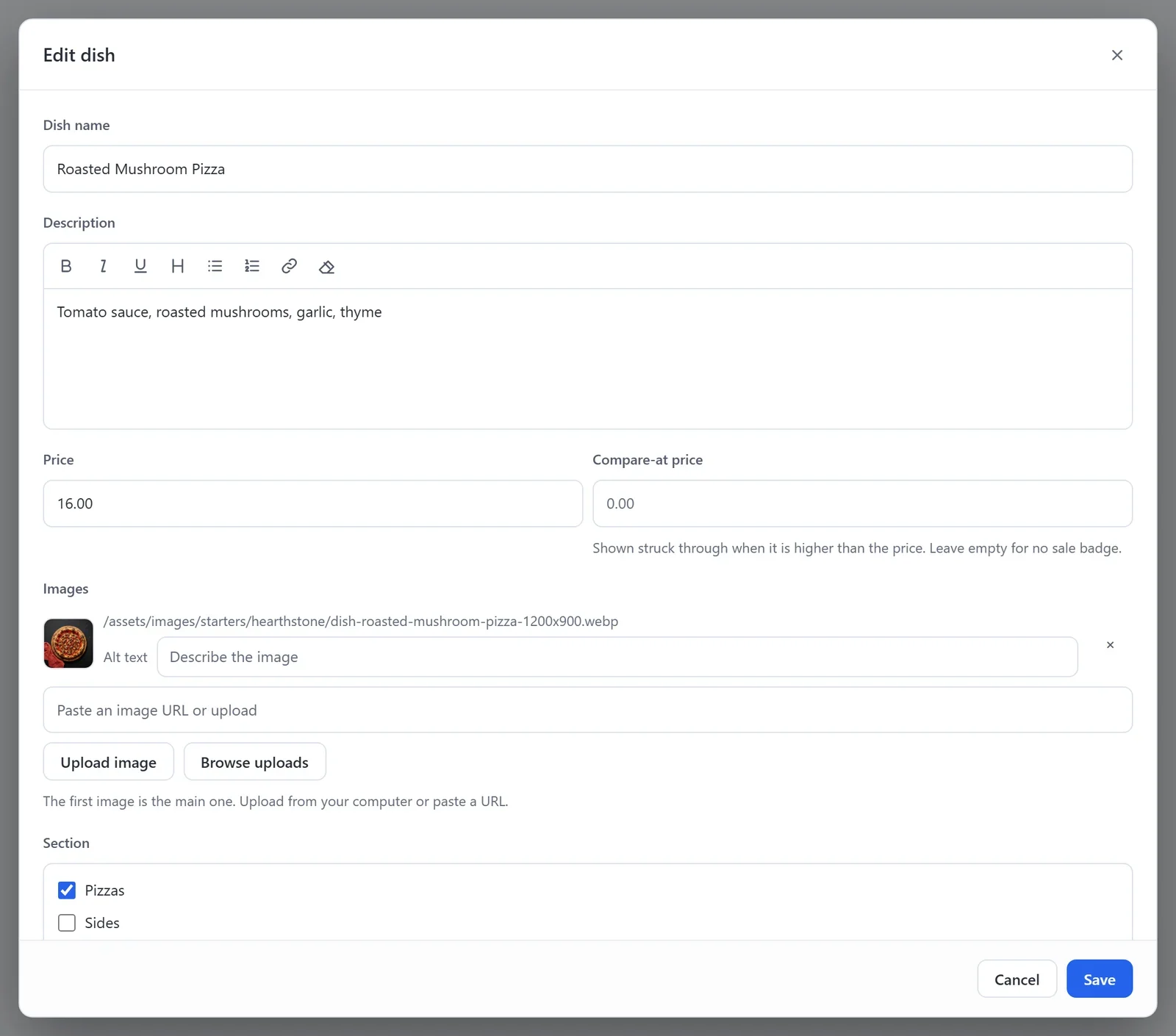
- Under Images, click Upload image or Browse uploads to add a photo. The first image is the one the menu shows.
- Under Section, tick the part of your menu the dish belongs in. To make a new section, type its name and press Enter.
- Click Save.
Once your website is published, a dish goes live the moment you save it. You do not need to publish again. The same is true when you change a price or a photo.
The dish window also has sizes, add-ons, labels and Sold out today. See Sizes, add-ons and labels for your dishes.
Order, hide and remove dishes
- On the Menu screen, click the up and down arrows on a dish to move it up or down inside its section.
- To take a dish off your menu for a while, open it, turn on Hide from the menu and click Save. Orders already placed are not affected.
- To remove a dish, click its trash can. It goes to Trash, where you can restore it until you empty the trash.
- To add a dish much like another one, click its Duplicate icon. The copy has the same price, photos and add-ons.
Manage your sections
- In your site dashboard, click Sections, under Menu.
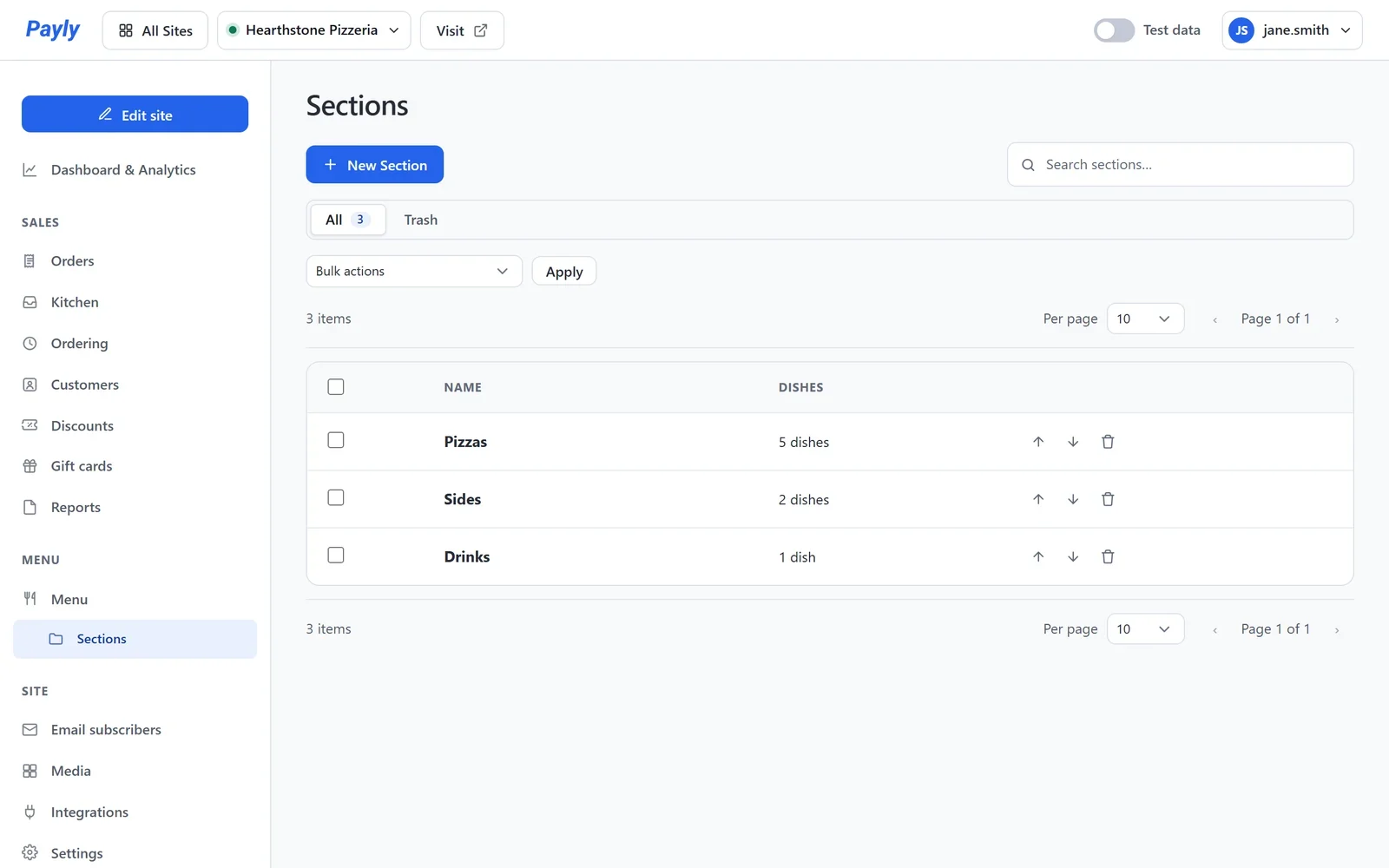
- Click New Section to add one, or click a section's name to rename it.
- Click the up and down arrows to change the order. Your website shows the sections in this order.
Choose how the menu looks
Your Menu page has a Menu block, which shows every section and dish. Its settings are in the editor.
- Click Edit site, then open your Menu page from the page list at the top.
- Click the menu on the page. Its settings open on the right.
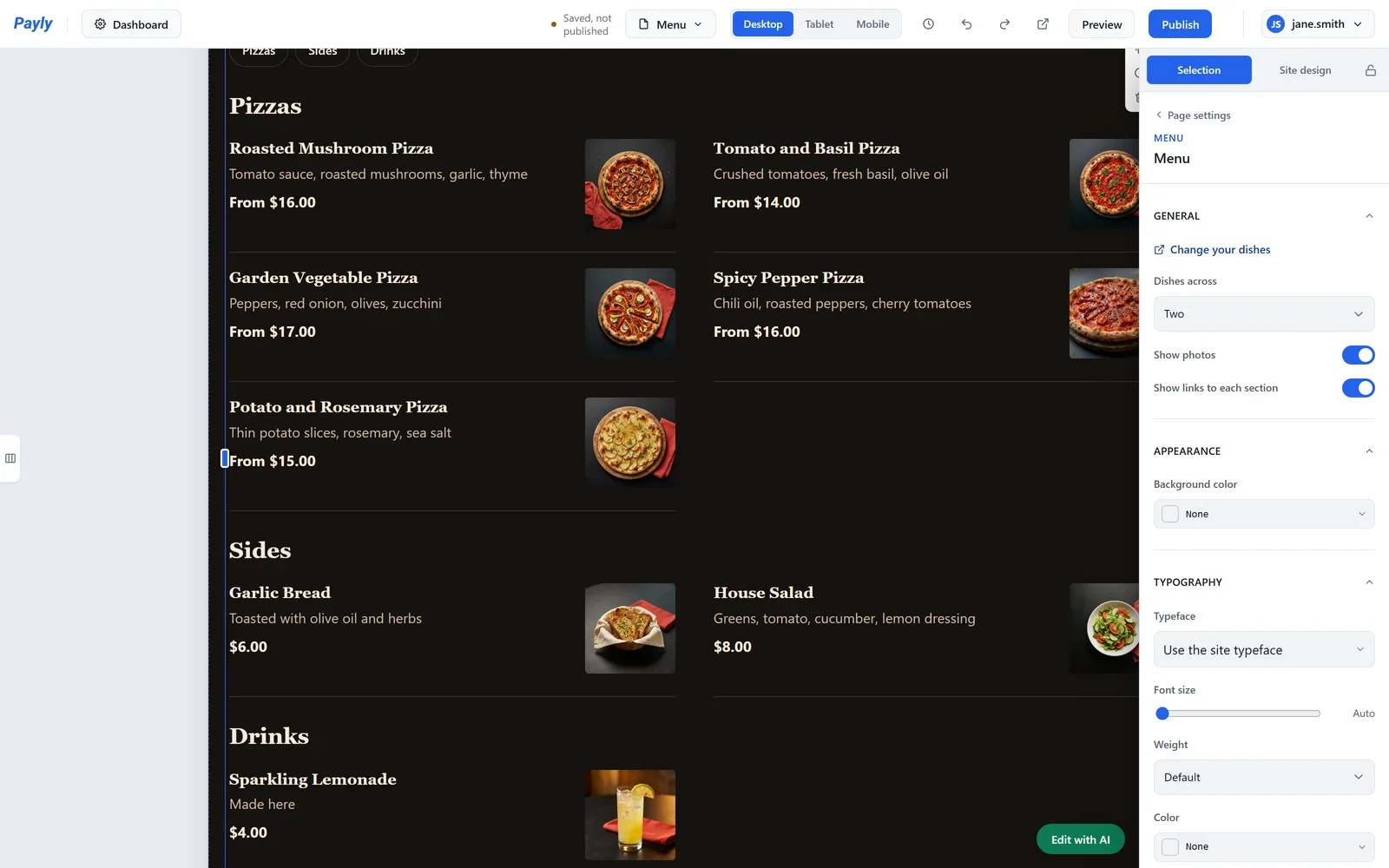
- Choose the settings you want:
- Dishes across: Two or One dish in each row.
- Show photos: turn off for a menu with words only.
- Show links to each section: the row of buttons at the top of the menu, one for each section.
- Change your dishes: opens the Menu screen in your dashboard.
- Click Publish when you are ready. Changes to the block show on your website after you publish.
Your Menu page always keeps a Menu block. To swap it for another one, add the new block first.
On your website, each dish shows its name, its description, its price and its photo. A dish with sizes shows its lowest price, such as From $16.00. While online ordering is on, each dish has an Add button.