
Pickup orders
Customers order and pay on your website, choose a pickup time, then come and collect. Here is what they see and how to set it up.
With pickup, customers order and pay on your website, then come to your restaurant to collect their food. Pickup is on from the start on every new restaurant website.
Set it up
- In your site dashboard, click Ordering.
- Check that Pickup is on.
- Under How long food takes, enter the minutes your kitchen needs for an order.

- Click Save at the bottom of the screen.
Customers are told where to come: the address in Settings > Business details. See Add your business details and opening hours.
What customers see at checkout
- They enter their email, name and phone number.
- Under Order type, they choose Pickup. If pickup is the only way you offer, this choice is not shown.
- Under Pickup time, they choose As soon as possible, with the minutes your food takes, or Later, with a day and a time. Your address shows under it.
- They can write Notes for the kitchen and add a tip, then pay.
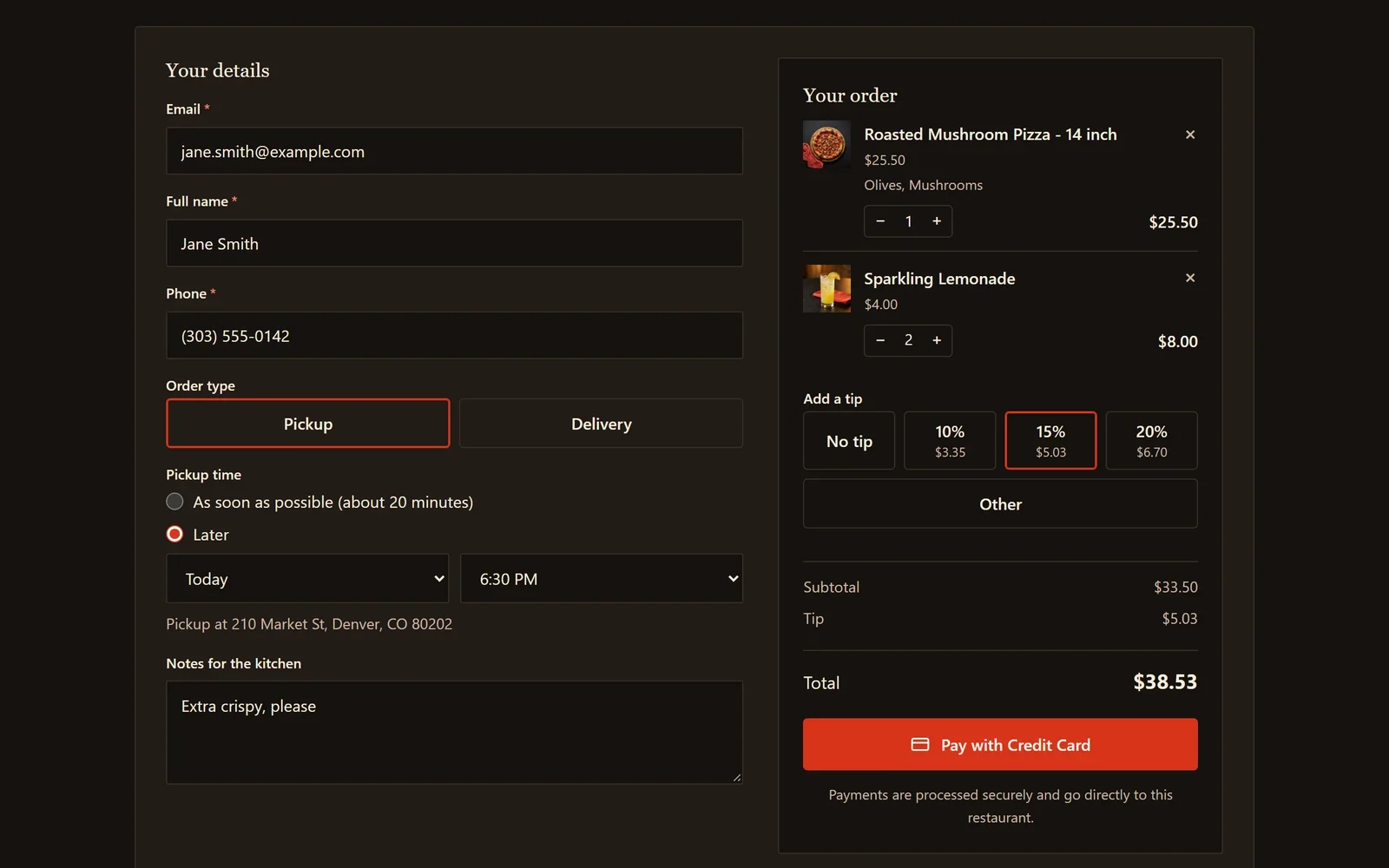
When your restaurant is closed, only Later is offered, at times inside your ordering hours. See Set up online ordering.
After the order is paid
- The customer gets an order confirmation email, and their order page says when it will be ready.
- The order shows on your Kitchen screen with the time it is due.
- When you press Ready on the Kitchen screen, the customer gets an email saying their order is ready for pickup, with your address.