
General site settings
Rename your store and set its store handle, store language and currency on the General tab of your site settings.
The General tab holds the basic facts about your store: its name, its web address, the language shoppers read and the currency you charge in. You find it at the start of your site's settings.
Open the General tab
- In your site dashboard, click Settings in the menu on the left. The General tab opens first.
- Look at the settings: Site name, Store handle, Store language, Currency, Currency symbol, Store address and Cookie banner.
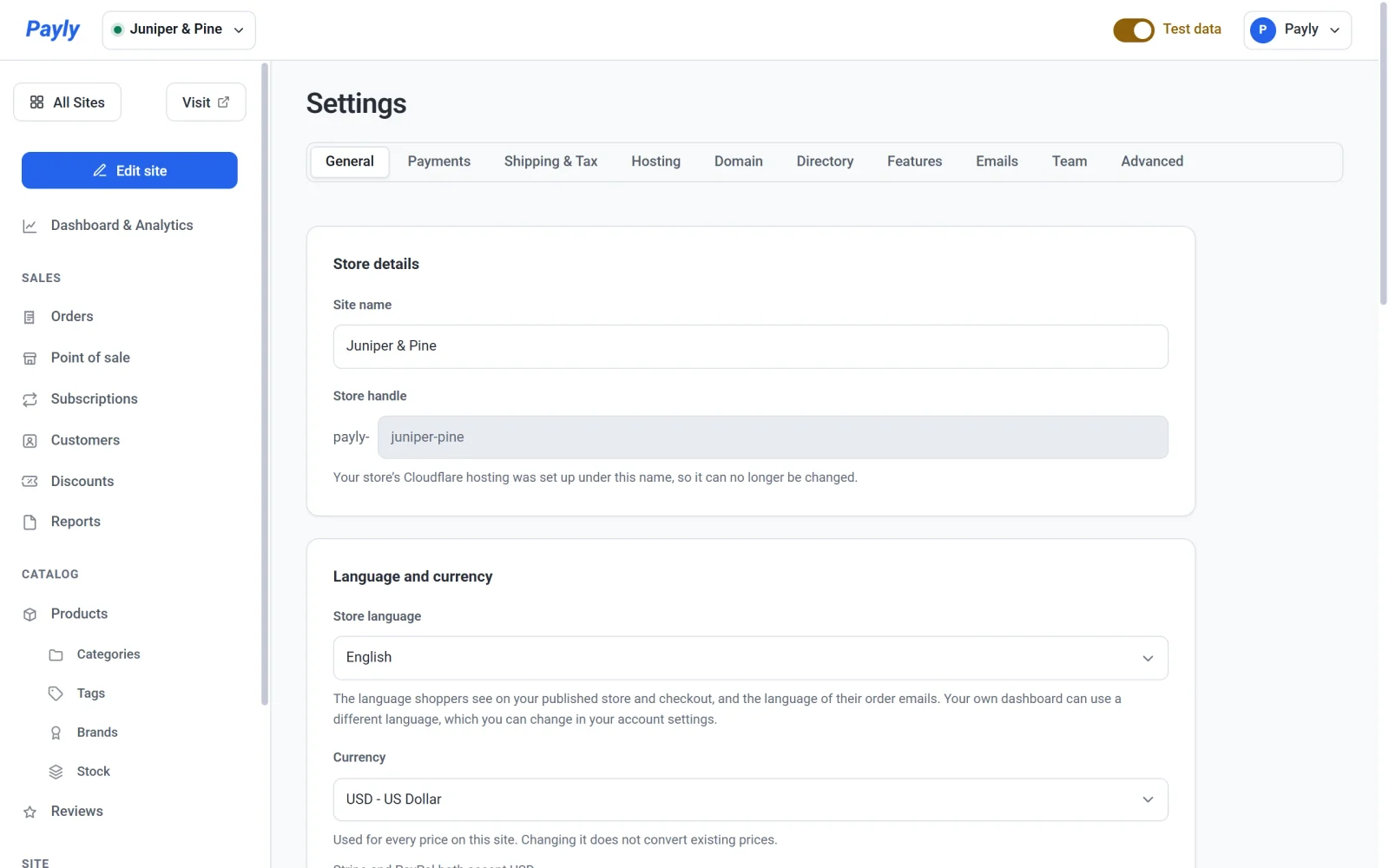
Site name
The site name is how Payly refers to your store. It appears in your dashboard and in the site switcher at the top. Your customers also see it, because their order emails come from your store name, followed by "via Payly".
To change it, edit Site name and click Save. The name cannot be empty. Changing it does not change the logo text in your header or the copyright line in your footer. Those are text on your pages, which you edit in the editor.
Store handle
The store handle is a short name that becomes part of your store's free web address. Until you connect Cloudflare, you can change it here, and a message under the field tells you whether the handle is available. Once you have connected Cloudflare, the field is dimmed and cannot be edited, even if you disconnect later. The message under it explains why.

For the rules a handle must follow, see Create your first site. To use your own domain name instead of the free address, see Connect a custom domain.
Store language and currency
- Store language is the language your shoppers see on your published store and at checkout, and the language of their order emails. It is separate from the language of your own dashboard, which you set in your account settings. Choose from the languages in the list. See Choose your store's language.
- Currency is used for every price in your store. Changing it does not convert your existing prices, so check them afterward. See Set your store currency.
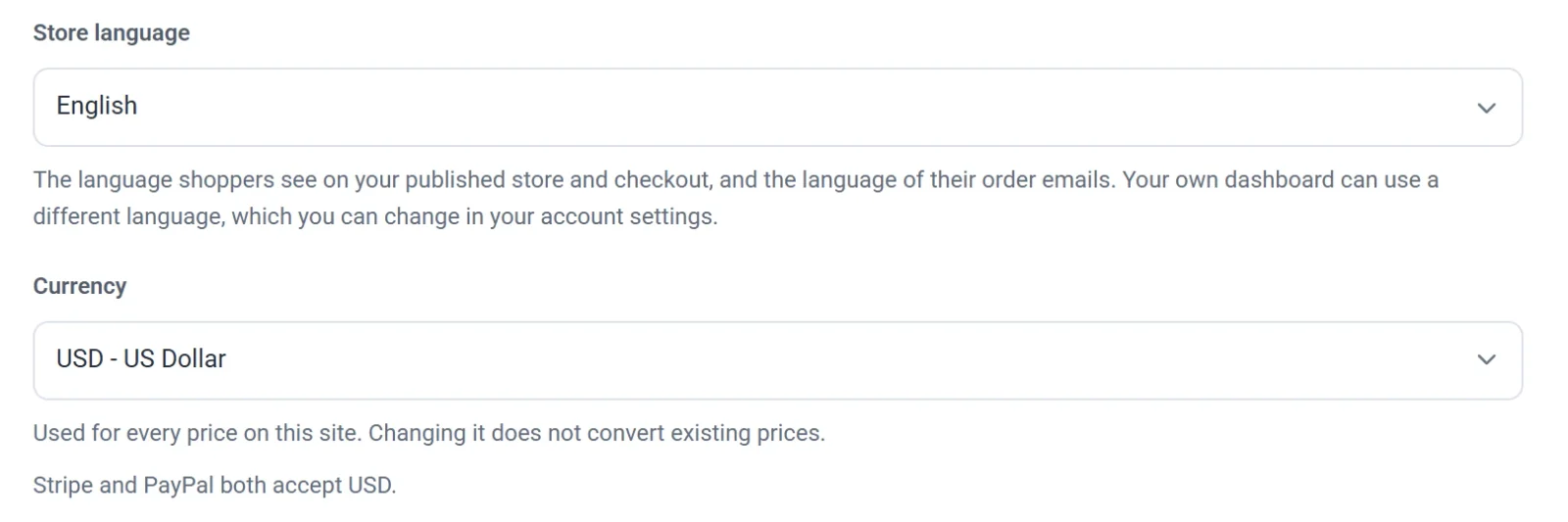
Change them and click Save, then publish your store again so that your live store shows the change.
Store address
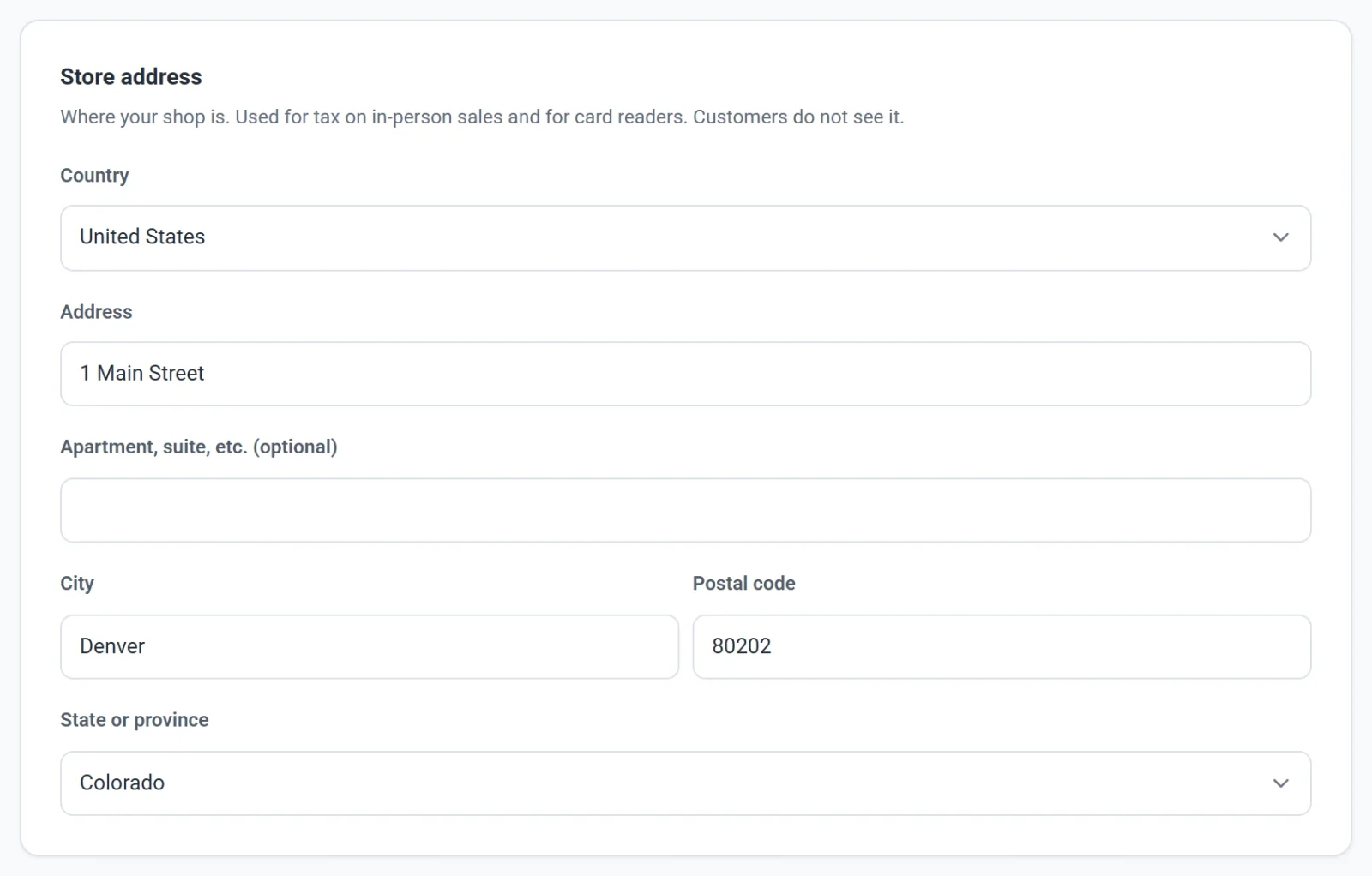
Where your shop is, if you sell in person. Sales on the point of sale are taxed at this address, and Stripe needs it for your card readers. Your customers don't see it. Fill it in and click Save. See Sell in person with the point of sale.
Cookie banner
The Cookie banner setting chooses which visitors are asked to accept cookies before your analytics and ad pixels load. Change it and click Save, then publish your store again. See Connect Google Analytics and your ad pixels.
Note: The Save button saves everything on this tab. If you try to leave with changes not saved, Payly asks first.