
See and download responses
Read the answers to your form as a summary with charts, one response at a time or in a table, see what each person paid, and download the table as a CSV file.
Payly keeps every response to your form for you. You read them on the Responses screen of your form's dashboard, as a summary, one at a time, or in a table you can download. On a donation form or tip jar the screen is called Donations. The money itself is on the Payments screen, and the people who paid are under Customers (Donors).
Open the Responses screen
- On the Your sites page, click Dashboard on your form. In the form builder, click Dashboard in the bar at the top.
- Click Responses in the left menu (Donations on a donation form or tip jar).
The number of responses is at the top, with three views next to it: Summary, Individual and Table. Until someone sends your form, the screen says "No responses yet" ("No donations yet" on a donation form).
Summary
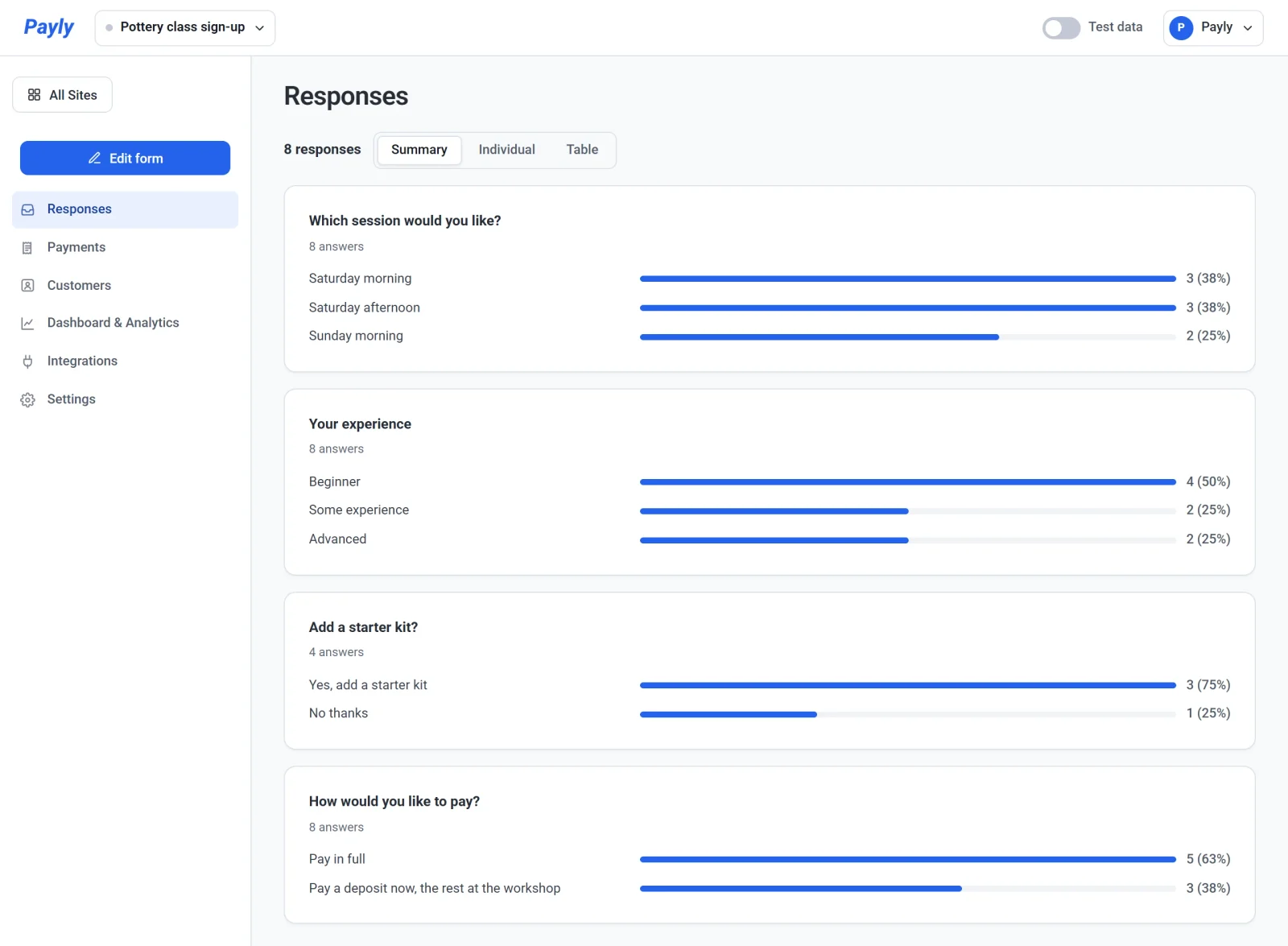
Each question gets its own card, with the number of answers it has. What the card shows depends on the question:
- Multiple choice, Checkboxes and Dropdown: a bar for each option, with how many people chose it and the percentage. Answers typed into an "Other" box are counted together.
- Linear scale and Rating: a bar for each point on the scale.
- Grids: a set of bars for each row.
- Number: the average, lowest and highest answer.
- Enter an amount and a donation's amount: the average and the total.
- Anything typed: the newest answers, up to 20. A line tells you how many more are in the table.
Read one response at a time
- Click Individual.
- Click Next and Previous to move through the responses, newest first. The counter shows where you are, such as "1 of 8".
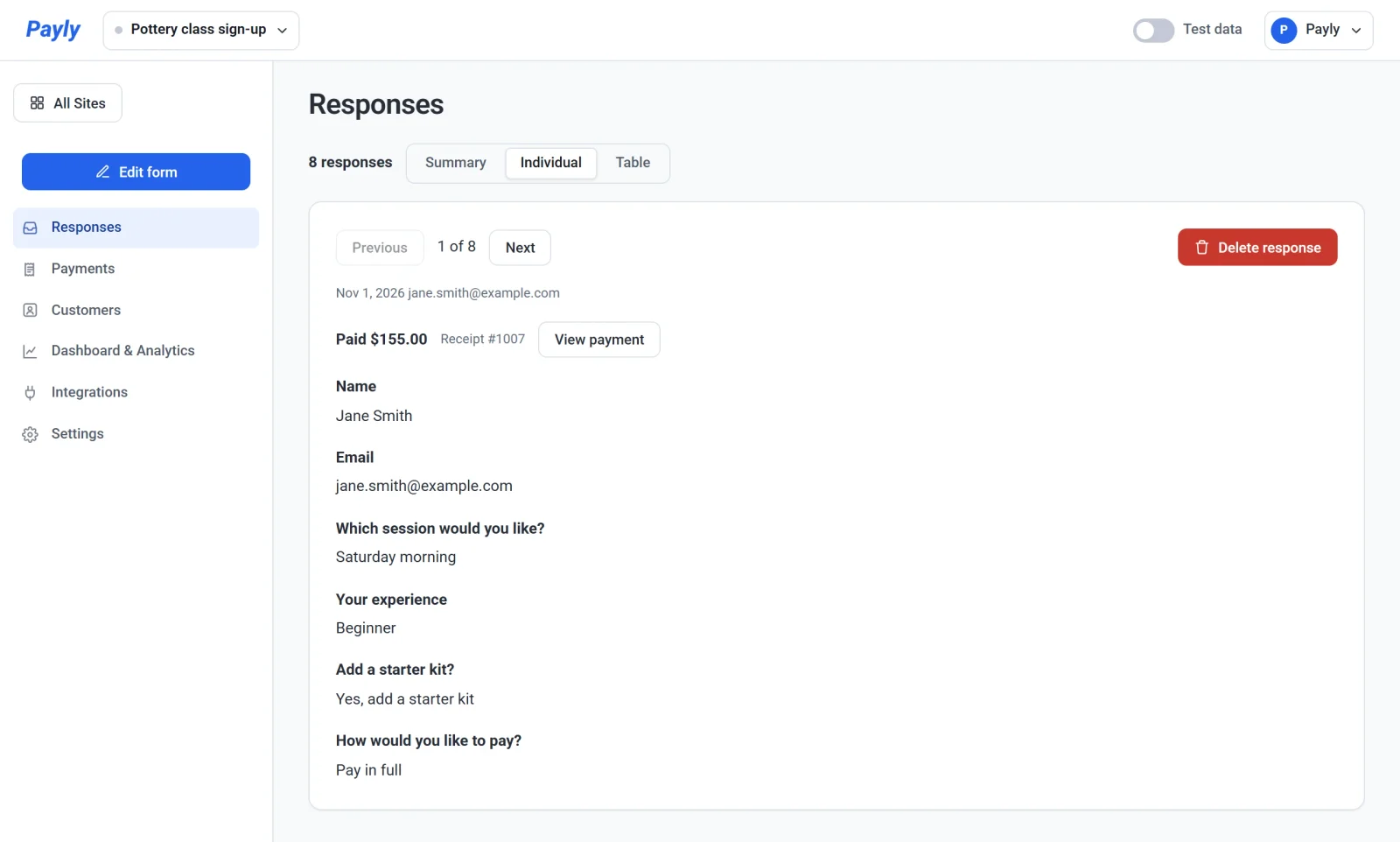
Under the counter you see the date and the person's email address. When the response includes a payment, a line shows what it paid, such as Paid $155.00, the receipt number and a View payment button. That button opens the payment, where you can refund it. See Refund a payment. Files that a visitor uploaded appear as links you can open.
Use the table and download a CSV
- Click Table. Each row is one response, with a Date column, a Paid column once any response includes a payment, and a column for each question. An Email column is added when your form has no Email question but responses came with an address.
- Click Download CSV to save the table as a file you can open in a spreadsheet.
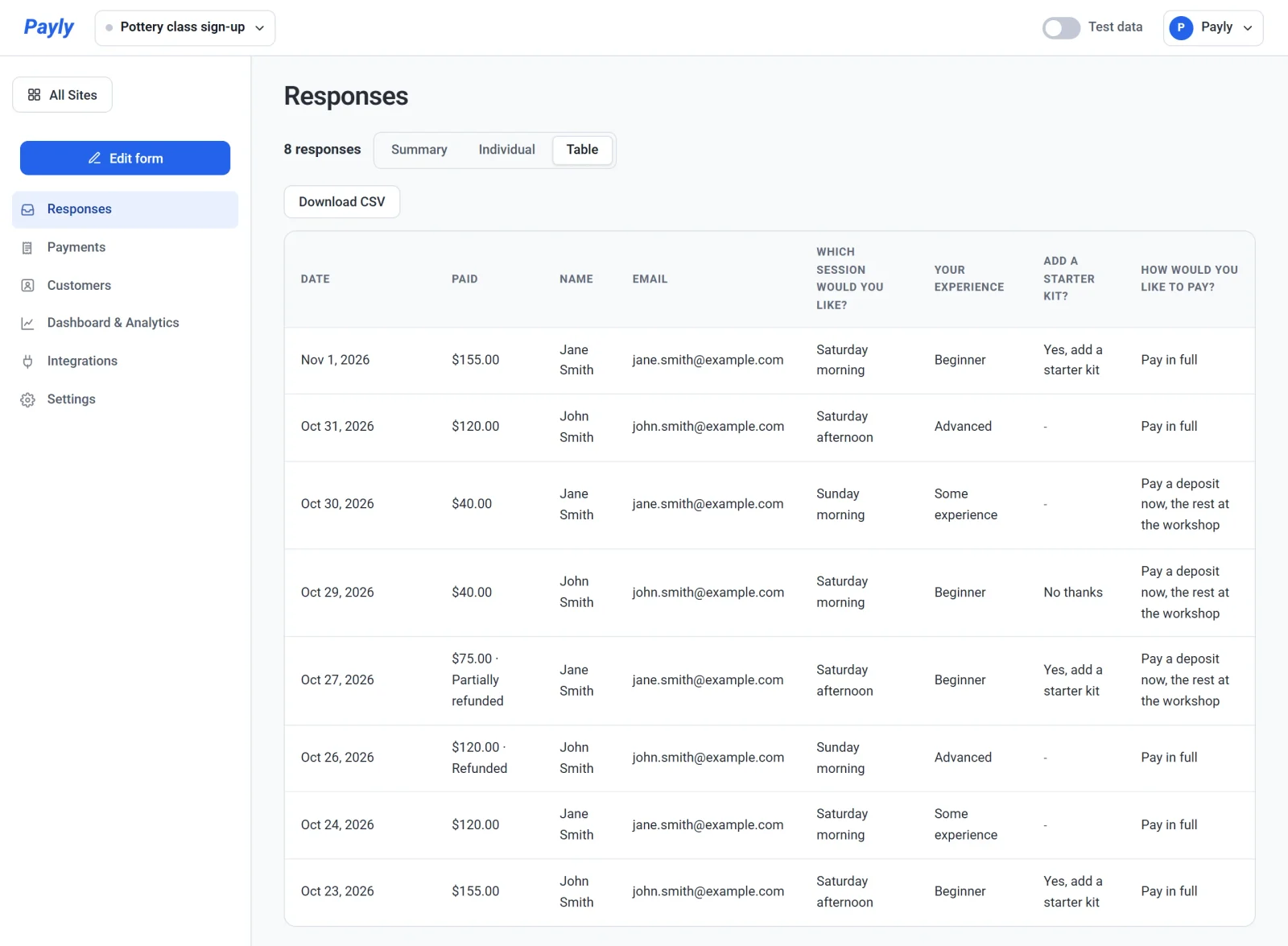
The file has one header row, then one row for each response. Dates are written as year, month and day, amounts as plain numbers a spreadsheet can add up, and uploaded files by name. A refunded payment says so in the Paid column. The file name starts with your form's title and ends with the date, such as pottery-class-sign-up-responses-2026-11-01.csv.
On a donation form or tip jar
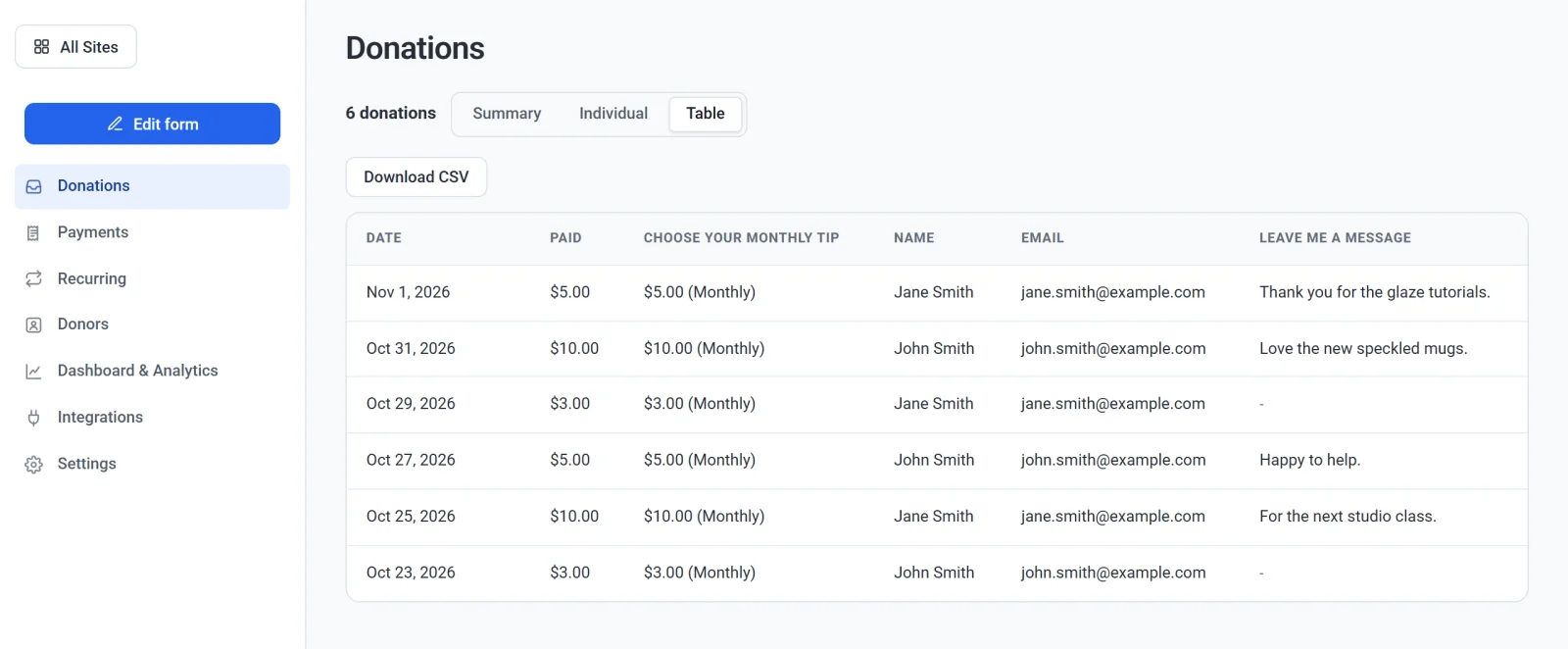
The screen has the same three views, headed Donations, and it counts donations instead of responses. The Paid column shows what each gift paid, and the column for the amount question says Monthly beside a monthly gift. Recurring in the left menu lists the gifts that repeat.
Delete a response
To remove a response, open it in the Individual view, click Delete response and confirm. This also deletes the response's files and can't be undone. It does not refund a payment: the payment stays on the Payments screen, where you can refund it. A free response's event tickets go back on sale.
Good to know
- A response that includes a payment appears once the payment goes through. If someone starts to pay and stops, there is no response.
- You get an email for each new payment. For a response with no payment you get a new response email, which you can turn off in Settings > Emails (New contact form response). Every response is kept here either way.
- If you change or delete a question later, earlier responses keep the question and the answers as they were.
- The screen shows up to your newest 5,000 responses and tells you when there are more. The table and the CSV have the same rows.