
Take payments on a form
Put prices on choices or let people type an amount, check the total in a preview, and take the payment through your own PayPal or Stripe account.
A payment form takes the money when the form is sent. You decide what costs what, and each person pays the total of the choices they make. The payment goes straight to your own PayPal or Stripe account, and Payly adds no fee of its own. A form has no shipping or sales tax, so the total is simply the sum of your prices.
Before you start
- Connect PayPal, Stripe or both. In your form's dashboard, go to Settings > Payments. Payers see a payment button only for the accounts you have connected. See Connect PayPal and Connect Stripe.
- Check your currency. The Payments card on the Settings tab of the form builder says which currency your prices are in. It links to Settings > General in your form's dashboard, where you change it.
Put a price on a choice
- In the form builder, click a Multiple choice, Checkboxes or Dropdown question. To make a new one, click the + button beside the form.
- If you do not see a price box beside each option, click More options (the three dots at the bottom right of the question) and choose Prices.
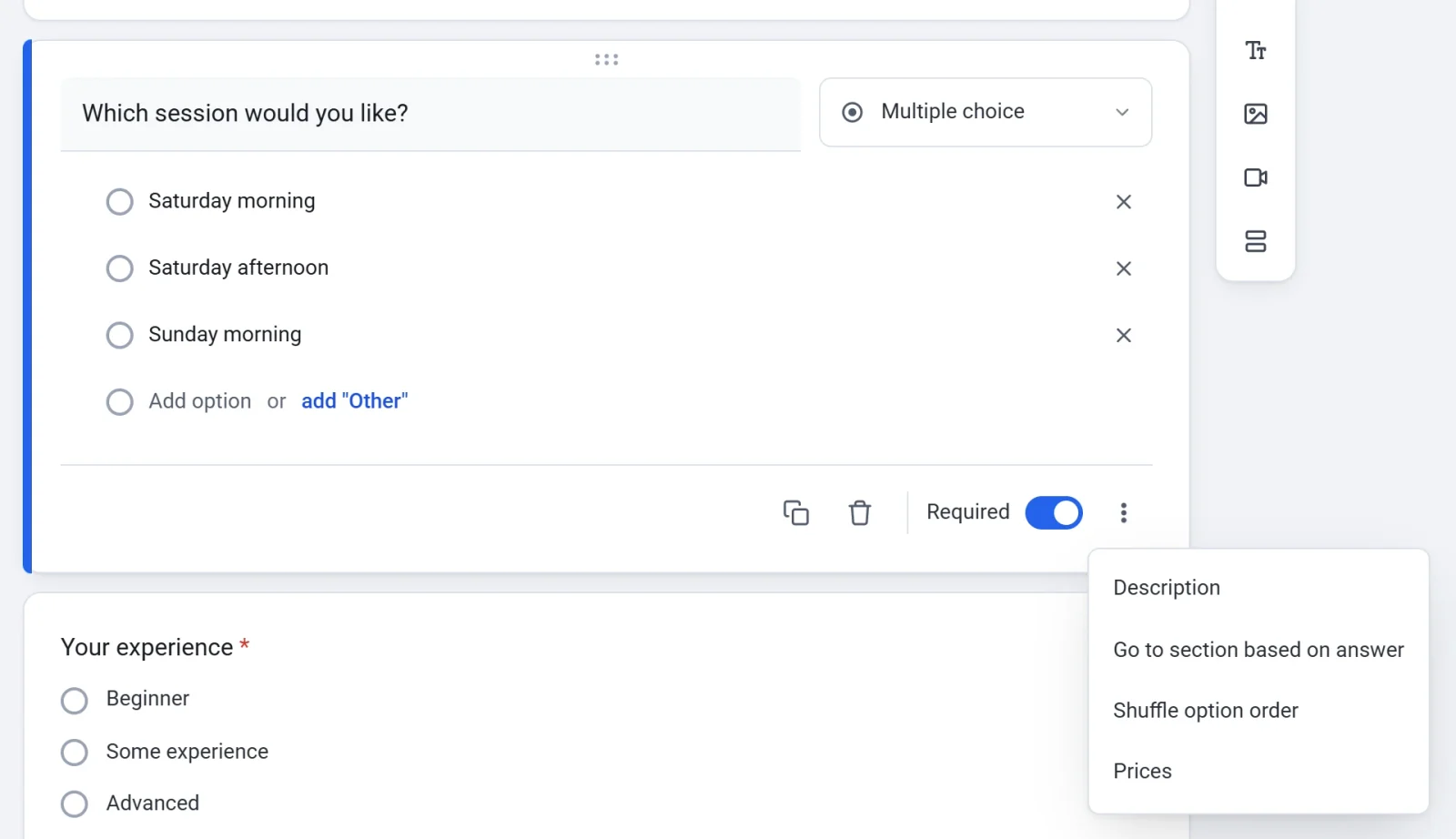
- Type a price next to each option. An option with no price is free.
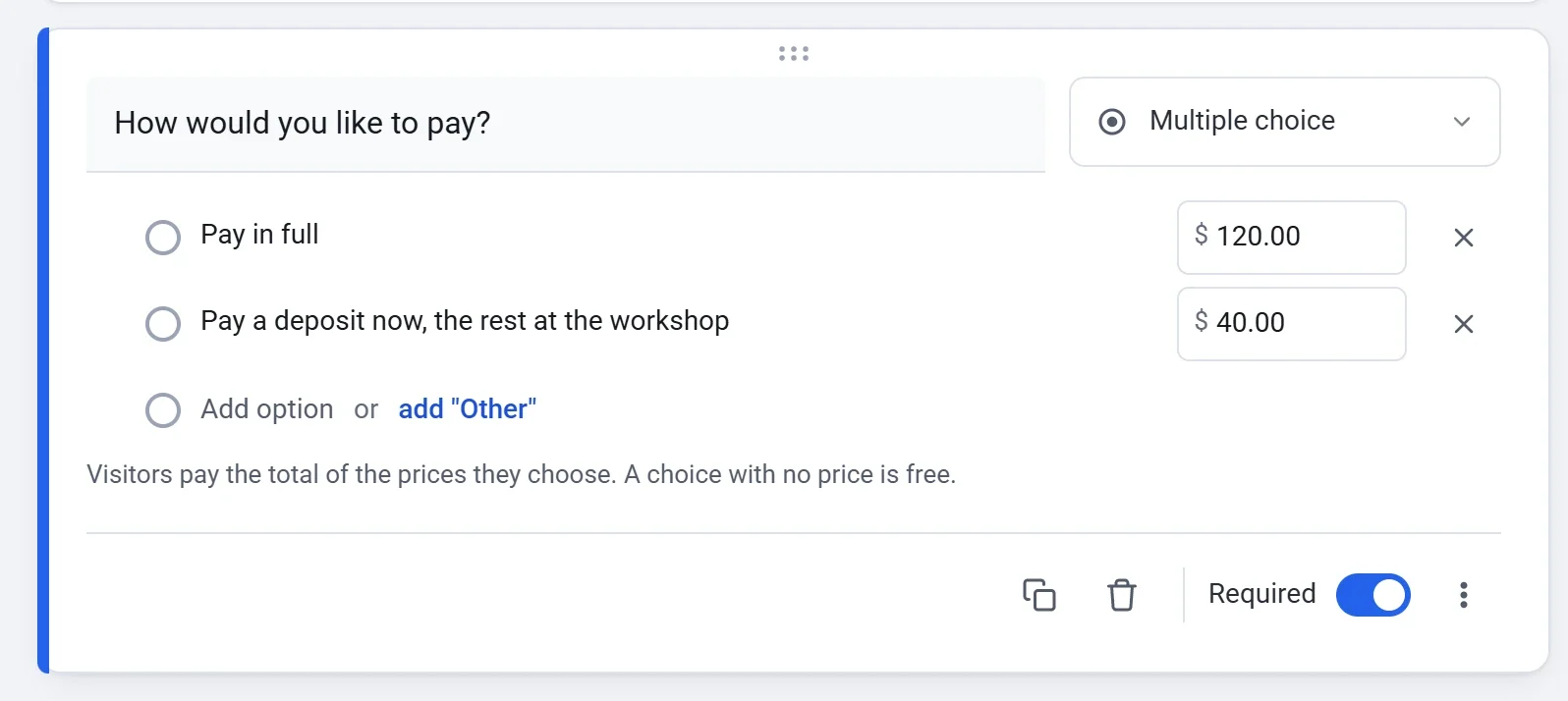
Payers pay the total of the prices they choose. With Checkboxes, every ticked option is added, so each extra can carry its own price. Questions on a page that the payer's answers skip are never charged. The Workshop sign-up template uses this: only beginners see the starter kit page, so only they can be charged for a kit. An Other answer has no price. To take the prices off a question, choose Prices again.
Let people type an amount
Use an Enter an amount question when the payer decides what to pay, such as an invoice total or a tip.
- Add a question, then click its type menu (it says Multiple choice) and choose Enter an amount.
- Type a Minimum amount and a Maximum amount, or leave both on No limit. Payers see your limits under the box.
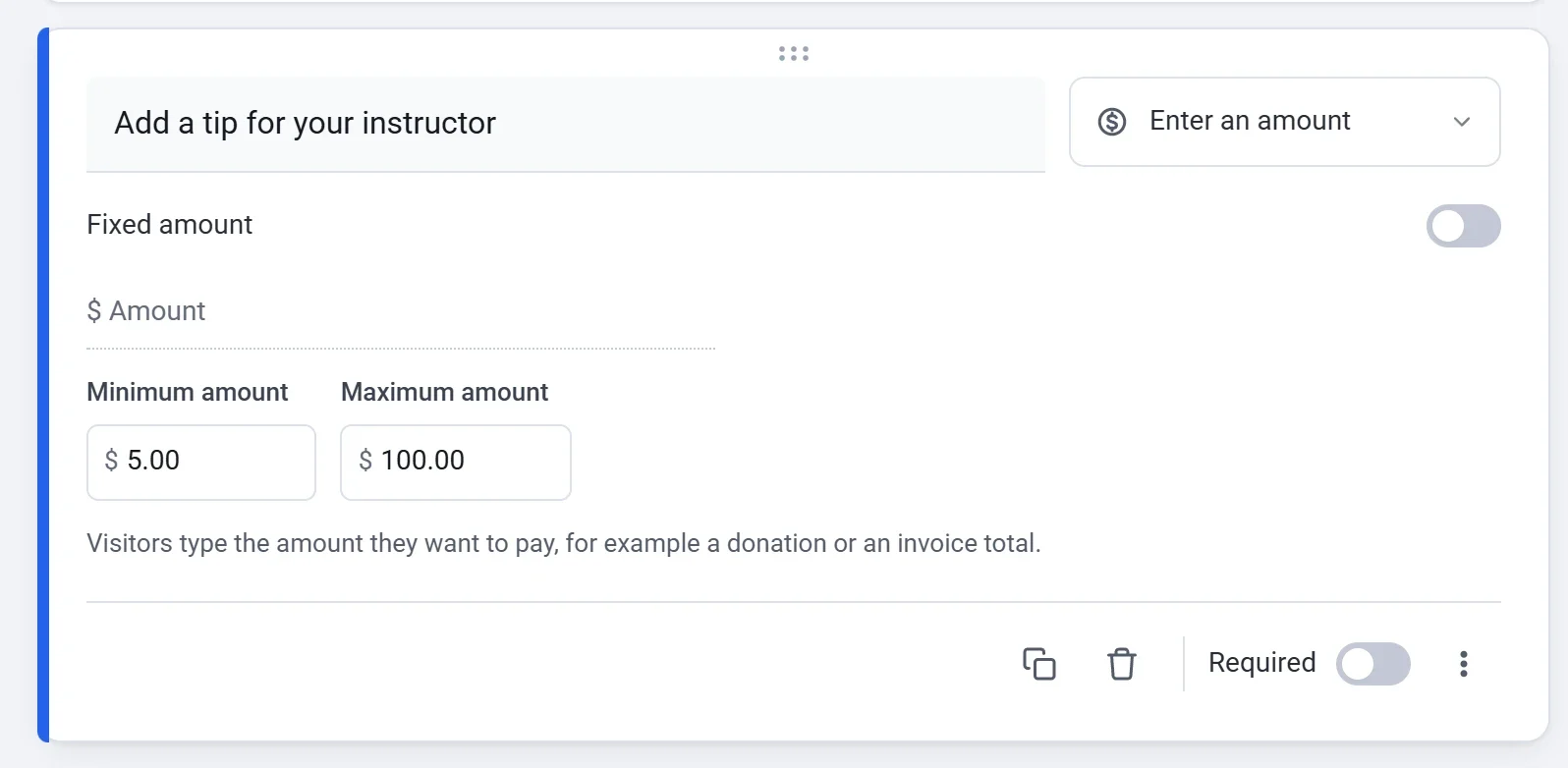
The amount is added to the total with the prices on any other choices. To charge one set amount instead, turn on Fixed amount and type the Amount to pay. Payers see that amount and cannot change it. For a different amount, make another form.
Check the total as payers see it
- Click Preview at the top of the form builder.
- Answer the questions the way a payer would, and go to the last page.
- Check each line and the Total, then click Close.
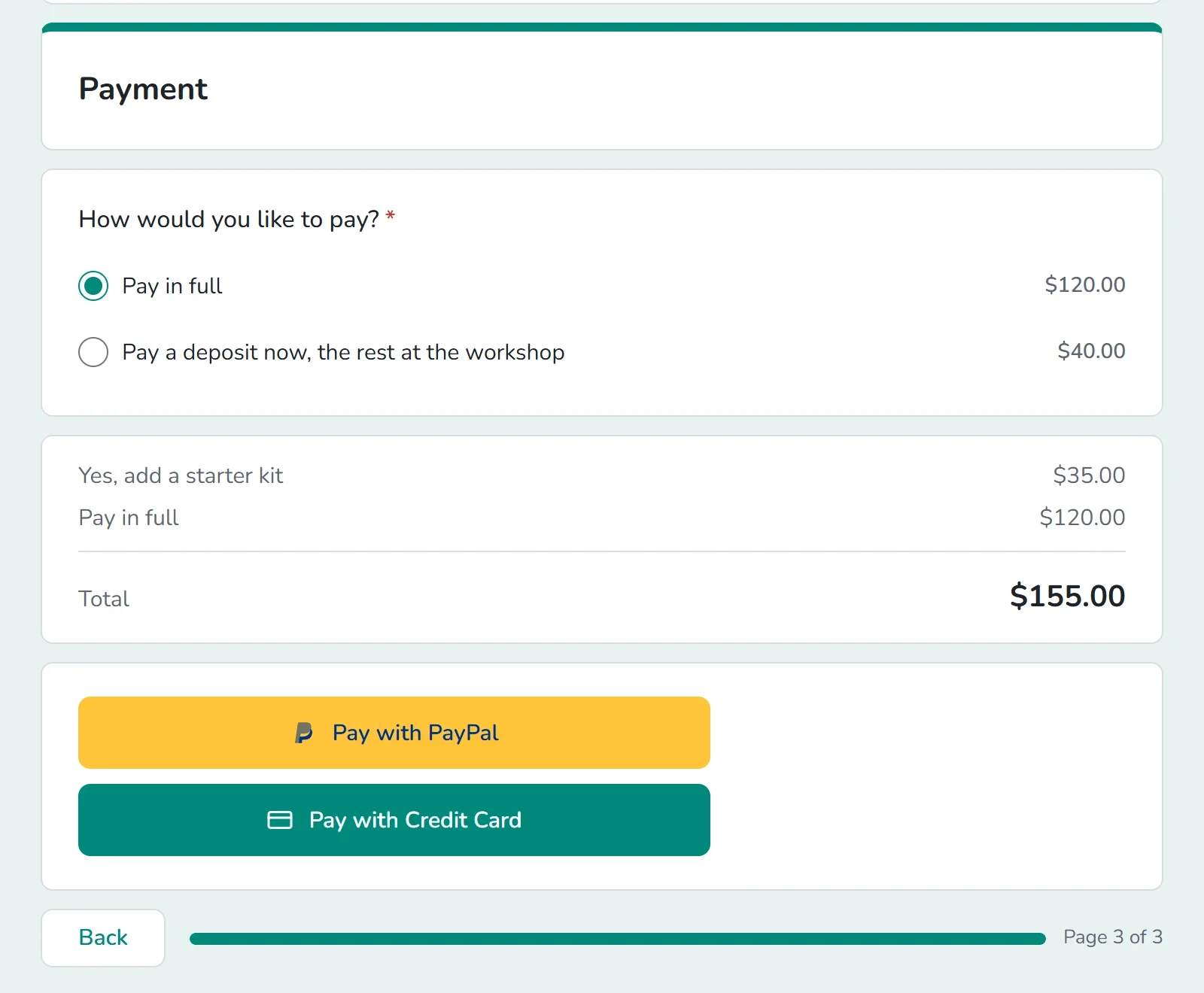
The preview sends no response and takes no payment.
What payers see
- A Total box adds up their choices as they go. With two or more priced choices, it lists each one above the total.
- At the end they give an email address for their receipt. If your form has an Email question, Payly uses that. If not, the payment step asks for one.
- They click Pay with PayPal or Pay with Credit Card. A button shows only for an account you have connected that takes your form's currency. If you have connected neither, the form says it is not set up to take payments yet.
- A total of zero is free. The payer sends the form with no payment, so you can mix free and paid choices on one form.
- While test mode is on, a note says This form is in test mode. You will not be charged.
After someone pays
- The payer sees a thank-you page with a receipt number and your confirmation message, if you wrote one on the Settings tab. They also get a receipt by email.
- You get a New order email, unless you turned it off in Settings > Emails.
- Their answers are saved as a response when the payment goes through. Each payment is listed under Payments in your form's dashboard, where you can refund it. See See and download responses and Refund a payment.
- The money goes to your PayPal or Stripe account, and you pay only their standard fees. See When and how you get paid.
Repeat the charge, or try it first
By default the total is charged once. To charge it again every week, month or year, see Charge on a schedule with recurring payments. To try your form without real payments first, turn on test mode: Take test payments with test mode.