
Take orders with a form
Take orders for T-shirts, lunches or anything with options: price each choice, ask for an address only when needed, and let buyers pay the total.
An order form lets people choose what they want, see the total and pay, without a store. It suits T-shirts, lunches, bake-sale boxes or anything else with a handful of options. It has no catalog, cart, stock counts or shipping rates. If you need those, make a store instead.
Start from the T-shirt order template
The quickest way to a working order form is the T-shirt order template. Make a payment form and choose it, as described in Create a payment form. Then change the words and prices to fit what you sell.
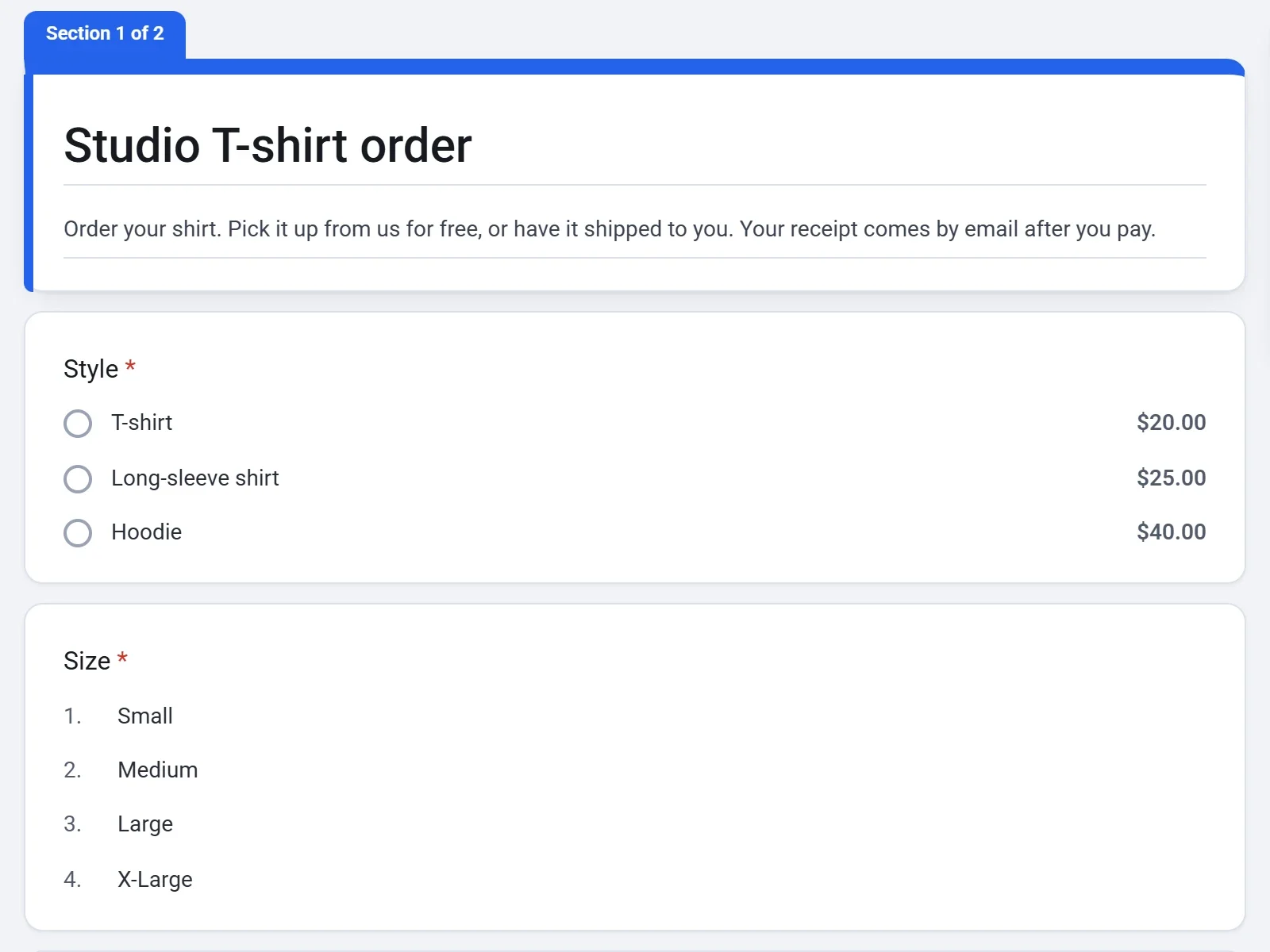
The template asks for a style (each with its own price), a size, a name and an email address. Then it asks how the buyer wants to get the order:
- Pick it up is free and goes straight to payment.
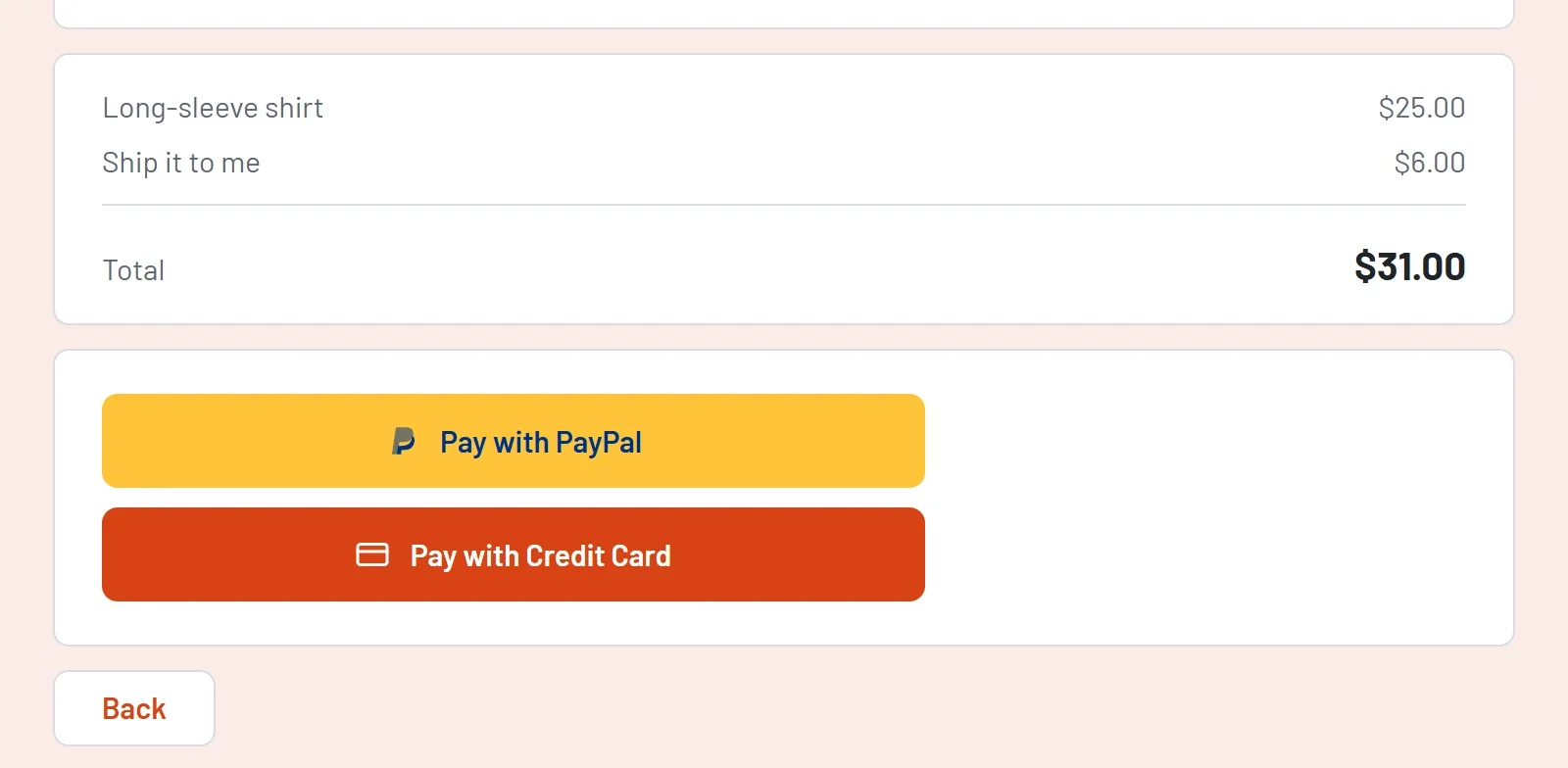
- Ship it to me adds $6.00 and opens a second page, Shipping, with an Address question. Nobody who picks it up is asked for an address.
Build your own order form
- Create a payment form from the template or from scratch.
- Add a question for what people can order. Use Multiple choice or Dropdown for one item per order, or Checkboxes for add-ons that can be combined.
- Type a price next to each option. The total adds up the prices of everything the buyer chooses. See Take payments on a form.
- Add the questions you need to fill the order, such as Name, Email, Phone or Address.
- Click Preview and go through the form as a buyer would. Check each line and the Total.
Ask for an address only when it is needed
Show the address page only to buyers who want delivery, as the template does:
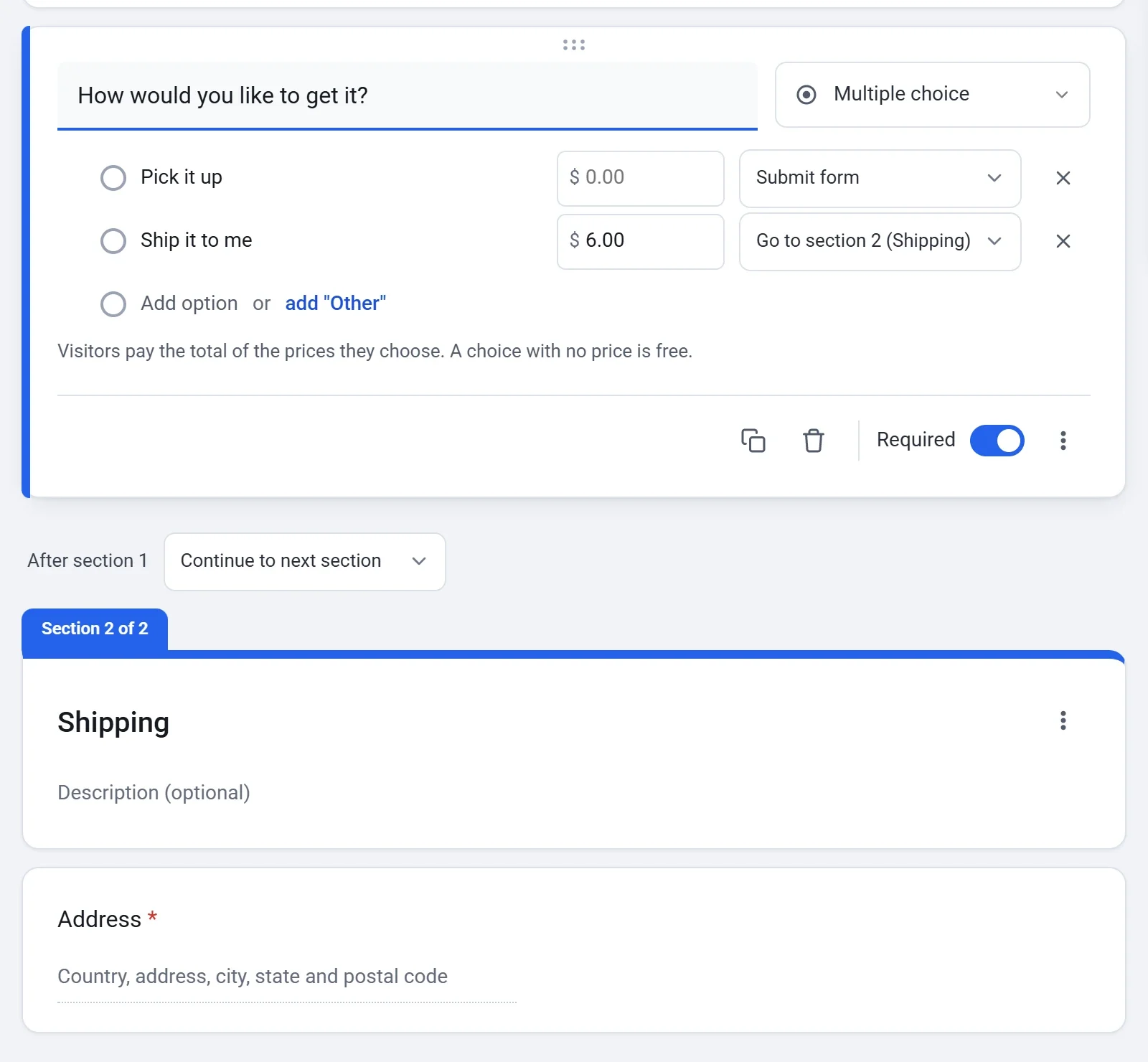
- Add a Multiple choice question such as How would you like to get it? with an option for pickup and an option for delivery. Put your delivery charge as the price of the delivery option.
- Click Add section (the last icon in the toolbar beside the form). Then click the + button and change the new question's type to Address. It lands in the new section.
- Click More options on the pickup question and choose Go to section based on answer. A menu appears beside each option.
- For Pick it up, choose Submit form. For Ship it to me, choose Go to section 2.
Shipping is just a price you set, so work out the amount yourself. A form never adds shipping rates or tax of its own.
Charge one set price
If you sell one thing at one price, add an Enter an amount question, turn on Fixed amount and type the Amount to pay. Buyers see the amount and cannot change it.
What an order form does not do
- No quantity box. A choice has no quantity. For two of something, offer it as its own choice, such as 2 T-shirts.
- No stock counts. To stop taking orders at a limit, close the form after a number of answers. See Sign people up with a registration form.
When orders come in
- The buyer gets a receipt by email, and you get a New order email, unless you turned it off in Settings > Emails.
- Each order's answers, including the address, are saved on the Responses screen, with a Paid column showing what each person paid. You can download them as a CSV file.
- Each payment is listed under Payments, where you can refund it.
See See and download responses and Refund a payment.