
Sign people up with a registration form
Sign people up for classes, camps or leagues: ask who is coming, price each choice, send people to the right page, and close when you are full.
A registration form signs people up for something with a set number of places, such as a class, a camp, a league or a tour, and takes payment in the same step. It asks who is coming, shows what each choice costs, and can close by itself when you are full.
Start from a template
Make a payment form, as described in Create a payment form, and choose the template closest to what you run:
- Workshop sign-up: beginners see a starter kit page, then everyone pays in full or pays a deposit. The pictures below use this one.
- Camp registration: the camper and the weeks, each week with its own price, then a page for a parent or guardian.
- Dance classes: monthly tuition for adult classes, charged every month.
- Volleyball league: sign up a whole team, or join alone as a free agent.
- Kayak tour: pick a tour, a date and a kayak, then agree to the safety rules on a second page.
Build the registration
- Ask who is signing up. Add Name, Email and Phone questions. The email address is where the receipt goes.
- Offer the sessions, classes or weeks as choices. Use Multiple choice when people pick one, and Checkboxes when they can pick several. Camp registration works this way: it prices each week and adds up the weeks a parent ticks.
- Put a price on each choice that costs money. See Take payments on a form.
- Split a long form into pages. Click Add section, the last icon in the toolbar beside the form. Visitors move between pages with Next and Back. To show how far along they are, turn on Show progress bar on the Settings tab.
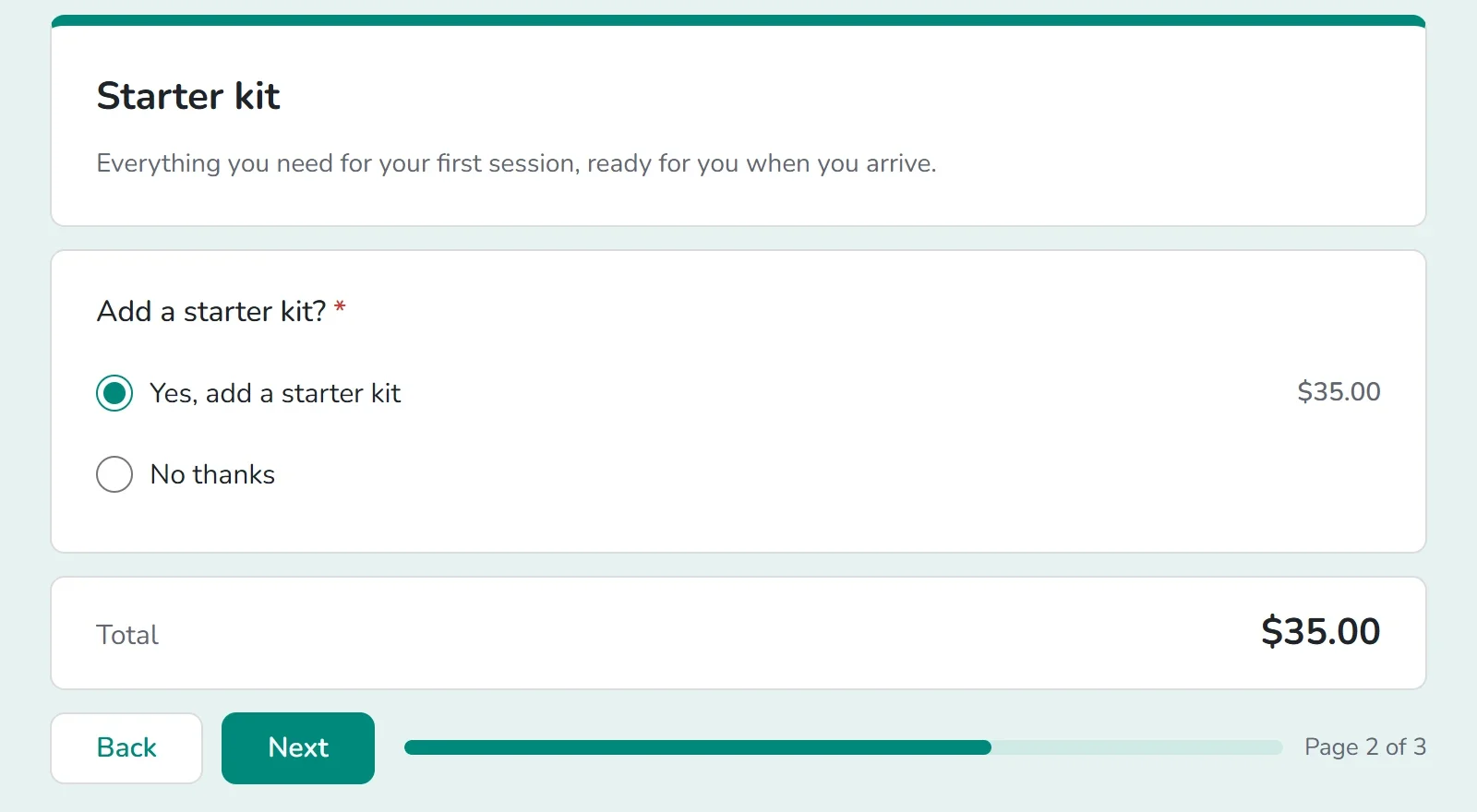
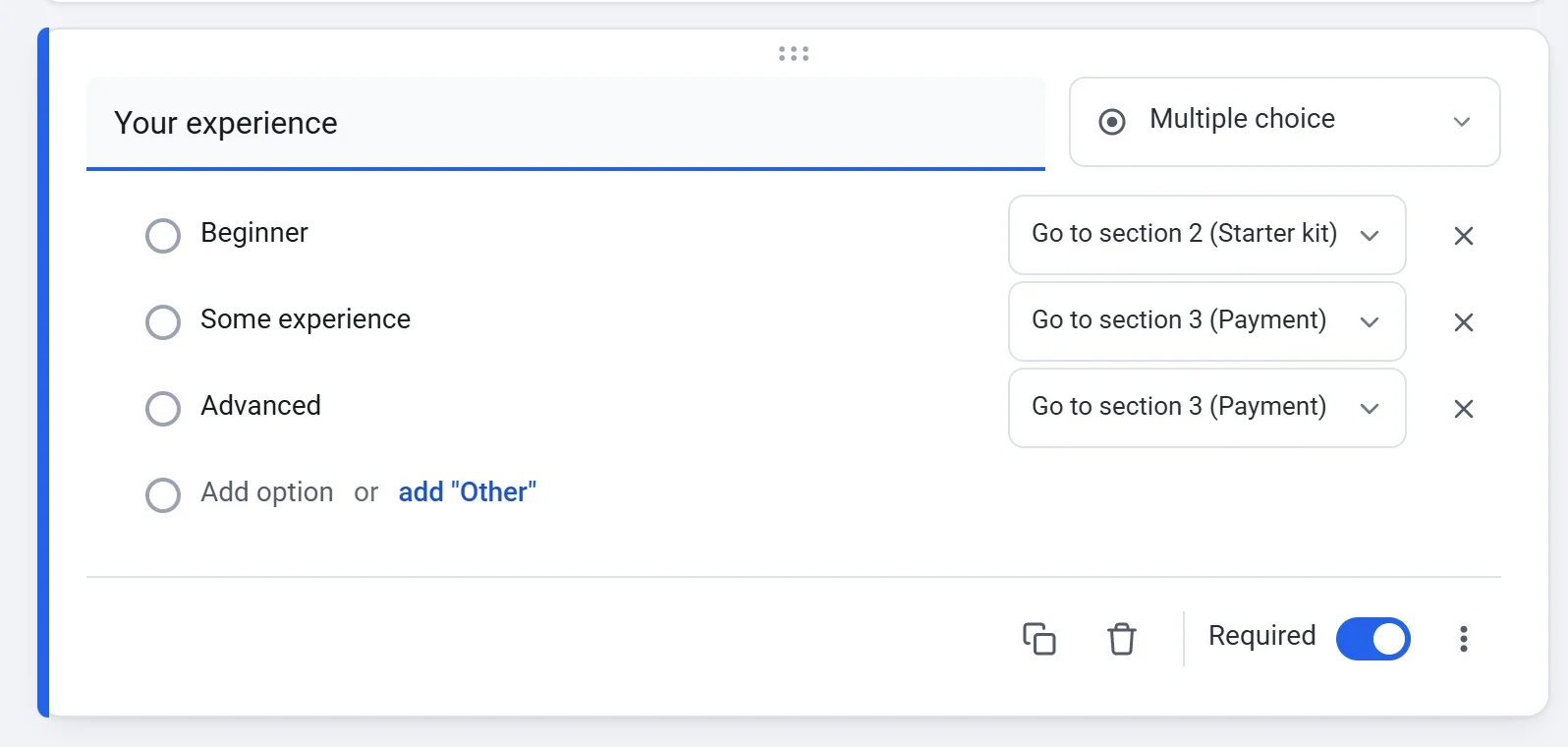
- Send people to the right page. On a Multiple choice or Dropdown question, click More options and choose Go to section based on answer. A menu appears beside each answer. In the Pottery class sign-up, beginners go to the starter kit page and everyone else goes straight to payment.
- To take a deposit, put both choices on one question, such as Pay in full and Pay a deposit now, the rest at the workshop, each with its own price. Payly charges only the price the person chose. You collect the rest yourself.
- Click Preview and sign up the way a visitor would.
Close registration when you are full
- Click the Settings tab. The Responses card is at the top.
- To close on a date, pick a date and time in Close on.
- To close after a number of sign-ups, type the number in Close after this many answers.
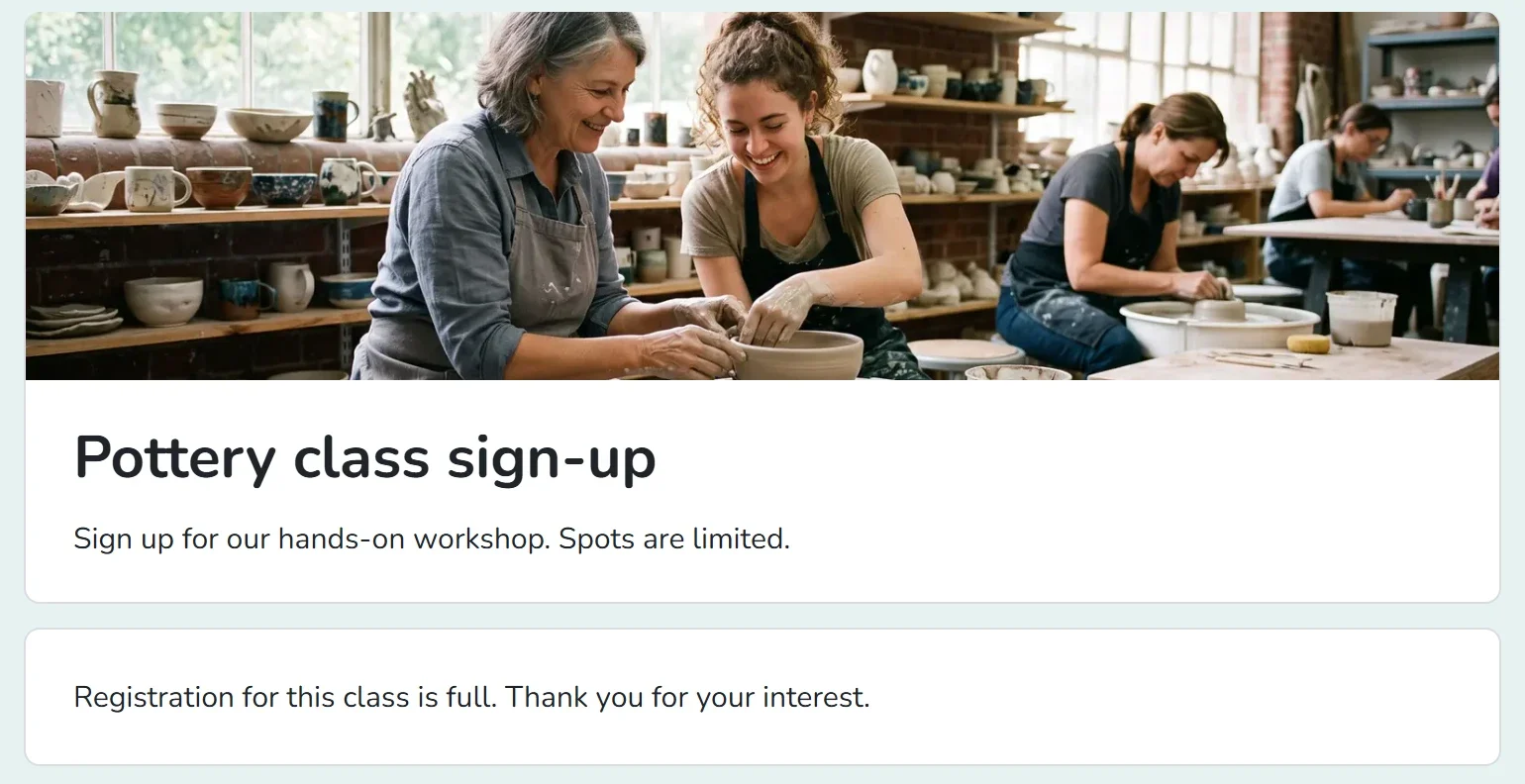
- Type a Message for visitors while the form is closed. Without one, visitors read This form is no longer accepting responses.
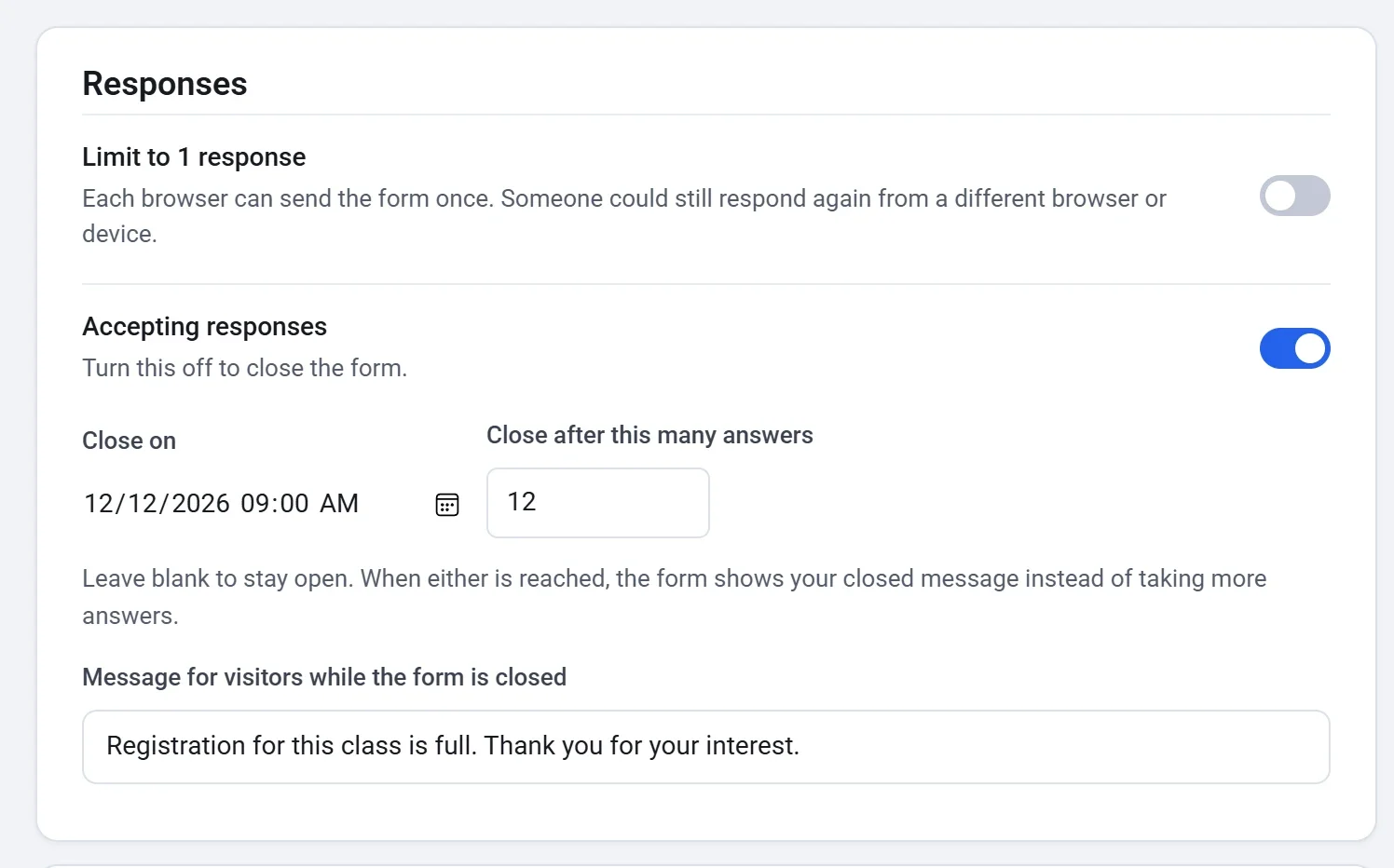
When either limit is reached, the form shows your closed message instead of taking more answers.
- To close the form by hand at any time, turn off Accepting responses. Turn it on to open it again.
- Answers are counted when they are saved. For a paid form, that is when the payment goes through.
- Limit to 1 response lets each browser send the form once. Someone could still sign up again from another browser or device.
Good to know
- Each answer is one registration. To sign up a second person, someone sends the form again. To sign up a group in one go, offer a choice that covers it, as the Volleyball league template does with a team of up to 8 players.
- The limit applies to the whole form. An ordinary choice has no limit of its own, such as seats in one session. If you need a limit for each type of ticket, use event tickets: see Ticket types and limits.
- Each registration appears on the Responses screen, and each payment under Payments. See See and download responses.