
Ticket types and limits
Set the name, price and quantity of each ticket type, cap the whole event, limit tickets per order, and choose when tickets go on sale.
A ticket type is one kind of ticket you sell, such as early entry, general entry or a free student ticket. Each type has its own name, price and number available. You can also cap the whole event, limit how many tickets one order can hold, and choose when each type is on sale. Payly shows Sold out by itself when a limit is reached.
Add and edit ticket types
- In the form builder, open the Questions tab and click the Ticket question.
- Under Ticket name, type the name guests see, such as General entry.
- Enter the Price. Leave it empty for a free ticket. See Free events and RSVPs.
- Enter the Quantity available, which is how many tickets of this type you can sell. Leave it empty for no limit.
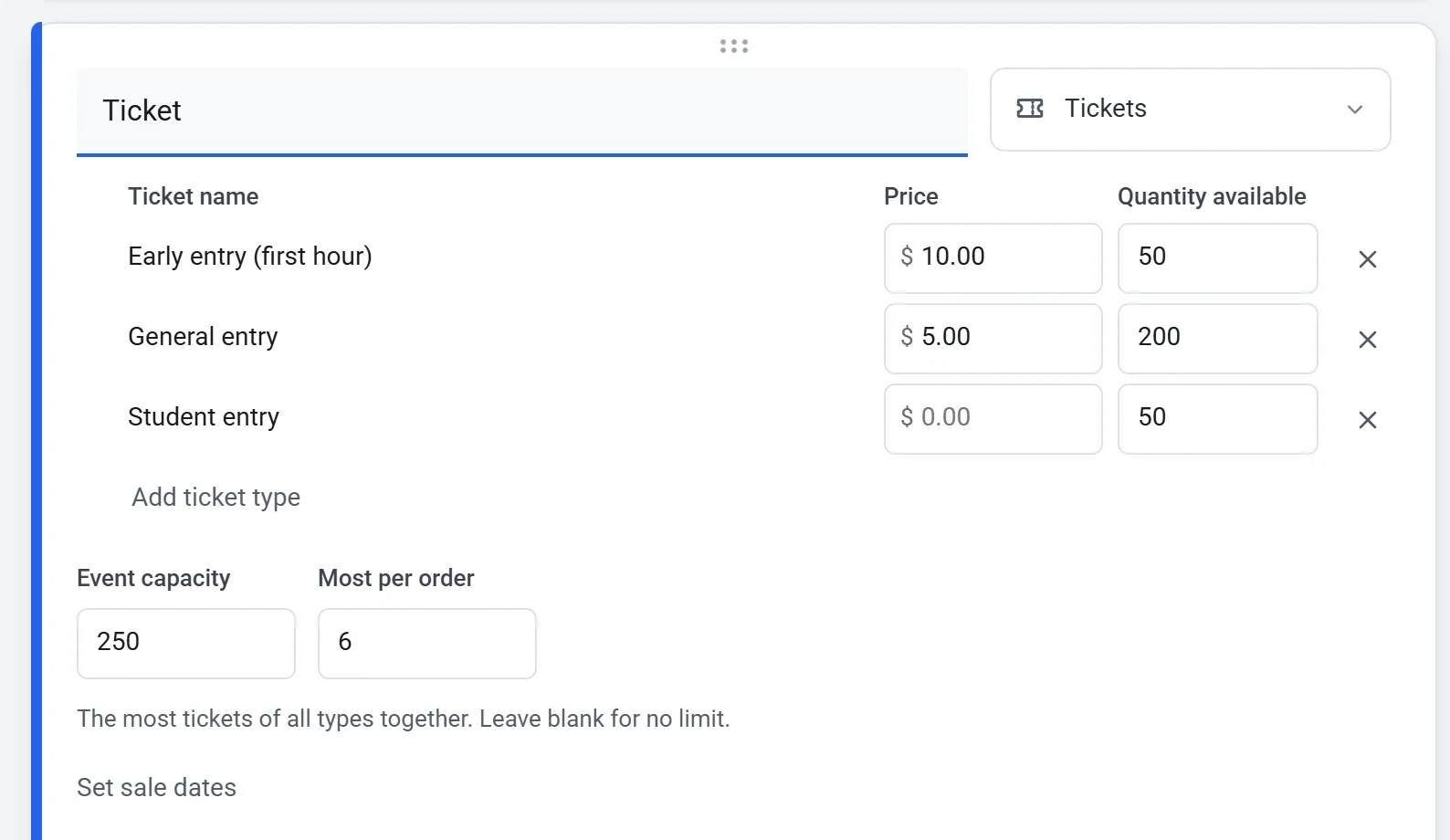
- Click Add ticket type to add another type. You can also press Enter in a ticket name to add the next one. To remove a type, click the X at the end of its row. The X shows when there is more than one type.
To change the order guests see, point at a row and drag the handle that appears at its left.
Limit the whole event
Two boxes under the ticket types apply to all types together:
- Event capacity is the most tickets of all types you can sell. Leave it empty for no limit. Use it when your types add up to more than your space holds. In the picture, the three types add up to 300 tickets, and the capacity is 250.
- Most per order is the most tickets one order can contain, all types together. It can be any number from 1 to 100. Guests see a line such as Up to 6 tickets per order. under the tickets, and the plus buttons stop at the limit.
A type sells out when its own quantity is used up or when the event reaches its capacity, whichever comes first. Free tickets count toward both.
Choose when each type is on sale
- Click Set sale dates under the capacity boxes.
- For each ticket type, choose On sale from, Until or both. Leave a box empty to sell for as long as the form takes answers. The end must be after the start.
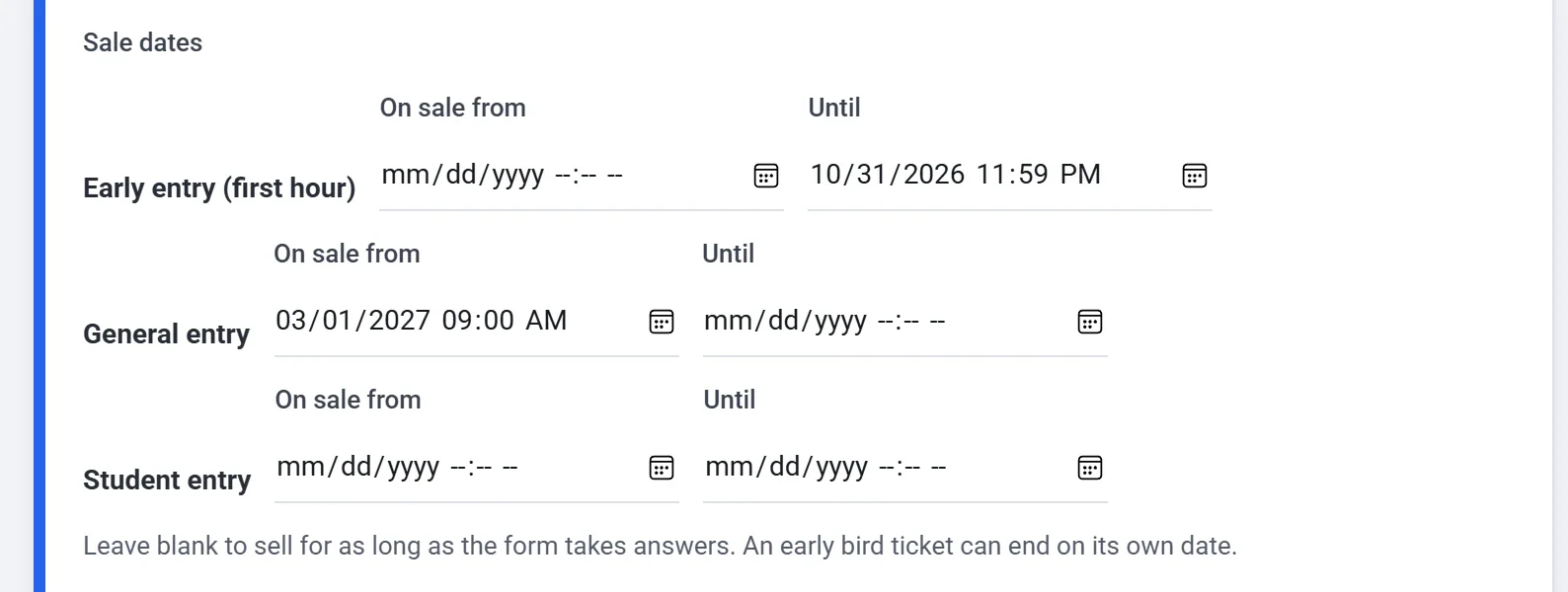
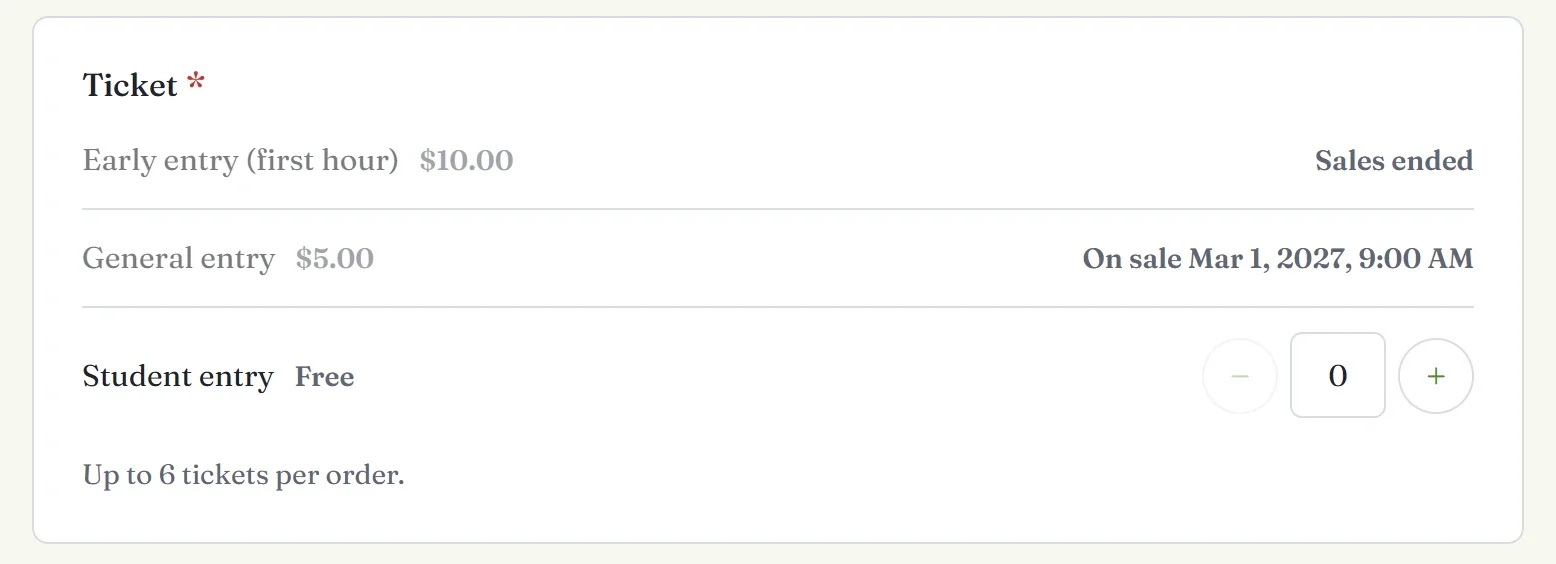
You set the dates in your own time zone, and guests see them in theirs. Before its start, a ticket type shows On sale with the date and time. After its end it shows Sales ended. Guests cannot pick it either way. An early bird price can end on its own date this way.
To stop selling every ticket on a date, open the builder's Settings tab and set Close on under Responses. After that moment the form shows your closed message instead of taking more orders.
What guests see when tickets run out
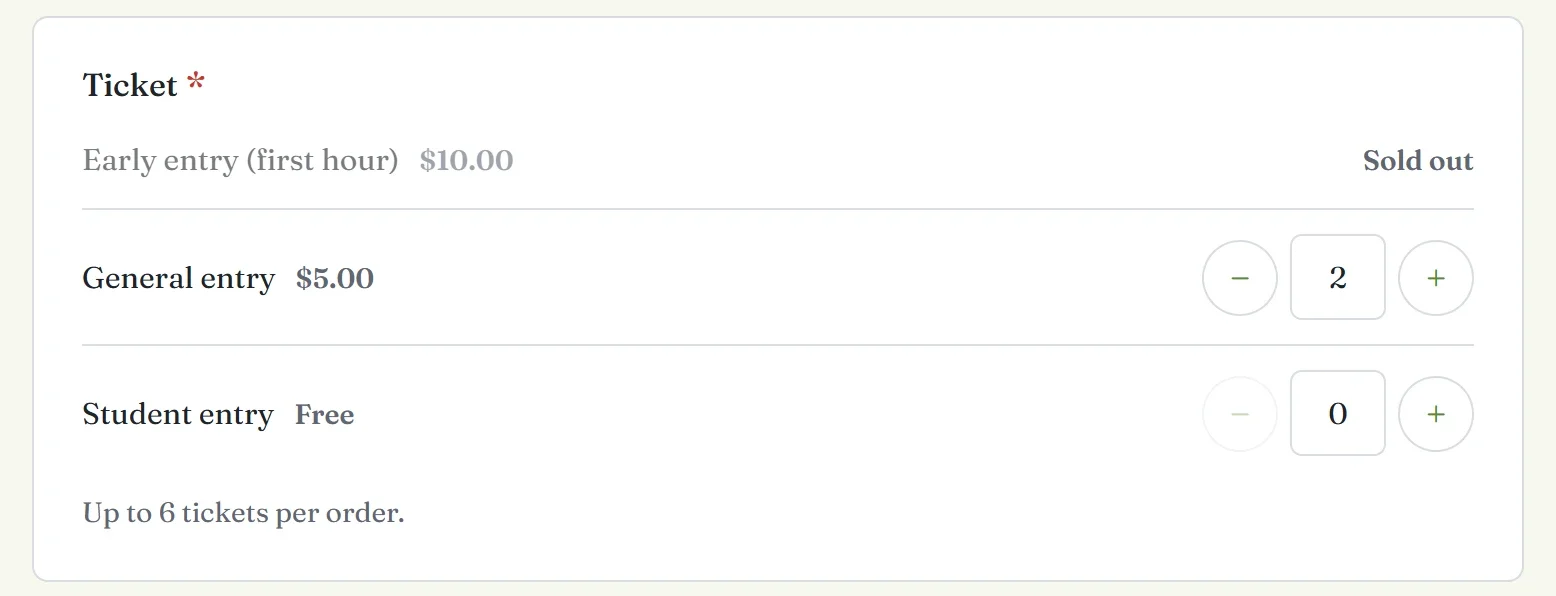
A ticket type with none left shows Sold out and cannot be picked. When the event reaches its capacity, every type shows it.
While a guest is at PayPal or Stripe, Payly holds their tickets for 30 minutes, so two guests cannot both get the last ticket. If the guest does not pay, the tickets go back on sale when the hold ends. A guest who asks for more tickets than are left sees a message such as General entry: only 3 left. or This event just sold out. and can choose again.
Note: A payment that finishes after its hold has ended still gets its tickets, so you can sell a ticket or two more than a limit.
A full refund puts that order's tickets back on sale, and a partial refund keeps them. See Refund a payment. Changes to ticket types reach your live page when you publish again.