
Build your form: questions, pages and design
Add questions, split a form into pages, send visitors to a page by their answer, set colors and layout, and rely on automatic saving, Undo and backups.
The form builder is where you make a payment form, a donation form, event tickets or a tip jar. It works like a column of cards: each card is a question or a block of text, and you click a card to edit it. The builder opens by itself when you create a form. To open it later, click Edit form at the top of the left menu in your form's dashboard.
The builder at a glance
The bar at the top holds the Dashboard button (back to your form's dashboard), a status line, Backups (the clock), Undo and Redo, Preview and Publish. Three tabs sit under it:
- Questions: what you ask, page by page. A small toolbar beside the questions adds new ones.
- Settings: how responses work, how the form behaves, and how it takes money.
- Design: how the form looks.
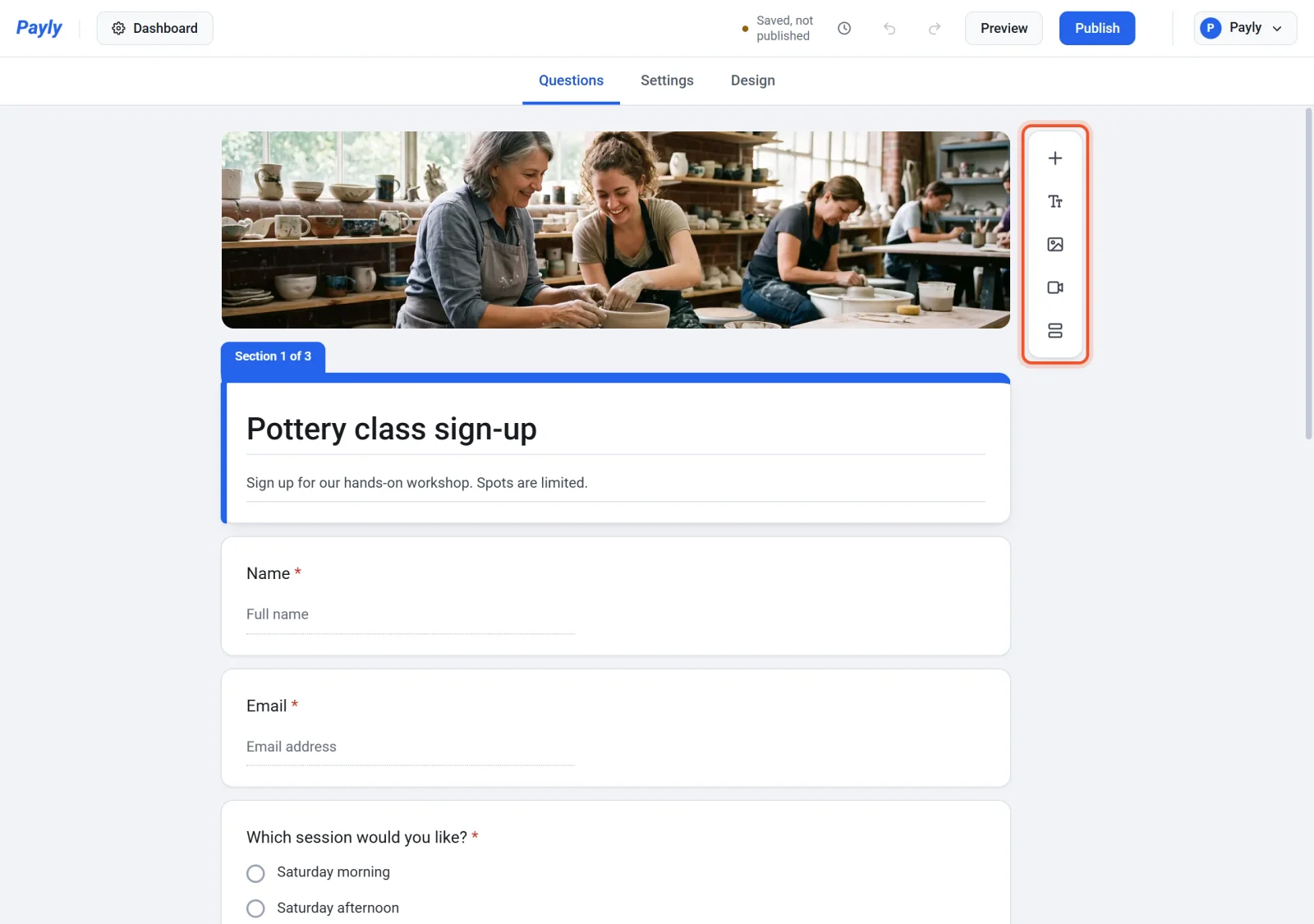
Answers do not appear in the builder. They arrive on the Responses screen of your dashboard (Donations on a donation form or tip jar). See See and download responses.
Add and edit questions
- Click the first card and type your Form title and Form description.
- In the toolbar beside the questions, click the plus button, Add question. The new question appears right after the one you were editing, as a multiple choice question.
- Type the question. To change its type, click the type menu on the right of the question and choose another type.
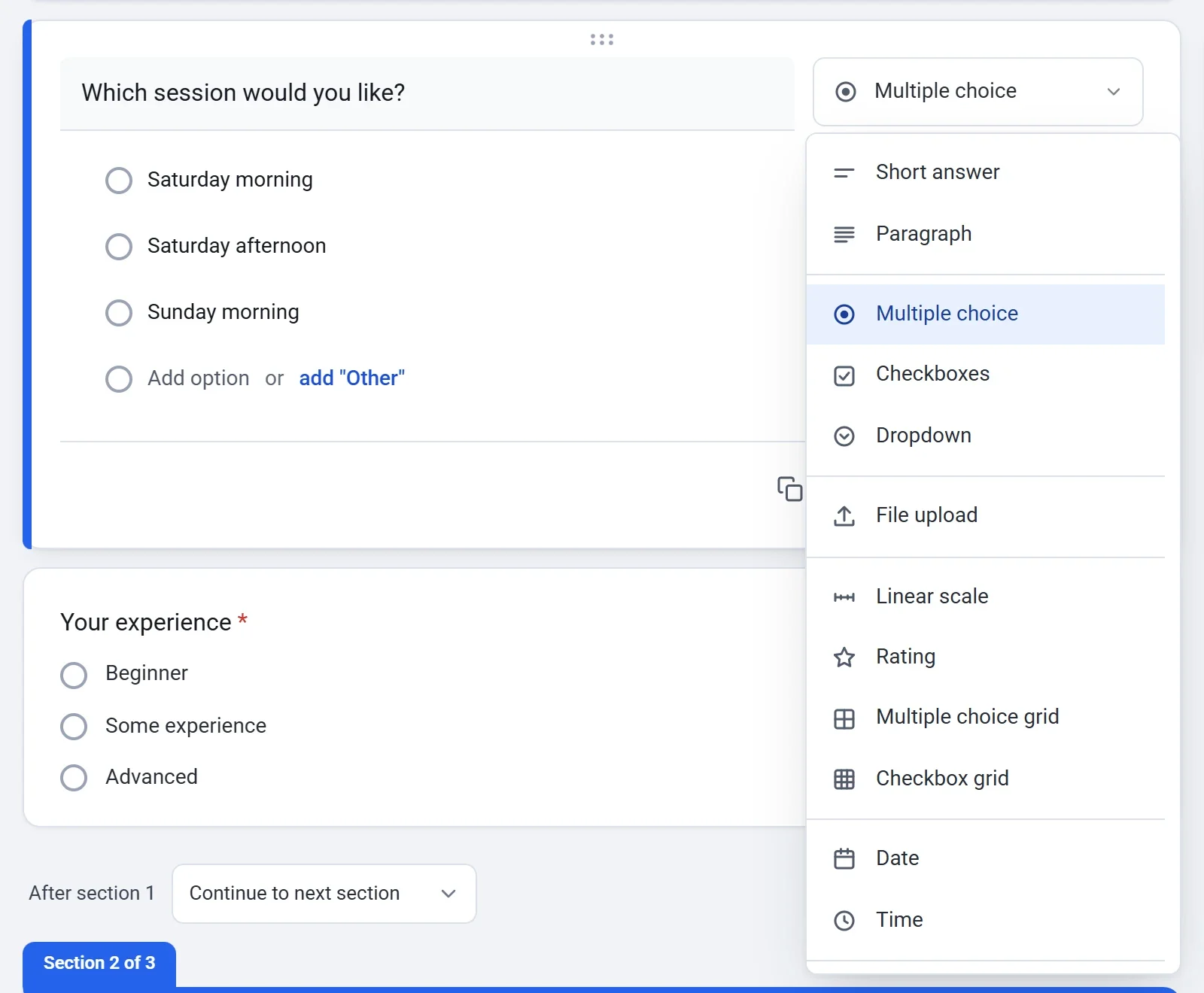
- Fill in what the type asks for, such as the options of a choice question. Press Enter in an option to add the next one, or paste a list to make one option per line.
- Turn on Required if visitors must answer before they can continue.
The menu lists text (Short answer, Paragraph), choices (Multiple choice, Checkboxes, Dropdown), File upload, scales and grids (Linear scale, Rating, Multiple choice grid, Checkbox grid), Date, Time, ready-made fields (Email, Phone, Number, Name, Address) and two that handle money. With Enter an amount, the visitor types an amount to pay, or you turn on Fixed amount to show one they cannot change. Tickets is for payment forms only, one per form: ticket types with a price and a limit for each.
The other toolbar buttons add things that are not questions: Add title and description, Add image (with a description for people who cannot see it), Add video (paste a YouTube, Vimeo or TikTok link) and Add section.
The bottom of a question
The bottom of a question has buttons to duplicate or delete it (deleting shows a message with Undo), the Required switch and More options (three dots). That menu holds:
- Description: a line of help text under the question.
- Response validation: checks an answer before it is accepted, such as a length, an email address, a web address, a minimum or maximum value, or how many boxes to tick.
- Go to section based on answer, Shuffle option order and Prices on choice questions.
To move a question, drag the six dots at the top of its card.
Split a form into pages
A section is one page of your form. Visitors move between sections with Next and Back buttons.
- Click the last question that should stay on the page.
- Click Add section in the toolbar. A section card appears, marked something like "Section 2 of 2", and every question below the one you clicked moves into it.
- Give it a Section title and, if you like, a description. Drag questions between sections to arrange them.
The three-dot menu on a section can duplicate, move, merge or delete it. Deleting a section also deletes its questions, so Payly asks first. To reorder sections, drag one by its handle. While you drag, every section folds to a single line.
Send visitors to a different page
Skip logic sends a visitor to a page that depends on their answer. It works on Multiple choice and Dropdown questions, in a form with more than one section.
- Open the question and click More options (three dots).
- Choose Go to section based on answer.
- Next to each option, choose where it leads: Go to section 2 and so on, or Submit form.
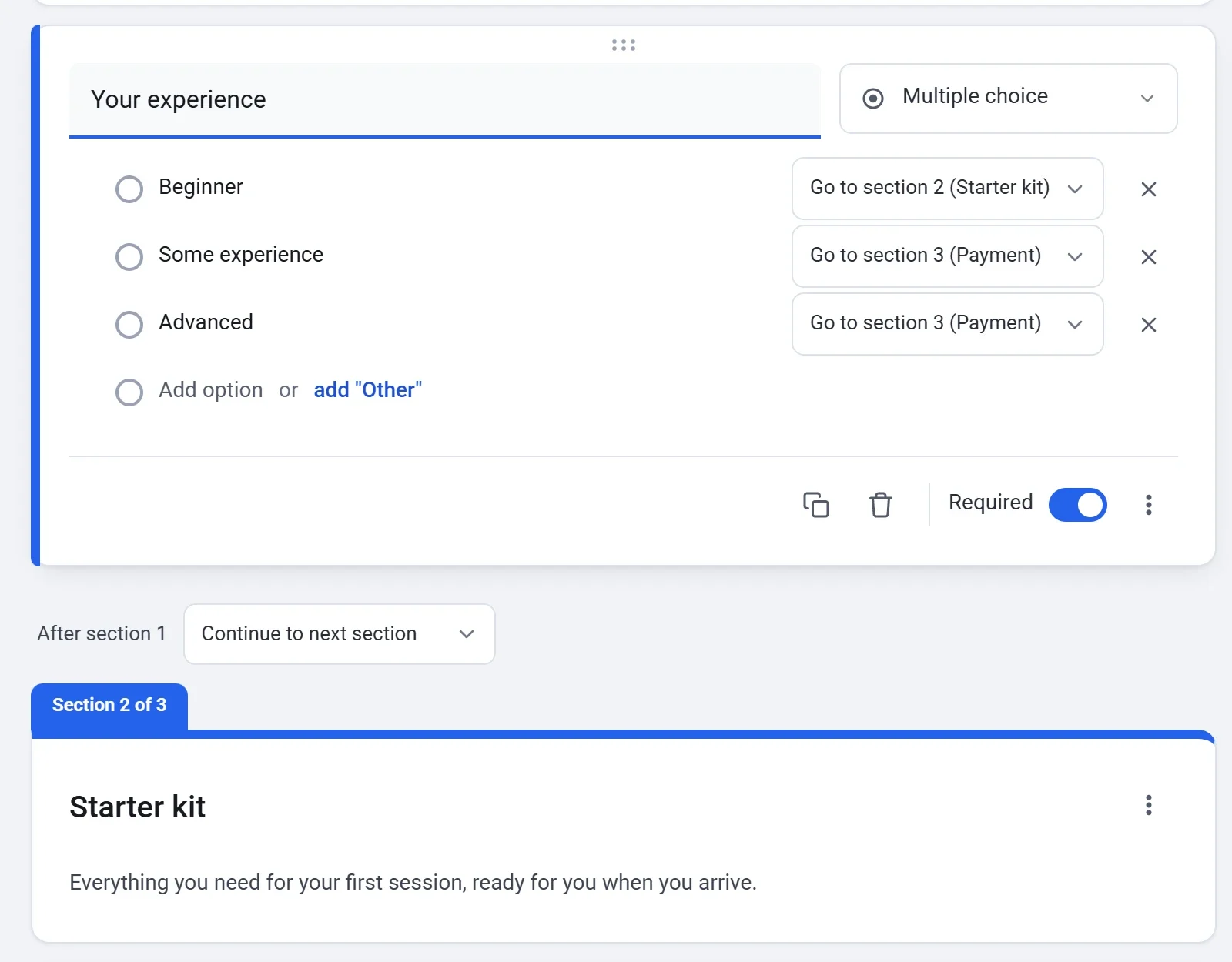
The line that starts with After section 1 says where the form goes next when no answer decides it. Questions on a page a visitor skips are not asked and are not charged for.
Accept file uploads
Set a question's type to File upload. Turn on Allow only specific file types to accept only documents, spreadsheets, presentations, PDFs, images, video or audio. Choose the Maximum number of files (1, 5 or 10) and the Maximum file size (up to 50 MB). Uploaded files are kept in your own Cloudflare account, not by Payly, in storage shared by all your forms there (500 MB on the free plan). You open a visitor's files from the Responses screen.
Choose colors, fonts and layout
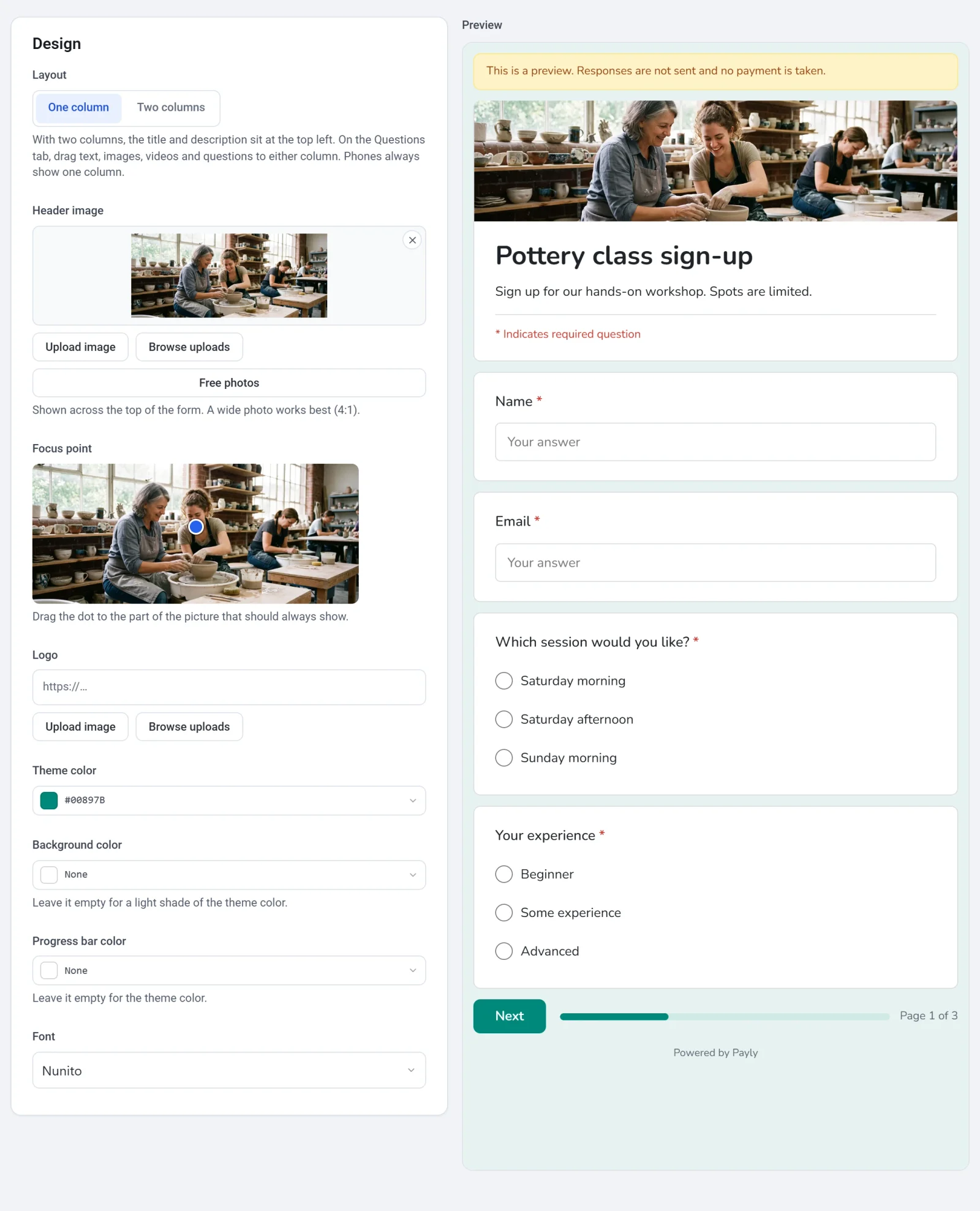
- Click the Design tab. A live Preview sits beside the controls.
- Choose a Layout: One column or Two columns.
- Add a Header image (a wide photo works best, about 4:1) and a Logo. Images are stored in your own Cloudflare account, so Payly asks you to connect it before your first upload. Once there is a header image, drag the dot under Focus point to the part that should always show.
- Pick a Theme color and a Font. You can also set a Background color and a Progress bar color. Leave them empty and the form uses your theme color.
With two columns, the title, description and any text, image or video blocks sit at the top left, and the questions and payment sit on the right. On the Questions tab, drag any block to either column, or use Move to left column and Move to right column in its three-dot menu. On a phone the form always shows one column.
Settings that apply to every form
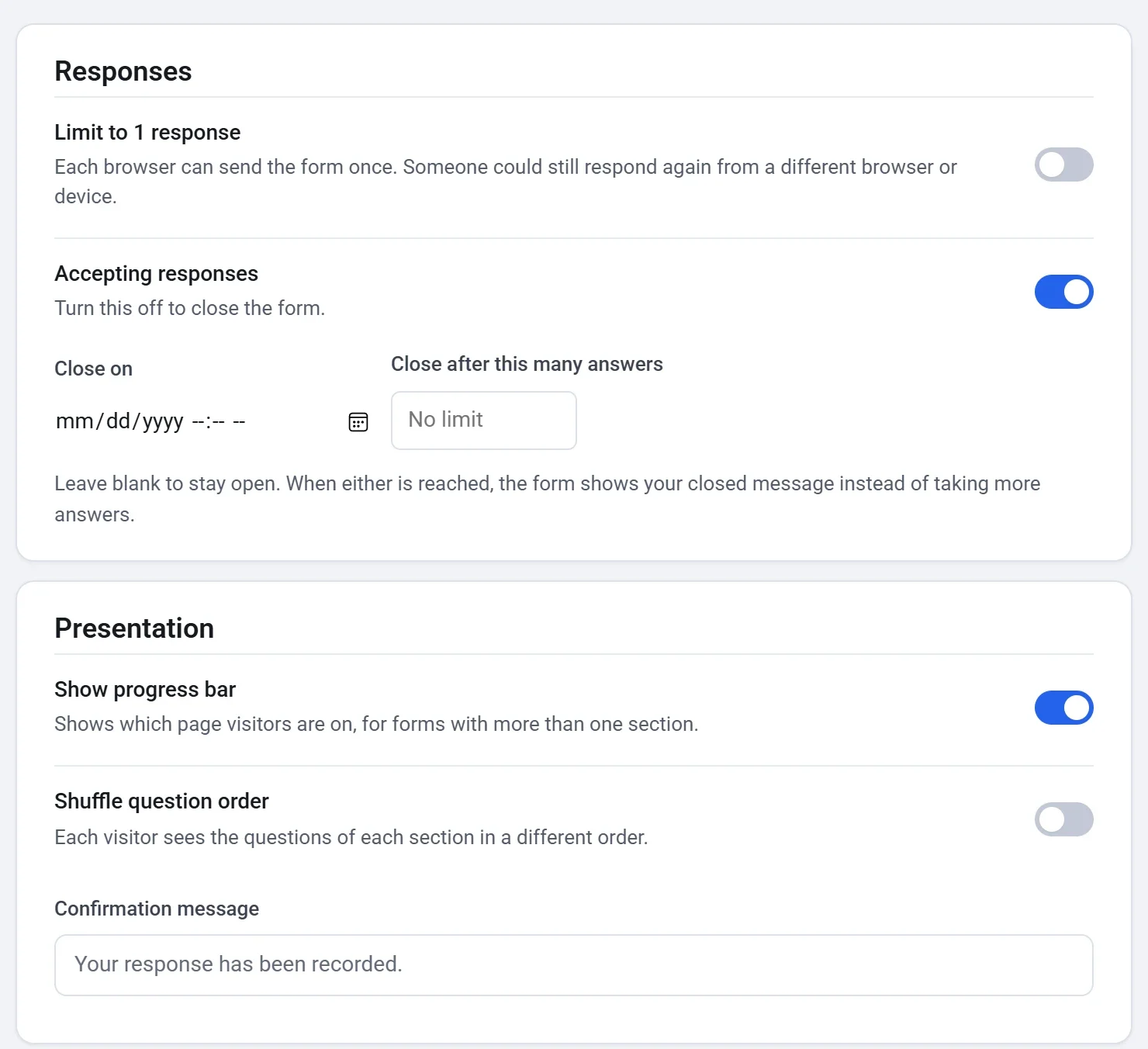
On the Settings tab, the Responses card has:
- Limit to 1 response: remembered in the visitor's browser, so someone could still respond again from another browser or device.
- Accepting responses: turn this off to close the form. Write what visitors see in Message for visitors while the form is closed.
- Close on and Close after this many answers: close the form by itself at a date and time, or once it has that many answers, whichever comes first.
The Presentation card has Show progress bar (which page visitors are on), Shuffle question order and a Confirmation message that visitors read after they send the form or pay.
A payment form also has a Payments card, which charges the total once or on a schedule (see Take payments on a form). A donation form or tip jar has a Donations card (see Set up a donation form). The Share your form and Pre-filled link cards work once the form is published (see Publish your form and share its address).
Preview, saving, Undo and Backups
- Preview: click Preview to see the real page, switch between Desktop and Phone, then click Close. Nothing you do in a preview is sent, and no payment is taken.
- Saving: the builder saves a moment after each change, so there is no Save button. The status says Saving…, then Saved, not published, and Saved and published after you publish. Press Ctrl+S to save right away.
- Undo and Redo: click the arrows in the bar, or press Ctrl+Z and Ctrl+Shift+Z. Undo goes back through your last 60 changes, and a run of typing in one box counts as one step.
- Backups: every publish saves a backup of your form, and you can click Create a backup at any time. The newest 30 are kept in your own Cloudflare account. Click Restore next to a backup to bring back its questions, settings and design. Responses stay as they are, nothing changes on your live form until you publish, and Undo takes a restore back.