
Sell tickets to an event
Create an event, set up ticket types and prices, preview the page, connect PayPal or Stripe, and publish so guests can buy tickets.
An event page is where guests choose their tickets, enter their details and pay. Every ticket gets its own code and QR code, which you scan at the door. Payments go straight to your own PayPal or Stripe account, which charges its own standard processing fee. Payly adds no fee on tickets.
Before you start
- You need a Payly account. See Create your Payly account.
- To sell paid tickets you need a PayPal or Stripe account. You can build and preview the event first, and connect your account before guests start buying.
Create the event
- On Your sites, click New.
- Click Event tickets.
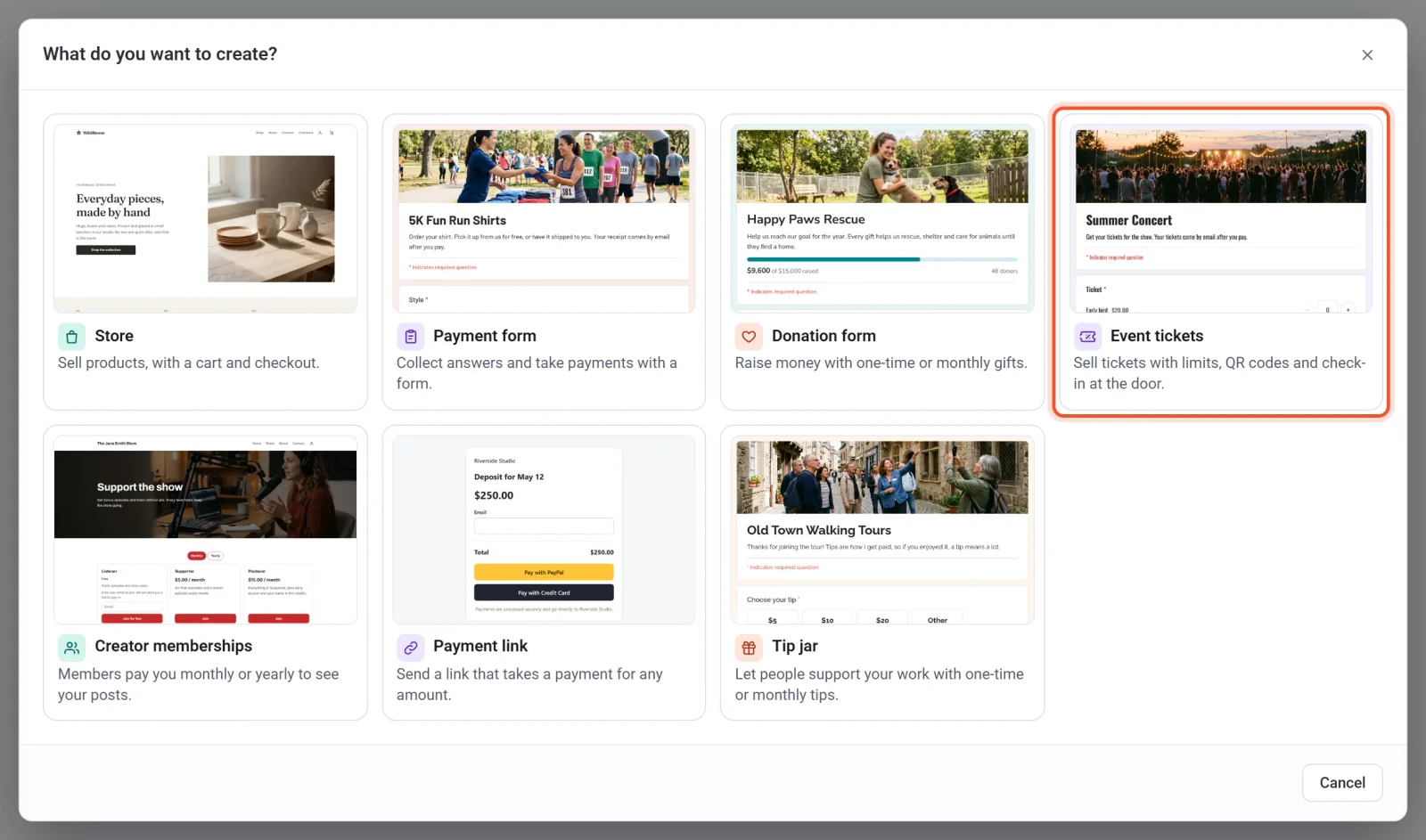
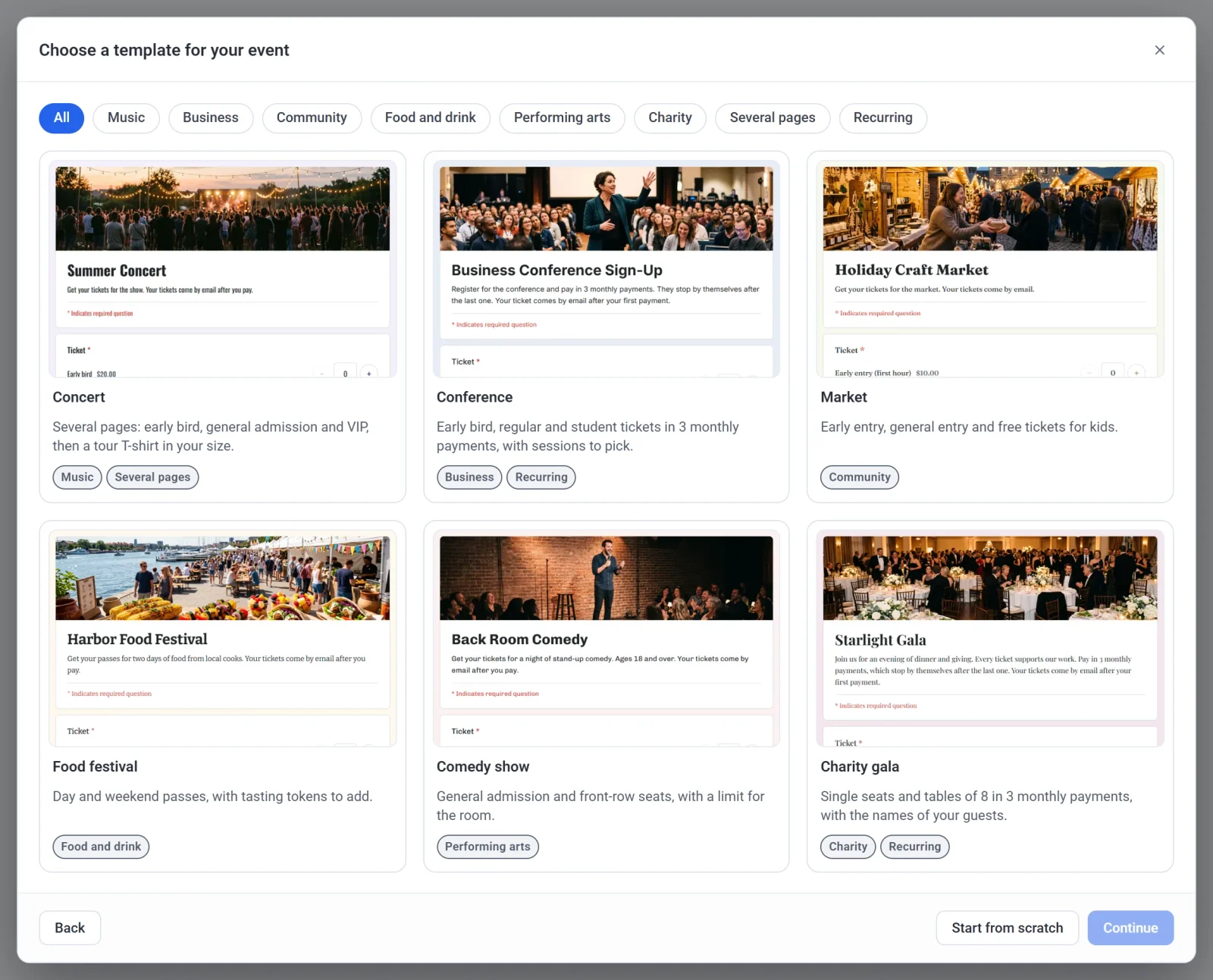
- Click the template closest to your event, then click Continue. A template gives you ticket types, prices and questions that you can change, and the buttons above the templates narrow the list. To begin with a blank event that has one ticket type, click Start from scratch instead.
- Enter an Event name. Payly suggests an Event handle from the name and tells you whether it is available. The handle becomes part of your event's free web address.
- Click Create. The form builder opens with your event ready to edit.
Important: You cannot change the handle once your event is connected to Cloudflare. Choose it with care.
Set up your tickets
Payly saves your changes as you make them.
- Click the event's title to rename it, and the line under it to write a description. The date and place are not printed on the tickets, so write them in the description.
- Click the Ticket question. Rename each ticket type, set its Price and Quantity available, and click Add ticket type to add more. Ticket types and limits explains every box, and Free events and RSVPs covers tickets with no price.
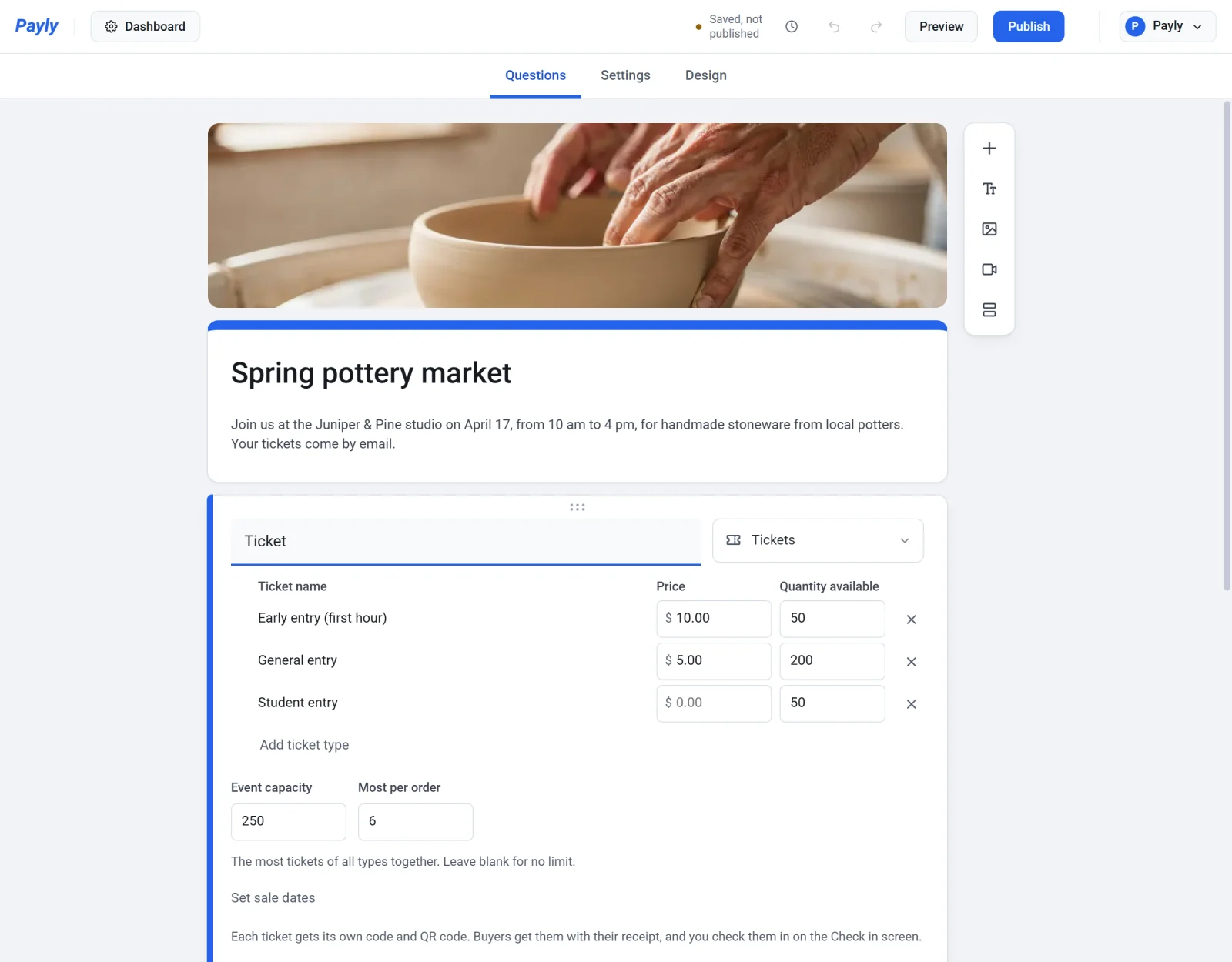
- Make sure the form asks for a Name and an Email. The templates already do. The email address receives the tickets, and the name appears beside each ticket on the Check in screen. To add a question, click Add question in the toolbar beside the form.
Use the Design tab to change the header photo, colors and font. See Build your form for questions, pages and design.
Preview the page
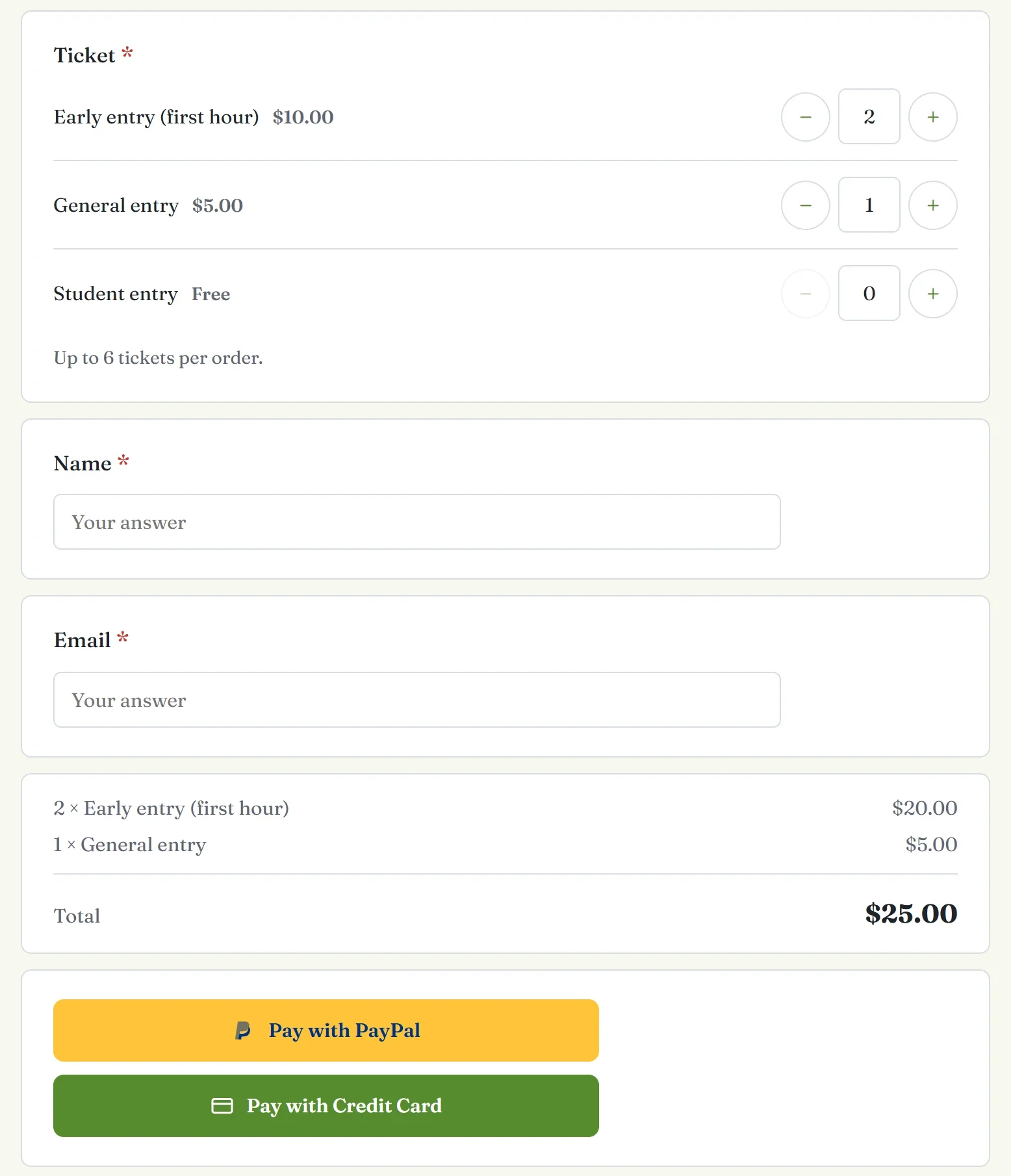
Click Preview to see the page as guests see it. Choose some tickets to watch the running total and the payment buttons appear. Nothing is sent and no payment is taken. Click Close to go back.
Connect payments and publish
- Click Dashboard at the top left, then go to Settings > Payments.
- Click Connect PayPal, Connect Stripe or both. See Connect PayPal and Connect Stripe.
- Turn on Test mode to try a purchase with test accounts, and turn it off when you are ready for real sales. See Take test payments with test mode.
- Click Edit form to return to the builder, then click Publish. The first time, Payly asks you to connect your own free Cloudflare account, which hosts the page. See Publish your form and share its address.
Note: Tickets bought in test mode still count toward your ticket limits and appear in the Check in guest list. Refund each test purchase in full to put its tickets back on sale before you open sales.
Share your event
When the event is live, open the builder's Settings tab. Under Share your form you find the event's address with a Copy link button, and a QR code you can save with Download QR code and print on a poster.
After guests buy
When a payment goes through, the guest sees their tickets on the order page and Payly emails them with the receipt. Each ticket shows its type, a code written like ABCD-EFGH and a QR code. You find the sale in your event's menu:
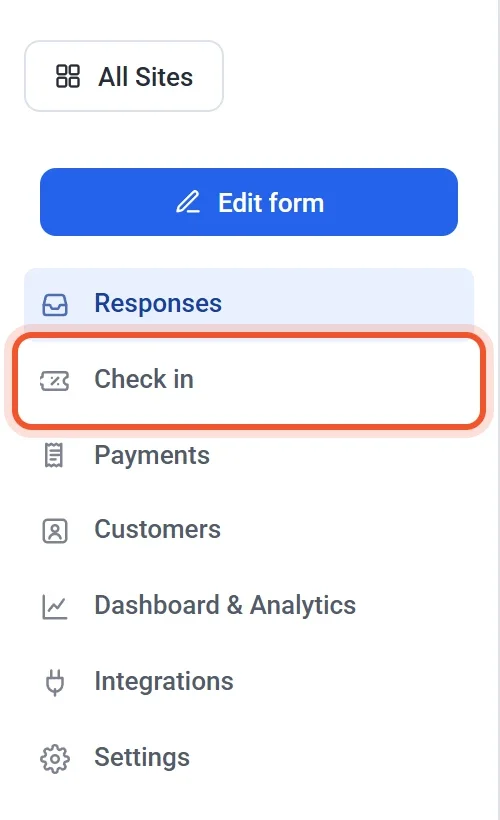
- Responses shows each guest's answers, including the tickets they bought, such as 2 × Early entry (first hour).
- Payments lists each payment and is where you refund one. A full refund also puts the order's tickets back on sale. See Refund a payment.
- Check in is the screen for the door. See Check guests in at the door.