
Free events and RSVPs
Add a free ticket type so guests can RSVP with no payment and still get a ticket with its own QR code, or mix free and paid tickets.
A free ticket is a ticket type with no price. When a guest chooses only free tickets, there is no payment step: they send the form, and each ticket gets its own code and QR code, just like a paid ticket. Use free tickets to take RSVPs for a free event, or to put free and paid tickets on the same event.
Before you start
- You need an event. See Sell tickets to an event.
- Add an Email question if you want Payly to email each guest their tickets. Without one, guests see their tickets on the screen only.
Make a ticket type free
- In the form builder, click the Ticket question.
- Find the ticket type and leave its Price empty, or enter 0. The box shows 0.00 until you type a price.
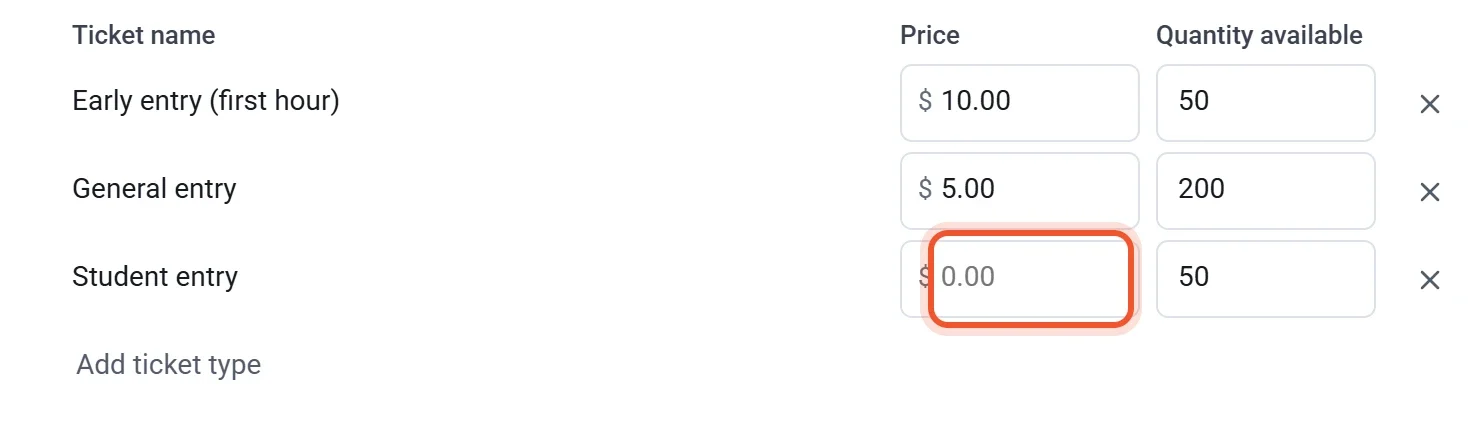
- Enter a Quantity available, an Event capacity or both, so RSVPs stop when you are full. Free tickets count toward both limits. See Ticket types and limits.
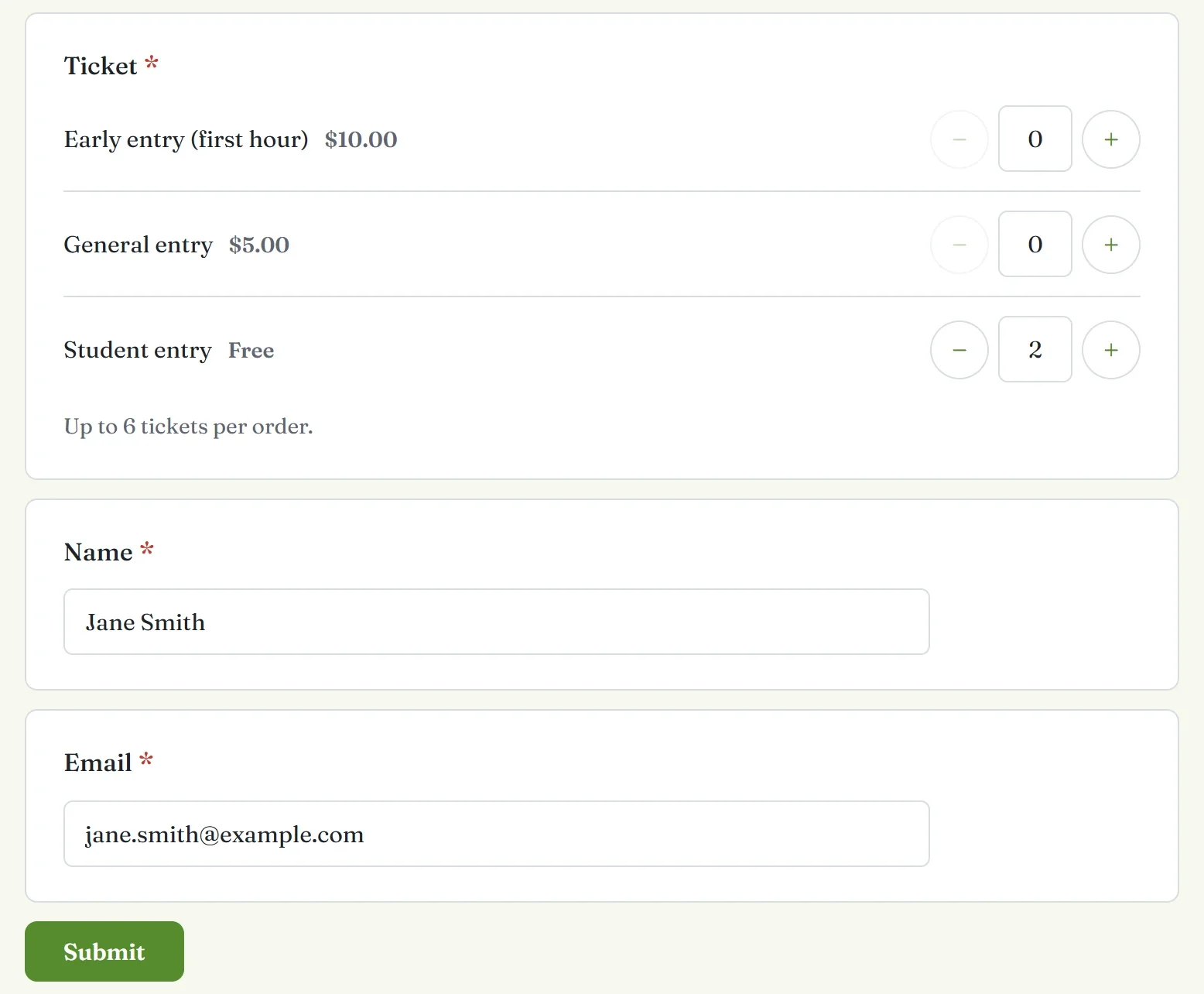
A free ticket type shows Free beside its name on the page. You can put free and paid types in the same Ticket question. If an order includes a paid ticket, the guest pays for the paid ones, and the free tickets in that order get codes too.
What guests see
- The guest chooses how many of each ticket and answers your other questions. With only free tickets chosen there is no total and there are no PayPal or card buttons.
- The guest clicks Submit.
- The thank-you screen shows each ticket with its QR code and its code, under Show this code at the door.
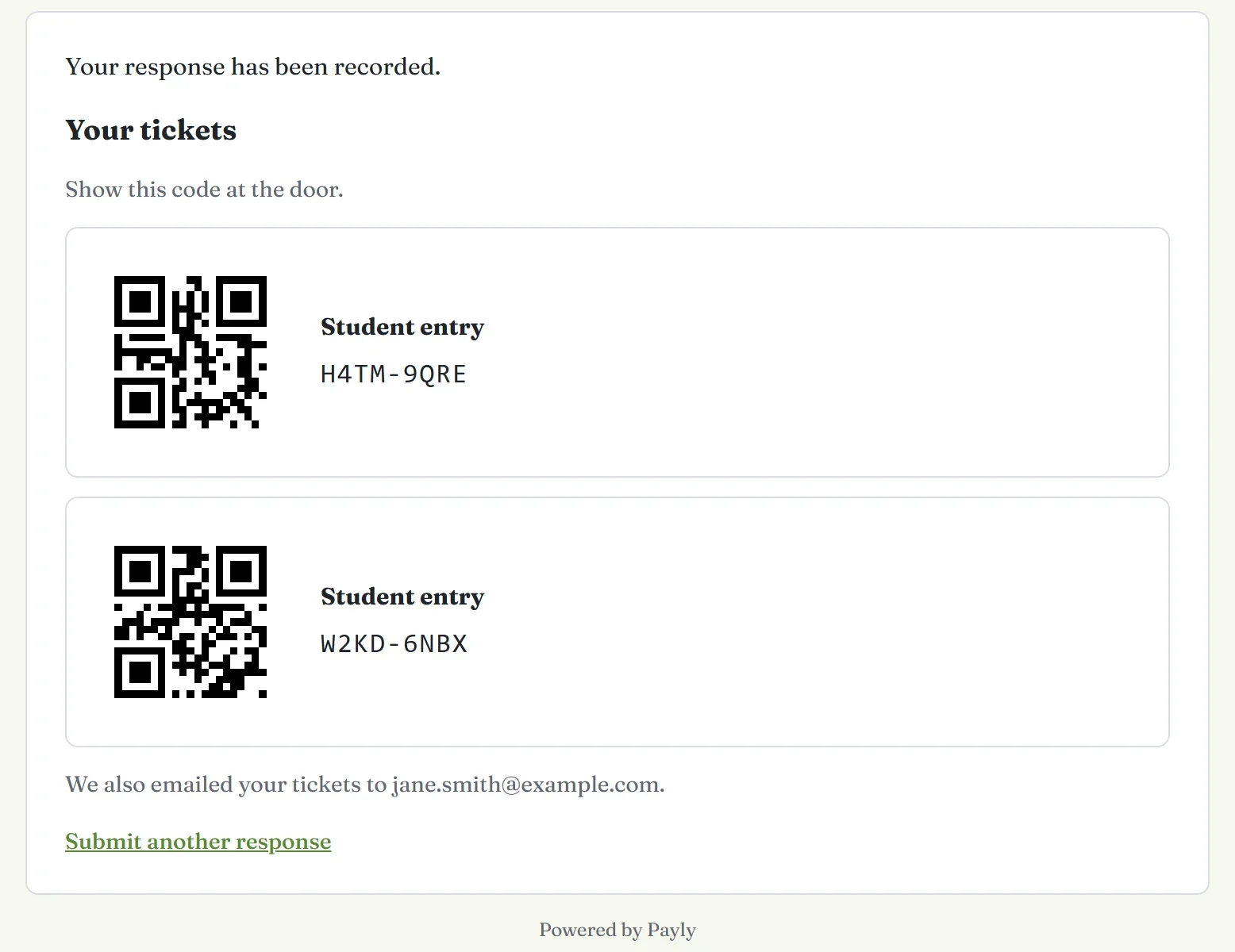
If the guest answered an Email question, Payly also emails the tickets, and the thank-you screen adds We also emailed your tickets to and the address. Without an email address the codes stay on the screen, so a guest should keep a screenshot.
Manage your RSVPs
- See who replied. Each RSVP appears under Responses, and every ticket appears in the Guest list on Check in. See See and download responses.
- Send tickets again. On Check in, find the guest in the Guest list and click Resend tickets. The button shows for guests who gave an email address.
- Cancel an RSVP. Go to Responses and open the Individual tab. Find the response, click Delete response and confirm. Its tickets go back on sale, and the Check in screen turns them away.
- Check guests in. Free tickets are scanned the same way as paid ones. See Check guests in at the door.
Note: Deleting the response of a paid order does not give its tickets back. Refund the payment instead. See Refund a payment.