
Check guests in at the door
Scan guests' QR codes with a camera or a USB scanner, or type their codes, and see at once whether each ticket is good.
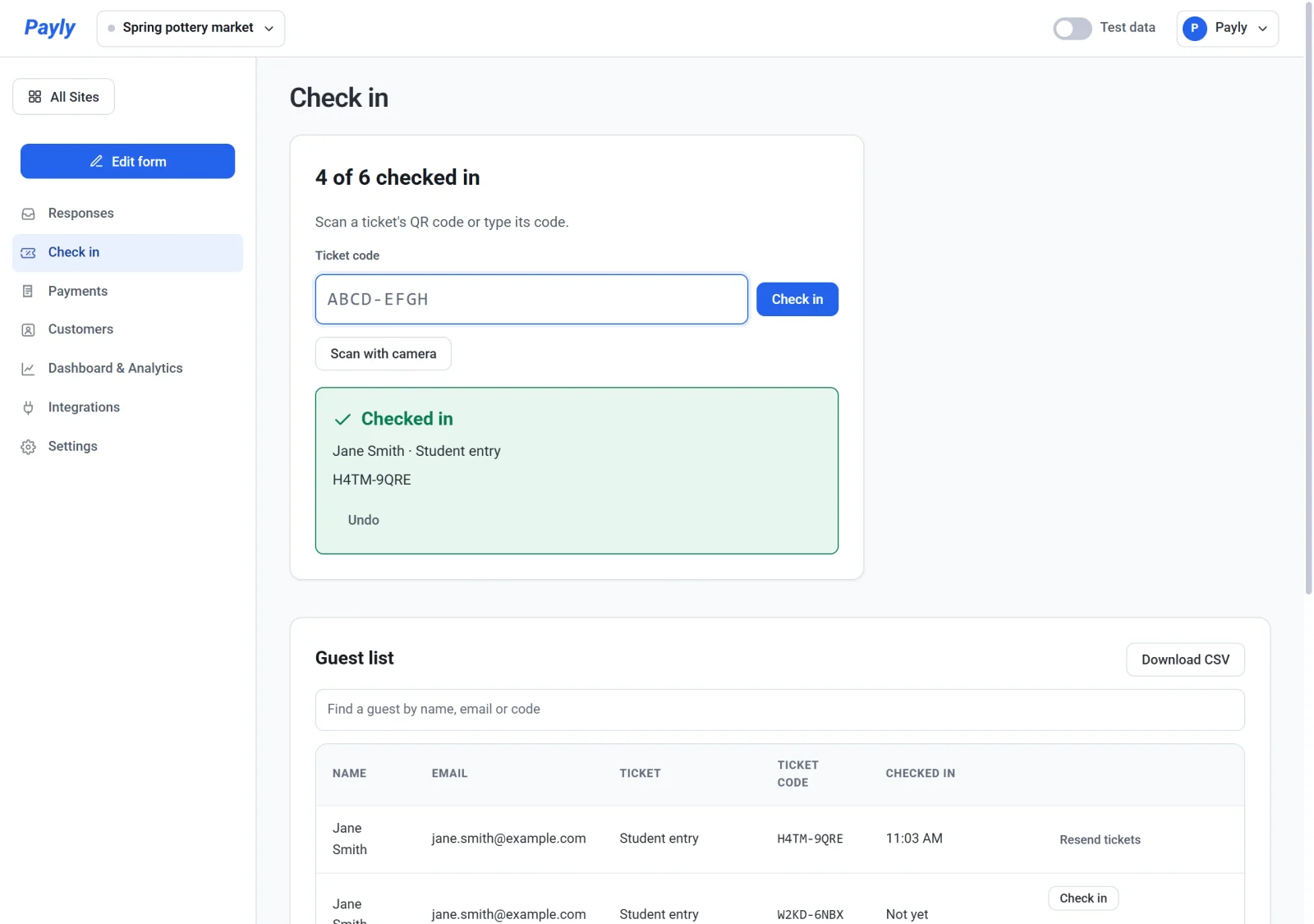
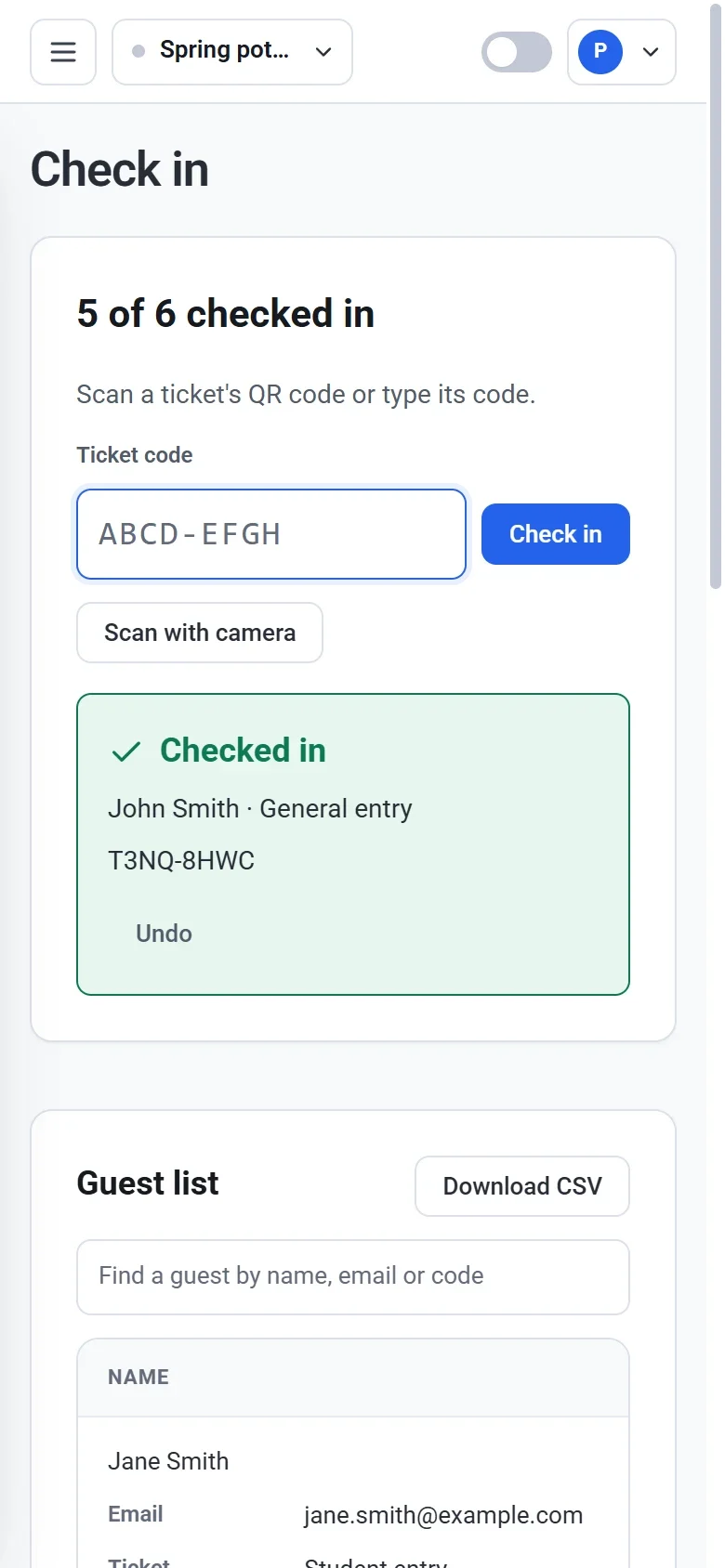
Check in is the screen you use at the door. Scan a guest's QR code, or type the code, and Payly tells you at once whether the ticket is good. It also keeps count of how many guests are in. It runs in your browser on a phone, tablet or computer, so there is no app to install.
Before the event
- Check in appears in your event's menu when the form has a Tickets question. See Sell tickets to an event.
- Sign in to Payly on the device you will use at the door. Check in needs an internet connection, because every scan is checked with Payly as it happens.
- The owner, admins and editors can check guests in. Viewers can see the count and the guest list, but cannot check anyone in. To bring in helpers, invite them as team members. See Invite your team and set roles.
Check in a guest
- On Your sites, click Dashboard on your event, then choose Check in from the menu.
- Scan or type the ticket's code in one of three ways:
- With a camera. Click Scan with camera, allow camera access when your browser asks, and hold the QR code in view. Click Stop camera when you are done.
- With a USB scanner. Click in the Ticket code box and scan. The scanner types the code and presses Enter, and the box stays ready for the next ticket.
- By hand. Type the code, in capitals or lowercase, with or without its dash. Then press Enter or click Check in.
- Read the result. A ticket that is good shows the guest's name and ticket type, and the count at the top goes up. The count, such as 4 of 6 checked in, covers the tickets that are still valid.
What the results mean
| Result | What it means |
|---|---|
| Checked in (green) | The ticket is good, and it is now marked as used. Let the guest in. |
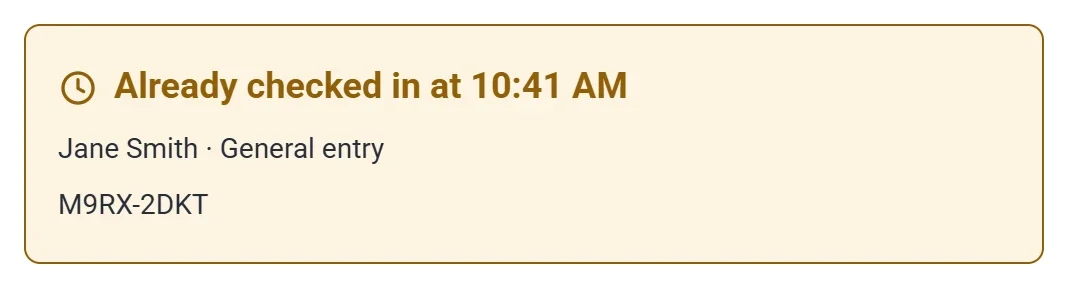
| Already checked in at 10:41 AM (amber) | This ticket was scanned earlier, at the time shown. It cannot get in a second time. |
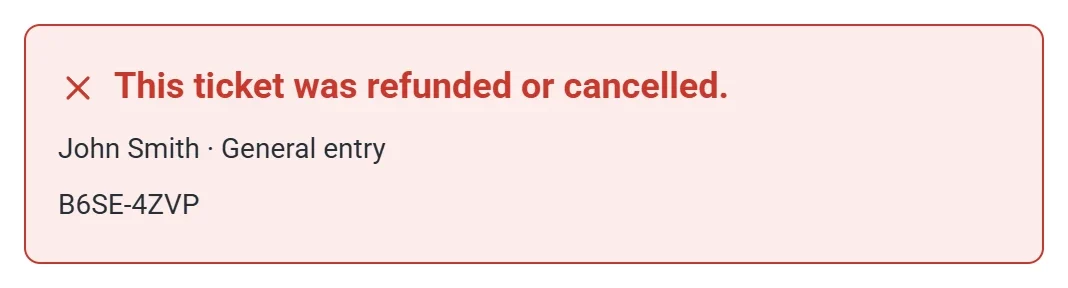
| This ticket was refunded or cancelled. (red) | The order was refunded in full, or the RSVP was deleted. Do not let the guest in. |
| No ticket has this code. (red) | The code is not one of this event's tickets, or it was typed wrong. Try again. |
Undo a mistake
If you checked in the wrong ticket, click Undo under the green result before you scan the next one. Payly says Check-in undone. and the count goes back down.
Use the guest list
Under the code box, the Guest list shows every ticket with its guest's name, email, ticket type, code and the time it was checked in. Refunded or cancelled tickets stay on the list and show Refunded or cancelled.
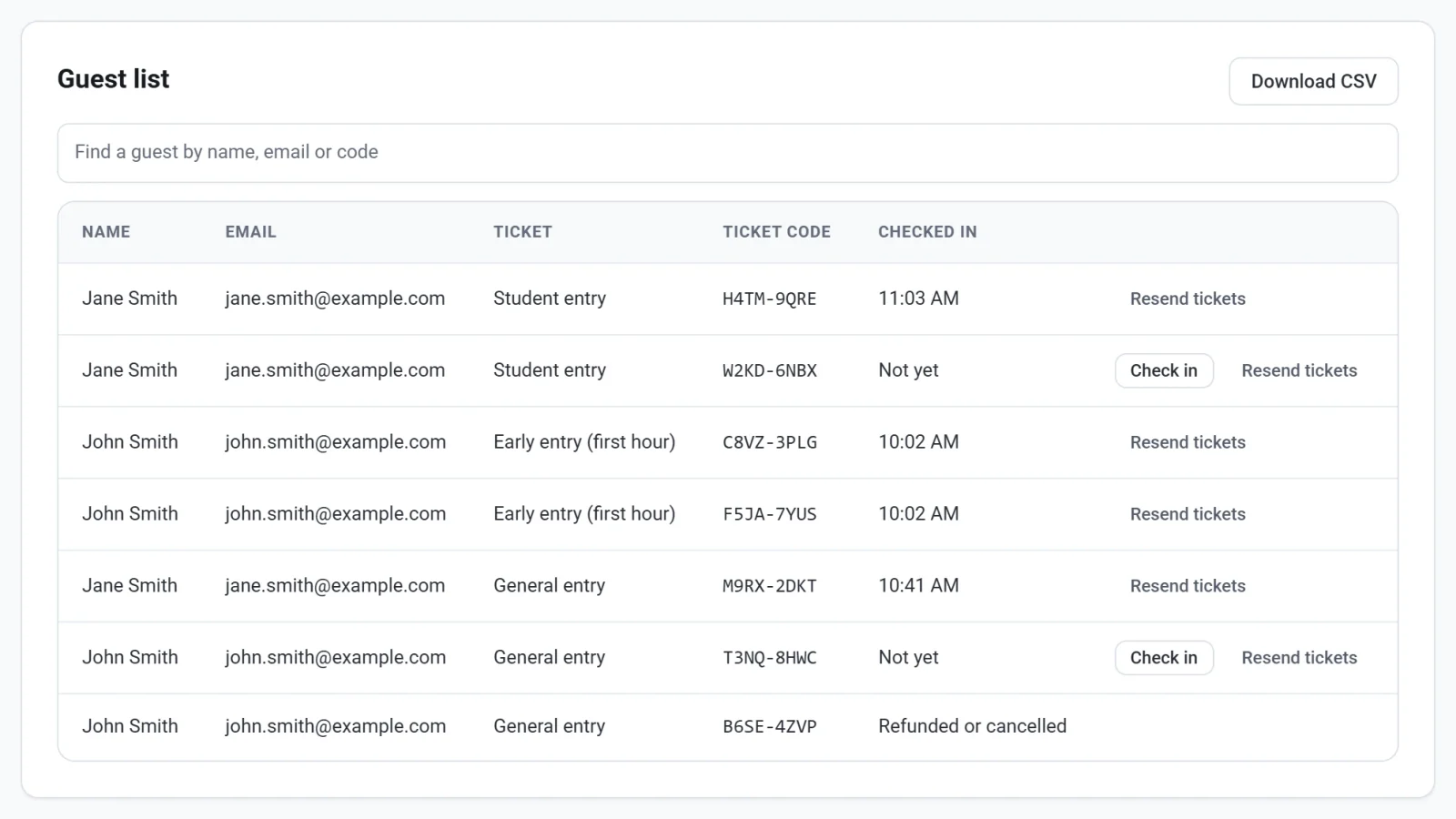
- Type in the search box to find a guest by name, email or code.
- If a guest cannot find their ticket, click Check in on their row.
- Click Resend tickets to email a guest their tickets again. For a paid order this sends the receipt again. The button shows for guests who gave an email address.
- Click Download CSV to save the list as a spreadsheet file, including who has checked in.
At a busy door
- Use more than one device. Several people can scan at once, and a ticket can only get in once: the second scan shows Already checked in.
- The screen fits a phone, so a helper can scan guests in a line.
- If the camera does not start, Payly says Allow camera access in your browser to scan tickets. or No camera was found on this device. Allow the camera in your browser, or use a USB scanner or type the codes.