
Set up a donation form
Create a donation form from a template or from scratch, choose its amounts and how often donors can give, add receipt details, and preview it.
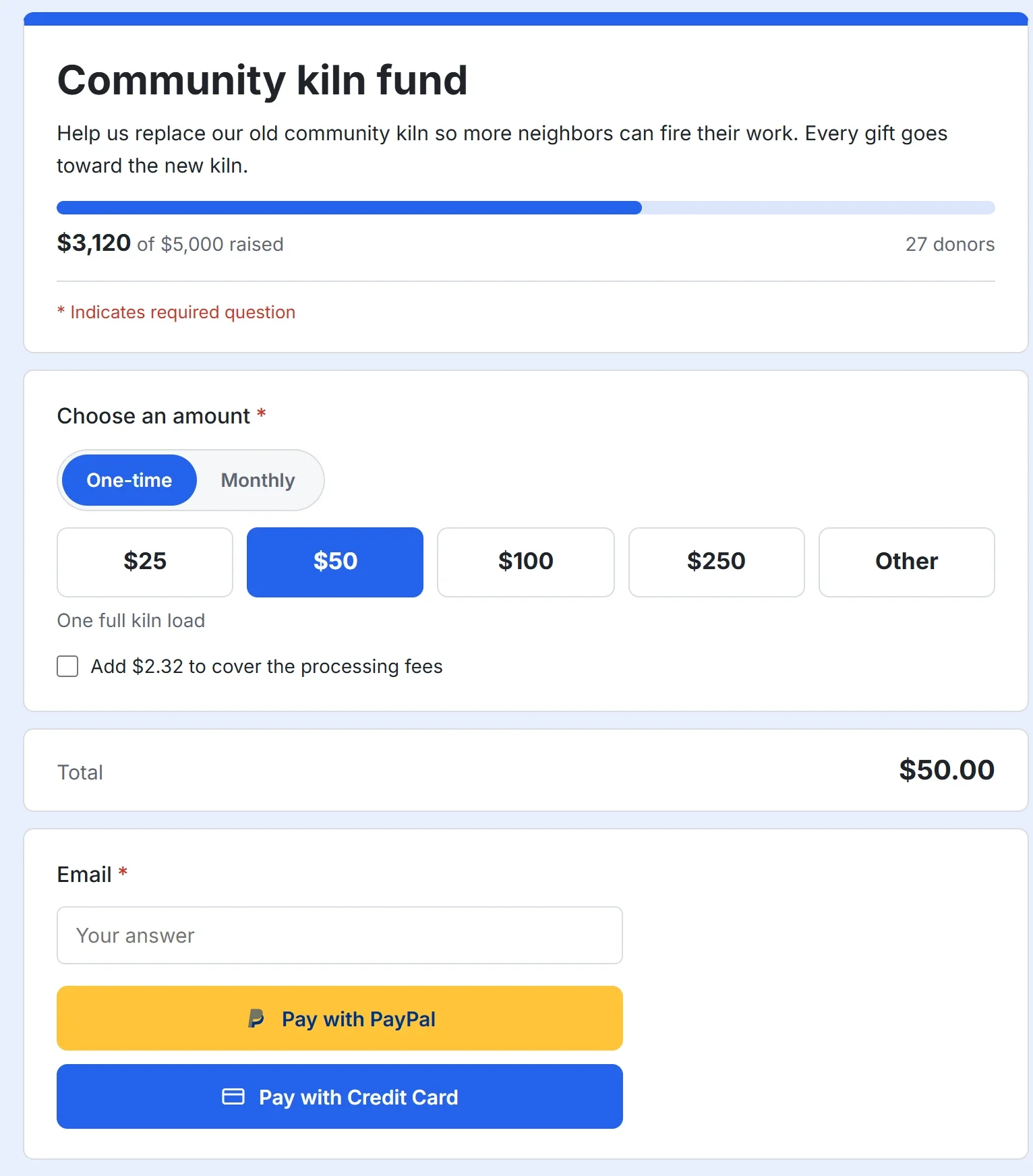
A donation form is a page where people give you money. Donors choose an amount, decide whether to give once or on a schedule, and pay with PayPal or a card. The gift goes straight to your own PayPal or Stripe account, and Payly never holds it. Payly takes no fee of its own and never asks your donors for a tip. PayPal and Stripe charge their standard processing fees, and you can let donors cover them.
Before you start
- You need a Payly account. See Create your Payly account.
- You can build and preview a form without connecting anything. Before donors can give, you connect PayPal, Stripe or both, and publish the form. The steps are in Open your form to donors, below.
Create the form
- On the Your sites screen, click New.
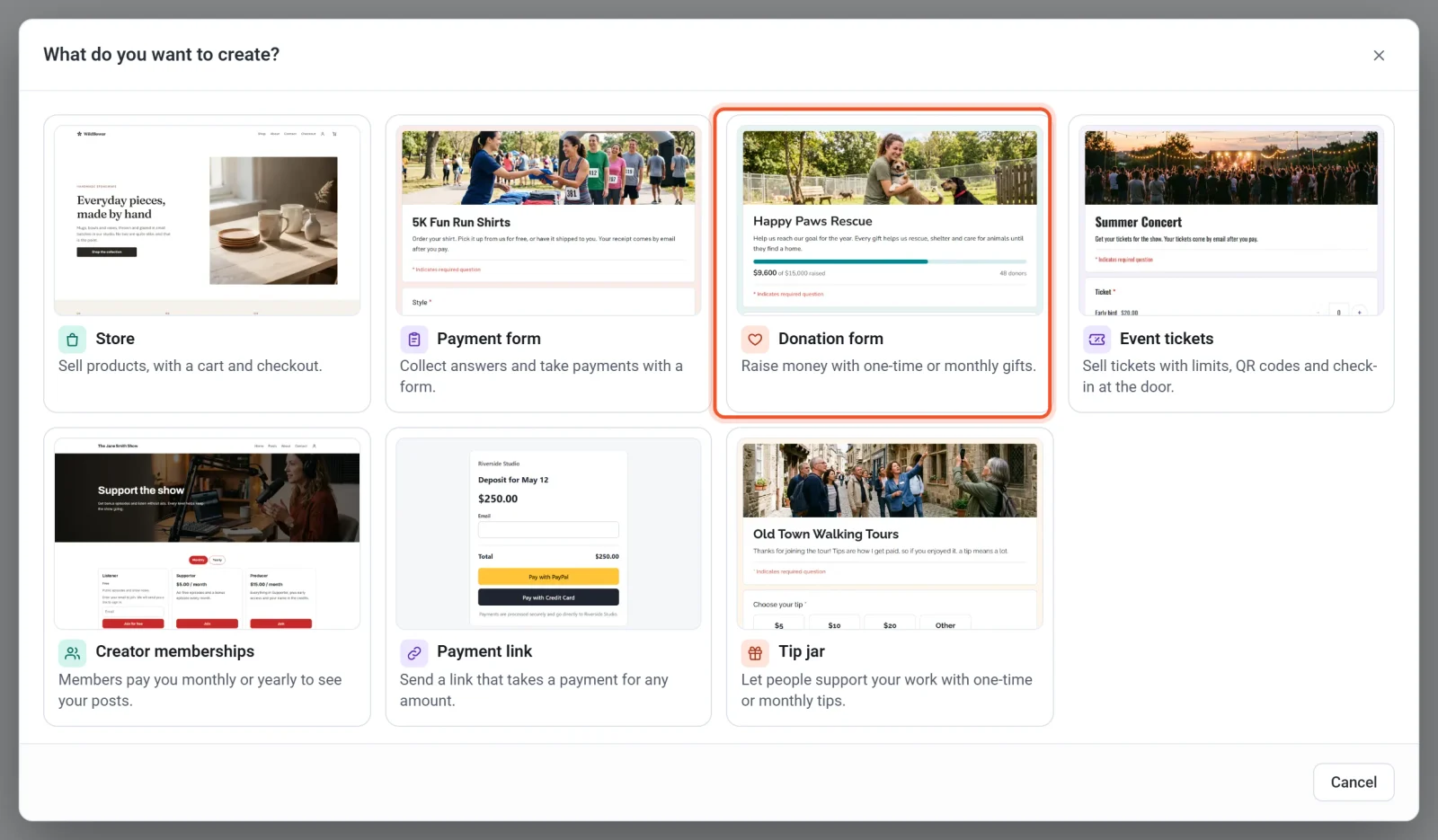
- In the What do you want to create? window, click Donation form.
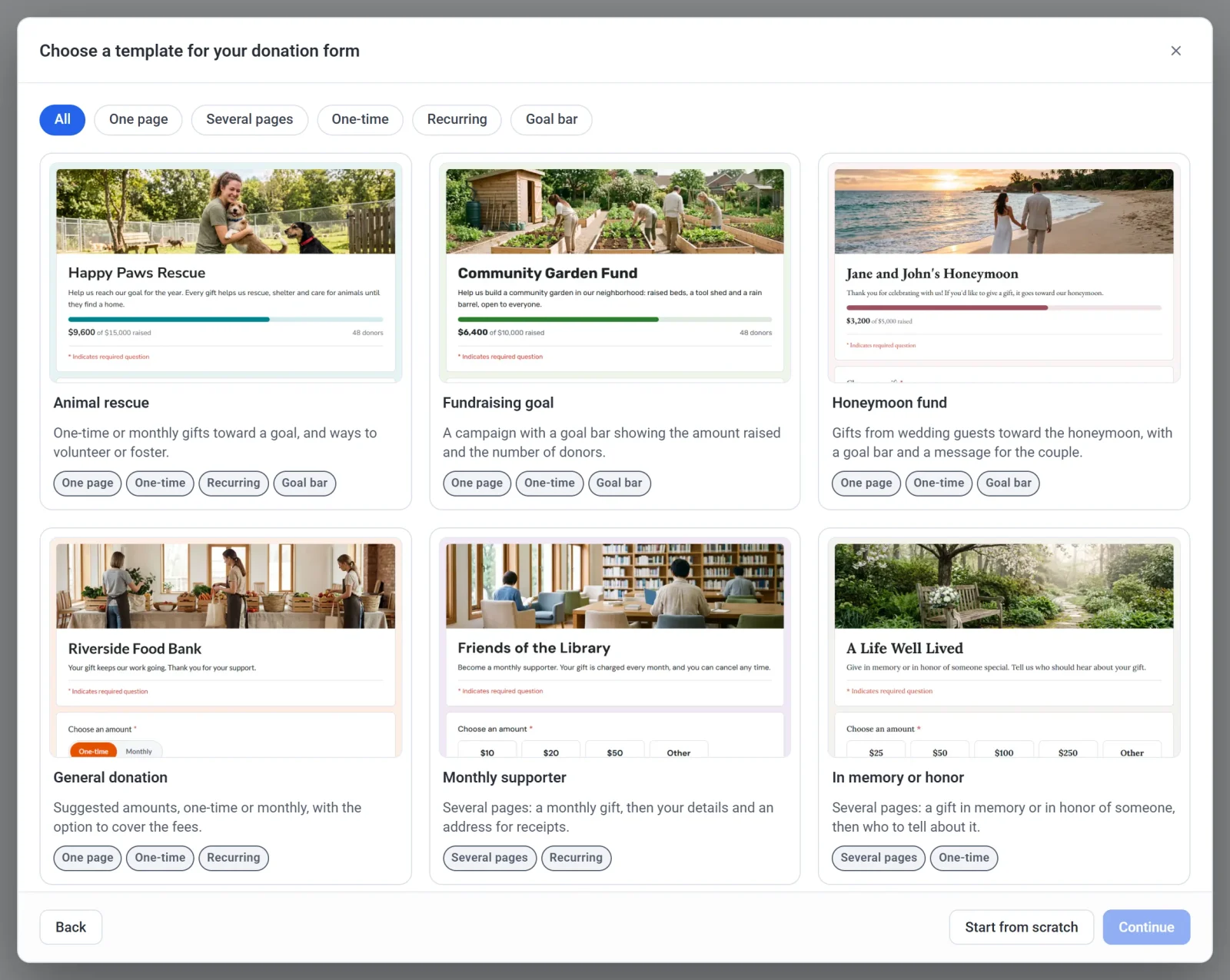
- Click a template, then click Continue. To begin with a blank form, click Start from scratch instead. The next section describes the templates.
- Type a Form name, or click Random name for a suggestion. The name starts out as the title donors see on the form.
- Check the Form handle. Payly makes it from the name, and a green message says when it is available. You can edit it, using 3 to 40 letters, numbers and hyphens. It becomes part of the form's free address.
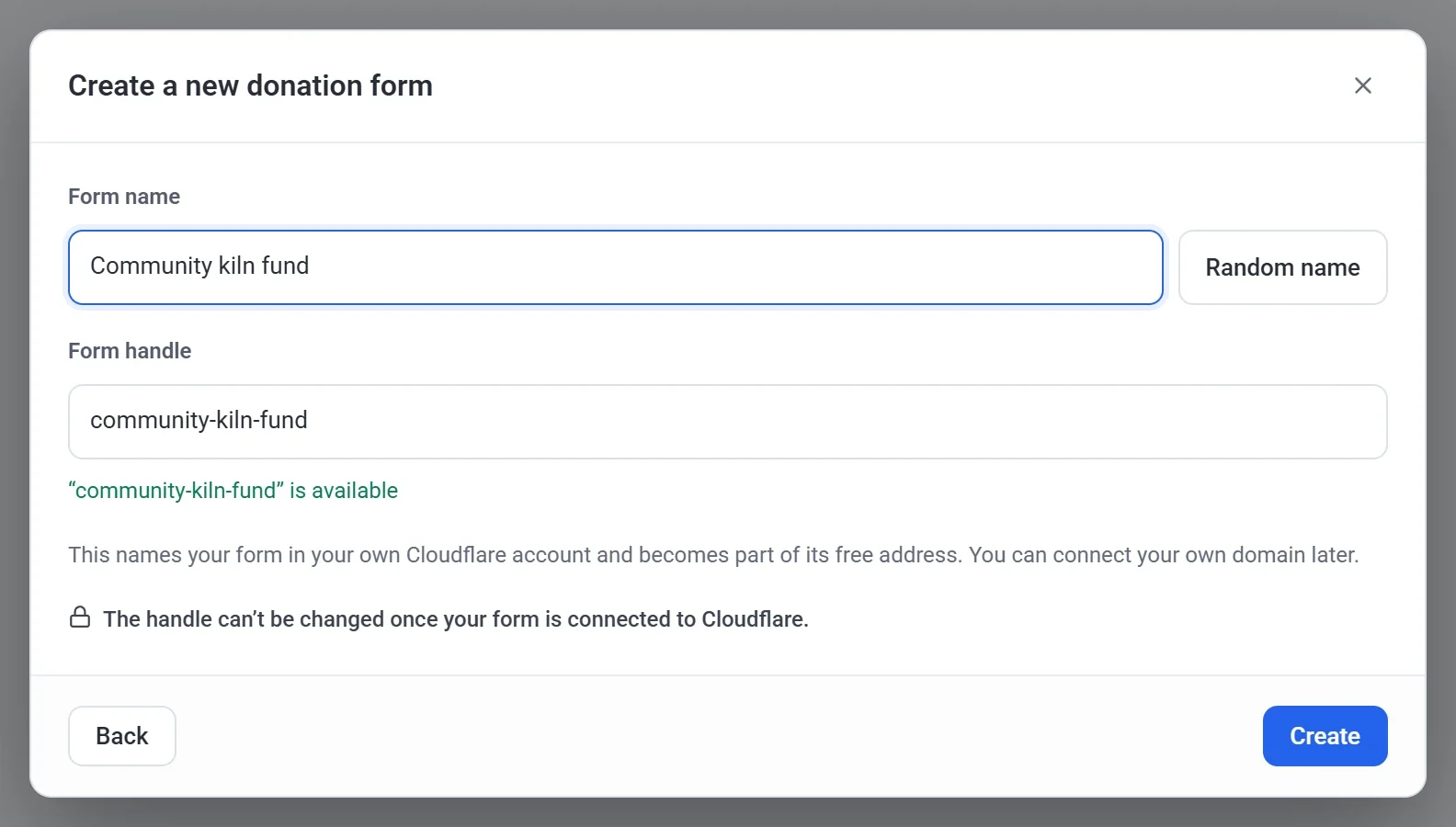
- Click Create. The form builder opens.
Note: You cannot change the handle once your form is connected to Cloudflare. You can change the name at any time in Settings > General.
Choose a template
A template is a finished form that you can change as much as you like. It comes with sample wording and a header photo, so replace those with your own. Every template has the amount question described below.
| Template | What it gives you |
|---|---|
| Animal rescue | One-time or monthly gifts toward a goal, and ways to volunteer or foster. |
| Fundraising goal | A campaign with a goal bar showing the amount raised and the number of donors. |
| Honeymoon fund | Gifts from wedding guests toward the honeymoon, with a goal bar and a message for the couple. |
| General donation | Suggested amounts, one-time or monthly, with the option to cover the fees. |
| Monthly supporter | Several pages: a monthly gift, then your details and an address for receipts. |
| In memory or honor | Several pages: a gift in memory or in honor of someone, then who to tell about it. |
To collect tips instead of donations, choose Tip jar in the first window. See Set up a tip jar.
Choose the amounts
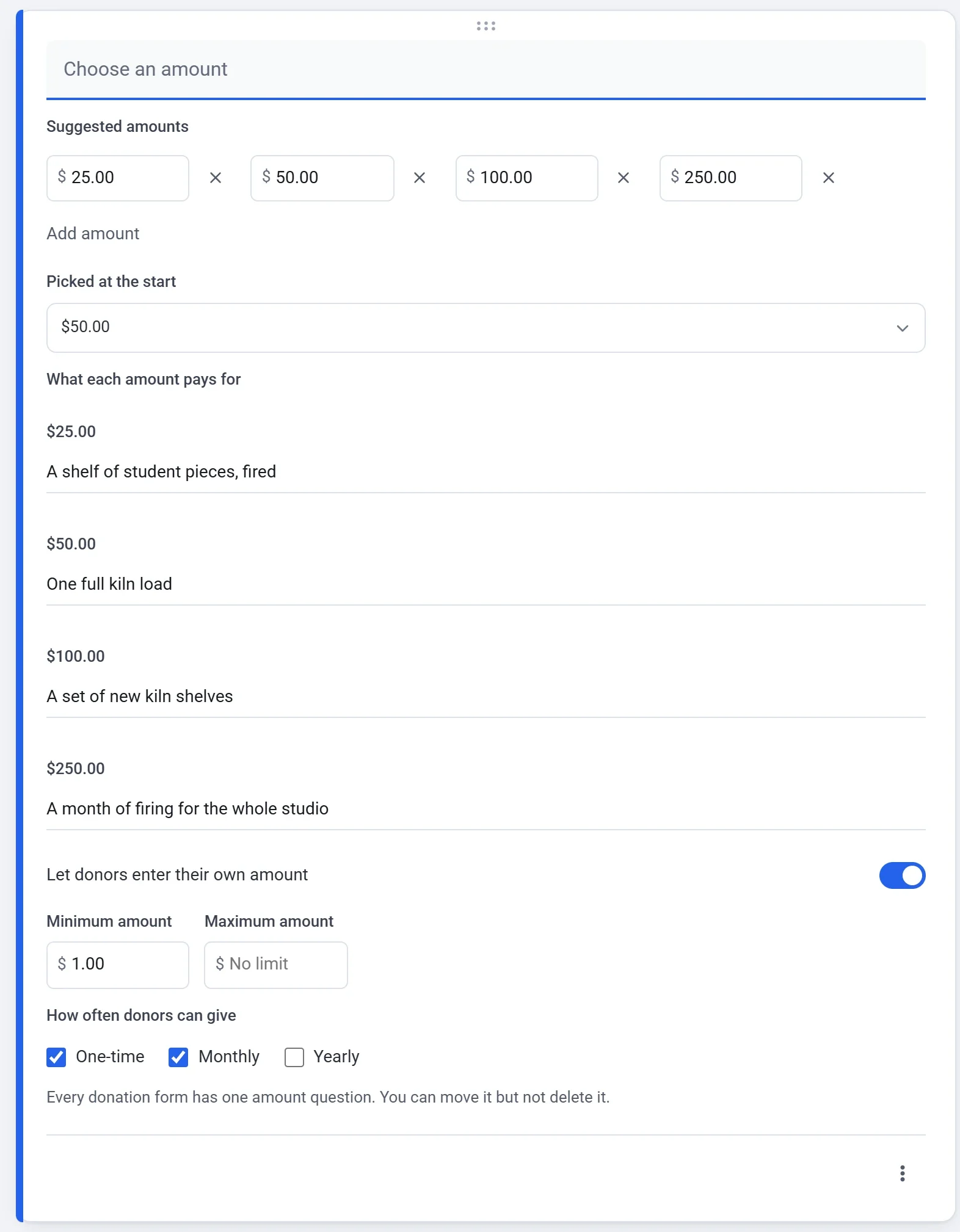
Every donation form has one amount question. It asks Choose an amount unless you type a title of your own. You can drag it to another place on the form, but you cannot delete it.
- In the form builder, stay on the Questions tab and click the amount question.
- Under Suggested amounts, change the amounts donors can tap. Click Add amount for another one (up to 8 in all), or click the cross beside an amount to remove it. Keep at least one.
- Use Picked at the start to choose the amount that is already selected when the form opens.
- Under What each amount pays for, add a short line for any amount, up to 140 characters. Donors see the line under the amounts when they pick that one.
- Leave Let donors enter their own amount on to show an Other box. Set a Minimum amount and a Maximum amount if you want limits. They apply to the amounts donors type, not to your suggested amounts.
- Under How often donors can give, tick One-time, Monthly, Yearly or any mix. See Monthly giving.
The builder saves your changes as you make them, so there is no Save button, and nothing is public until you publish. Amounts are in your form's currency, which is US dollars unless you choose another in Settings > General.
Ask for more and change the look
Use the buttons beside the form to add questions, text, images, videos or sections. A donation form takes the same questions as any other form, such as a name, a message or an address. The Design tab sets your logo, photo, colors and font. See Build your form: questions, pages and design.
Donors are asked for an email address at the payment step, because every gift gets a receipt. If your form already has an Email question, Payly uses that one and does not ask twice.
Add your tax ID and receipt details
Every paid gift gets one receipt by email, including each payment of a monthly gift. It shows who gave, the amount, the date and a receipt number. When a payment is only a gift, it also says that no goods or services were provided in exchange. To add your own details, open the Settings tab and find the Donations card:
- Tax ID appears on every receipt.
- Receipt note is added to every receipt as plain text, for example a thank-you message.
The same card holds the fundraising goal and the box that lets donors cover the processing fees. Replies to a receipt go to the email address on your Payly account.
Preview your form
Click Preview at the top of the builder to see the form as donors see it, on a desktop or a phone. A preview sends nothing and takes no payment, and its goal bar starts at zero because no gift has been paid.
Open your form to donors
- In your form's dashboard, go to Settings > Payments and connect PayPal, Stripe or both. Donors see a button for each one you connect. See Connect PayPal and Connect Stripe.
- To try the form first, turn on Test mode on the same screen. Gifts then use your test accounts, and no real money moves. Turn it off before you share the form. See Take test payments with test mode.
- Click Publish in the form builder. The first time, Payly asks you to connect your free Cloudflare account, which hosts your form. See Publish your form and share its address.
See your gifts
Your form's dashboard has its own menu. Donations lists every gift. Payments lists each payment, where you can refund it. Recurring lists monthly and yearly gifts, and shows only when your form offers them. Donors lists the people who gave. See See and download responses and Refund a payment.