
Let donors cover the processing fee
Add a box to your donation form that lets donors add the PayPal or card processing fee to their gift, with the rate for your country filled in.
PayPal and Stripe charge a processing fee on every gift. When you turn on the cover-the-fee box, donors can tick it to add that fee to their gift, so more of each gift reaches you. The fee goes to PayPal or Stripe. Payly keeps none of it and takes no fee of its own.
Turn on the box
- In your form's dashboard, click Edit form, then click the Settings tab.
- In the Donations card, turn on Let donors cover the processing fees.
- Choose Your country. Payly fills in the Percentage fee and the Fixed fee for it.
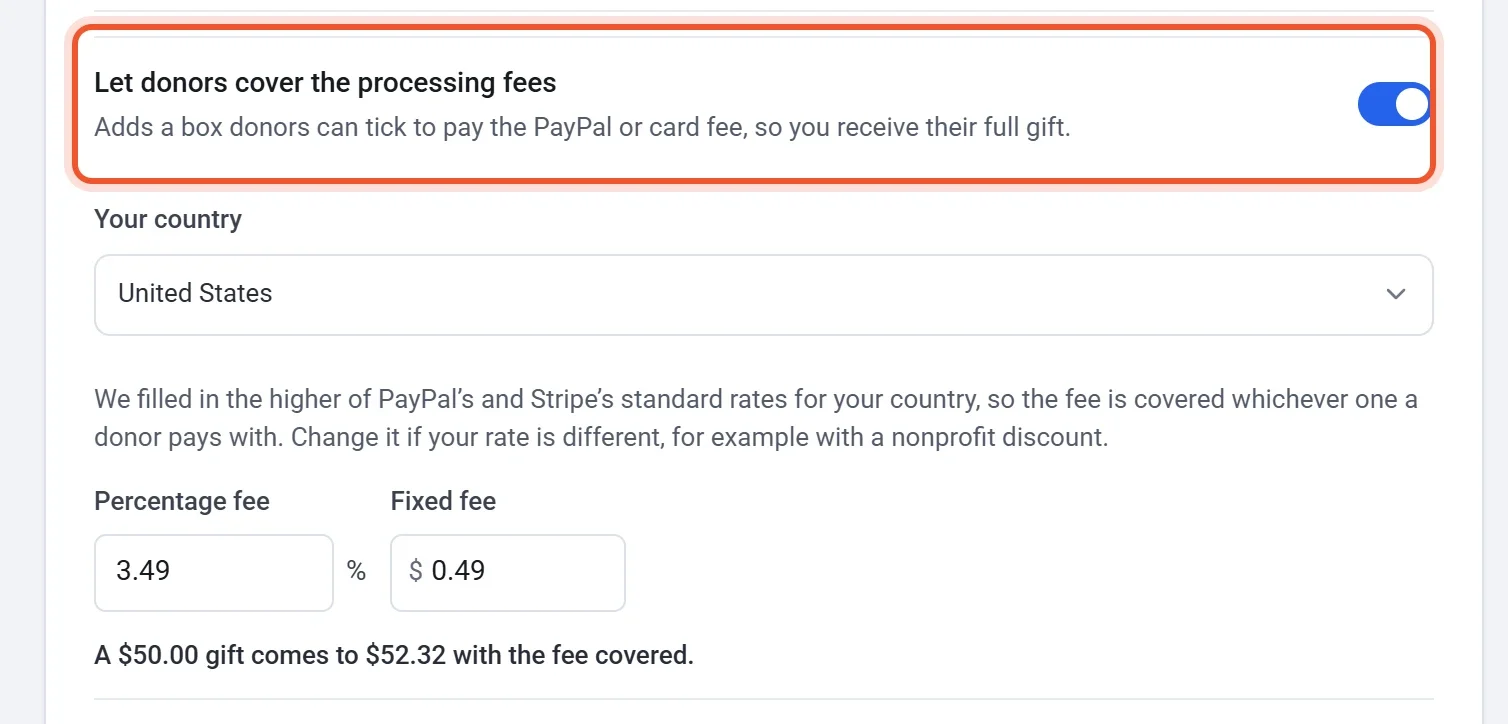
- Check the example line under the fields, such as "A $50.00 gift comes to $52.32 with the fee covered."
- If your own rate is different, change the two fields. A nonprofit discount is a common reason.
- Click Publish to put the box on your live form. If this is your first time, see Publish your form and share its address.
Note: The box appears on your form only when the percentage or the fixed fee is above zero. If you turn the switch on and leave both empty, donors see no box.
Where the rate comes from
Payly fills in the standard rate that PayPal and Stripe publish for a payment from your own country. When both apply, it uses the higher of the two, so the fee is covered whichever one a donor pays with. If you have connected only PayPal or only Stripe, it uses that one's rate. If Payly has no rate for your country, it asks you to enter your own.
- Your rate can differ from the standard one, for example with a nonprofit discount. Type it over the filled-in numbers.
- Payly limits the rate: the percentage fee can be at most 10%, and the fixed fee at most about one dollar's worth in your currency.
- Payly fills in the fixed fee only when your form's currency is the one the processor quotes it in. Otherwise it fills in the percentage alone, and you can type a fixed fee yourself.
What donors see
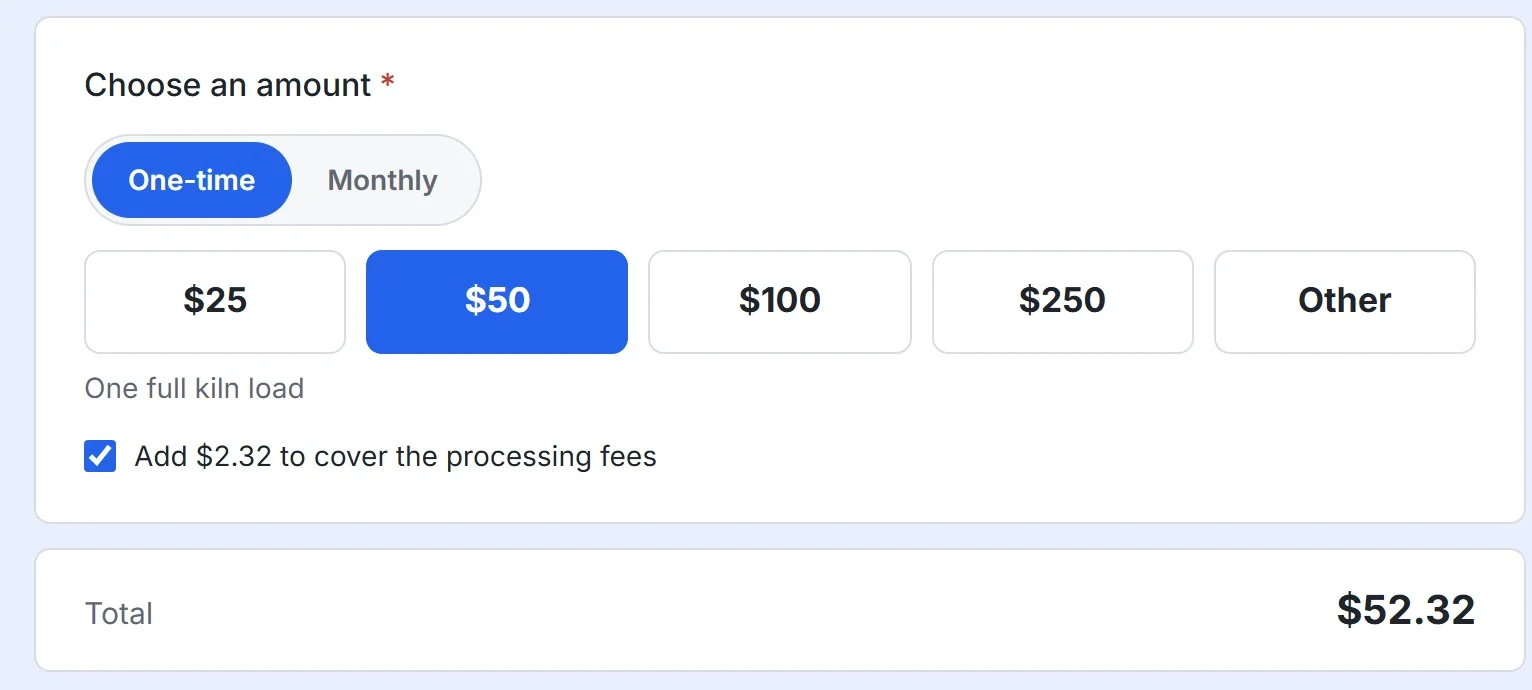
Before a donor picks an amount, the box reads Cover the processing fees. Once an amount is picked, it shows the exact fee, such as Add $2.32 to cover the processing fees. The box is not ticked to start with, so a donor can give without it. When a donor ticks it, the Total goes up by the fee. The donor sees one amount whether they then pay with PayPal or a card.
How the amount is worked out
Payly adds enough to the gift so that, after the processor takes its fee, the full gift is left. For example, at 3.49% plus $0.49, a $50.00 gift comes to $52.32, and a larger gift adds a larger fee.
The rate is a standard rate for a payment from your own country. A gift from another country, a premium card or a currency conversion can cost a little more, so treat the amount as an estimate.
Where the fee shows up
- The donor's receipt shows the amount paid, fee included, with a line that says "This includes $2.32 you added to cover the processing fee."
- On a one-time gift, the fee is a line of its own, named Processing fee, beside the gift at PayPal or Stripe and on the payment in your Payments screen.
- On a monthly or yearly gift, the fee is part of every payment. See Monthly giving.
- The goal bar counts the gift only, never the fee.