
Show a fundraising goal
Add a progress bar to your donation form that shows how much you have raised toward a goal and how many donors have given.
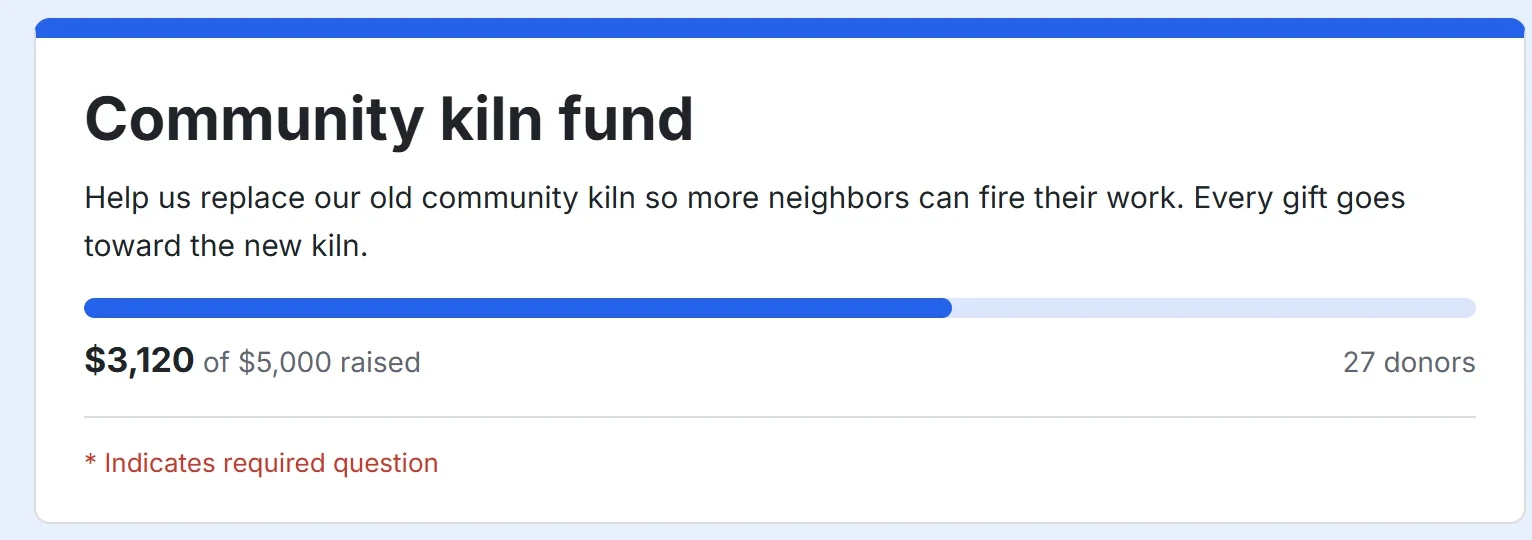
A goal bar shows donors how close you are to a target. It sits at the top of your donation form, under the title and description, and fills as gifts come in. It can show the amount raised, the number of donors, or both.
Set a goal
- In your form's dashboard, click Edit form, then click the Settings tab.
- In the Donations card, type an amount in Fundraising goal. Leave it empty for no bar.
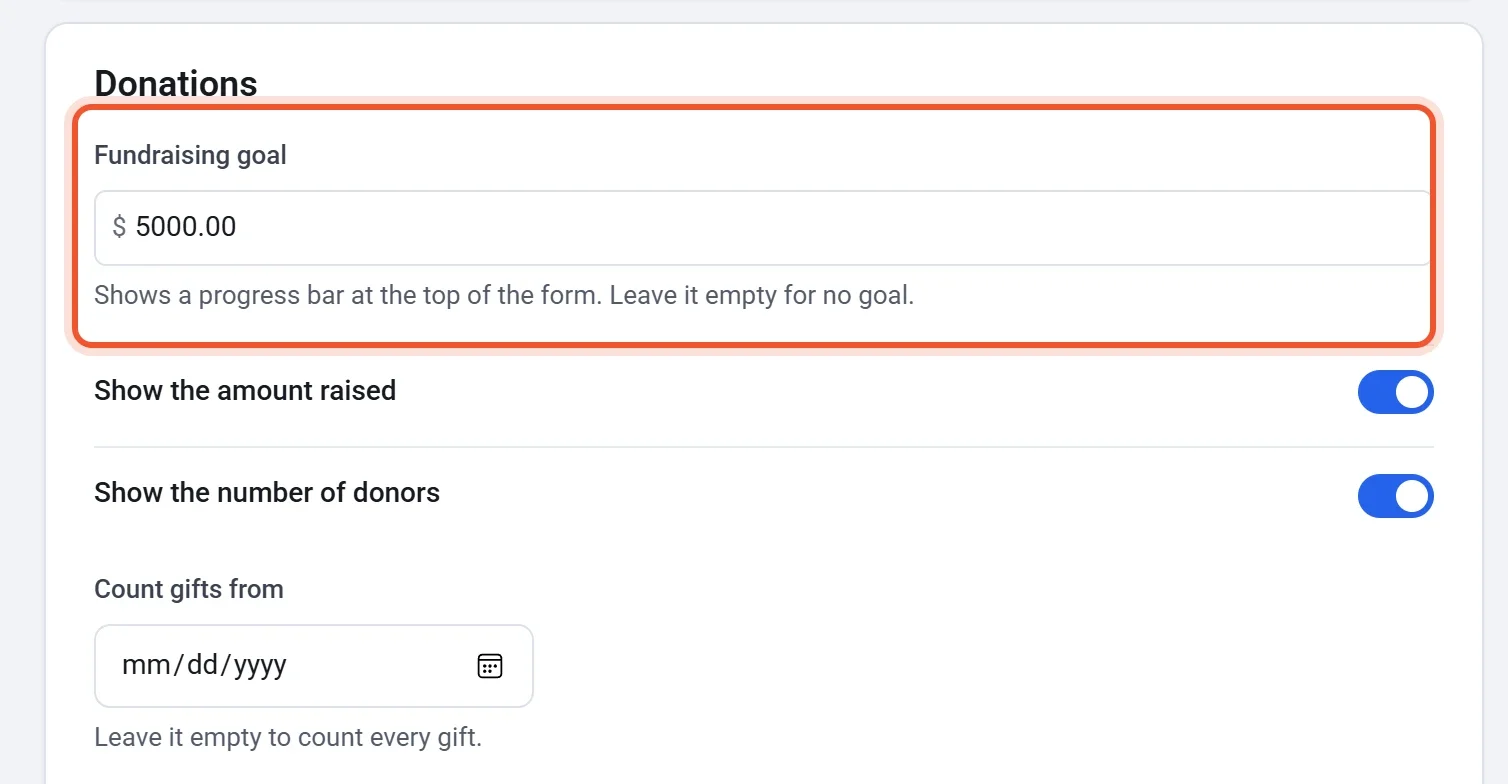
- Choose what the bar shows. Show the amount raised is on to start with, and Show the number of donors is off.
- To count only gifts from a certain day on, pick that day in Count gifts from. Leave it empty to count every gift.
- Click Publish to put the bar on your live form. If this is your first time, see Publish your form and share its address.
Note: Keep at least one of the two switches on. With both off, the bar has no figures to show and stays empty.
What donors see
Under the description, donors see the bar and a line of figures. The amount raised is in bold, as in "$3,120 of $5,000 raised", and the number of donors sits at the right, as in "27 donors". The bar uses your form's theme color, which you set on the Design tab. Once you pass your goal, the bar stays full and the amount raised keeps counting up.
What counts toward the goal
- Every paid gift. A monthly or yearly gift counts each time a payment is made, not only the first. See Monthly giving.
- The gift only. A fee that a donor covers is not counted. See Let donors cover the processing fee.
- Refunds come off. A full refund takes the gift off the bar, and a partial refund lowers it in proportion. See Refund a payment.
- Each donor once. The number of donors counts each email address one time, however many gifts it gives.
- Only gifts paid on your form. You cannot add gifts taken another way, such as cash.
Keep the bar current
The bar updates by itself after each paid gift, so you do not need to publish again. Publish again only when you change the goal, the switches or the start date. To take the bar off the form, clear Fundraising goal and publish again.
Tip: Gifts you pay in test mode count toward the bar too. Use Count gifts from to leave them out: pick the day you open your form to donors, then publish again. The same setting starts a new campaign at zero. It changes only the bar, not your list of donations.