
Publish your form and share its address
Publish a form to its own web address, connect Cloudflare once, share the link or a QR code, update the live form, and close it or take it offline.
Publishing puts your form on its own web address, hosted in your own free Cloudflare account. Until you publish, everything you do in the builder is a private draft that only you can see. This works the same for a payment form, a donation form, event tickets and a tip jar.
Before you start
- You need a free Cloudflare account. Payly asks you to connect it the first time you publish anything, and only once: after that, every form, store and payment link you make publishes to the same account. See Connect your Cloudflare account.
- If your form takes money, connect PayPal, Stripe or both on the form's Settings > Payments tab. See Connect PayPal and Connect Stripe. Until one is connected, the live form says it is not set up to take payments yet.
- To try the form without real money, turn on Test mode on that same tab, and turn it off before you share the form. See Take test payments with test mode.
Publish your form
- Open your form in the form builder and click Publish in the bar at the top.

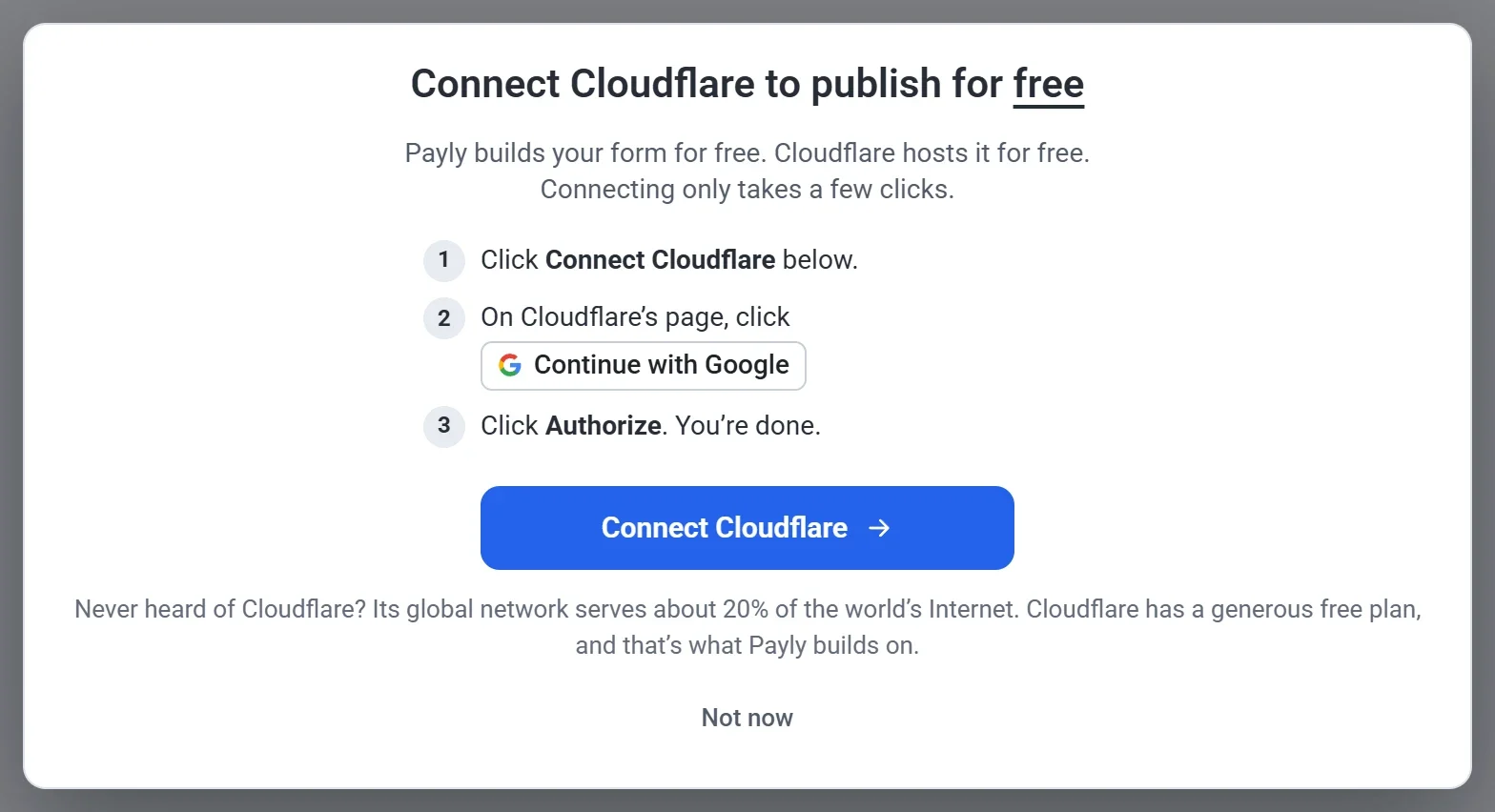
- If you have not connected Cloudflare yet, a box asks you to. Click Connect Cloudflare and follow the steps on Cloudflare's own page: sign in or create a free account, then click Authorize. Publishing carries on by itself when you are done. Click Not now to stop, and nothing is published.
- Wait while Payly builds and uploads your form. The Publishing your form box shows each step. If you connected Cloudflare for another site before, a new form starts with Setting up your site in your Cloudflare account.
- On your first publish, the box says it may take up to 5 minutes for the form to come online, and tells you when it does.
- When the box says Your form is live, click View form to open it, or click Done.
Publish from the dashboard
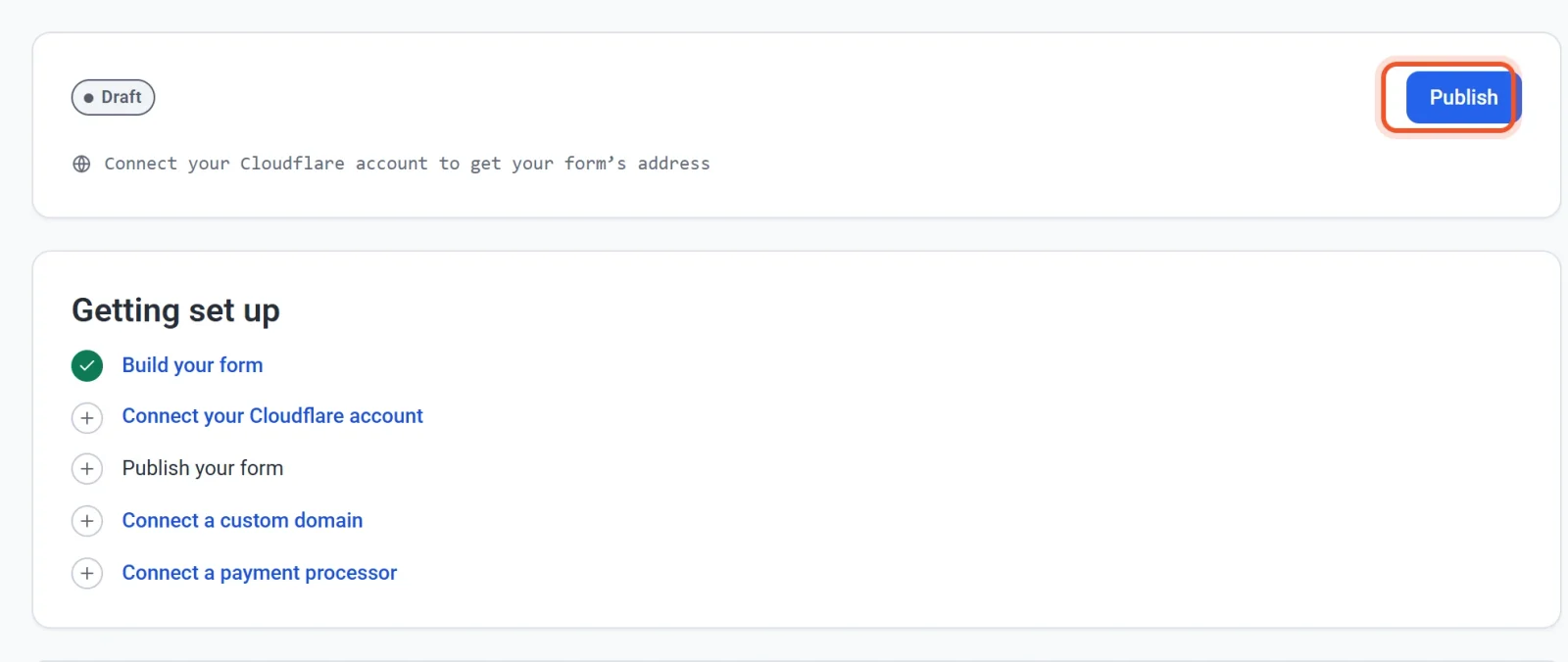
You can also click Publish on the form's Dashboard & Analytics screen, which shows a Draft label until you do. The Getting set up list below it ticks off each step as you finish it: build your form, connect Cloudflare, publish, connect a custom domain and connect a payment processor.
Your form's address
Every form gets a free address on Cloudflare's workers.dev domain, made from your form's handle. The address stays the same each time you publish. Once the form is live, the link button in the builder's bar and the Visit button on the dashboard open it.
To use your own domain, go to Settings > Domain in your form's dashboard. The domain must be on the same Cloudflare account. See Connect a custom domain.
Share your form
Once the form is published, the builder's Settings tab can help you share it:
- Share your form shows the address with a Copy link button, and a QR code you can save with Download QR code. Print it on a sign, a flyer or a table card.
- Pre-filled link opens your form with some answers already filled in. Click Get link, fill in the answers you want in the preview, click Get link again, then click Copy link.
Before the form is published, both cards say Publish your form to get its link.
Update your live form
The builder saves your changes as you work, but visitors only see them when you publish again. The bar says Saved, not published while changes are waiting and Saved and published when the live form matches the builder. Click Publish to update the live form. Every publish also saves a backup of your form, which you can restore from the Backups button.
Close the form or take it offline
- To keep the page up but stop taking responses, turn off Accepting responses on the Settings tab, or set Close on or Close after this many answers to close it by itself. Visitors see your closed message instead of the form.
- To take the whole form off the web, click Take offline on the Dashboard & Analytics screen and confirm. Your questions and responses are kept, and you can publish again at any time. See Publish, update and take your site offline.
If publishing does not finish
A box that says Publishing did not finish explains what went wrong. Click Close, then open Settings > Hosting and check that Cloudflare shows Connected. If it does not, or if the live form looks wrong, see Repair or reconnect hosting, then publish again.
Spam protection
Your form has a robot check from Cloudflare that Payly sets up in your Cloudflare account when you publish, the same way it does for contact forms. See How contact forms block spam.