
Monthly giving
Let donors give every month or every year, then see and manage each recurring gift on the Recurring screen.
Monthly giving lets a donor give the same amount every month, or every year, until they stop. PayPal or Stripe charges each payment from the donor straight to your account, and Payly never holds the money. Donors choose how often to give on your form, and you manage the recurring gifts from your dashboard.
Offer monthly or yearly gifts
- In your form's dashboard, click Edit form.
- On the Questions tab, click the amount question. It asks Choose an amount unless you gave it another title.
- Under How often donors can give, tick One-time, Monthly, Yearly or any mix.

- Click Publish to put the change on your live form.
Keep at least one way to give ticked. If you tick more than one, donors see a switch to choose between them, and the first one in the order One-time, Monthly, Yearly is selected when the form opens. If you tick only one, there is no switch. To take monthly gifts only, untick One-time. The Monthly supporter template is set up that way.
What donors see
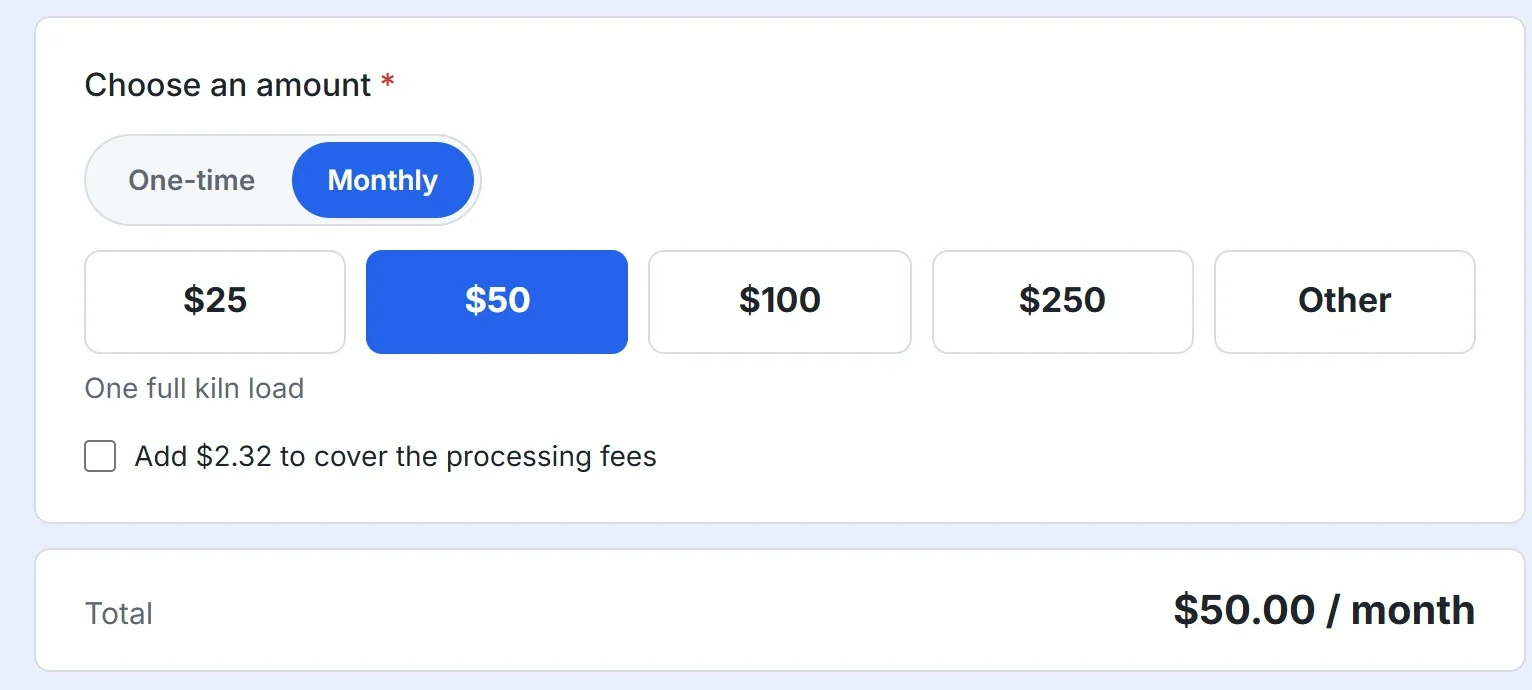
A donor picks One-time, Monthly or Yearly, then an amount. The Total line says how often the amount is charged, such as "$50.00 / month" or "$250.00 / year". The donor then enters an email address, if the form does not already ask for one, and pays with PayPal or a card.
What happens after a monthly gift
- The first payment is charged at once. After that, PayPal or Stripe charges the same amount every month, or every year, until the gift is cancelled. A donation form has no setting for a set number of payments.
- Every payment gets its own donation receipt by email, with the amount and how often it repeats, such as "$50.00 / month". See Set up a donation form for what a receipt says.
- Every payment is recorded under Payments, and adds to your goal bar.
- If the donor covers the processing fee, the fee is added to every payment. See Let donors cover the processing fee.
See your recurring gifts
The Recurring screen in your form's dashboard lists every monthly and yearly gift, with the donor, the amount, how often it is charged, its status and the date of its next payment. It appears in the menu only when your form offers monthly or yearly gifts. It is the same screen a store uses for subscriptions, so the tabs above the list and the search box work as described in View and manage subscriptions.
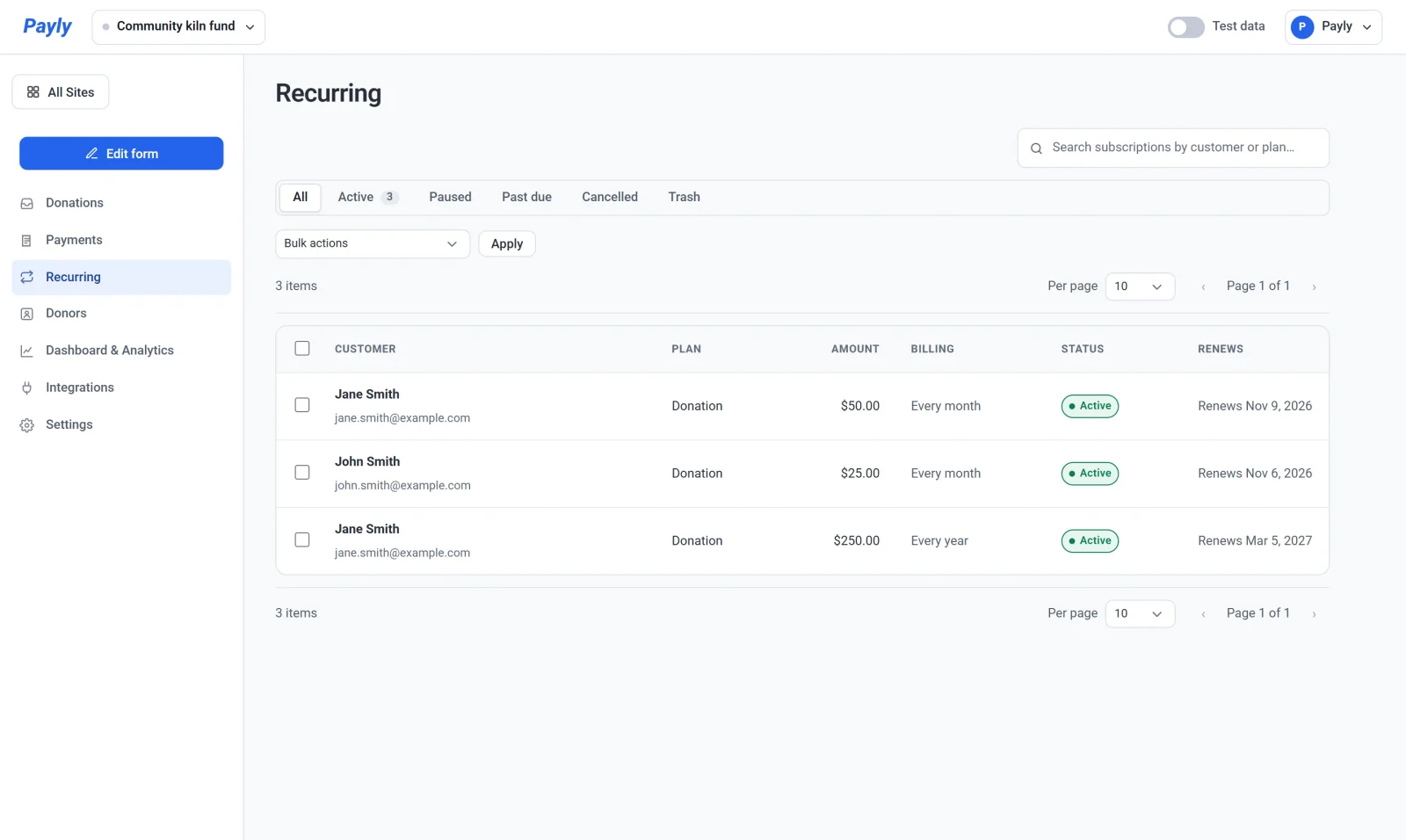
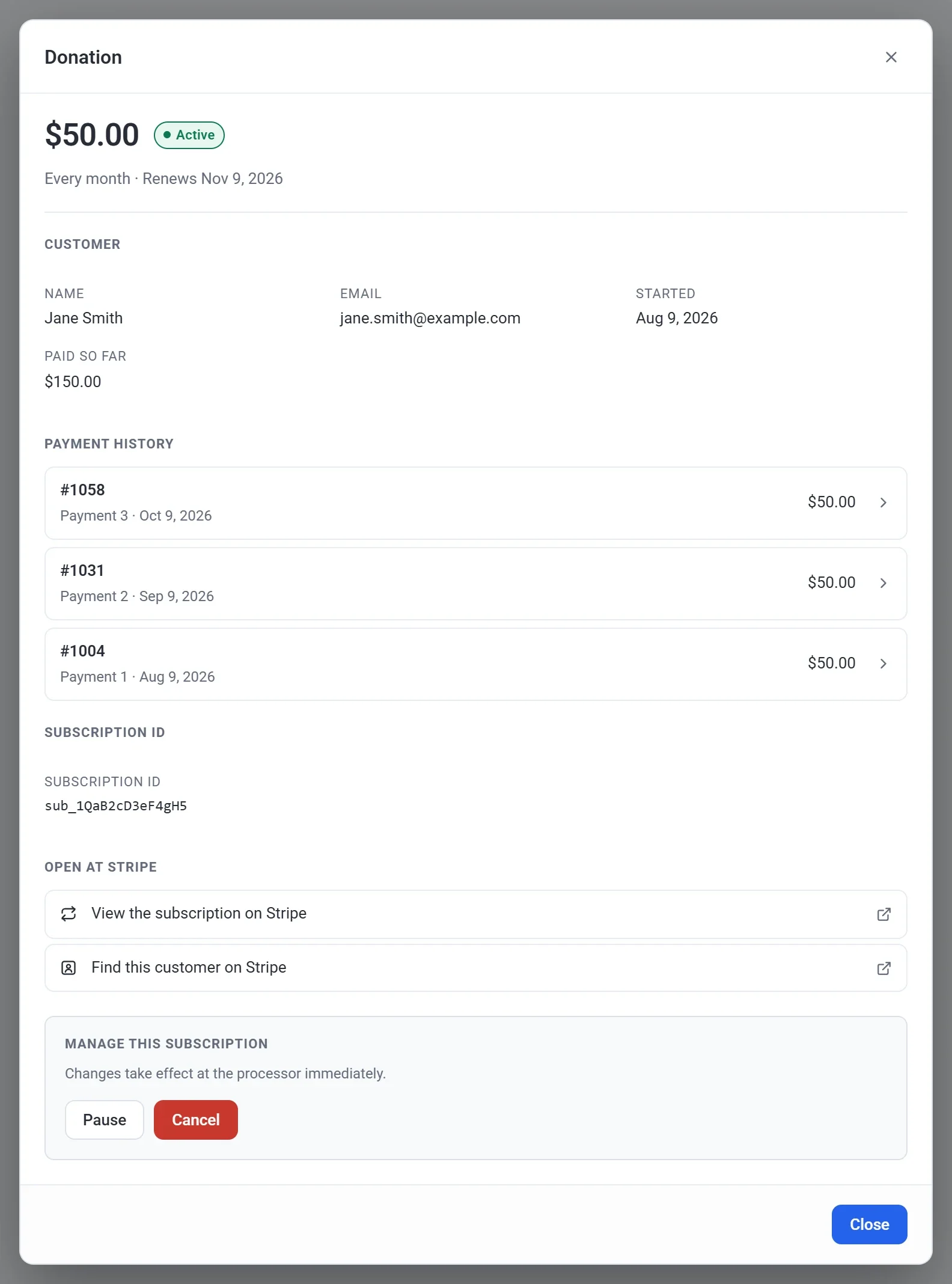
Click a gift to open it. The window shows the donor, the payment history, and links to the gift at Stripe or PayPal.
Pause or cancel a gift
- Click Recurring, then click the gift.
- Under Manage this subscription, click Cancel. To stop the billing for a while instead, click Pause, and click Resume later.
- Read the message, then click Cancel subscription. The gift stays active until the end of the period the donor has already paid for, and then stops. The donor is not refunded.
A donor who wants to stop can reply to a receipt email. The reply goes to the email address on your Payly account, and you can cancel the gift for them. You cannot change the amount of a gift that has started. To change it, cancel the gift and ask the donor to give again.
If a payment fails, the gift's status changes to Past due, and PayPal or Stripe tries the payment again on its own schedule. See Renewals and failed payments. To refund a payment, see Refund a payment.