
Refund a payment
Send money back to someone who paid on your form, in full, for chosen items or for an amount you choose, from the Payments screen, through Stripe or PayPal.
A refund sends money back to the person who paid on your form, through the Stripe or PayPal account they paid with. You can refund a whole payment, only some of what it paid for, or an amount you choose. Payly never holds the money, so the refund comes out of your own Stripe or PayPal balance. The steps are the same for a payment form, a donation form, event tickets and a tip jar.
Before you start
- The payment must be Paid, with some money left to refund. A pending, failed or fully refunded payment has no Refund button.
- Your Stripe or PayPal account must still be connected to the form. See Connect Stripe and Connect PayPal.
- Only the owner and admins of the site can issue refunds. See Invite your team and set roles.
- A response with no payment, such as a free RSVP, has nothing to refund.
Refund a payment
- In your form's dashboard, click Payments. Each payment has a row with the person's name, the total and how it was paid. The arrow at the end of a paid row opens the refund window straight away.
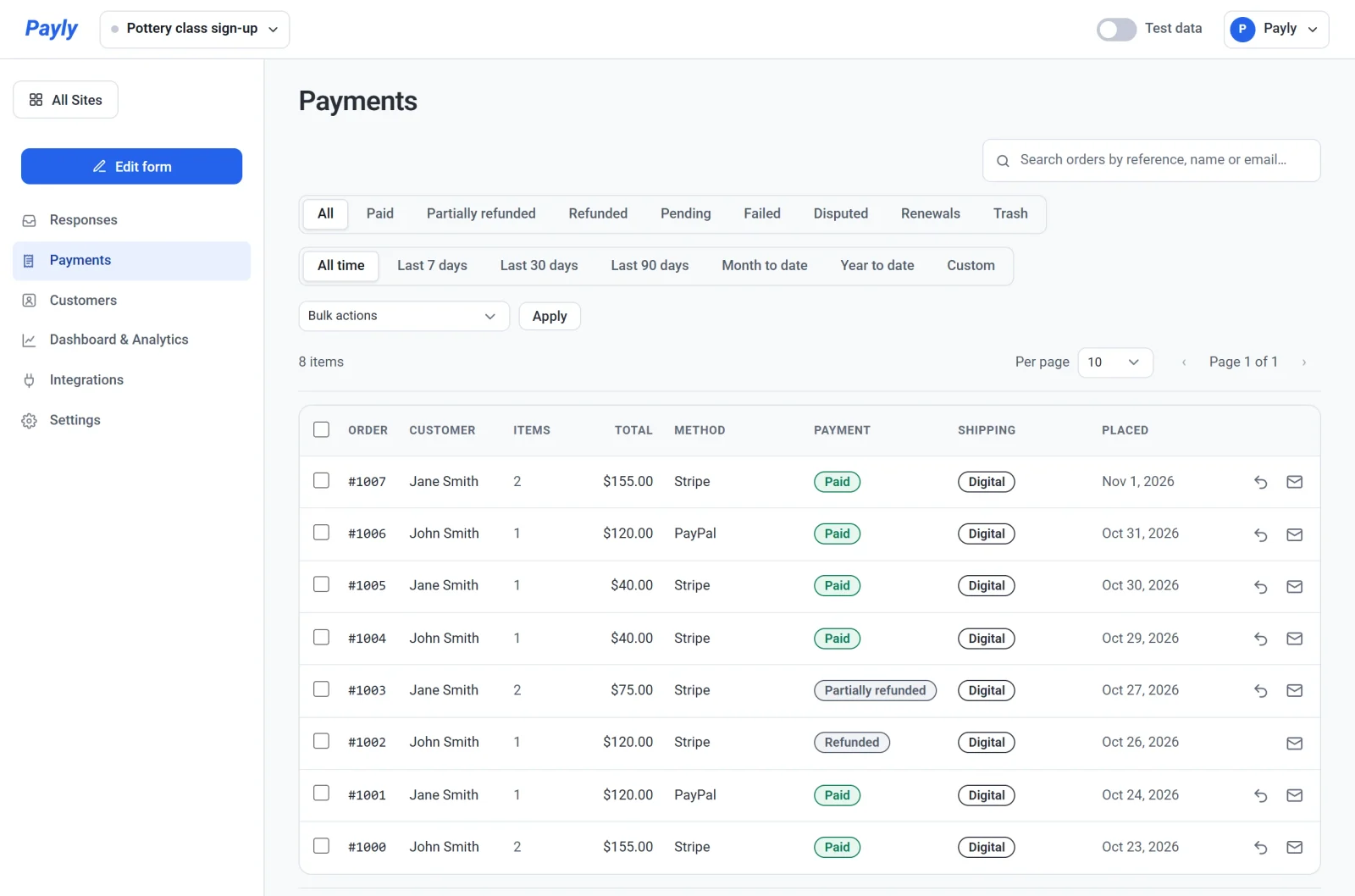
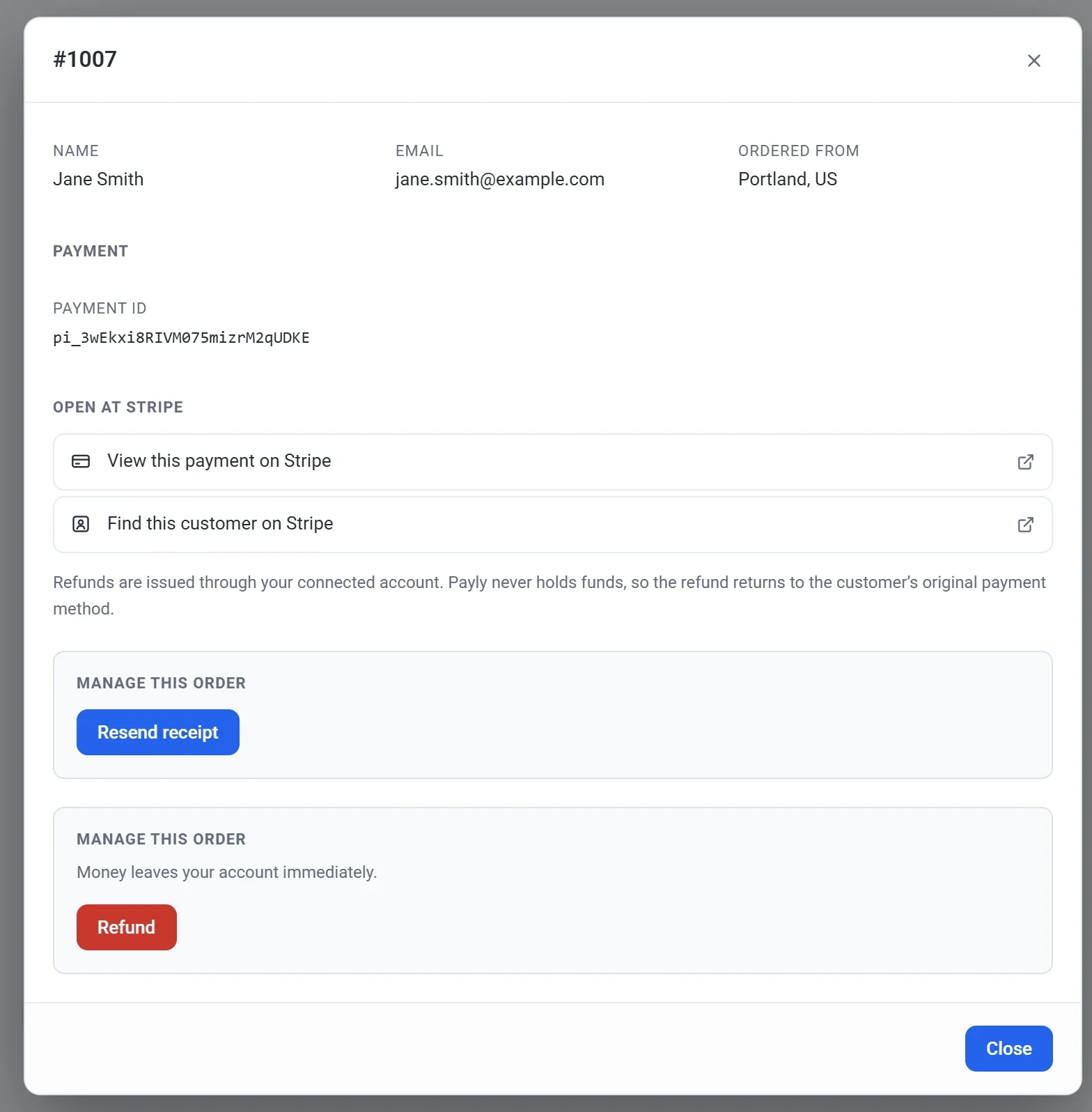
- Click the payment you want to refund. It opens in a pop-up with the payment's number, such as #1007. You can also reach it from a response: open the response in the Individual view and click View payment.
- Scroll down to the Manage this order box with the red Refund button, and click it.
- Choose what to refund:
- To refund the whole payment, leave everything as it is. Amount to refund already shows everything that is left.
- To refund certain items, tick them under Refund specific items. Each choice the payer made is listed with its price, such as a starter kit. If they bought more than one of an item, such as tickets, set how many to refund.
- To refund another amount, type it in Amount to refund. It cannot be more than the amount shown below the box.
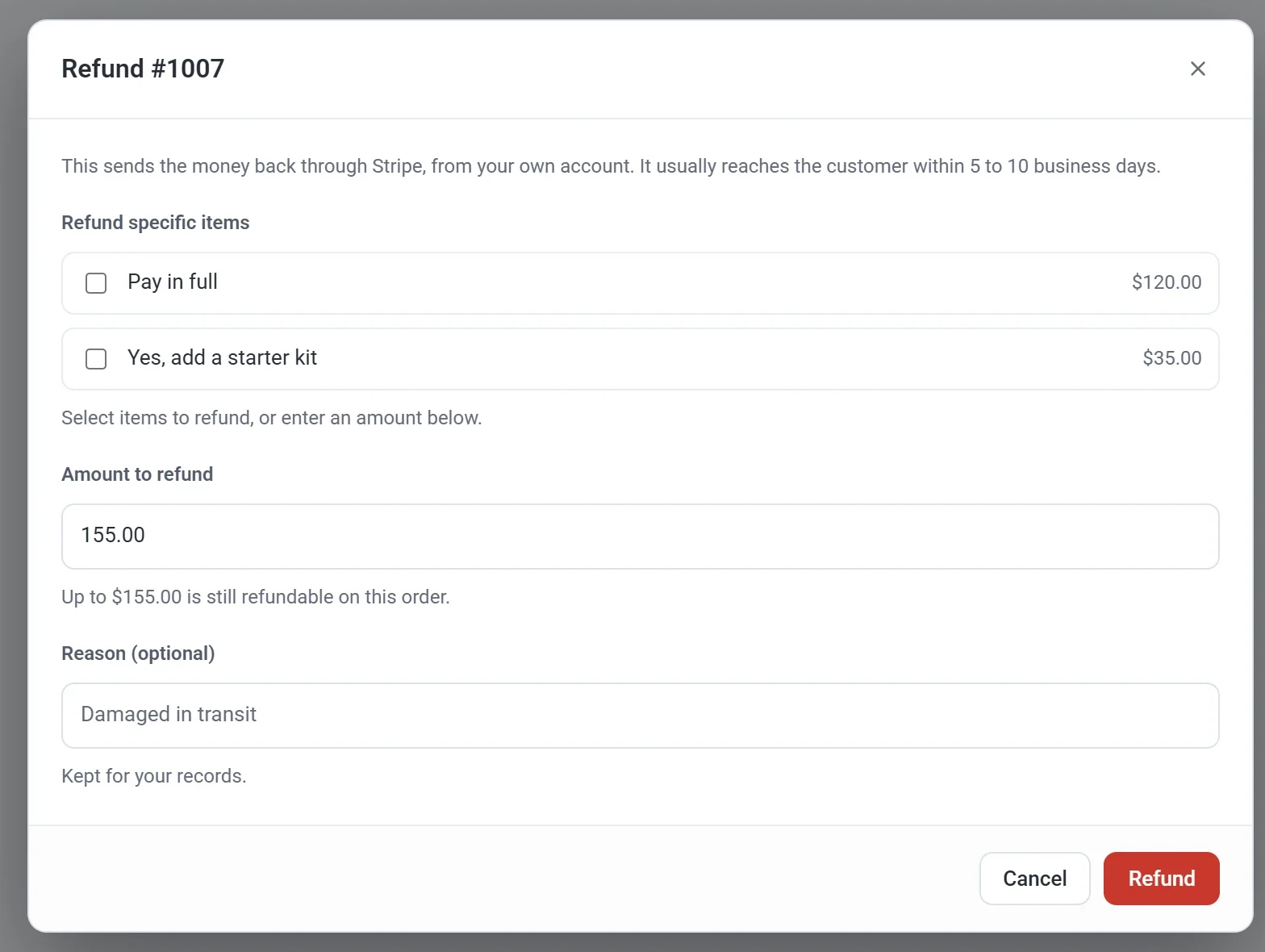
- If you like, enter a Reason. On a PayPal payment, the reason is passed on to PayPal.
- Click Refund. Payly asks Issue this refund? and shows the amount.
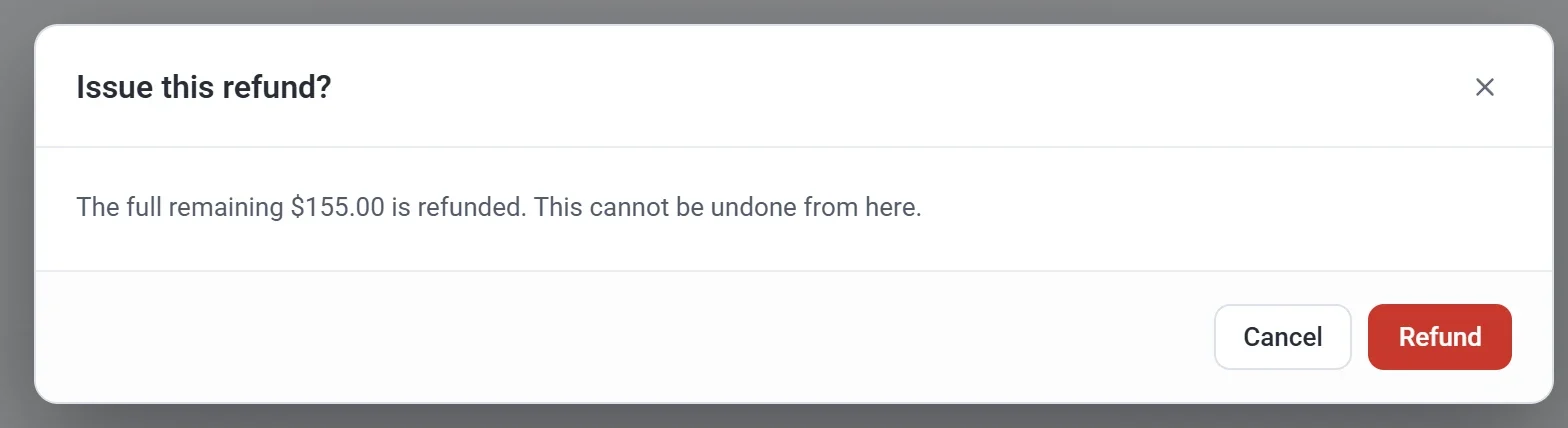
- Click Refund again to confirm. A message such as Refunded $155.00. The order is now marked refunded. tells you it went through.
Important: A refund cannot be undone from Payly. Check the amount carefully before you confirm.
What happens next
- Stripe or PayPal sends the money back to the payer's original payment method. The refund window says it usually reaches them within 5 to 10 business days.
- The payer gets an email that shows the amount refunded and, for a part refund, how much is left. That email is always on.
- The payment shows Refunded or Partially refunded on the Payments screen. The response stays where it was, with the same note in its Paid column.
- On event tickets, a full refund puts the tickets back on sale, and they no longer check in. A part refund leaves every ticket valid.
- On a donation form or tip jar, a full refund takes the gift off your goal total. A part refund counts the gift only for what is left of it.
Good to know
- You can refund a payment more than once, for example one item now and another later, until the whole amount has gone back. The window then shows Already refunded with the amount so far.
- Refunding does not stop a repeating payment. To stop future payments, use the Recurring screen. See View and manage subscriptions.
- Payments made in test mode appear only while the Test data switch at the top right is on. You refund them the same way. See Test data and live data.
- Deleting a response does not refund its payment. Refund the payment on the Payments screen instead.
- A refund you make in your Stripe or PayPal dashboard is recorded in Payly too.
- If a payer disputes a payment with their bank, you answer the dispute in your Stripe or PayPal dashboard. A dispute is not a refund. Payly shows the payment as Disputed.