
Set up a tip jar
Create a tip jar from a template, set your tip amounts, add your own words and photo, and publish a page where people can tip you.
A tip jar is a page where people thank you with a tip. They pick an amount, add their email address for a receipt, and pay with PayPal or a card. The money goes straight to your own PayPal or Stripe account. Payly takes no fee on tips; PayPal and Stripe charge their standard processing fees.
Before you start
You need a Payly account: see Create your Payly account. You do not need PayPal, Stripe or Cloudflare to build your tip jar. You connect them when you are ready to take tips.
Create your tip jar
- On the Your sites screen, click New.
- In the What do you want to create? window, click Tip jar.
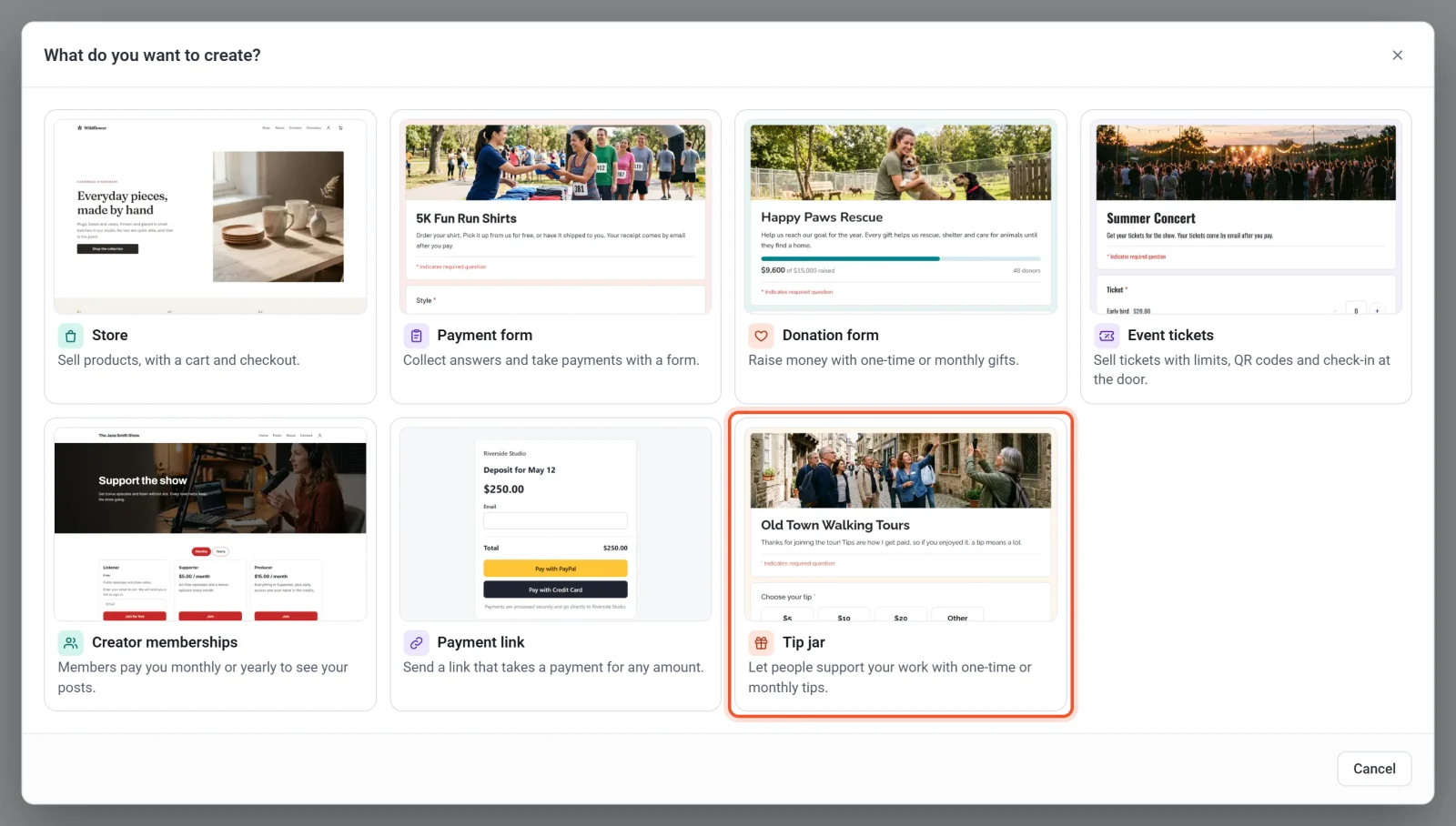
- Click the template closest to what you do, then click Continue. Every template is a finished tip jar that you can change. To begin with a plain one, click Start from scratch.
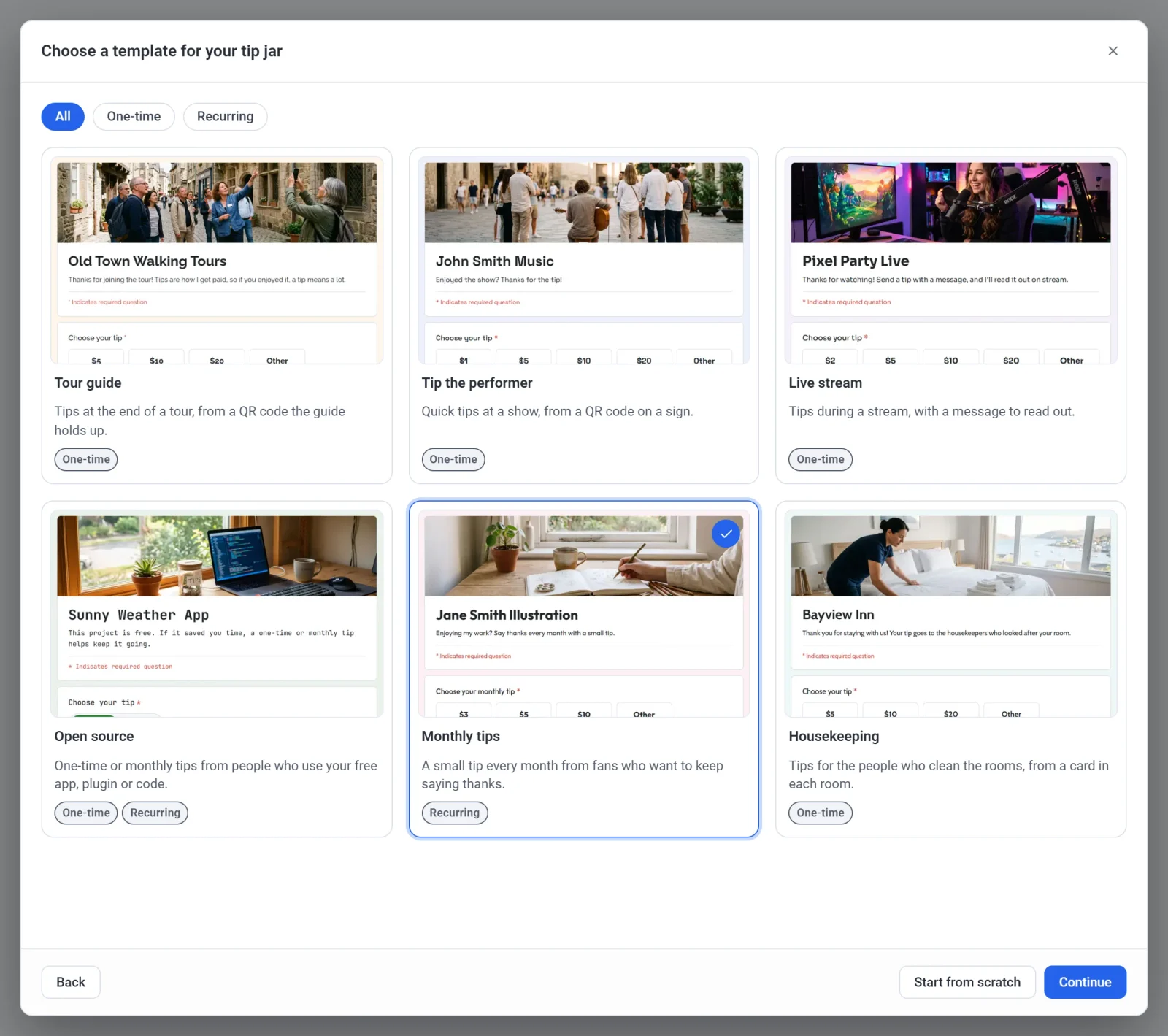
- Type a Tip jar name, or click Random name for a suggestion. Payly fills in the Tip jar handle from the name.
- Click Create. The tip jar builder opens.
The handle names your tip jar in your own Cloudflare account and becomes part of its free address. You can't change it once your tip jar is connected to Cloudflare, so check it now.
The six templates
| Template | What it is for | Tips |
|---|---|---|
| Tour guide | Tips at the end of a tour, from a QR code the guide holds up. | One-time |
| Tip the performer | Quick tips at a show, from a QR code on a sign. | One-time |
| Live stream | Tips during a stream, with a message to read out. | One-time |
| Open source | One-time or monthly tips from people who use your free app, plugin or code. | One-time or monthly |
| Monthly tips | A small tip every month from fans who want to keep saying thanks. | Monthly |
| Housekeeping | Tips for the people who clean the rooms, from a card in each room. | One-time |
Every template asks for a name (optional) and an email address (required, because the receipt goes there), and adds a question of its own, such as Request a song or Room number.
Make it yours
The builder opens on the Questions tab. It saves your work as you go, so there is no Save button, and nobody can see your tip jar until you publish it.
- Click the title and the line under it, and put your own words there.
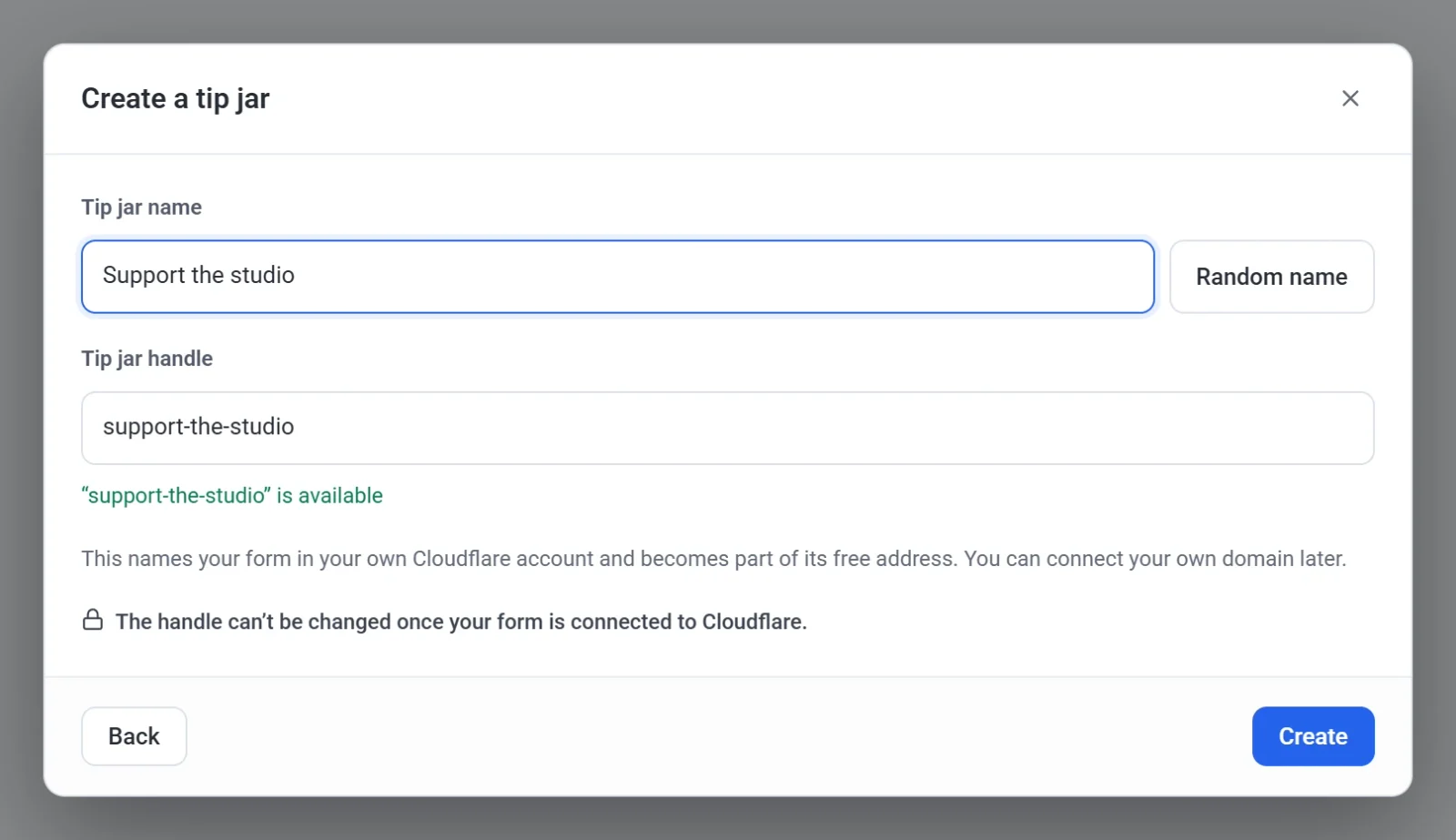
- Click the question that shows the tip amounts. Under Suggested amounts, change the amounts, click Add amount for another one (up to 8), or click the cross beside an amount to remove it.
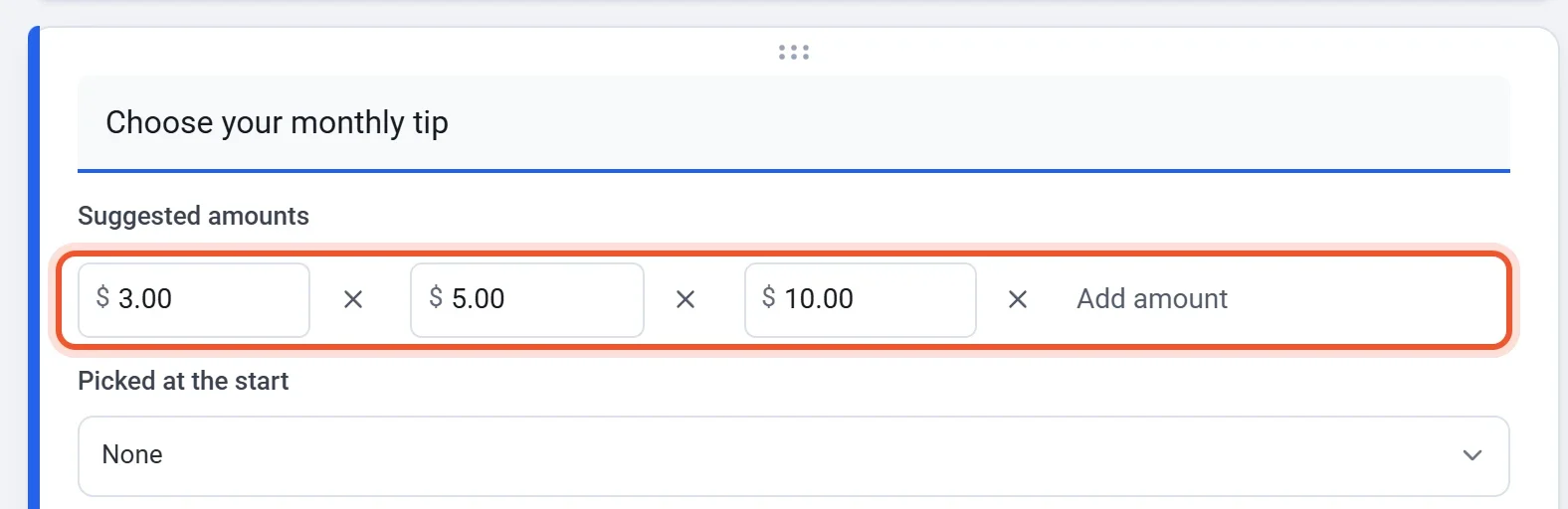
- Leave Let donors enter their own amount on to show an Other box. Minimum amount starts at $1.00.
- Click the Design tab to change the header photo, logo, theme color and font.
- Click Preview to see your tip jar the way a tipper does, on a desktop or a phone.
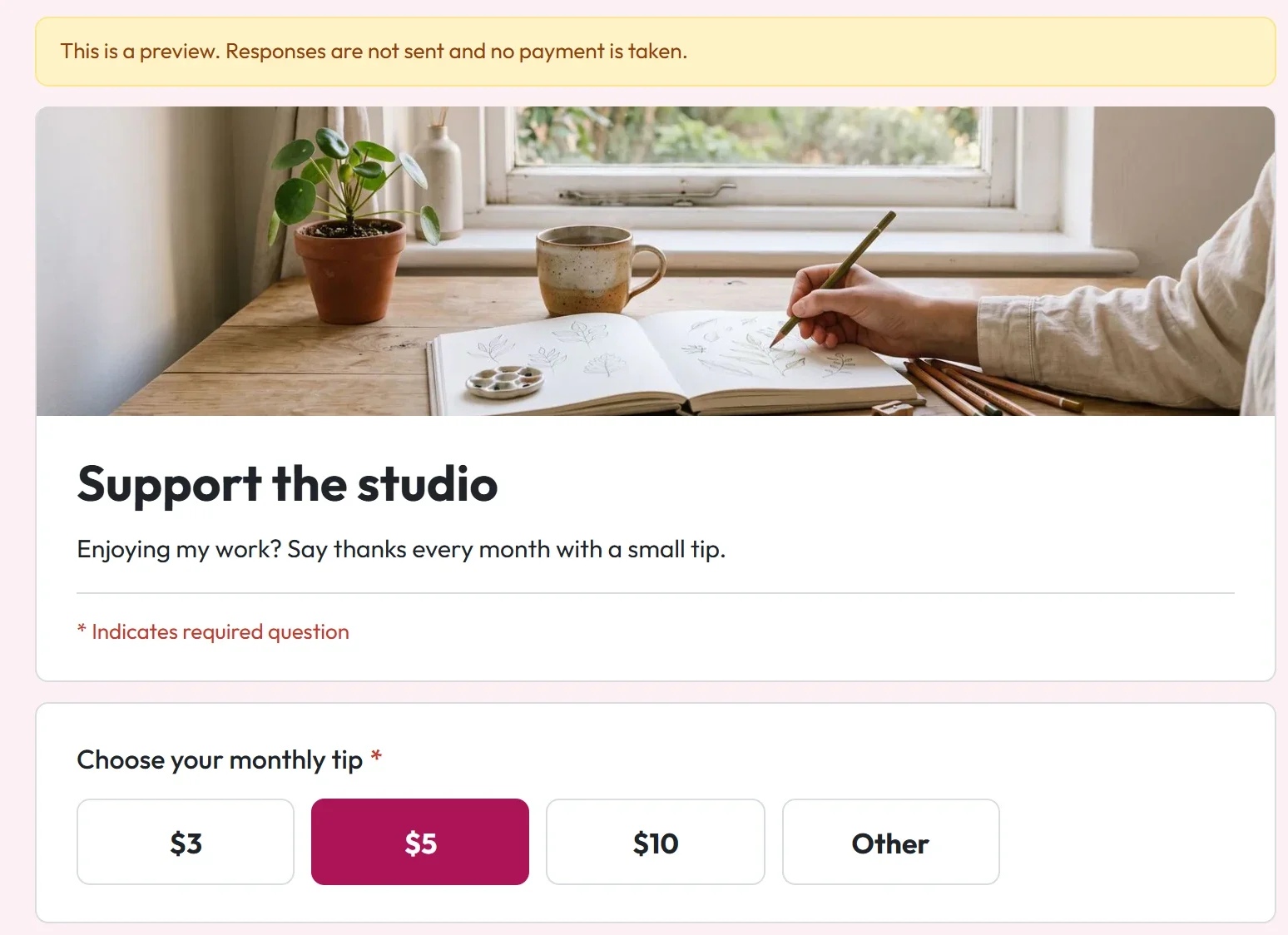
Tips are in US dollars unless you change Currency in Settings > General: see Set your store currency. To collect messages, see Read messages from supporters. To let people tip every month, see Monthly tips.
Important: Stripe allows a tip only for a good or service you have already provided, such as content. Word your tip jar as thanks for what you have done, like "Enjoying my work? Say thanks every month with a small tip.", not as a request for money. The templates are written that way. Read Stripe's rules for tips and donations before you share your link.
Connect payments and publish
- Click Dashboard at the top left of the builder.
- Click Settings, then click the Payments tab.
- Connect PayPal, Stripe or both. See Connect PayPal and Connect Stripe.
- Click Edit form to go back to the builder.
- Click Publish. The first time, Payly asks you to connect your free Cloudflare account, which hosts your tip jar. See Publish your form and share its address.
To practice first, turn on Test mode on the Payments tab and tip yourself with sandbox accounts. Turn it off before you share your link. See Take test payments with test mode.
What tippers see and what you get
Share your tip jar's link anywhere a link works, such as your bio, your stream or an email. To print a code instead, see Print your tip jar's QR code.
A tipper picks a tip, answers your questions and clicks Pay with PayPal or Pay with Credit Card, whichever you have connected. They pay on PayPal's or Stripe's own page, then see a "Thank you for your tip" page with your Confirmation message, if you wrote one under Presentation on the builder's Settings tab. They also get a receipt by email and do not need an account.
Each tip appears in your dashboard under Donations and Payments: a tip jar is built like a donation form, so its screens use the words Donations and Donors. A tip gets an ordinary receipt, not a donation receipt, so the Tax ID and Receipt note boxes on the Settings tab do not apply to it.