
Print your tip jar's QR code
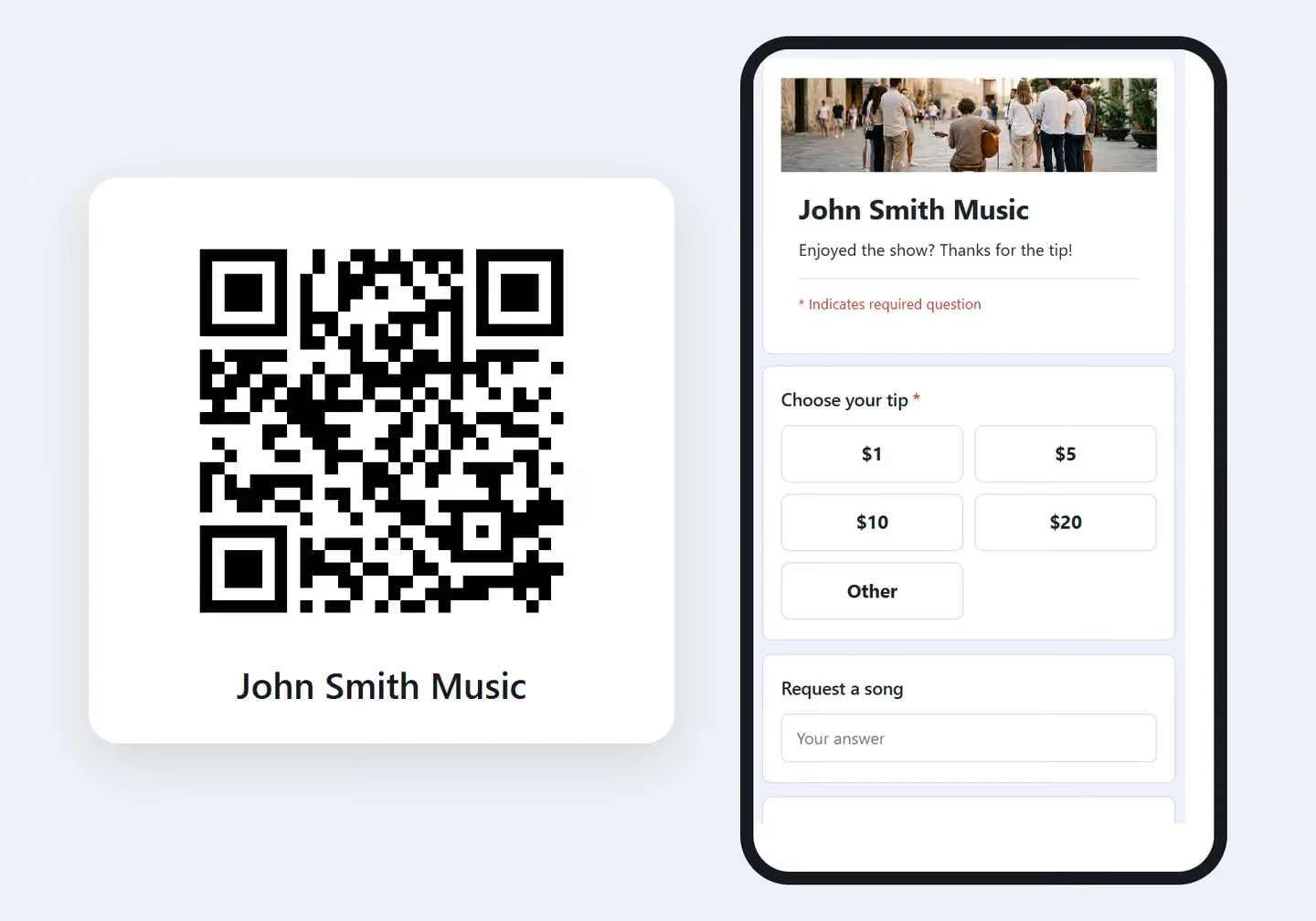
Download your tip jar's QR code and print it for a sign, a table card or a flyer, so people can scan it with a phone and tip you.
A QR code is a square picture that a phone camera reads like a link. Yours opens your tip jar, so people can scan it at a show, at the end of a tour or from a card in a hotel room, and tip from their phone without typing an address.
Before you start
Publish your tip jar first. The QR code is made from your tip jar's address, so it appears only once the tip jar is live. Until then, the Share your form card says Publish your form to get its link. See Publish your form and share its address.
Download the code
- In your tip jar's dashboard, click Edit form to open the builder.
- Click the Settings tab and scroll to the Share your form card. It shows your tip jar's link with a Copy link button, and the QR code.
- Click Download QR code. Your browser saves a picture named
qr-code.png.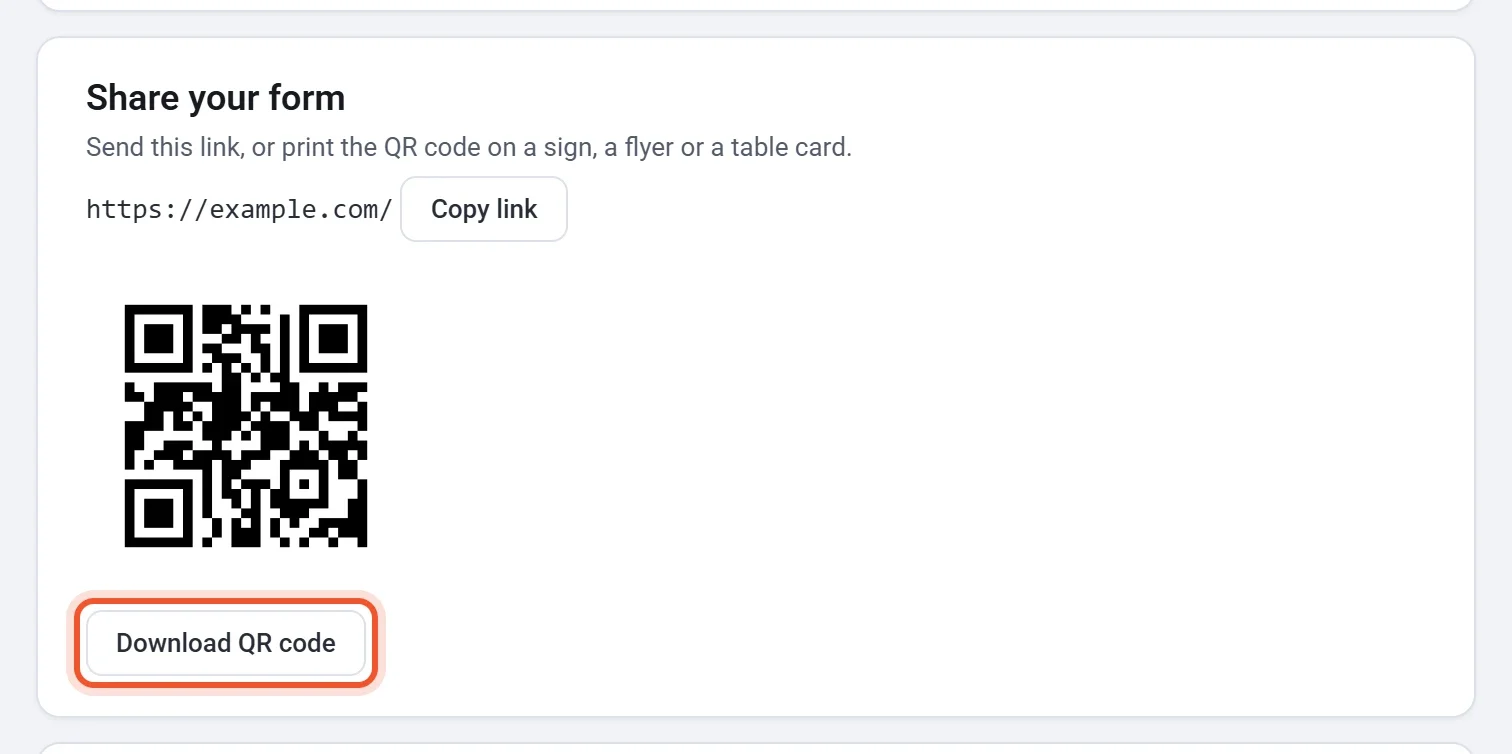
The picture is black on white, a square a few hundred pixels across, with a white border around the code. Keep the border when you print: phone cameras need it.
Print it
- Put the code where people already are when they want to say thanks: on a sign at a show, at the end of a tour, by the till, or on a card in each room. Three of the templates are made for this: Tour guide, Tip the performer and Housekeeping.
- Print it large enough to scan from where people will stand. Because the picture is a few hundred pixels across, a card or a small sign looks sharpest, and a much bigger print can look soft.
- Add a short line beside it that thanks people for something you have already done, such as "Enjoyed the class? Scan to leave a tip." Stripe allows a tip only for something you have provided.
Test your printed code
Before you print a batch, scan one copy with a phone camera. It should open your tip jar, ready for a tip.
If your address changes
The code opens the same address as the link, and it works only while your tip jar is published. If you later connect a custom domain, download the code again: the new code opens your domain. Your original address keeps working, so codes you already printed still open your tip jar. A browser may keep showing the old code for up to an hour. See Connect a custom domain.